
OnSiteTech | Laptop Troubleshooting
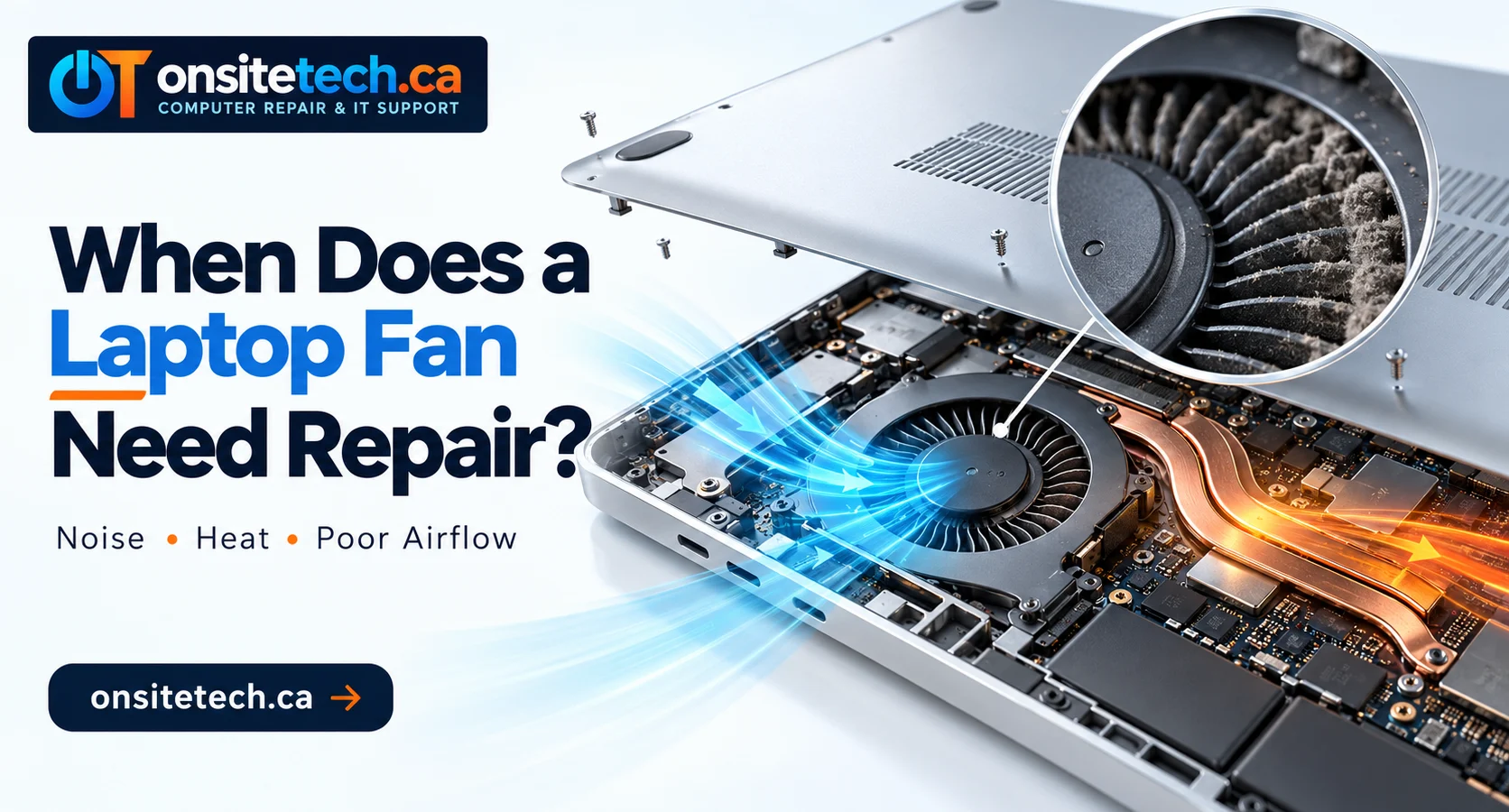
When Does a Laptop Fan Need Repair?
Quick AnswerA laptop fan may need repair or replacement when it repeatedly makes grinding or rattling noises, does not operate when cooling is needed, or is associated with persistent overheating and unexpected shutdowns.
A fan that gets louder during gaming or other demanding tasks is not necessarily faulty. The important distinction is whether the noise is unusual, the cooling performance has changed, or the symptoms continue during ordinary use.
Before replacing anything, check ventilation and background activity. If the laptop remains unusually hot, the fan makes mechanical noises, or the computer keeps shutting down, professional diagnosis can help identify whether the fan or another cooling component is responsible.
7 Signs Your Laptop Fan May Need Repair
These symptoms can indicate a cooling problem, but none of them alone proves that the fan is defective. Look at the full pattern, including temperature, workload and whether the problem keeps returning.
Warning Sign 01
Your Laptop Fan Makes a Grinding or Rattling Noise
Grinding, rattling or repeated clicking that was not present before may indicate an obstruction, a worn fan bearing or a loose component.
Notice whether the noise comes from the fan area and changes as the fan speeds up. Do not insert tools into the vents or try to stop the fan by hand.
If the noise persists or gets worse, arrange an inspection rather than assuming that external cleaning will solve it.
Warning Sign 02
The Laptop Fan Does Not Spin When Cooling Is Needed
Some laptops stop their fans during light use to reduce noise and power consumption. A stationary fan while the laptop is cool is not automatically a fault.
However, if the computer becomes unusually hot, loses performance or shuts down while the fan does not appear to operate, the cooling system needs investigation. Possible causes include the fan, its connection, fan-control behaviour or another hardware issue.
Warning Sign 03
The Fan Runs Loudly Even During Light Use
A fan may become louder during updates, gaming or other demanding tasks. If it remains unusually loud after those tasks finish, check whether background applications are still using substantial CPU resources.
Persistent noise can also be associated with restricted airflow, dust buildup, cooling problems or fan-control issues. The sound alone cannot identify which cause is responsible.
Warning Sign 04
Your Laptop Overheats or Shuts Down Unexpectedly
A fan that cannot cool the system effectively may contribute to overheating. However, blocked vents, heatsink problems, high processor usage and power or hardware faults can cause similar symptoms.
If the laptop repeatedly shuts down when hot, stop demanding tasks and investigate the problem instead of repeatedly restarting it to test the fan.
Related reading: Laptop Overheating and Shutting Down: Causes and Fixes.
Warning Sign 05
Your Laptop Slows Down as It Gets Hot
Some processors reduce performance when they approach their thermal limits. If the laptop becomes slower during demanding work while temperatures rise, cooling is one possible factor.
Software issues, storage problems and limited memory can also affect performance. Check the wider symptoms before concluding that the fan is responsible.
Warning Sign 06
Airflow Seems Weaker Than Usual
If airflow seems unusually weak while the laptop is warm and the fan should be operating, the vents may be blocked or the cooling system may not be working as expected.
Vent locations and cooling designs vary by model. Check the manufacturer’s guidance and avoid putting objects into the vents to test the fan.
Warning Sign 07
The Fan Problem Keeps Returning
If overheating, unusual fan noise or shutdowns continue after basic checks, there may be an underlying issue that simple troubleshooting cannot resolve.
A technician can inspect the fan, its connection and the wider cooling assembly to determine whether cleaning, repair, replacement or another solution is appropriate.
Normal Laptop Fan Noise vs. a Fault
Laptop fans change speed as temperature and workload change. A brief increase in fan noise can be normal. New mechanical noises or recurring overheating deserve more attention.
| What You Notice | Possible Explanation | Recommended Next Step |
|---|---|---|
| Fan gets louder during gaming | Higher CPU or GPU workload | Check whether the fan settles after the workload ends. |
| Fan remains loud during light use | Background tasks, airflow restriction or cooling issue | Check Task Manager and ventilation. |
| Grinding or rattling | Possible obstruction or mechanical wear | Arrange an inspection if it persists. |
| Fan is stationary while laptop is cool | Normal fan-stop behaviour on some models | Check model-specific guidance and observe under normal use. |
| High temperature with shutdowns | Possible cooling or other hardware problem | Stop demanding tasks and seek diagnosis if it recurs. |
Important distinctionA loud fan is not always a broken fan, and a spinning fan does not guarantee that the cooling system is working properly. Diagnosis should consider the noise, temperatures, airflow and other symptoms together.
How to Check a Laptop Fan Safely
These checks can help you understand the symptoms without opening the laptop or removing internal components.
Check 01
Look for High CPU Usage
- Save your work and press Ctrl + Shift + Esc to open Task Manager.
- Select the Processes tab.
- Check whether an application is using unusually high CPU resources.
- Close applications you recognise and no longer need.
- Wait a few minutes and see whether the fan noise settles.
Updates and other legitimate background tasks may temporarily increase CPU usage. Do not end unfamiliar system processes just because they use resources.
Check 02
Inspect External Ventilation
- Place the laptop on a firm, flat surface.
- Make sure fabric or other objects are not covering its vents.
- Look for visible dust around the external openings.
- Observe whether temperatures and fan noise improve during ordinary use.
Avoid inserting tools into the vents or using methods that could force debris further inside. Internal cleaning may require model-specific procedures.
Check 03
Observe Temperature and Fan Behaviour
If you already use a trusted hardware-monitoring tool, check the available CPU temperature sensors during light use and normal workloads. Compare readings with the specifications for your exact processor.
Temperature readings cannot directly confirm fan failure. Consider them alongside noise, airflow and performance symptoms.
Stop if the Laptop Appears UnsafeIf the laptop repeatedly shuts down, becomes severely overheated, produces a burning smell or makes severe mechanical noises, stop demanding use and seek appropriate assistance. Do not keep repeating a shutdown just to gather more readings.
What Causes Laptop Fan Problems?
Several issues can cause a laptop fan to become noisy or fail to cool the system effectively.
Dust and Restricted Airflow
Dust can collect around vents, fan blades and heatsinks, reducing airflow. External cleaning may help with accessible dust, but internal buildup may require careful service.
Mechanical Wear or Damage
Moving parts can wear over time. Grinding or rattling may indicate a mechanical issue, although an obstruction or loose component can produce similar sounds.
High CPU or GPU Workload
Games, video editing, updates and other demanding applications can increase heat output. The fan may be responding normally to increased cooling demand rather than failing.
Cooling Assembly Problems
The fan is only one part of the cooling system. A heatsink issue or another problem with heat transfer can cause high temperatures even when the fan spins.
Control or Connection Problems
Fan-control behaviour, sensor readings, firmware or electrical connections may affect operation. These possibilities need to be assessed for the specific laptop model.
Laptop Fan Repair vs. Replacement
The right solution depends on the diagnosis. A fan that sounds loud does not automatically need replacing, and replacing a fan will not fix every cooling problem.
| Finding | Possible Solution |
|---|---|
| External vent is blocked | Remove the obstruction safely and improve ventilation. |
| Background application is driving fan speed | Identify and address the unnecessary workload. |
| Dust is restricting the cooling system | Arrange appropriate cleaning if needed. |
| Fan has persistent mechanical noise or damage | Inspection may determine that replacement is appropriate. |
| Fan does not operate when cooling is required | Check the fan, connection, controls and related hardware. |
| Temperatures stay high despite fan operation | Inspect the wider cooling system and other possible causes. |
For many laptops, a mechanically damaged fan is replaced rather than repaired internally. Part availability, disassembly and labour vary by model.
Explore our Laptop Repair service for support with laptop hardware and cooling problems.
What Affects Laptop Fan Repair Cost?
The cost of laptop fan repair or replacement depends on the laptop and the work required. A quote based on the actual device is more useful than a generic price that may not apply.
- Make and model: Fan design, part availability and internal layout vary.
- Replacement part: Some fans are easier to source than others.
- Labour: The work needed to access the fan can affect repair time.
- Other cooling issues: A damaged connection or heatsink problem may require additional work.
- Diagnosis: Testing may be needed to distinguish a fan fault from another cooling problem.
Before approving a repair, ask what has been diagnosed, whether the quote includes parts and labour, and whether additional work requires your approval.
See our repair pricing information and confirm the scope of service for your device.
Laptop Fan Problem Checklist
Use this checklist to organise your observations before requesting service. It does not diagnose the laptop automatically.
If the laptop overheats severely or repeatedly shuts down, stop demanding use and seek appropriate assistance.
When Should You Get Professional Laptop Fan Repair?
Consider professional diagnosis if the fan repeatedly makes unusual mechanical noises, fails to operate when cooling is required, or appears to be associated with persistent overheating.
- The laptop repeatedly shuts down during ordinary use.
- The fan makes persistent grinding or rattling sounds.
- Airflow seems abnormal and the computer gets unusually hot.
- Basic checks do not resolve the symptoms.
- You cannot tell whether the fan, heatsink or another component is responsible.
RELATED SERVICE
Laptop Repair
Explore support for laptop hardware issues, cooling symptoms and unexpected performance problems.
RELATED GUIDE
Laptop Overheating and Shutting Down
Understand common causes of excessive heat, shutdowns and performance problems.
PRICING
Repair Pricing
Review pricing information and confirm what is included in a proposed repair.
ALL SERVICES
OnSiteTech Services
Explore available computer and technology support services.
Calgary & Surrounding Communities
Laptop Repair in Calgary and Nearby Areas
OnSiteTech serves Calgary and selected surrounding communities. Confirm appointment availability, service arrangements and any travel costs for your location before booking.
These locations reflect the proposed service-area list. Confirm individual service availability before publishing this list as a guarantee.
Frequently Asked Questions About Laptop Fan Repair
How do I know if my laptop fan is broken?
Persistent grinding or rattling, a fan that does not operate when cooling is required, and overheating accompanied by abnormal fan behaviour are warning signs. A diagnosis is needed because other cooling or hardware problems can look similar.
Is it normal for a laptop fan to be loud?
It can be normal for a fan to become louder during gaming, updates or demanding tasks. Noise that remains unusually loud during light use, or comes with grinding or overheating, deserves investigation.
Why is my laptop fan running constantly?
High processor usage, background tasks, restricted airflow or cooling-system problems can keep a fan running. Check Task Manager and ventilation first, then investigate if the behaviour persists.
Can I use my laptop if the fan is making noise?
A brief increase in fan noise may be normal. If the fan makes severe grinding sounds, the laptop overheats or it shuts down unexpectedly, stop demanding tasks and arrange an inspection if the problem continues.
Should I repair or replace my laptop fan?
It depends on the cause. An airflow obstruction may not require replacement, while a mechanically damaged fan may need a new part. A diagnosis helps identify the appropriate solution.
How much does laptop fan repair cost?
Costs depend on the laptop model, part availability, labour and whether other cooling components need attention. Request a quote based on your device and the diagnosed issue.
Can dust make a laptop fan noisy?
Dust can restrict airflow and reduce cooling effectiveness. Persistent grinding or rattling can have other causes, so cleaning should not be assumed to solve every fan problem.
Why is my laptop overheating if the fan is spinning?
The vents may be blocked, the fan may not be moving enough air, or another part of the cooling system may not be working properly. High workload and other hardware issues can also contribute.
Can I clean my laptop fan without opening the laptop?
You can keep external vents clear and place the laptop on a hard, flat surface. Internal fan cleaning depends on the model and may require disassembly. Avoid inserting objects into the vents.
Can a faulty laptop fan cause unexpected shutdowns?
It can contribute to overheating and shutdowns, but power faults and other hardware or software problems can cause similar symptoms. Repeated shutdowns warrant investigation.
Related Reading
Continue troubleshooting with these related OnSiteTech resources:
- Laptop Overheating and Shutting Down: Causes and Fixes
- OnSiteTech Laptop Repair
- OnSiteTech Repair Pricing
Fan behaviour and repair procedures vary by laptop model. Use the manufacturer’s documentation when model-specific guidance is required.
OnSiteTech | Calgary & Area
Is Your Laptop Fan Making Unusual Noise?
If your laptop fan is grinding, running constantly or struggling to cool the computer, start with safe checks and get help if the symptoms persist.
- Investigate unusual fan noise and overheating.
- Determine whether the fan or another cooling component needs attention.
- Confirm service availability and repair scope before proceeding.
Repair recommendations depend on diagnosis. No specific repair outcome is guaranteed before the device is inspected.
Educational information only. Laptop fan behaviour differs by model. Do not open or modify internal components unless you have the appropriate skills and equipment.