
OnSiteTech | Laptop Troubleshooting
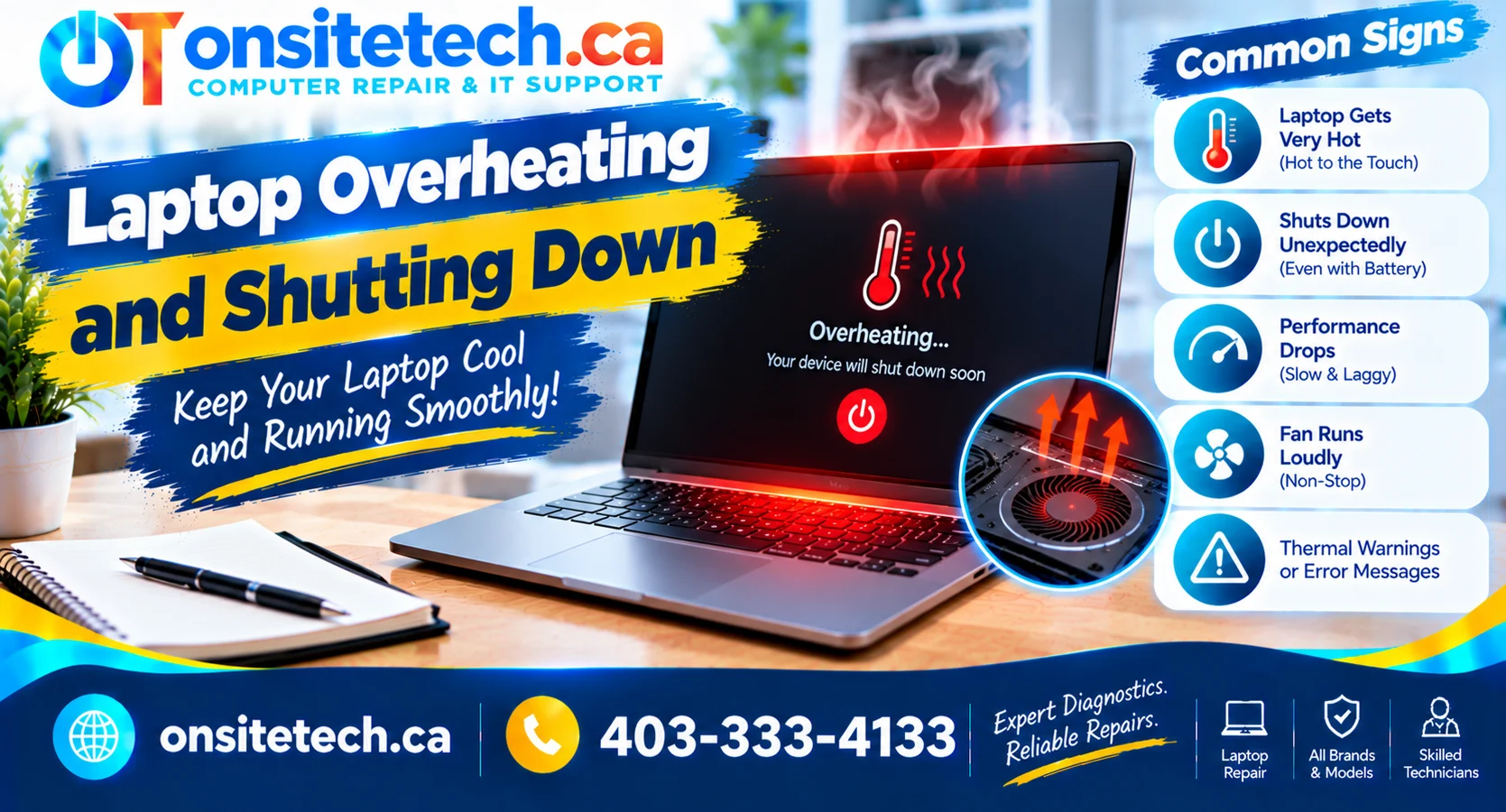
Laptop overheating and shutting down? If your laptop gets unusually hot before switching off, its cooling system may be struggling. Dust, blocked vents, a faulty fan, or another hardware problem could be responsible.
This guide explains what you can check safely, when to stop troubleshooting, and when professional laptop repair may be the right next step.
Quick Answer: Why Is Your Laptop Shutting Down?
A laptop may shut down when internal temperatures become too high. However, power faults and other hardware problems can cause similar symptoms.
Start with these safe checks:
- Turn the laptop off and let it cool naturally.
- Place it on a hard, flat surface.
- Make sure the ventilation openings are unobstructed.
- When safe to use, check for applications using excessive system resources.
- If shutdowns continue, arrange a professional diagnosis.
1. Laptop Overheating and Shutting Down: Common Causes
Dust and Restricted Airflow
Dust can collect around the cooling fan and heatsink, restricting airflow. Using a laptop on a bed, blanket, or cushion can also block its ventilation openings.
A Faulty Cooling Fan
A damaged or obstructed fan may not move enough air to cool internal components. Unusual grinding noises, abnormal fan behaviour, and repeated shutdowns are reasons to arrange an inspection.
Heavy CPU or GPU Usage
Games, video editing, rendering, and demanding applications generate heat. Background applications can also use excessive processing power.
When the laptop is cool and stable, press Ctrl + Shift + Esc to open Windows Task Manager. Check for applications using unusually high CPU resources and close only those you recognise and do not need.
Cooling-System Problems
A problem with the heatsink, thermal interface, or another cooling component can reduce heat transfer. Internal inspection and repairs may require specialist tools.
Software, Power, or Hardware Faults
Driver issues, power delivery problems, and failing components can produce symptoms similar to overheating. The shutdown alone does not confirm the cause.
2. How to Fix a Laptop That Overheats and Shuts Down
Step 1: Let the Laptop Cool
Shut it down if safe and allow it to cool naturally in a ventilated area. Do not use ice, liquids, or a freezer to cool it quickly.
Step 2: Check the Vents
Place the laptop on a hard, flat surface. Make sure fabric and other objects are not blocking its ventilation openings. Do not insert objects into the vents.
Step 3: Reduce Unnecessary Workloads
When the device is cool and stable, check Task Manager for applications using excessive resources. If the laptop becomes hot or shuts down again, stop testing it.
Step 4: Check for Updates
If the laptop is stable, check Windows Update and the manufacturer’s official support website for applicable drivers. Avoid BIOS updates while the device is unstable.
Step 5: Look for a Pattern
Note whether shutdowns happen while gaming, charging, starting Windows, or performing light tasks. This information can help a technician narrow down the possible cause.
Step 6: Arrange an Inspection if Needed
If the problem continues despite basic checks, the cooling system or another internal component may require attention.
3. Why Does a Laptop Overheat While Gaming?
Gaming places a heavy workload on the processor and graphics hardware. Some heat is normal, but repeated shutdowns should not be ignored.
- Use the laptop on a hard, flat surface.
- Keep the ventilation openings clear.
- Close unnecessary applications.
- Use the manufacturer’s recommended performance settings.
- Check whether the issue occurs in multiple games or only one.
A cooling pad may help some laptops, but it will not repair a failed fan or an obstructed internal cooling system.
4. Is 80°C or 90°C Too Hot for a Laptop?
There is no single temperature limit for every laptop. Acceptable temperatures depend on the processor, laptop design, workload, and manufacturer’s specifications.
| What You Notice | What It May Mean |
|---|---|
| High temperatures during gaming | May be expected under a heavy workload on some systems. |
| High temperatures during light use | Background activity or a cooling problem may need investigation. |
| Repeated shutdowns with high temperatures | Further diagnosis is recommended. |
| Extreme heat or battery swelling | Stop using the device and follow appropriate safety precautions. |
A reading of 80°C or 90°C alone does not prove that a component is damaged. Compare temperatures with the manufacturer’s guidance and consider the other symptoms.
5. What If the Laptop Overheated and Will Not Turn On?
A laptop that will not turn on after overheating may have a power issue, a hardware fault, or another problem that requires diagnosis.
- Do not repeatedly press the power button or reconnect the charger if the device is extremely hot or shows signs of damage.
- If it is merely warm and otherwise safe, allow it to cool naturally.
- If it remains unresponsive, arrange a professional assessment.
If your laptop turns on but the screen remains black, see our related guide, Laptop Repair, for available repair options.
6. When Should You Get Professional Laptop Repair?
Consider professional help if your laptop repeatedly shuts down, the fan makes unusual noises, the device becomes hot during light use, or safe basic checks do not resolve the problem.
The appropriate repair depends on the diagnosis. It may involve cleaning the cooling system, servicing a fan, addressing a heat-transfer issue, or investigating a power or hardware fault.
OnSiteTech | Laptop Repair
Still Dealing With Laptop Overheating?
OnSiteTech can help you review the available repair options and determine the next step for your laptop.
Laptop Repair in Calgary and Surrounding Communities
OnSiteTech provides computer and laptop support in Calgary and selected surrounding communities. Choose your city to review local service information and confirm availability.
Airdrie
Chestermere
Cochrane
Okotoks
Crossfield
Strathmore
High River
Diamond Valley
Canmore
Banff
Service availability and applicable travel costs depend on location. Confirm the details before arranging a visit.
Frequently Asked Questions
Why does my laptop keep overheating and crashing?
Possible causes include restricted airflow, dust buildup, a faulty fan, demanding applications, or another software or hardware problem.
How do I stop my laptop from overheating and shutting off?
Let it cool naturally, use a hard surface, keep the vents clear, and reduce unnecessary workloads when safe. If shutdowns continue, arrange a diagnosis.
Can an overheating laptop be repaired?
Many overheating problems can be repaired. The correct solution depends on whether the cause is airflow, a fan, the cooling system, or another component.
Why does my laptop overheat when it is off?
The laptop may be sleeping rather than fully shut down, or it may have a power or hardware fault. If heat continues to build, stop using it and seek professional advice.
Can a cooling pad fix laptop overheating?
It may improve airflow on some laptops, but it cannot repair a failed fan or an obstructed internal cooling system.
Does overheating always mean the CPU is damaged?
No. Overheating and shutdowns have several possible causes. Appropriate diagnostics are needed to identify the actual fault.
How much does laptop overheating repair cost?
The cost depends on the laptop model, the cause, any required parts, and the work involved. A diagnosis helps determine the appropriate repair and cost.
This guide provides general educational information. Troubleshooting and repair requirements vary by laptop model. Seek qualified assistance if the cause is uncertain or the device shows signs of a safety hazard.