
On-Site Windows 11 Upgrade & Compatibility Help
Want to upgrade from Windows 10 to Windows 11?
OnSiteTech comes to your home or business, checks whether your PC is ready for Windows 11, and helps complete the upgrade when appropriate.
If Windows says your computer isn’t compatible, the upgrade won’t start, or you simply don’t know where to begin, you don’t need to diagnose it yourself.
We check the computer first. Then we help you take the right next step.
- Microsoft Certified
- Price approved before we start
- 30-day warranty
- No fix, no labour charge
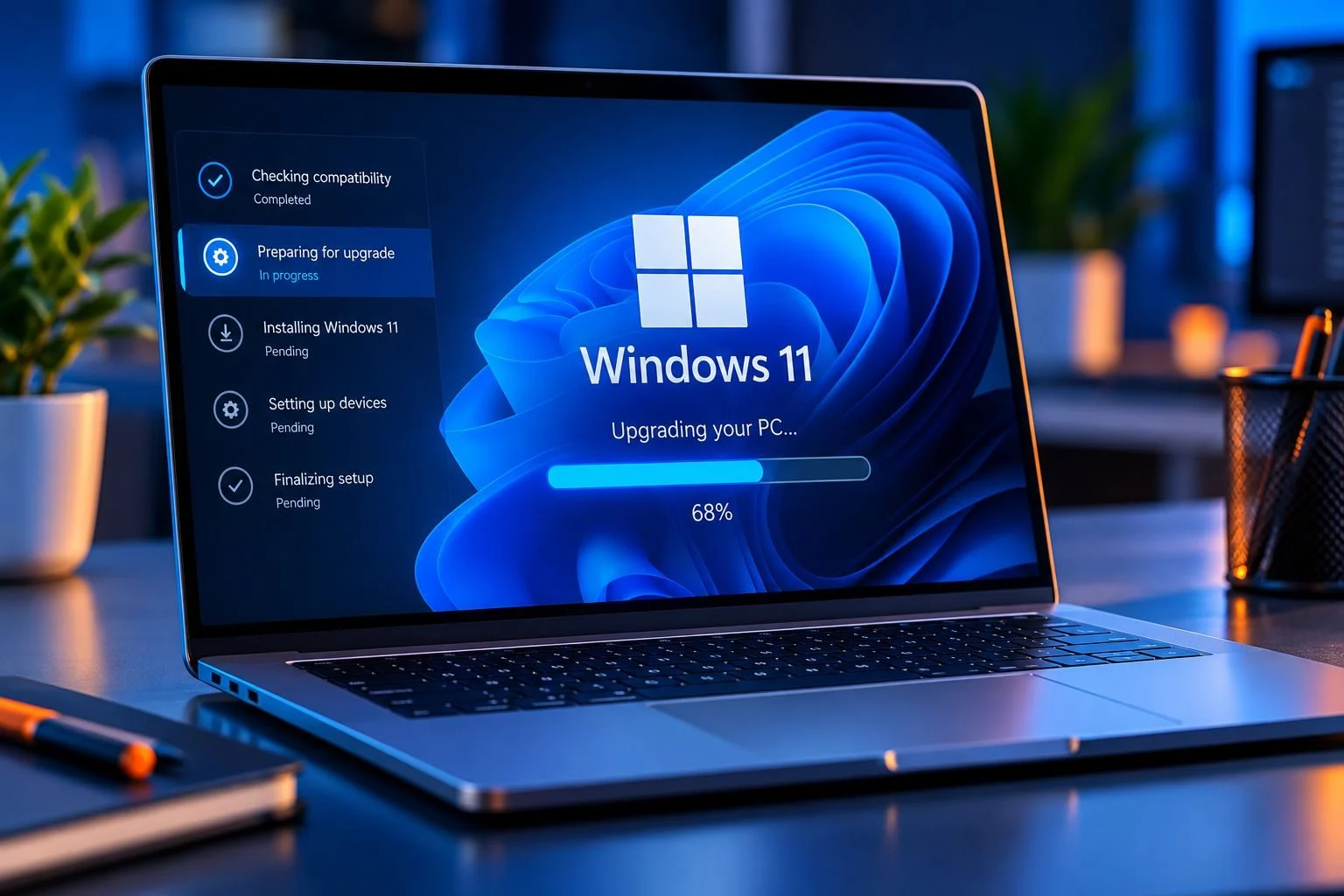
Upgrade to Windows 11 Without Taking Your Computer to a Shop
You shouldn’t have to disconnect your computer and take it to a repair shop just to get help with a Windows upgrade.
OnSiteTech provides on-site Windows 11 upgrade help at your home or business.
We can check compatibility, identify what may be blocking the upgrade, help upgrade a compatible Windows 10 PC to Windows 11, and check the relevant setup afterward.
You stay where you are. We come to you.
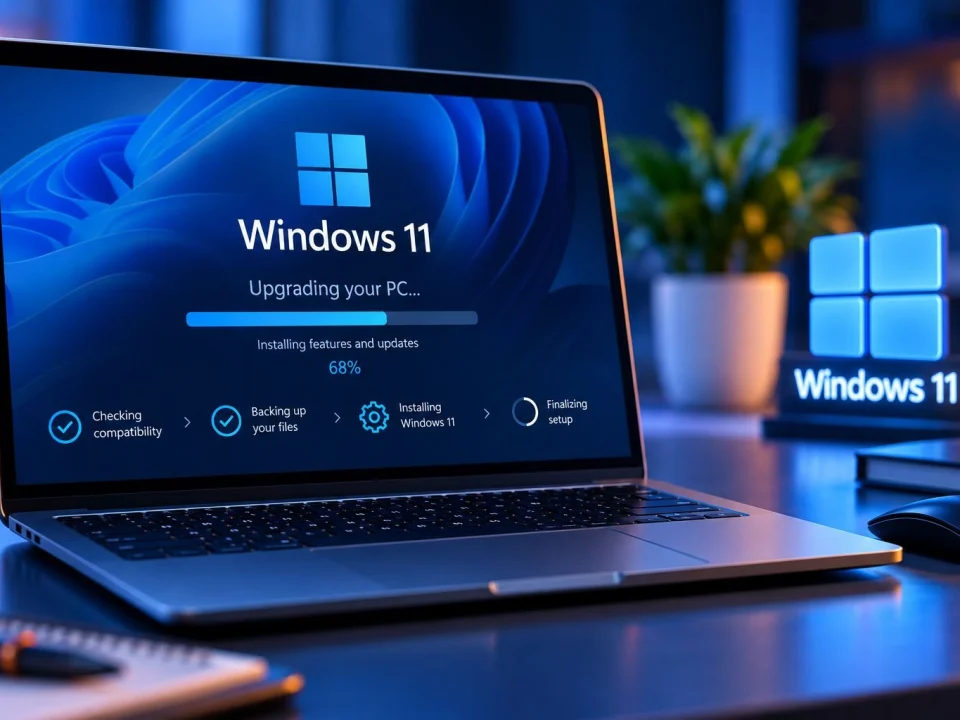
What Do You Need Help With?
You don’t need to know the technical cause. Start with what you’re trying to do or what Windows is telling you.
- I Want to Upgrade to Windows 11 Still using Windows 10 and ready to move to Windows 11? We can check the PC first and help complete the upgrade on-site when the computer is compatible. Book My Windows 11 Upgrade
- I’m Not Sure My PC Is Compatible Not sure whether your processor, TPM, Secure Boot or other requirements are getting in the way? You don’t need to figure that out before contacting us. Get Help With Windows 11
- Windows Says My PC Can’t Run Windows 11 A compatibility warning doesn’t automatically mean you need a new computer. Let’s find out what is actually preventing the upgrade first. Get Help With Windows 11
- My Windows 11 Upgrade Failed Already tried upgrading but it failed, stopped or didn’t complete as expected? We can start with what happened and determine the next step. Get Help With Windows 11
- I Have an Older Computer Before buying hardware or replacing the PC, find out whether your existing computer is suitable for Windows 11 and whether upgrading it makes sense. Check My Upgrade Options
- I’m Not Sure What I Need That’s okay. Tell us what you’re seeing on the screen or what you’re trying to do. You don’t need to diagnose the computer yourself. Get Help With Windows 11
Windows 11 Compatibility Comes Before the Upgrade
Not every Windows 10 computer should automatically be upgraded to Windows 11.
Compatibility depends on the computer’s actual hardware and configuration. Windows 11 requirements can involve the processor, memory, storage, TPM 2.0 and Secure Boot capability.
That’s why we check the computer before making unnecessary changes.
Don’t start by buying parts or replacing the PC. Start by finding out what the computer actually needs.
If it’s ready for Windows 11, we can move forward with the upgrade. If something is preventing the upgrade, we identify the issue first so you can understand your options.
PC Health Check Says Compatible, but Windows 11 Still Isn’t Showing?
This is one of the more confusing Windows 11 upgrade situations.
Your PC may appear to meet the requirements, but the Windows 11 upgrade still doesn’t show up or doesn’t start as expected.
That does not automatically mean you need new hardware.
We can look at what is happening on the computer and help determine what is getting in the way.
Check the upgrade problem first. Change something second.
Windows Says Your PC Isn’t Compatible. What Now?
A failed compatibility check tells you that something is preventing the PC from meeting the Windows 11 upgrade requirements.
It doesn’t automatically tell you what you should do next.
The issue may involve the computer’s hardware, configuration or another part of the upgrade path.
Before spending money on parts or another computer, we can help identify what is blocking the upgrade and explain the practical next step.
Not compatible doesn’t automatically mean “buy a new PC.”
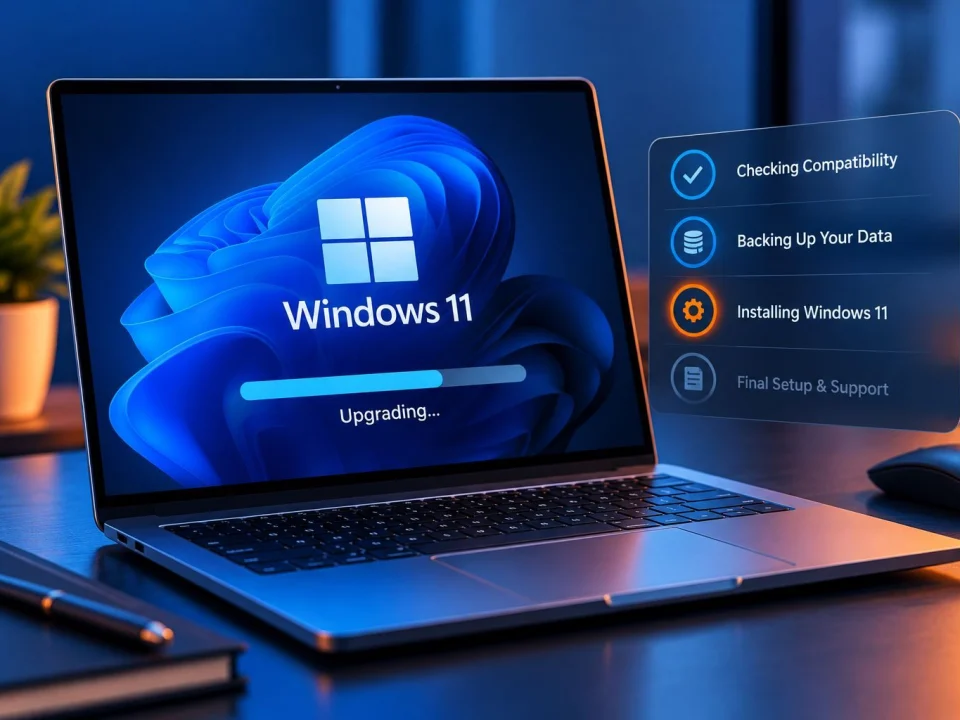
Seeing a TPM 2.0 or Secure Boot Message?
Windows 11 compatibility warnings sometimes mention TPM 2.0, Secure Boot or other unfamiliar terms.
You don’t need to start changing BIOS or security settings just because a compatibility message mentions them.
The important question is: What does your particular computer support, and what is actually preventing the upgrade?
We can check the relevant Windows 11 compatibility issue before deciding whether anything needs to be changed.
Is Your Computer Too Old for Windows 11?
The age of a computer by itself doesn’t tell you whether it can run Windows 11.
What matters is the hardware and configuration of that particular PC.
And with an older computer, there’s another question: Is upgrading this computer actually worth it?
We can check the PC first so you understand what would be required before putting more money into it.
If the computer needs hardware work rather than simply a Windows upgrade, we can point you toward our Computer Hardware Upgrades service.
What Our Windows 11 Upgrade Service Can Help With
Depending on your computer and the problem, our on-site Windows 11 service can help with:
- Windows 11 compatibility checking
- Windows 10 to Windows 11 upgrades on compatible PCs
- Identifying what may be blocking an upgrade
- Windows 11 upgrade preparation
- Windows 11 setup related to the upgrade
- Windows 11 upgrade problems or failed attempts
- Post-upgrade checks related to the upgrade
- Understanding the next step when a PC is not compatible
The goal isn’t to install Windows 11 on every computer.
The goal is to get the right Windows 11 upgrade path for the computer you actually have.
Worried About Your Files Before the Upgrade?
Tell us before work begins if the computer contains files that are particularly important to you.
Your data should be considered when planning an operating-system upgrade.
If files are already missing, inaccessible or lost, don’t treat a Windows upgrade as a way to recover them.
That’s a different problem. Start with our Data Recovery service instead.
Windows 11 Upgrade or Hardware Upgrade?
These solve different problems.
If your computer is compatible and your goal is to move from Windows 10 to Windows 11, start with Windows 11 Upgrade.
If your goal is to improve or replace hardware such as memory or storage, see Computer Hardware Upgrades.
If Windows says your computer isn’t compatible and you don’t know why, don’t buy parts yet.
Start here. We can first determine what is actually preventing the upgrade.
Windows 11 Upgrade or Computer Repair?
Start with Windows 11 Upgrade when your main problem is:
- You want to move from Windows 10 to Windows 11
- You don’t know whether your PC is compatible
- Windows says the PC can’t run Windows 11
- The Windows 11 upgrade failed
- You need help directly related to the upgrade
Start with Computer Repair when Windows 11 isn’t really the issue and the computer has broader problems such as startup trouble, crashes, errors or other unrelated PC problems.
Not sure? You don’t have to choose perfectly before booking.
Tell us what’s happening and we’ll start there.
Still Using Windows 10?
If you’re still using Windows 10, you may be wondering whether to upgrade the computer, keep what you have or replace the PC.
You don’t have to make that decision based on guesswork.
Start by checking the computer you already own.
If it can move to Windows 11 appropriately, we can help with the upgrade. If something is preventing the upgrade, you can understand the issue before deciding whether to spend money on hardware or another computer.
Check first. Decide second.
Can You Upgrade to Windows 11 Yourself?
For some compatible computers, yes.
If Windows offers the upgrade normally and you’re comfortable completing it yourself, you may not need professional help.
Our service is for people who would rather have someone come to their home or business, check the computer and help complete the Windows 11 upgrade—or help when the process isn’t going as expected.
We’re not here to make a simple upgrade sound complicated.
We’re here when you want help getting it done.
How Much Does Windows 11 Upgrade Help Cost?
Our standard on-site labour rate for home and business service is:
$99/hour
If additional hardware, equipment or software is actually required, that is separate from the labour rate.
We identify what the computer needs and review applicable pricing before approved additional work begins.
Any Microsoft software or licensing cost that may apply to a particular situation is separate from OnSiteTech’s service labour.
How Our On-Site Windows 11 Upgrade Service Works
-
1
Tell Us What You’re Trying to Do
Want to move from Windows 10 to Windows 11? Seeing a compatibility warning? Tried upgrading already?
-
2
We Come to You
OnSiteTech provides Windows 11 upgrade help at your home or business.
-
3
We Check the Computer
We look at the relevant compatibility and upgrade situation before making unnecessary changes.
-
4
We Review the Next Step
If the PC is ready for Windows 11, we can proceed with the appropriate upgrade work. If something is blocking the upgrade, we explain what we find first.
-
5
Upgrade & Check
When appropriate, we help complete the Windows 11 upgrade and check the relevant setup afterward.
Windows 11 Upgrade FAQs
Can you upgrade my Windows 10 computer to Windows 11?
If the computer is compatible and the upgrade is appropriate, OnSiteTech can help complete the Windows 10 to Windows 11 upgrade on-site.
Do I need to bring my computer to a repair shop?
For this service, no. OnSiteTech can provide Windows 11 upgrade help at your home or business.
Can you check if my PC is compatible with Windows 11?
Yes. Checking compatibility can be part of determining the appropriate Windows 11 upgrade path.
What if Windows says my PC can’t run Windows 11?
Don’t assume you need a new computer. We can start by identifying what is preventing compatibility and then discuss the practical options.
PC Health Check says my computer is compatible. Why isn’t Windows 11 showing?
A computer meeting the compatibility requirements and the upgrade appearing or completing as expected are not always the same issue. We can investigate what is happening on the particular PC.
Can you help if I see a TPM 2.0 or Secure Boot warning?
We can check the computer and the relevant compatibility issue to determine what is affecting the Windows 11 upgrade.
Can an older computer be upgraded to Windows 11?
It depends on the particular computer and its compatibility. We check the actual PC rather than judging it by age alone.
Should I buy hardware to make my PC compatible?
Not before you know what is preventing the upgrade. Check the computer first. If hardware work is actually appropriate, you can make that decision with better information.
Will I lose my files when upgrading to Windows 11?
Important data should be considered before an operating-system upgrade. Tell us about important files before work begins. We do not promise that an operating-system change is risk-free for data.
Can I upgrade to Windows 11 myself?
Many compatible PCs can use Microsoft’s normal upgrade process without professional assistance. Our service is for people who want on-site help checking the computer, completing the upgrade or troubleshooting an upgrade problem.
How much does Windows 11 upgrade service cost?
Our standard on-site labour rate is $99/hour. Any additional hardware, equipment or applicable software costs are separate and reviewed before approved additional work.
What if my computer really isn’t suitable for Windows 11?
We explain what we find so you can understand your options before deciding whether to change hardware, keep the computer or consider another PC.
Get Windows 11 Upgrade Help at Your Home or Business
Want Windows 11 but don’t know whether your computer is ready?
Already tried the upgrade and got stuck?
Or simply want someone to come to you and handle the process?
Start with the computer you have.
OnSiteTech can check the Windows 11 upgrade path and help complete the upgrade on-site when appropriate.
- Microsoft Certified
- Price approved before we start
- 30-day warranty
- No fix, no labour charge