
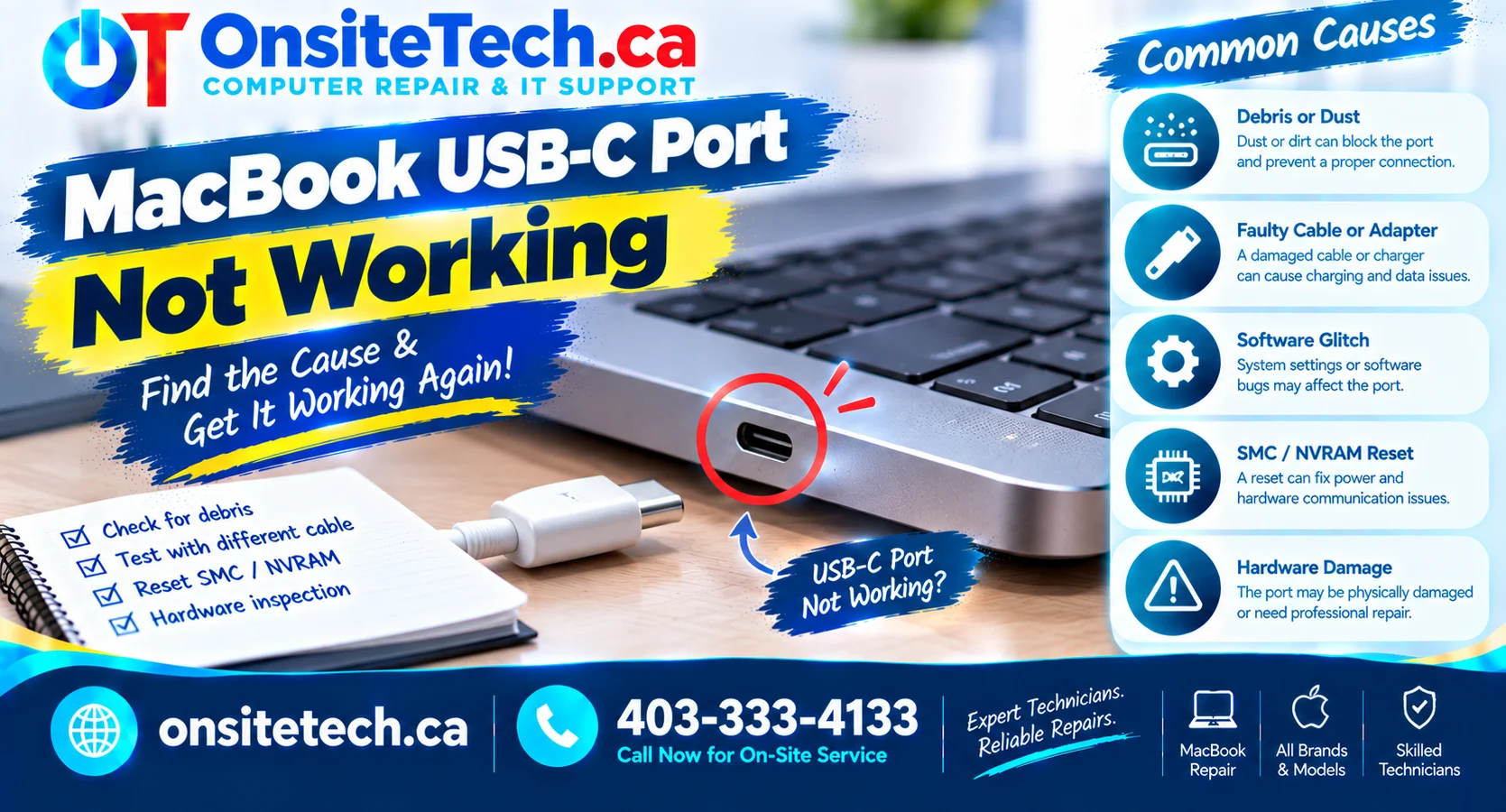
Having trouble charging your MacBook, connecting USB-C accessories, or using an external monitor? Discover the common causes of USB-C port problems, practical troubleshooting steps, and when professional MacBook repair may be necessary.
A MacBook USB-C port does much more than connect a charging cable. Depending on the MacBook model and port specifications, it may also support external displays, storage devices, docking stations, smartphones, and other accessories.
When a USB-C port stops working, the problem can be confusing. Your MacBook might charge through one port but not another, recognise a USB drive but fail to connect to an external monitor, or repeatedly disconnect accessories without warning.
The important thing is to identify which function has failed before assuming that the physical port needs replacement. This guide explains how to diagnose MacBook USB-C port problems, distinguish accessory issues from hardware faults, and decide when professional repair is appropriate.
Common Symptoms of a MacBook USB-C Port Not Working
A failing USB-C connection does not always mean the port has completely stopped functioning. Different symptoms can point to different parts of the connection, including the cable, accessory, port, or internal hardware.
Charging Failure
Your MacBook does not charge through one USB-C port, or charging repeatedly starts and stops.
Accessory Not Detected
A USB drive, external SSD, keyboard, or other connected device does not appear in macOS.
Display Connection Failure
An external monitor does not receive a signal through a USB-C cable or adapter.
Intermittent Connection
The connection disconnects unexpectedly or works only when the cable is positioned in a particular way.
Pay attention to whether the issue affects one function or every function. A port that charges normally but cannot transfer data may require a different diagnosis from a port that does not respond to any compatible connection.
MacBook USB-C Port Troubleshooting and Diagnosis Table
Use the following table to identify the most likely areas to investigate based on what your MacBook is doing.
| Observed Problem | Possible Cause | Recommended First Test |
|---|---|---|
| One USB-C port does not charge | Cable, adapter, connector, or charging-related hardware issue | Use a known-good compatible adapter and cable on another port. |
| All USB-C ports fail to charge | Power adapter, cable, battery, software, or internal power issue | Test a compatible known-good charging setup. |
| USB accessories are not detected | Accessory, cable capability, software, or port issue | Test a different compatible USB device and cable. |
| External monitor is not detected | Display compatibility, adapter, cable, or port capability | Connect using a compatible display cable and supported port. |
| Connection drops when the cable moves | Damaged cable or loose USB-C connector | Stop moving the connector and test another cable. |
| USB-C hub does not work | Hub, power delivery, cable, or compatibility issue | Disconnect the hub and test the device directly. |
| Port becomes unusually hot or smells burnt | Possible electrical or hardware fault | Disconnect the accessory when safe and stop using the port. |
Important: These are troubleshooting indicators, not definitive hardware diagnoses. Several different faults can produce similar symptoms, so testing with compatible equipment is essential.
Why Is Your MacBook USB-C Port Not Working?
1. Faulty or Incompatible USB-C Cable
Not every USB-C cable supports the same features. Some cables are designed primarily for charging, while others support data transfer, video output, or higher power levels.
A cable may therefore charge your MacBook successfully but fail to connect an external display or transfer files. Internal cable damage can also cause intermittent connections.
Try a known-good cable that specifically supports the function you are testing. If the problem disappears, the original cable may be responsible rather than the MacBook port.
2. Damaged USB-C Port or Connector
The USB-C connector can be affected by repeated physical stress, accidental impacts, or forcing a cable into the port at an incorrect angle.
Possible signs include:
- The cable does not fit securely.
- The connection drops with slight movement.
- The connector appears bent or physically damaged.
- One port fails while other ports work normally.
- Charging or accessory recognition becomes inconsistent.
A physically damaged connector may require professional inspection to determine whether the port itself or related internal connections are affected.
3. Dust, Lint, or Debris Inside the Port
Small particles can accumulate inside a USB-C port and prevent the cable from making proper contact. This may cause an unstable connection or stop the connector from seating correctly.
Inspect the port under good lighting without inserting tools. Avoid metal objects, needles, sharp picks, or excessive force. If debris is compacted or the connector appears damaged, have it inspected safely.
4. Faulty USB-C Hub or Docking Station
A USB-C hub adds several connections between your MacBook and the connected devices. A problem with the hub, its power supply, its cable, or device compatibility can make it appear that the MacBook port is faulty.
Disconnect the hub and test the accessory directly whenever possible. If the direct connection works, investigate the hub and its power requirements before arranging a MacBook port repair.
5. macOS or Device Recognition Problem
Sometimes the physical connection is working, but macOS does not recognise the connected device correctly. This may involve temporary system behaviour, accessory compatibility, permissions, or device software.
Restarting your MacBook, checking for macOS updates, and testing another compatible device can help identify whether the issue is software-related.
6. Internal USB-C or Power Management Hardware Fault
If several known-good cables and accessories fail on the same port, the issue may involve the USB-C connector, its internal connections, or related circuitry.
Depending on the MacBook generation and design, the fault may require inspection of the port assembly, logic board, or other internal components. This cannot be confirmed through external troubleshooting alone.
How to Troubleshoot a MacBook USB-C Port That Is Not Working
Follow these steps in order. Each test is designed to eliminate a possible cause without opening the MacBook or attempting an unnecessary repair.
Step 1: Identify Exactly What Is Not Working
Determine whether the problem affects:
- USB-C charging.
- USB data transfer.
- External monitor or video output.
- USB hubs and docking stations.
- Multiple functions at the same time.
This distinction matters because USB-C ports, cables, and accessories can support different capabilities.
Step 2: Disconnect All USB-C Accessories
Remove hubs, external drives, displays, adapters, and other connected devices. Inspect the cables and connectors for visible damage.
Test the MacBook with one accessory at a time rather than reconnecting everything simultaneously.
Step 3: Test a Known-Good USB-C Cable
Use a cable that is known to work and supports the specific function you need. For example, use a cable with suitable data and video capabilities when testing an external display or storage device.
If the connection works with another cable, the original cable may be damaged or unsuitable.
Step 4: Try Another Compatible USB-C Accessory
Connect a different device that is known to work with your MacBook. This helps determine whether the problem follows the accessory or remains with the MacBook port.
If several compatible devices fail on the same port, the port itself becomes a stronger suspect.
Step 5: Compare the Other USB-C Ports
If your MacBook has more than one USB-C port, test the same cable and accessory in each available port.
Record which ports work and which do not. This comparison can help identify a fault isolated to one connection.
Step 6: Restart Your MacBook
Save your work and restart macOS. A restart may resolve temporary system or device-recognition problems.
After restarting, reconnect only the accessory you are testing and check whether it appears or functions normally.
Step 7: Check macOS Updates
Open System Settings, select General, and then choose Software Update. Check whether an update is available for your MacBook.
Install updates appropriate for your device after backing up important data and considering any software compatibility requirements.
Step 8: Check System Information
macOS provides system information that can help you investigate connected USB devices.
- Open the Apple menu.
- Select About This Mac.
- Choose More Info, then System Report.
- Select USB in the sidebar.
- Check whether the connected device appears in the device list.
Depending on your Mac model and connection type, you may also see relevant information under Thunderbolt or other hardware sections.
If a device does not appear, the result alone does not prove that the port is physically damaged. The cable, accessory, compatibility, and connection path must also be considered.
MacBook USB-C Port Not Charging
If your MacBook does not charge through a USB-C port, begin by checking the complete power connection. A charging failure does not automatically mean the USB-C port is defective.
Check the Power Adapter
Confirm that the adapter supports USB Power Delivery and provides an appropriate wattage for your MacBook model. An adapter that provides insufficient power may cause slow charging or may not provide the charging performance you expect.
For more information, read our guide: MacBook USB-C Charger Wattage.
Check the Charging Cable
Try another known-good USB-C cable that supports charging. Some USB-C cables support data transfer but are not suitable for the charging setup you are using.
Test Another Power Source
Connect the adapter directly to a working wall outlet. If possible, test another compatible adapter and cable to eliminate a faulty power source.
Compare USB-C and MagSafe Charging
If your MacBook supports both USB-C and MagSafe charging, test the supported charging methods separately with compatible equipment.
If MagSafe works but USB-C charging does not, the problem may be associated with the USB-C charging path, although the adapter, cable, and other factors still need to be ruled out.
Apple explains that MacBooks with MagSafe 3 and USB-C charging use only one charging connection at a time. Connecting both does not increase charging speed.
Read Apple’s guide: Charge your Mac laptop computer.
MacBook USB-C Port Not Recognising USB Devices
If your MacBook charges normally but does not recognise USB accessories, the issue may be related to data communication rather than power delivery.
USB Flash Drive or External SSD Not Detected
- Test the storage device with another compatible cable.
- Connect it directly instead of using a hub.
- Check whether it appears in Finder.
- Open Disk Utility and check whether the device is listed.
- Test another known-good storage device if available.
If the drive contains important files, do not erase or format it as a troubleshooting experiment. A missing drive may have a storage-device or data issue rather than a faulty MacBook port.
Keyboard, Mouse, or Other USB Accessory Not Working
Test the accessory on another compatible computer and check whether it requires additional software or power. If the accessory works elsewhere but not on your MacBook, test another USB-C port and cable where applicable.
USB-C Hub Not Recognised
Connect the accessory directly to the MacBook if possible. Some hubs require external power, have specific device compatibility requirements, or may not support every function through every port.
MacBook USB-C Port Not Connecting to an External Monitor
A USB-C connection that works for charging does not necessarily support every external display configuration. Video output depends on the MacBook model, port capabilities, cable, adapter, and monitor specifications.
If your external monitor is not detected, check the following:
- Confirm that your MacBook supports the display configuration you are attempting to use.
- Use a cable or adapter that supports the required video signal.
- Connect the monitor directly to the MacBook where possible.
- Check that the monitor is powered on and using the correct input source.
- Disconnect other adapters and hubs temporarily.
- Check Display settings in macOS after reconnecting the monitor.
- Test the display and cable with another compatible device if available.
Apple provides additional information in its guide: Identify the ports on your Mac.
Signs of Physical USB-C Port or Internal Hardware Damage
After testing compatible cables and accessories, certain symptoms may indicate a physical or internal hardware problem.
| Warning Sign | What It May Indicate | Recommended Action |
|---|---|---|
| Connector feels loose | Possible mechanical wear or port damage | Stop moving the cable and arrange an inspection. |
| Visible bent or damaged connector | Physical damage to the USB-C port | Avoid inserting cables and seek repair advice. |
| Repeated disconnection with multiple cables | Possible port or internal connection fault | Arrange professional diagnosis. |
| Several functions fail on one port | Possible connector or internal hardware problem | Compare other ports and request an assessment. |
| Unusual heat or burning smell | Possible electrical fault or damaged accessory | Disconnect power when safe and stop using the connection. |
A technician may need to inspect the USB-C connector, internal connections, and related circuitry to determine the actual cause. The repair approach depends on the MacBook model and the location of the fault.
Can a MacBook USB-C Port Be Repaired?
In many cases, a MacBook USB-C connection problem can be repaired, but the appropriate solution depends on the underlying fault.
Possible repair paths may include:
- Replacing a damaged or unsuitable charging cable.
- Replacing a faulty USB-C adapter or hub.
- Addressing a damaged port or connector, where the model’s design permits repair.
- Diagnosing internal connections and related circuitry.
- Investigating logic board-level faults when the symptoms indicate an internal hardware problem.
Not every USB-C problem requires logic board repair, and not every connector problem can be resolved by replacing the port alone. Proper diagnosis should come before recommending a component replacement.
When to Seek Professional MacBook USB-C Port Repair
Basic troubleshooting is useful, but professional assessment is recommended when the problem continues or there are signs of physical damage.
Consider arranging a repair assessment if:
- One USB-C port consistently fails with multiple known-good accessories.
- Your MacBook does not charge through USB-C after testing a compatible adapter and cable.
- The connector is loose, bent, or visibly damaged.
- USB-C accessories repeatedly disconnect without an obvious cable problem.
- An external monitor cannot connect despite using a compatible display setup.
- The MacBook has experienced liquid exposure or physical impact.
- You notice unusual heat, a burning smell, or other signs of electrical damage.
OnSiteTech provides Mac repair and computer repair services in Calgary. The appropriate service option depends on the MacBook model, symptoms, and whether the issue can be assessed on-site or requires further workshop diagnosis.
MacBook USB-C Port Not Working?
Not sure whether the problem is a damaged port, faulty cable, charging issue, or internal hardware fault? Get help identifying the next appropriate repair step.
Explore Mac Repair
Book a Repair Assessment
Assessment and repair options depend on the device, symptoms, and service requirements.
What to Prepare Before a MacBook USB-C Repair Assessment
Providing clear information about the problem can help narrow down the possible cause and make the initial assessment more useful.
- MacBook model and approximate release year.
- Which USB-C port is affected.
- Whether charging, data transfer, or video output is failing.
- Whether other USB-C ports work normally.
- The cable, adapter, hub, or accessory being used.
- Whether you tested another compatible cable or accessory.
- Whether the problem started after a drop, liquid exposure, or cable damage.
- Any error messages or unusual behaviour observed.
You can learn more about how OnSiteTech’s on-site repair process works, explore computer repair services in Calgary, or review repair pricing information.
Frequently Asked Questions
1. Why is my MacBook USB-C port not working?
Common causes include a faulty cable, incompatible accessory, debris inside the port, physical connector damage, software issues, or an internal hardware fault. Test with known-good compatible equipment before assuming the port needs replacement.
2. Why does one USB-C port work while another does not?
If the same compatible cable and accessory work in one port but consistently fail in another, the problem may be isolated to the affected port. The connector and related hardware may need inspection.
3. Can a faulty USB-C cable make my MacBook port appear broken?
Yes. A damaged or incompatible cable can prevent charging, data transfer, or video output. Some USB-C cables support only certain functions, so test with a cable suitable for the connection you need.
4. Why does my MacBook charge but not recognise USB-C devices?
Charging and data transfer are different functions. The cable may support charging without the required data capabilities, or the accessory, hub, software, or port may have a problem.
5. Can dust stop a MacBook USB-C port from working?
Yes. Dust or compacted debris can interfere with the connector. Avoid using metal objects or sharp tools inside the port. If debris cannot be safely removed or the connector appears damaged, arrange an inspection.
6. Can I charge my MacBook if one USB-C port is not working?
If your MacBook has another supported USB-C charging port, you may be able to use that port with a compatible adapter and cable. Some models also support MagSafe charging. Check the charging options for your exact model.
7. Why is my MacBook USB-C connection constantly disconnecting?
Possible causes include a damaged cable, loose connector, faulty hub, or worn port. Test another compatible cable and connect the accessory directly to the MacBook where possible.
8. Can a MacBook USB-C port be repaired without replacing the logic board?
That depends on the MacBook model and the location of the fault. Some connector-related problems may be repairable without replacing the entire logic board, while other faults involve internal circuitry. A proper diagnosis is required.
9. Will restarting my MacBook fix a USB-C port problem?
A restart may resolve temporary software or device-recognition issues. It will not repair a physically damaged connector or defective internal hardware.
10. Can liquid exposure damage a MacBook USB-C port?
Yes. Liquid can affect the connector and internal components. Disconnect power and accessories, avoid attempting to charge the MacBook, and arrange professional inspection. Do not use heat to dry the port.
11. Why is my MacBook USB-C port not detecting an external monitor?
The cause may be an incompatible cable, adapter, monitor configuration, or port capability. Check the display requirements and your MacBook’s supported external display specifications before assuming the port is damaged.
12. Where can I get MacBook USB-C port repair in Calgary?
You can visit OnSiteTech’s Mac repair service page to review service information and request an assessment based on your MacBook’s symptoms.
Official Apple References
For model-specific port information and additional troubleshooting guidance, consult these official Apple resources:
- Apple Support: Identify the ports on your Mac
- Apple Support: Charge your Mac laptop computer
- Apple Support: If your USB-C power adapter isn’t charging your Mac laptop
- Apple Support: Use a power adapter with your Mac
- Apple Support: Connect a display to your Mac
Final Thoughts
A MacBook USB-C port that is not working does not automatically mean the connector needs to be replaced. The problem may come from a damaged cable, incompatible accessory, faulty hub, software issue, or internal hardware failure.
The most useful first step is to identify which function has stopped working: charging, data transfer, or video output. Then test a known-good compatible cable and accessory, compare other available ports, and check the relevant macOS settings.
If the same port continues to fail or shows signs of physical damage, professional diagnosis can help identify the actual fault and determine the appropriate repair option.
For assistance with MacBook issues in Calgary, visit OnSiteTech Mac Repair or request a repair assessment.