
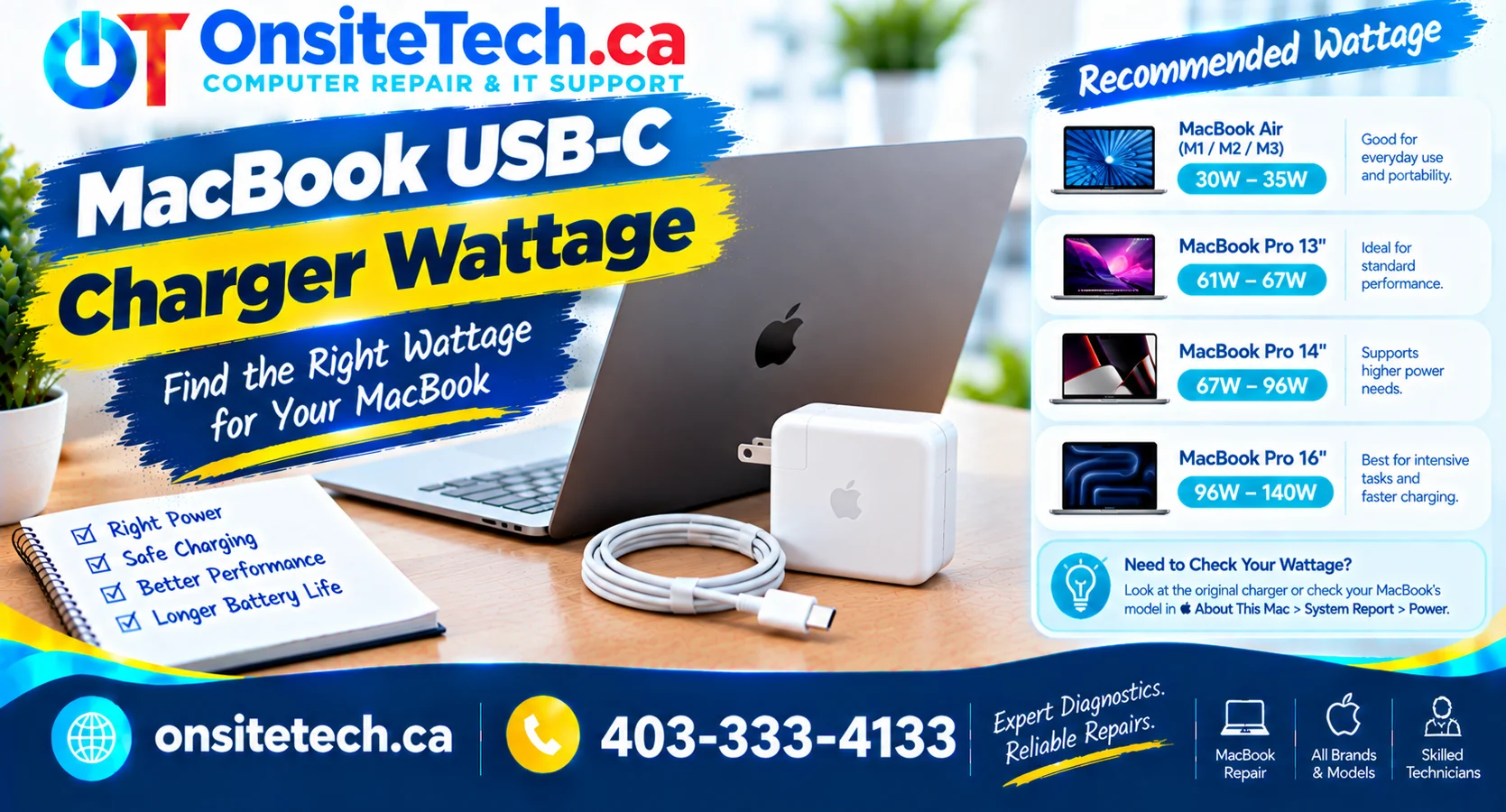
MacBook USB-C Charger Wattage: How Many Watts Do You Need?
Choosing the right MacBook USB-C charger wattage can help you avoid slow charging, improve everyday charging performance, and make sure your power adapter is suitable for your MacBook Air or MacBook Pro.
If your MacBook is charging slowly, losing battery power while plugged in, or displaying a “Slow Charger” message, the adapter’s wattage may be one factor to investigate. The cable, charging port, battery condition, and workload can also affect charging performance.
This guide explains MacBook USB-C charger wattage, the differences between MacBook Air and MacBook Pro charging requirements, how to choose a compatible adapter, and what to check if your MacBook will not charge properly.
MacBook USB-C Charger Wattage at a Glance
There is no single wattage that is correct for every MacBook. Apple has released different adapters for different generations, and some models support faster charging when paired with a suitable adapter and cable.
| MacBook type or generation | Example Apple adapter wattages | Important consideration |
|---|---|---|
| MacBook Air models introduced from 2018 to 2021 | 30W | Confirm the exact model’s recommended adapter. |
| MacBook Air models introduced in 2022 or later | 30W, 35W, 67W, or 70W, depending on model and configuration | Some models support fast charging with an appropriate power adapter and cable. |
| 13-inch MacBook Pro models introduced from 2016 onward | 61W on supported generations | Later generations may have different charging requirements. |
| 15-inch MacBook Pro models introduced from 2016 onward | 87W on supported generations | Check the model year before choosing a replacement. |
| 16-inch MacBook Pro introduced in 2019 | 96W | Do not assume this applies to later 16-inch models. |
| 14-inch MacBook Pro models introduced in 2021 or later | 67W, 70W, or 96W, depending on model and configuration | Compatible higher-wattage adapters may support fast charging. |
| 16-inch MacBook Pro models introduced in 2021 or later | 140W for supported configurations | Fast charging depends on the model and the appropriate cable. |
Important: This is a general reference, not a complete compatibility list for every MacBook. Use Apple’s current Mac power adapter guide and Mac charging guide to verify the recommendation for your exact model.
MacBook Air USB-C Charger Wattage
MacBook Air computers generally use less charging power than comparable MacBook Pro models, but the required adapter still depends on the generation and configuration.
MacBook Air (2018–2021)
A 30W USB-C power adapter is a common recommended option for supported models from this period.
Use a compatible USB-C charging cable and confirm the recommendation for your specific MacBook Air.
MacBook Air (2022 and later)
Apple lists several options for supported models, including 30W, 35W, 67W, and 70W adapters.
Model and configuration determine the appropriate option and available fast-charging combinations.
MacBook Air with a low-wattage adapter
The Mac may charge slowly, particularly when performing demanding tasks or when the battery is very low.
A compatible adapter meeting the recommended wattage is a sensible starting point.
A USB-C charging port does not automatically mean every adapter will deliver the same charging speed. If you are replacing a lost or damaged MacBook Air charger, identify the MacBook model first rather than purchasing an adapter based only on the connector shape.
MacBook Pro USB-C Charger Wattage
MacBook Pro computers have a wider range of power requirements. Larger displays and higher-performance configurations may need more power than a MacBook Air or a smaller MacBook Pro.
13-inch MacBook Pro
Some 13-inch MacBook Pro models introduced from 2016 onward use a 61W USB-C adapter. However, the correct adapter depends on the model and generation, so verify your Mac before purchasing a replacement.
14-inch MacBook Pro
Depending on the generation and configuration, Apple’s recommended options include 67W, 70W, and 96W adapters. Certain compatible configurations can fast-charge when used with the appropriate adapter and cable.
15-inch MacBook Pro
Some older 15-inch MacBook Pro models use an 87W USB-C power adapter. Do not apply this recommendation automatically to other MacBook Pro sizes or generations.
16-inch MacBook Pro
The 16-inch MacBook Pro introduced in 2019 uses a different power-adapter recommendation from many later models. Supported 16-inch models introduced in 2021 or later can use Apple’s 140W adapter for fast charging when paired with the required compatible cable.
For the exact supported combinations, consult Apple’s MacBook fast-charging guide.
Can You Use a Higher-Wattage USB-C Charger With a MacBook?
Generally, yes. If your MacBook charges through USB-C, you can use a compatible USB-C Power Delivery (USB PD) adapter with a higher wattage than the model’s recommended adapter. The MacBook negotiates power with a compatible charger rather than automatically receiving the adapter’s maximum rated wattage.
For example, a suitable 96W USB-C adapter may be usable with a MacBook Air that normally uses a lower-wattage adapter. However, using a more powerful adapter does not guarantee that the MacBook will charge faster: the computer’s supported charging rate, cable, temperature, and battery state all matter.
Apple explains that USB-C Mac laptops can charge with adapters that provide either more or less power than the recommended adapter. For the best charging experience, Apple recommends meeting or exceeding the minimum wattage specified for the Mac model. See the official power adapter guidance.
What Happens If Your MacBook Charger Wattage Is Too Low?
A lower-wattage adapter may still charge a compatible MacBook, but it may not supply enough power for the fastest charging or for every workload.
- Slow charging: The battery percentage may increase more slowly than expected.
- Battery drain while plugged in: During demanding work, the MacBook may use power faster than the adapter supplies it.
- Slow Charger message: macOS may identify a charging source that provides insufficient power.
- Longer charging time: The time needed to charge can increase, depending on usage and battery condition.
These symptoms do not prove that the adapter wattage is the problem. A worn battery, damaged cable, faulty USB-C port, or power-management issue can produce similar symptoms.
Does the USB-C Charging Cable Matter?
Yes. The power adapter and cable work together as a charging system. A cable that is damaged or not rated for the required power may limit charging performance or cause an intermittent connection.
When checking your setup:
- Use a cable rated for the power level your charging setup requires.
- Inspect the cable and connectors for fraying, bent parts, or other visible damage.
- Connect the adapter directly to a reliable wall outlet while testing.
- Try a known-good compatible cable if one is available.
- Do not force a connector into a port or continue using a cable that becomes unusually hot or visibly damaged.
If your MacBook supports both MagSafe and USB-C charging, testing with a known-good compatible charging method can help narrow down the problem. Use only the charging options supported by your particular MacBook.
How to Troubleshoot a MacBook That Charges Slowly
1. Confirm the exact MacBook model
Open the Apple menu and select About This Mac. Note the model name and chip or processor information. Use these details to find the correct adapter recommendation from Apple.
2. Check the adapter’s rated wattage
Read the label on the power adapter. Compare its wattage with the recommendation for your MacBook. If you are unsure what power source the computer is receiving, Apple also provides instructions for checking charger information in System Information.
3. Check the cable and charging port
Look for visible damage, debris, or a loose connection. Do not insert metal tools into the charging port. If the port appears damaged or the connector will not fit properly, stop and arrange a professional inspection.
4. Reduce power demand temporarily
Close demanding applications and allow the MacBook to cool in a well-ventilated location. Heavy workloads and elevated temperatures can affect charging behavior, so test again when the computer is idle.
5. Review the battery status
Check Battery settings for charging messages or a service recommendation. Features such as Optimized Battery Charging or a charge limit can cause charging to pause before the battery reaches 100%. A pause does not necessarily mean the charger is defective.
6. Test another compatible charger
If possible, test with a known-good adapter and cable that meet the recommended wattage for your MacBook. If charging works normally with the alternative setup, the original adapter or cable may be contributing to the issue.
7. Get help if the problem continues
If the MacBook still does not charge, repeatedly disconnects, becomes unusually hot, or shows signs of port damage, further diagnosis may be needed. The fault could involve the battery, charging port, power-management circuitry, or another internal component.
For Apple’s detailed troubleshooting steps, see Charge your Mac laptop computer.
MacBook USB-C Charger Wattage vs. Fast Charging
Using a higher-wattage adapter and achieving fast charging are not the same thing. Fast charging is supported only on specific MacBook models and requires a compatible combination of power adapter and cable.
Apple states that supported MacBook Air models introduced in 2022 or later, along with supported 14-inch and 16-inch MacBook Pro models introduced in 2021 or later, can charge to approximately 50% in around 30 minutes under the specified test conditions.
Actual charging times vary with the battery’s starting level, temperature, system activity, and other conditions. See Apple’s fast-charge compatibility details before choosing an adapter specifically for fast charging.
Signs Your MacBook Charging Problem May Not Be the Charger
If you are using the correct adapter wattage but charging remains unreliable, consider these other possibilities:
- Battery wear: An ageing battery may have reduced capacity or require service.
- USB-C port damage: A port may have a loose connection or physical damage.
- Faulty charging cable: The adapter may work correctly while the cable fails intermittently.
- Heat-related charging behavior: Temperature conditions may affect charging.
- Internal power issue: A fault involving internal charging or power-management components may require further testing.
Replacing a charger without checking these possibilities can lead to unnecessary expense. A structured assessment helps identify whether the issue is with the power adapter, cable, battery, port, or the MacBook itself.
When to Seek Professional MacBook Repair
Consider a professional assessment if your MacBook will not charge with a known-good compatible adapter, repeatedly disconnects from power, has a damaged charging port, or displays persistent battery-service warnings.
Stop using the charger if you notice exposed wires, burning smells, visible damage, or unusual heat from the adapter or connector. Disconnect power when safe to do so, and do not attempt to open the adapter or repair a damaged cable yourself.
OnSiteTech provides computer and Mac repair services in Calgary. The appropriate next step depends on the symptoms and whether the problem can be assessed on-site or requires further workshop diagnosis.
Need Help With a MacBook That Won’t Charge?
Not sure whether your MacBook needs a different USB-C charger, a replacement cable, or a repair? Start with the symptoms and your MacBook model.
Explore Mac Repair
Book a Repair Assessment
Assessment and repair options depend on the device, fault, and service requirements.
How to Prepare Before a MacBook Charging Assessment
To help narrow down the cause, gather the following information before requesting service:
- Your MacBook model and approximate year.
- The wattage printed on your current power adapter.
- Whether you charge through USB-C, MagSafe, or both where supported.
- Any battery or charging messages displayed by macOS.
- Whether another compatible cable or adapter has been tested.
- Whether charging fails completely, works intermittently, or is simply slower than expected.
You can also review how OnSiteTech’s on-site repair service works, visit the computer repair service page, or check repair pricing information.
Frequently Asked Questions
1. How many watts does a MacBook USB-C charger need?
It depends on the MacBook model. Examples include 30W for supported MacBook Air models, 61W for some 13-inch MacBook Pro models, 87W for some older 15-inch models, and up to 140W for supported 16-inch MacBook Pro models. Always verify the exact model’s requirements.
2. Can I use a 65W USB-C charger for my MacBook?
It may work if the charger supports USB Power Delivery and is compatible with your MacBook, but 65W may be below the recommended wattage for some models. Charging speed and performance under heavy workloads can be affected. Check Apple’s recommendation for your exact MacBook.
3. Can I use a 100W USB-C charger with a MacBook Air?
Generally, a compatible USB-C Power Delivery charger rated at 100W can be used with a USB-C-charging MacBook Air. The MacBook draws power according to its supported charging behavior, so a 100W adapter does not automatically make the Air charge faster than it supports.
4. Will a higher-wattage charger damage my MacBook?
A reputable, standards-compliant USB-C Power Delivery adapter that is compatible with your MacBook can generally provide more wattage than the model requires without forcing all of that power into the computer. Avoid damaged, uncertified, or questionable-quality chargers.
5. Why does my MacBook say “Slow Charger”?
This message can appear when the connected power source supplies less power than the MacBook needs for its recommended charging performance. Check the adapter wattage, cable rating, and connection. If the message continues with the correct equipment, investigate other possible causes.
6. Does a USB-C cable affect MacBook charging speed?
Yes. The cable must support the power required by the adapter and MacBook. A damaged or unsuitable cable may reduce charging performance or cause intermittent charging.
7. Can my MacBook charge through USB-C and MagSafe at the same time?
MacBooks with both MagSafe 3 and USB-C charging options charge through only one source at a time. Apple states that the Mac uses the source providing the most power. Check Apple’s charging guide for details about your model.
8. Why is my MacBook battery draining while plugged in?
The adapter may not provide enough power for the current workload, or the cable, battery, port, or internal charging system may have a problem. Compare the adapter with Apple’s recommended wattage and test with a known-good compatible setup.
9. How can I check my MacBook charger wattage?
Check the wattage printed on the adapter label. You can also hold the Option key while opening the Apple menu, choose System Information, select Power, and review the AC Charger Information section where available.
10. Should I buy the most powerful USB-C charger available?
Not necessarily. Choose a reputable charger that meets your MacBook’s recommended wattage and supports the charging features you need. A higher-wattage adapter may be useful for compatibility with multiple devices, but it does not guarantee faster charging on every MacBook.
Official References
- Apple Support: Use a power adapter with your Mac
- Apple Support: Charge your Mac laptop computer
- Apple Support: Fast-charge your MacBook Air or MacBook Pro
- Apple Support: If your USB-C power adapter isn’t charging your Mac laptop
Final Thoughts
The right MacBook USB-C charger wattage depends on your model, generation, and charging requirements. A suitable adapter can help deliver reliable charging, but wattage is only one part of the equation: the cable, battery condition, charging port, temperature, and workload also matter.
Before buying a replacement, confirm your exact MacBook model and compare it with Apple’s official recommendations. If the computer still charges slowly or will not charge with a known-good compatible adapter, a professional assessment can help determine whether the issue lies with the charger or the MacBook itself.
For local assistance, visit OnSiteTech’s Mac repair page or request a repair assessment.