
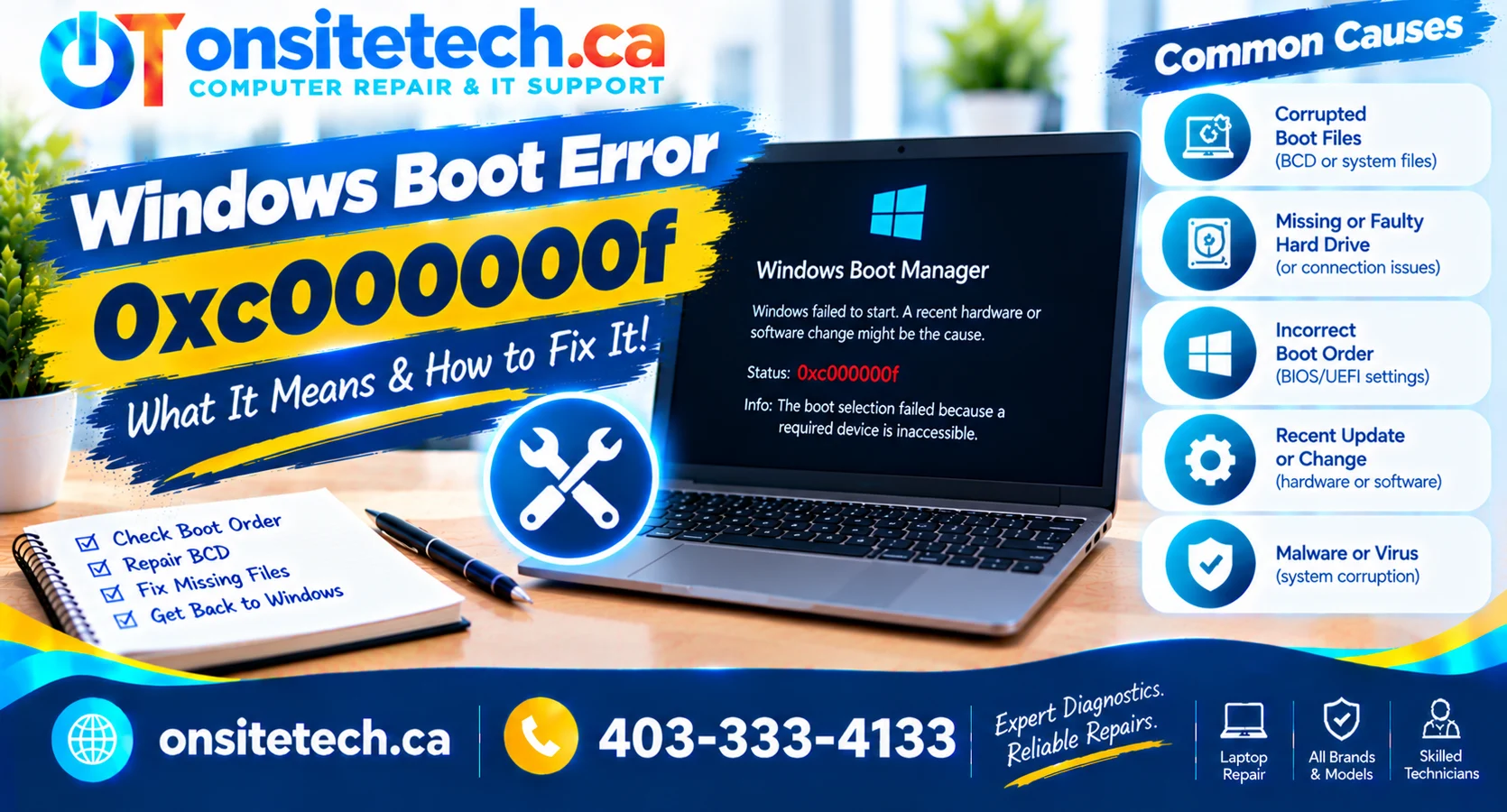
OnSiteTech | Windows Boot Troubleshooting
Windows Won’t Start? Understand Error 0xc000000f Before Trying a Fix
You turn on your computer expecting Windows to load, but instead you see a blue or black recovery screen displaying Error Code: 0xc000000f.
The message may mention Boot Configuration Data (BCD), a missing device, or a file such as winload.efi. Windows cannot continue starting normally.
This error can be worrying, especially when important documents, schoolwork, photos or business files are stored on the computer.
Fortunately, Windows boot error 0xc000000f does not automatically mean your files are lost or your computer needs replacing.
This guide explains what the error means in Windows 11 and Windows 10, how to identify possible causes, which safe troubleshooting steps to try first, and when professional computer repair may be appropriate.
Windows boot error 0xc000000f can prevent your computer from starting Windows 11 or Windows 10. Learn the possible causes, safe troubleshooting steps, and ways to protect your files before attempting advanced repairs.
Prepared by OnSiteTech | Calgary, Alberta
What Does Windows Error Code 0xc000000f Mean?
Quick AnswerError code 0xc000000f indicates that Windows has encountered a problem accessing information or resources required to start.
Depending on the exact message, it may be associated with missing or corrupted Boot Configuration Data (BCD), a problem accessing the boot device, or an issue involving Windows boot files.
The safest starting point: record the exact error message, disconnect unnecessary external storage devices, and use Windows Startup Repair if recovery tools are available.
Before attempting advanced repairs, protect important files and check whether the computer uses BitLocker encryption.
The error code identifies a startup failure, but does not prove that a particular component has failed.
A computer displaying 0xc000000f may need software recovery, boot configuration repair, storage assessment or further diagnosis.
Before You Try to Fix Error 0xc000000f
Some online troubleshooting guides recommend immediately entering boot repair commands or rebuilding partitions.
These procedures are not appropriate for every Windows installation and may create additional problems if performed incorrectly.
- Take a photo of the error screen. Record the code and any file path displayed.
- Do not immediately reinstall Windows. A clean installation can remove existing files.
- Avoid unnecessary formatting. Do not delete or recreate partitions without understanding their purpose.
- Check for BitLocker. Recovery tools may require your BitLocker recovery key.
- Limit repeated boot attempts. If you suspect drive failure, repeated access attempts may complicate recovery.
- Prioritize important data. If files are not backed up, consider data protection before advanced system changes.
What Does Your 0xc000000f Error Screen Say?
Open the description that best matches your screen. Different messages can point toward different areas of the startup process.
The Boot Configuration Data is missing or contains errors
If the screen references \Boot\BCD or Boot Configuration Data, Windows may be unable to read valid information needed to start the operating system.
A damaged or missing BCD store is one possible explanation. Storage or access problems can also interfere with reading boot information.
Windows Startup Repair is a reasonable first recovery option.
The error mentions \Windows\System32\winload.efi
The file winload.efi is associated with the Windows operating system loader on UEFI systems.
A message referencing this file may indicate a problem during the loader stage, but does not automatically mean the file itself is damaged.
Begin with official Windows recovery options rather than downloading replacement system files from unknown websites.
The required device is not connected or cannot be accessed
Windows may be unable to access a required boot device or resource.
This could involve storage detection, boot configuration, connections or the drive itself.
Disconnect unnecessary external storage devices, then record whether the message changes.
The error appeared after a Windows update
Some startup failures occur after updates or changes to the boot environment.
However, timing alone does not prove that Windows Update caused the problem.
Windows Recovery Environment may offer Startup Repair and supported rollback options.
I cannot open Windows Recovery Environment
Some systems enter recovery automatically after repeated startup failures, but recovery may be unavailable when boot files or recovery components are damaged.
Official Windows recovery media may provide an alternative route to recovery tools.
Startup Repair could not repair my PC
Startup Repair cannot resolve every startup problem.
The next step depends on the recorded error, storage condition, encryption state and whether a valid Windows installation can be detected.
Do not assume that reinstalling Windows is the only option.
BOOTREC /FIXBOOT says Access is denied
This message can occur during attempts to repair the Windows boot environment.
Modern UEFI configurations differ from older BIOS-based installations. Repeating commands designed for another partition layout may not help.
Further diagnosis is preferable to repeatedly modifying boot files or partitions.
6 Common Causes of Windows Boot Error 0xc000000f
Cause 01
Corrupted Boot Configuration Data
Windows uses Boot Configuration Data to determine how the operating system should start. Missing or damaged BCD information can prevent normal startup.
Cause 02
Inaccessible Boot Drive
If the computer cannot reliably detect or access its system storage, essential startup information may become unavailable.
Cause 03
Damaged Startup Files
Missing or corrupted Windows boot components can interrupt the transition from Windows Boot Manager to the operating system loader.
Cause 04
Interrupted System Changes
Interrupted updates, unsuccessful system modifications or unexpected shutdowns may contribute to boot configuration or file problems.
Cause 05
Firmware or Boot Configuration Changes
Changes involving boot mode, device selection or firmware settings can prevent Windows from finding the expected startup configuration.
Cause 06
Storage or Hardware Problems
An SSD, hard drive or another component may be involved when startup data cannot be read reliably. Proper testing is needed before replacing parts.
Important:These are possible causes, not confirmed diagnoses. Error 0xc000000f alone cannot establish whether the problem is Windows software, an SSD, firmware or another component.
Error 0xc000000f: Symptoms and Safe Next Steps
| Error or Symptom | Possible Issue | Suggested Next Step |
|---|---|---|
| BCD missing or corrupted | Invalid or inaccessible boot configuration | Try Windows Startup Repair |
| winload.efi referenced | Windows loader-stage problem | Review Windows recovery options |
| Required device cannot be accessed | Boot device or storage access issue | Disconnect external storage; assess disk detection |
| Error after system changes | Boot configuration or system-file issue | Review supported recovery and restore options |
| Startup Repair fails | Problem not corrected automatically | Record repair results and investigate further |
| Repeated storage errors | Possible storage failure | Prioritize data protection and drive assessment |
| BitLocker recovery key requested | Encrypted drive requires recovery authorization | Find the legitimate BitLocker recovery key |
How to Fix Error Code 0xc000000f in Windows 11 and 10
Start with the least disruptive checks. The goal is to identify the problem without unnecessarily changing partitions, boot records or personal files.
Step 01
Record the Exact Error Message
Take a clear photo of the recovery screen.
Look for:
- The complete error code.
- Any referenced file path, such as \Boot\BCD.
- References to winload.efi.
- Messages about an inaccessible or missing device.
- Any suggested recovery key or recovery option.
This information helps distinguish between boot configuration, Windows loader and storage-related problems.
Step 02
Disconnect Unnecessary External Devices
External drives and USB devices can sometimes affect which device the computer attempts to boot from.
Try this:
- Shut down the computer normally if that option is available.
- Disconnect unnecessary USB storage and external drives.
- Keep essential power and display connections in place.
- Start the computer again.
- Check whether the error remains unchanged.
If the problem continues, move to official Windows recovery options rather than repeatedly restarting the computer.
Step 03
Check Whether Windows Recovery Is Available
Windows Recovery Environment, also known as WinRE, provides tools for troubleshooting systems that cannot start.
Some computers automatically enter WinRE after startup failures.
If the recovery menu is already available, select Troubleshoot to review your options.
A BitLocker-encrypted device may request its recovery key before allowing certain operations.
Step 04
Run Startup Repair
Startup Repair is a built-in Microsoft recovery tool designed to diagnose and attempt to correct certain problems preventing Windows from starting.
It may address some corrupted system files, boot configuration problems and other startup-related errors.
How to Fix 0xc000000f Without a Windows Installation Disc or USB
One of the most common questions is whether error 0xc000000f can be fixed without installation media.
Yes, in some cases. If the computer can access Windows Recovery Environment, you may be able to use built-in recovery tools without an installation USB.
If Windows Recovery Environment Opens:
- Select Troubleshoot.
- Open Advanced options.
- Choose Startup Repair.
- Follow the prompts.
- Allow Windows to finish the diagnostic process.
- Review whether the repair was successful.
Depending on your device and Windows configuration, other recovery options may also be available.
Do Not Repeatedly Interrupt BootingAlthough Windows may enter recovery automatically after startup failures, deliberately forcing repeated shutdowns is not a good general troubleshooting method, especially when drive damage is suspected.
If WinRE is inaccessible, official recovery media may be necessary.
How to Use Windows Startup Repair for Error 0xc000000f
Startup Repair is usually one of the first recovery tools worth considering for a boot configuration problem.
Access Startup Repair:
- Open Windows Recovery Environment.
- Select Troubleshoot.
- Choose Advanced options.
- Select Startup Repair.
- Choose the Windows installation if prompted.
- Follow the remaining on-screen instructions.
Startup Repair will attempt to diagnose supported startup problems and correct issues it can safely address.
The process does not guarantee that every BCD or storage problem will be repaired.
What Happens If Startup Repair Works?If Windows starts successfully, back up important files and investigate whether the problem was a one-time software failure or part of a recurring storage or hardware issue.
If Startup Repair reports that it could not repair the computer, record the message rather than immediately reinstalling Windows.
What If You Need a Windows Recovery USB?
If Windows Recovery Environment cannot open from the computer, official Windows installation or recovery media may provide access to repair tools.
Use Microsoft’s official Windows installation resources and the instructions appropriate for your Windows version.
On a compatible computer, a Windows installation USB may provide an option to repair the existing installation instead of installing Windows again.
Choose Repair, Not a Clean InstallationIf your goal is troubleshooting without removing files, do not begin a clean installation or delete partitions simply to reach recovery tools.
Booting from external recovery media may require device-specific steps. Follow your computer manufacturer’s documentation.
What Is Boot Configuration Data (BCD)?
Boot Configuration Data stores information Windows uses to locate and start the operating system.
If the BCD store is missing, damaged or inaccessible, Windows Boot Manager may not be able to continue starting Windows.
What Does \Boot\BCD Mean?
If your screen references \Boot\BCD, the error points toward the Windows boot configuration stage.
However, not every BCD-related error means the stored configuration is physically corrupted. Access or storage problems can produce similar symptoms.
What Does winload.efi Mean?
The file winload.efi is part of the Windows operating system loading process on UEFI-based computers.
If the error screen references:
\Windows\System32\winload.efi

Error code: 0xc000000f
Windows has encountered an error associated with the loader stage.
The file path does not automatically prove that winload.efi itself needs replacing.
Do Not Download Replacement Boot Files From Random WebsitesReplacing system boot components with unverified downloads can create additional security, compatibility and startup problems.
For detailed technical information, see Microsoft’s documentation on Windows startup troubleshooting.
Can BOOTREC or CHKDSK Fix Error 0xc000000f?
Advanced Windows recovery guides often mention command-line utilities such as BOOTREC and CHKDSK.
These tools have different purposes and should not be treated as interchangeable solutions.
| Tool | Main Purpose | Important Limitation |
|---|---|---|
| BOOTREC | Helps diagnose or repair certain Windows boot configuration problems | Procedures depend on firmware and partition configuration |
| BCDEDIT | Displays and manages Boot Configuration Data | Incorrect configuration changes can prevent Windows from starting |
| BCDBOOT | Can configure Windows boot files in appropriate recovery scenarios | Requires correct identification of the Windows installation and system partition |
| CHKDSK | Checks file-system and storage-related errors | Cannot directly fix every BCD or boot-loader problem |
| SFC | Checks and repairs certain protected Windows system files | Offline use requires appropriate Windows installation targeting |
Why BOOTREC /FIXBOOT May Show “Access Is Denied”
Some users encounter an Access Is Denied message when attempting to repair startup files with BOOTREC.
Modern UEFI systems use an EFI System Partition and boot procedures that differ from older BIOS-based configurations.
Because of these differences, repeatedly entering commands intended for another boot environment may not solve the issue.
Can CHKDSK Repair Corrupted Boot Files?
CHKDSK can investigate file-system problems and perform repairs when appropriate options are used.
However, CHKDSK is not a universal repair tool for Windows boot configuration errors.
On a drive suspected of physical failure, intensive disk repair operations may increase stress on the device or complicate data recovery.
Before Advanced Command-Line RepairsConfirm the correct Windows installation, drive letters, partition layout, encryption status and backup situation.
Do not copy commands from an unrelated computer configuration without understanding their effects.
Microsoft provides advanced technical instructions in its Windows boot troubleshooting documentation.
What If Startup Repair Cannot Fix Error 0xc000000f?
A failed Startup Repair does not automatically mean that Windows must be reinstalled.
The next step depends on the exact symptoms and the condition of the storage device.
Check 01
Review the Repair Result
Record the Startup Repair message and any diagnostic information before attempting additional changes.
Check 02
Confirm Storage Detection
If the boot drive is not being detected correctly, software-only repair may not address the underlying issue.
Check 03
Review Recovery Options
Windows Recovery Environment may provide other supported options, depending on your installation and available recovery information.
Check 04
Protect Important Files
Before attempting major boot changes or reinstallation, determine whether personal files are backed up.
Should You Reset or Reinstall Windows?
Reinstallation should not be the automatic first response to error 0xc000000f.
Depending on the chosen installation method, applications, system settings and personal files may be removed.
Make sure you understand the consequences before performing destructive operations.
What If the SSD or Hard Drive Is Failing?
If the computer has recurring storage errors, unusual mechanical noises or trouble detecting the drive, stop unnecessary repair attempts and consider professional storage assessment.
What If Windows Asks for a BitLocker Recovery Key?
Some Windows computers use BitLocker or Device Encryption to protect stored files.
When working with recovery tools, you may be asked to provide the BitLocker recovery key.
For a personal device, the key may be stored in the Microsoft account associated with the computer.
Official Microsoft Recovery Key Pagehttps://aka.ms/myrecoverykey
Do not clear the TPM, erase partitions or reinstall Windows simply because the recovery key prompt appears.
The correct recovery key may be necessary to access encrypted files.
Will Fixing Windows Error 0xc000000f Delete Your Files?
Not necessarily. Some startup problems can be corrected without intentionally removing personal files.
However, the risk depends on the actual problem, the recovery method used and whether the storage device is healthy.
Protect Your Files Before Major ChangesIf your documents, photos or business data are not backed up, avoid unnecessary formatting, partition deletion or Windows reinstallation.
Can Data Still Exist When Windows Cannot Boot?
Yes. A Windows startup failure does not necessarily mean files have been erased.
In some situations, existing data remains accessible once the startup problem has been addressed.
However, file recovery depends on drive condition, encryption and other factors.
What Should You Do If Important Files Are at Risk?
Tell the technician that data preservation is a priority.
Describe the symptoms and mention any unusual drive noises, storage errors or BitLocker messages.
Review OnSiteTech’s data recovery service for information about assessing inaccessible files.
How to Reduce the Risk of Future Windows Boot Errors
Not all startup failures are preventable, but some maintenance practices can reduce avoidable problems and make recovery easier.
- Maintain backups: Keep copies of important files separate from the computer.
- Use supported Windows versions: Keep your operating system and relevant device software up to date.
- Avoid interrupting updates: Do not shut down unnecessarily during active system operations.
- Monitor storage symptoms: Investigate unexplained freezes, boot errors and unusual drive noises.
- Keep recovery information: Store relevant BitLocker recovery keys securely.
- Avoid unverified utilities: Use trustworthy repair resources and official documentation.
- Document firmware changes: Record changes to system startup configuration.
Windows 10 Support NoticeStandard Windows 10 support ended on October 14, 2025. Windows 10 computers may still operate, but users should review Microsoft’s current security and support options.
When Should You Request Professional Computer Repair?
Consider qualified technical assistance if the problem continues after appropriate recovery attempts or the symptoms suggest a more complex fault.
Examples include:
- Error 0xc000000f appears repeatedly after restarting.
- Windows Startup Repair reports that it cannot repair the PC.
- Windows Recovery Environment is inaccessible.
- The system reports that a required boot device cannot be accessed.
- Advanced boot commands produce unexpected errors.
- The SSD or hard drive may not be detected correctly.
- The computer contains important files without a backup.
- You are unsure whether the problem involves Windows, firmware or hardware.
A diagnosis should identify the most likely cause before recommending new components or major software changes.
OnSiteTech’s computer repair service covers Windows startup problems, software issues and general hardware assessment.
Related OnSiteTech Services
Primary Service
Computer Repair
Troubleshooting for Windows errors, startup failures, crashes and suspected hardware problems.
Laptop Support
Laptop Repair
Support information for laptops affected by boot errors and Windows startup problems.
Data Protection
Data Recovery
Review assessment options when important files may be inaccessible because of startup or storage problems.
Service Information
Repair Pricing
Review published pricing and service conditions before requesting an on-site visit.
Calgary & Surrounding Communities
Windows Boot Error 0xc000000f? Get Computer Repair Help in Calgary
If your desktop or laptop cannot start Windows because of error code 0xc000000f, OnSiteTech provides a starting point for requesting on-site computer support in Calgary, Alberta.
Our geographic service areas include Calgary and selected surrounding communities.
Service availability, travel arrangements, appointment times and repair scope depend on the location and problem.
Frequently Asked Questions About Error 0xc000000f
How can I fix the 0xc000000f error on Windows?
Start by recording the exact error, disconnecting unnecessary external storage and trying Windows Startup Repair if available. The appropriate repair depends on whether the problem involves BCD, boot files, storage detection or another issue.
How do I fix error code 0xc000000f in Windows 11?
Use Windows 11 Recovery Environment to access Startup Repair. If automatic repair fails, review the diagnostic message and assess the boot configuration and storage before attempting more advanced changes.
Can I fix 0xc000000f without a Windows installation disc?
Yes, sometimes. If Windows Recovery Environment is available on the device, Startup Repair and other supported tools can be accessed without installation media.
What causes Windows boot error 0xc000000f?
Possible causes include damaged Boot Configuration Data, inaccessible storage, boot configuration changes, missing startup files or other hardware and software problems.
What does Boot BCD 0xc000000f mean?
The error may indicate that Windows cannot access valid Boot Configuration Data required for startup. Further diagnosis is necessary to establish whether the BCD store is damaged or simply inaccessible.
What does 0xc000000f winload.efi mean?
It indicates a startup error involving the Windows loader stage. The displayed file path does not automatically prove that winload.efi itself is damaged.
How do I repair corrupted boot files in Windows 11?
Startup Repair is one supported starting point. More advanced repairs depend on the computer’s boot configuration, partition layout, encryption status and the specific failure.
Can CHKDSK fix error 0xc000000f?
CHKDSK may address certain file-system issues but cannot correct every boot configuration problem. It should not be used indiscriminately, particularly on a potentially failing storage device.
Why does BOOTREC /FIXBOOT say Access is denied?
The error can appear when the repair method is not appropriate for the system’s boot configuration or access to relevant boot components is restricted. UEFI and older BIOS installations require different considerations.
Can Startup Repair fix corrupted BCD?
Startup Repair can attempt to resolve certain BCD-related problems, but success depends on the actual cause and whether Windows can access the necessary recovery resources.
What if Startup Repair cannot repair my PC?
Record the diagnostic result and review other recovery options. Storage assessment or more advanced troubleshooting may be needed. Windows reinstallation is not always necessary.
How do I boot into repair mode in Windows 11?
Windows may enter Recovery Environment automatically after startup failures. On supported systems, official recovery media can also provide access to recovery options.
Does error 0xc000000f mean my SSD is broken?
No. The error can result from software or boot configuration issues as well as storage problems. Proper diagnosis is required before concluding that the SSD has failed.
Will repairing error 0xc000000f delete my files?
Not necessarily. Some recovery methods are designed to repair startup problems without intentionally deleting personal files. However, destructive operations and existing drive faults can put data at risk.
Can a Windows update cause error 0xc000000f?
Some boot problems appear after system updates or configuration changes. The timing may help with diagnosis but does not prove that the update caused the error.
Can I reinstall Windows to fix 0xc000000f?
Reinstallation may restore a usable Windows installation in some circumstances, but it can remove applications, settings and personal data. Consider other recovery options first.
Does 0xc000000f affect Windows 10?
Yes. The error can occur on Windows 10 as well as Windows 11, although the available recovery interfaces and boot configurations may differ.
Is error 0xc000000f a virus?
The error alone is not evidence of malware. Several non-malicious software, boot configuration and hardware conditions can produce startup failures.
Should I change BIOS or UEFI settings to fix this error?
Do not change firmware settings without understanding the computer’s existing configuration. Incorrect boot-mode or device changes can introduce additional startup problems.
Can OnSiteTech help with Windows boot errors in Calgary?
OnSiteTech provides computer repair and troubleshooting services in Calgary and selected surrounding communities. A technician can assess the symptoms and help determine the appropriate repair path.
Official Windows Recovery Resources
This guide was prepared using official Microsoft recovery documentation and general computer troubleshooting principles.
Windows boot errors can have several causes, and troubleshooting procedures vary by operating system version, storage condition and boot configuration.
- Microsoft — Startup Repair
- Microsoft — Windows Recovery Environment
- Microsoft Learn — Windows Startup Troubleshooting
- Microsoft Learn — CHKDSK Documentation
- Microsoft — Find Your BitLocker Recovery Key
Windows recovery tools and interfaces may change. Always review the documentation appropriate to your device and current Windows installation.
OnSiteTech | Calgary & Area
Windows Still Won’t Boot? Get the Right Computer Repair Assessment.
Error 0xc000000f can indicate a Windows boot configuration problem, an inaccessible drive or another startup issue.
You do not need to know the exact cause before requesting assistance.
Start by describing what appears on your screen and which troubleshooting steps you have already tried.
- Tell us whether you use Windows 11 or Windows 10.
- Include the full error code and any referenced file path.
- Describe whether Windows Recovery Environment opens.
- Mention any unsuccessful repair attempts.
- Let us know whether important files are backed up.
- Report any unusual drive noises or hardware symptoms.
Assessment, repair feasibility, service availability and pricing depend on the device, symptoms and location. No specific repair outcome or data recovery result is guaranteed.
Educational troubleshooting guidance. If important data is not backed up or the storage device may be failing, avoid unnecessary destructive recovery procedures and seek appropriate technical assistance.