
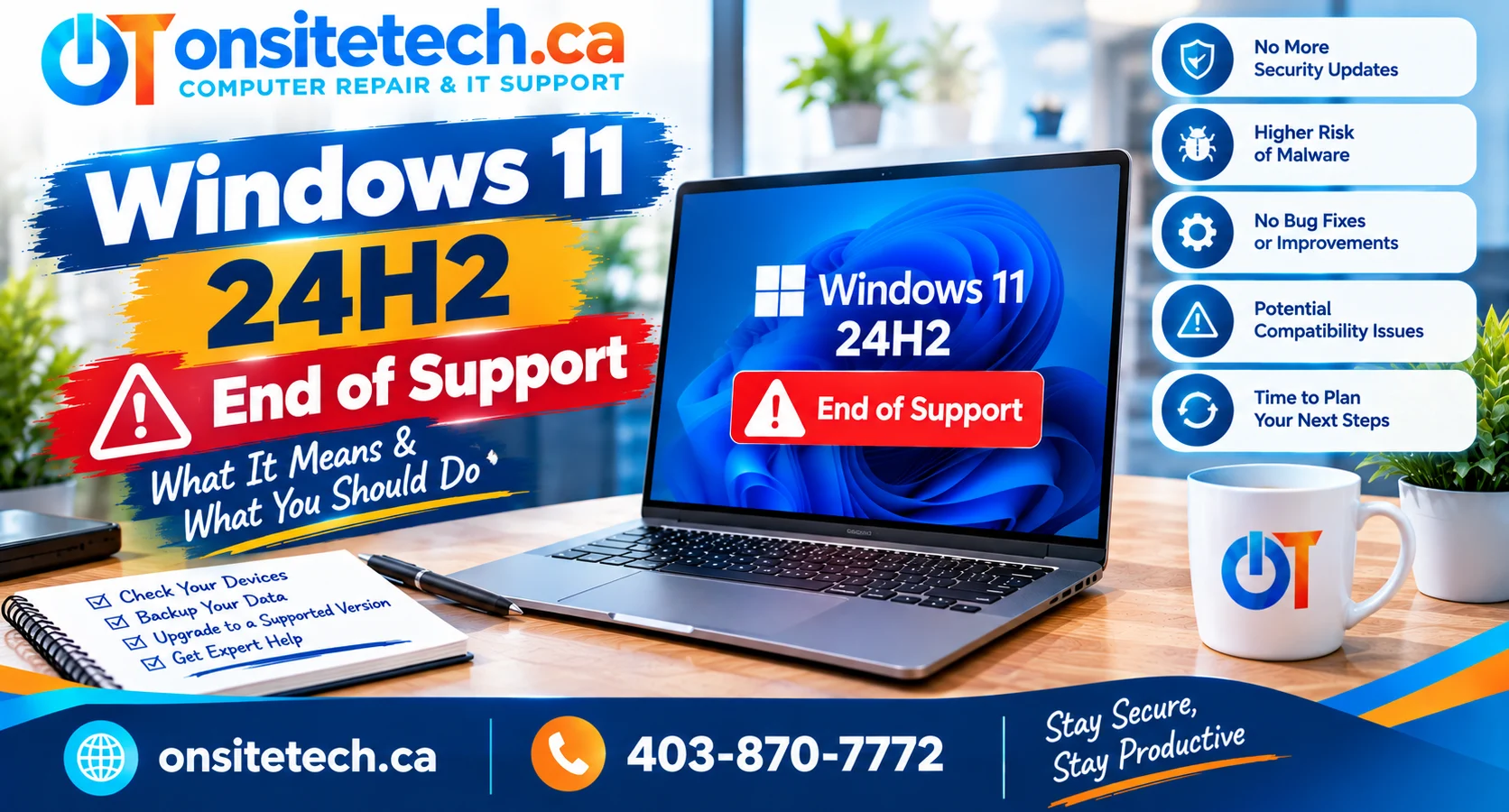
Windows 11 version 24H2,
an important update deadline
is approaching.Microsoft has announced that
Windows 11 24H2 Home and Pro
will reach the end of monthly
updates on October 13, 2026.
That means these editions will
no longer receive their normal
monthly security and quality
updates after the servicing period ends.
The good news is that Windows 11
itself is not ending support.
Eligible users can move to a
newer supported version,
including Windows 11 25H2.
This guide shows you how to check
your current version, update safely,
troubleshoot an update that isn’t
appearing, and protect important
files before making changes.
When Does Windows 11 24H2 Support End?
Quick Answer
Microsoft says Windows 11 version
24H2 Home and Pro reaches
end of updates on October 13, 2026.
Its lifecycle listing records
October 14, 2026 as the formal
end date for these editions.
After the servicing period,
Home and Pro devices still
running 24H2 will no longer
receive normal monthly security
updates or routine quality fixes.
Windows 11 24H2 Enterprise and
Education editions have a
different support timeline,
running until October 12, 2027.
This is an end-of-support event
for a specific Windows 11 version,
not the end of Windows 11
as an operating system.
For most personal computers
still using 24H2 Home or Pro,
the practical next step is
to install an eligible,
supported feature update
through Windows Update.
Windows 11 24H2 and 25H2 Support Dates
24H2 Home and Pro
October 13, 2026
Microsoft’s announced
final day of regular updates
for Windows 11 version 24H2
Home and Pro.
25H2 Home and Pro
October 13, 2027
Published support end date
for Windows 11 version 25H2
Home and Pro.
Why Do Some Microsoft Pages Show October 14?
Microsoft’s Windows Update announcement
identifies October 13, 2026 as
the end-of-updates date.
Its Windows 11 Home and Pro
lifecycle table lists
October 14, 2026 as the
formal version end date.
Both refer to the same
October 2026 servicing transition.
Don’t treat the one-day
difference as an extra
month of security coverage.
| Edition and Version | Support Information |
|---|---|
| Windows 11 24H2 Home | End of monthly updates: October 13, 2026 |
| Windows 11 24H2 Pro | End of monthly updates: October 13, 2026 |
| Windows 11 24H2 Enterprise | Supported through October 12, 2027 |
| Windows 11 24H2 Education | Supported through October 12, 2027 |
| Windows 11 25H2 Home and Pro | Supported through October 13, 2027 |
Official reference:
Microsoft Windows 11 Home and Pro Lifecycle
.
Which Windows 11 Update Situation Matches Your PC?
Choose the closest description
to find the appropriate next
step without guessing.
I’m not sure which Windows 11 version I have
Use the built-in winver command
or Windows Settings to check
your installed version.
My computer is running Windows 11 24H2
Check Windows Update for
a supported newer version,
and back up important data
before installation.
Windows 11 25H2 is not showing up
The rollout may depend on
your device, update settings
or compatibility protections.
The Windows 11 update fails to install
Look for an error code,
check storage and pending
updates, and follow
official troubleshooting.
I already have Windows 11 25H2
You’re not affected by
the 24H2 Home/Pro
end-of-support deadline.
Continue installing
appropriate security updates.
This is a work or school computer
Contact your IT administrator
before installing a feature
update. Managed devices
can follow different
deployment policies.
How to Check If Your PC Is Running Windows 11 24H2
You can check your exact
Windows version using
two built-in methods.
Method 1: Use winver
Check Windows Version
- Press Windows + R.
- Type winver.
- Press Enter.
- Read the Version field.
- Check whether it says 24H2, 25H2 or another version.
Method 2: Open Windows Settings
Find Your Windows Specifications
- Open Settings.
- Select System.
- Scroll down to About.
- Find Windows specifications.
- Review Edition and Version.
If your device reports
Windows 11 24H2 Home or Pro,
the October 2026 deadline
applies to that installed version.
If it reports 25H2 or a
newer supported version,
follow the lifecycle
information for that version.
What Happens When Windows 11 24H2 Reaches End of Support?
Windows 11 version 24H2
does not automatically stop
working when its support
period ends.
You should still be able
to start the computer,
open local files and
use applications that
continue to support
your environment.
However, the unsupported
Home and Pro version
will no longer receive
normal monthly security
and quality updates.
| Question | After 24H2 End of Support |
|---|---|
| Will Windows still start? | Yes, the operating system does not automatically shut down |
| Will my files be deleted? | No, end of support itself does not delete personal files |
| Will normal security updates continue? | Not for unsupported 24H2 Home/Pro installations |
| Can my applications still work? | Many can, depending on each publisher’s compatibility policy |
| Can I install a newer Windows 11 version? | Yes, if a supported update is available and your device is eligible |
Is Windows 11 24H2 Still Safe After October 2026?
An unsupported version becomes
more exposed to security risks
as new vulnerabilities
are discovered without
corresponding fixes.
Antivirus protection and
careful browsing can help
reduce some risks, but
they do not replace
operating-system
security updates.
Moving to a supported
Windows 11 version
is the preferred
long-term approach.
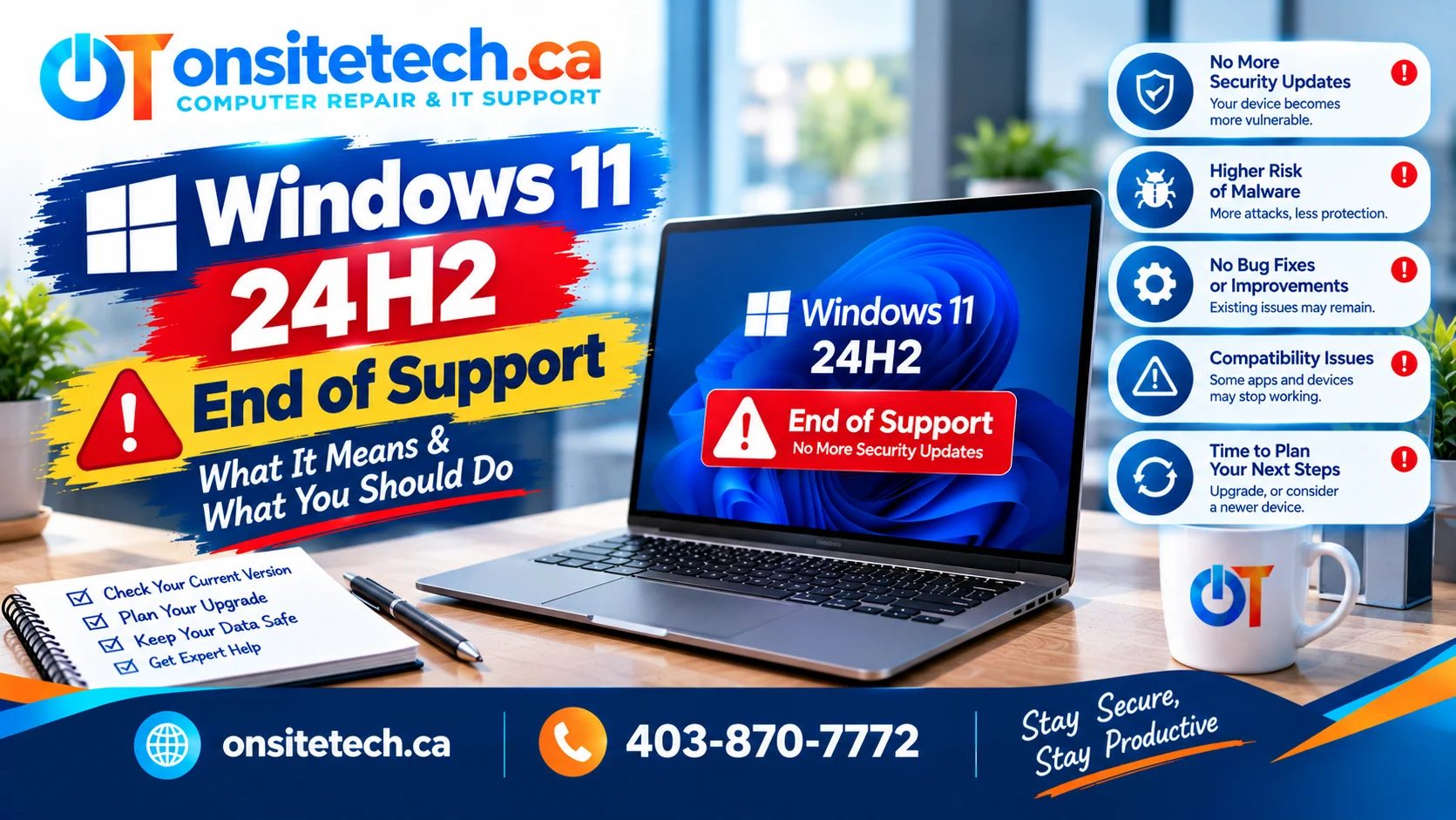
How to Update Windows 11 24H2 to 25H2
For supported computers,
Windows Update is the
recommended starting point.
Windows 11 versions 24H2
and 25H2 share a common
operating-system foundation.
Microsoft delivers 25H2
to eligible 24H2 computers
using an enablement package,
which can reduce installation
time compared with a
full operating-system upgrade.
Step-by-Step Update Guide
- Save your work and back up important files.
- Connect a laptop to a reliable power source.
- Open Settings.
- Select Windows Update.
- Click Check for updates.
- Install available quality updates if required.
- If Windows 11 version 25H2 is offered, select its download and installation option.
- Follow the on-screen instructions.
- Restart when prompted.
- Use winver to confirm the installed Windows version.
Some computers may be offered
a newer supported version
instead of 25H2.
Follow the release offered
through the supported
Windows Update channel.
Technical Note: Enablement Package
Microsoft documents
KB5054156 as the
25H2 enablement package
for eligible 24H2 devices.
It enables the newer
feature version using
the shared servicing base.
For most home users,
there is no need to
manually download this
package when Windows
Update provides the
appropriate feature update.
Official reference:
Microsoft — Windows 11 25H2 Enablement Package
.
Why Is Windows 11 25H2 Not Showing in Windows Update?
A feature update may not
appear immediately on
every compatible computer.
Microsoft uses staged
rollouts and compatibility
protections to reduce
the risk of update
failures on affected
hardware and software.
Common Reasons the Update Is Missing
- The update is being offered gradually.
- The computer still needs prerequisite quality updates.
- A driver or application compatibility issue is being investigated.
- A safeguard hold is preventing the feature update.
- The computer is managed by an organization’s update policy.
- The device is not currently eligible for the offered version.
What Should You Check First?
Safe Checks
- Restart the computer normally.
- Open Settings > Windows Update.
- Install any applicable quality updates.
- Check for the feature update again.
- Review Windows Update messages about compatibility.
- Check the manufacturer’s official driver and firmware guidance.
- Review Microsoft’s Windows release health information for known issues.
Do Not Force a Blocked Update
A safeguard hold is used
to prevent devices with
known compatibility
problems from receiving
a feature update.
Avoid registry changes
or unofficial tools
that bypass protections
without addressing the
underlying compatibility issue.
Windows 11 Update Not Installing? What to Check
If Windows 11 25H2 appears
but fails during download
or installation, start
with the error message
rather than repeating
the update indefinitely.
| Symptom | Possible Explanation | Next Step |
|---|---|---|
| Download does not finish | Connectivity or update-service problems | Check internet access and Windows Update status |
| Insufficient storage message | Not enough available system drive space | Safely review storage and temporary files |
| Installation error code | Specific update or system problem | Record the code and consult Microsoft guidance |
| Update rolls back | Possible driver or application conflict | Review update history and known issues |
| Update not offered | Rollout, policy or safeguard hold | Check release health and device eligibility |
Use the Windows Update Troubleshooter
Windows 11 Troubleshooting
- Open Settings.
- Select System.
- Open Troubleshoot.
- Select Other troubleshooters.
- Find Windows Update.
- Run the troubleshooter if it is available on your version.
- Follow the recommended actions.
- Restart and review Windows Update again.
If the update still fails,
record the error code
and any rollback message.
These details help narrow
down the next diagnostic step.
Avoid Unnecessary High-Risk Fixes
Do not reinstall Windows,
delete system folders,
disable security protections
or update BIOS firmware
solely because a feature
update did not appear.
Back up important files
before attempting
advanced repairs.
How to Prepare Your PC Before a Windows 11 Feature Update
Even a streamlined update
can encounter unexpected
software or hardware issues.
A few preparation steps
reduce unnecessary risk.
Pre-Update Checklist
- Back up documents, photos and essential files.
- Confirm that important applications support the target Windows version.
- Check available free space on the system drive.
- Keep laptop power connected throughout the installation.
- Allow required updates and restarts to finish.
- Save any required recovery or BitLocker information in a secure, accessible location.
- Disconnect unnecessary peripherals if recommended for troubleshooting.
- After updating, verify files, applications, printers and other devices.
Will Updating to 25H2 Delete My Files?
A normal supported
feature update is
designed to preserve
personal files and
installed applications.
However, no installation
process is completely
free from risk.
Maintain a recent
backup before updating.
Should You Use an Installation Assistant?
Windows Update is usually
the first option to check.
Alternative installation
methods should be chosen
only when appropriate for
your device and Microsoft’s
current instructions.
Do not use an alternative
installation method simply
to bypass a known
compatibility hold.
Should You Install Windows 11 25H2 or a Newer Version?
Windows 11 25H2 provides
a supported upgrade path
for eligible 24H2 computers.
Microsoft has also
documented newer Windows 11
feature versions.
That does not mean every
new version is immediately
offered to every PC.
Availability depends on
the supported rollout
channel, device eligibility
and compatibility.
For a normal home PC,
review the supported
version offered by
Windows Update instead
of forcing a particular
release number.
If your computer already
runs a newer supported
Windows 11 version,
the 24H2 deadline
is not directly applicable.
What About Business and School Computers?
Windows 11 version 24H2
Enterprise and Education
editions have a different
support timeline from
Home and Pro.
Microsoft lists their
support through
October 12, 2027.
Business-managed computers
may also receive feature
updates according to
IT-managed policies,
testing and deployment
schedules.
For Managed Devices
If your computer belongs
to a company, school
or other organization,
contact your IT
administrator before
installing a feature
update manually.
Important business software,
security tools and devices
may need compatibility
validation first.
What Is the Best Next Step for Your Windows 11 PC?
| Your Situation | Recommended Starting Point |
|---|---|
| Windows 11 24H2 Home/Pro | Check for an available supported feature update |
| Windows 11 25H2 | Continue normal Windows Update maintenance |
| Feature update not offered | Review update status, eligibility and safeguard holds |
| Installation repeatedly fails | Record the error and investigate the specific cause |
| Critical work applications | Check compatibility and backup readiness before updating |
| Company-managed computer | Follow your IT administrator’s deployment plan |
For most supported home PCs,
the goal is straightforward:
move away from an unsupported
24H2 installation while
protecting files and
application compatibility.
Explore Your Windows Upgrade Options With OnSiteTech
If you’re unsure about
compatibility, update errors
or protecting important files,
you can review OnSiteTech’s
service information before
submitting a request.
PRIMARY SERVICE
Windows 11 Upgrade
Explore assistance with
Windows version upgrades,
compatibility checks
and update preparation.
COMPUTER REPAIR
Computer Troubleshooting
For repeated update failures,
system errors or other
computer performance issues.
HOW IT WORKS
On-Site Repair Process
Understand the steps
involved in requesting
technical assistance.
PRICING
Service Pricing
Review published pricing
before requesting help
with Windows updates.
Calgary & Surrounding Communities
Windows 11 Update Help in Calgary
If your computer is running
Windows 11 24H2 in
Calgary,
OnSiteTech’s
Windows 11 upgrade service
is a starting point
for reviewing update
compatibility and
installation options.
Similar update questions
can affect users in nearby
communities. Someone in
Airdrie may need help
understanding why 25H2
is not appearing, while
a computer owner in
Cochrane may be concerned
about preserving files
before an upgrade.
The OnSiteTech geographic
plan includes:
These communities are in
the geographic service plan.
Actual service coverage,
appointment availability
and travel arrangements
must be confirmed
for each address.
Frequently Asked Questions About Windows 11 24H2
When does Windows 11 24H2 reach end of support?
Microsoft announced October 13, 2026
as the end of monthly updates for
Windows 11 24H2 Home and Pro.
Its formal lifecycle table lists
October 14, 2026.
Does Windows 11 itself end support in October 2026?
No. The deadline applies
to specific editions of
Windows 11 version 24H2,
not Windows 11 as a whole.
Newer supported versions
have their own servicing dates.
Will my PC stop working after 24H2 support ends?
No. Windows continues to
operate, but unsupported
Home and Pro installations
stop receiving their normal
monthly security and
quality updates.
How do I check if I have Windows 11 24H2?
Press Windows + R,
enter winver, and read
the Version field.
You can also check
Settings > System > About.
How do I update Windows 11 24H2 to 25H2?
Back up important files,
open Settings > Windows Update,
check for updates and install
the supported feature update
when offered.
Is Windows 11 25H2 free?
For eligible, appropriately
licensed Windows 11 computers,
the supported feature update
is delivered without a
separate Windows version
upgrade purchase.
Why is Windows 11 25H2 not showing?
Rollout timing, missing
prerequisites, device
management policies or
compatibility safeguard
holds may affect
availability.
What is a Windows safeguard hold?
It is a compatibility
protection that can
prevent an affected
device from receiving
a feature update until
a known problem is resolved.
Why is my Windows 11 update not installing?
Potential causes include
insufficient storage,
software or driver conflicts,
update-service issues
or specific installation errors.
Record any error code
and follow official guidance.
Will updating to 25H2 delete my files?
A normal supported feature
update is designed to retain
personal files and applications.
Back up important data first
because installations can fail.
What is the Windows 11 25H2 enablement package?
Microsoft uses an enablement
package to activate the 25H2
feature version on eligible
24H2 devices sharing the
same servicing foundation.
Does 24H2 Enterprise end support on the same date?
No. Windows 11 24H2
Enterprise and Education
editions are supported
through October 12, 2027.
Should I install Windows 11 26H2 instead?
Use the supported release
offered to your device
through Windows Update.
Availability can depend
on compatibility and rollout
status. Do not bypass
safeguard holds.
Do I need to buy a new computer to leave 24H2?
Not necessarily. Many eligible
24H2 PCs can install a newer
supported Windows 11 version
without replacing hardware.
Does Windows 10 ESU apply to Windows 11 24H2?
No. Windows 10 consumer ESU
is a separate program.
The normal solution for
an eligible Windows 11
24H2 Home or Pro device
is to move to a supported
Windows 11 feature version.
When should I get help with the Windows 11 update?
Consider assistance when
an update repeatedly fails,
important applications
need compatibility checks,
backup status is unclear,
or Windows Update reports
a problem you cannot resolve.
Official Microsoft Sources
This article was prepared
by OnSiteTech using Microsoft’s
published Windows lifecycle,
servicing and compatibility
information.
Update availability and
release details can change.
Review Microsoft’s current
documentation before applying
advanced servicing procedures.
Microsoft — Windows 11 Home and Pro Lifecycle
Microsoft — September 2026 Windows 11 Update and End-of-Updates Notice
Microsoft — Windows 11 25H2 Enablement Package
Microsoft — Windows Update Safeguard Holds
Microsoft — Windows 11
This guide focuses on
consumer Windows 11
Home and Pro devices
unless another edition
is specifically mentioned.
OnSiteTech | Calgary & Area
Need Help Updating Windows 11 Before Support Ends?
If your computer still runs
Windows 11 24H2, the feature
update is missing, or
installation keeps failing,
you do not need to guess
which system setting
to change.
OnSiteTech’s Windows 11
upgrade service is a
starting point for reviewing
the next appropriate step.
- Identify your current Windows edition and version.
- Check update eligibility and available options.
- Review important files and backup readiness.
- Identify installation errors or compatibility concerns.
- Confirm service arrangements before proceeding.
Installation options, service
availability and any repair
or upgrade charges depend
on your PC and the findings.
Information reviewed October 2026.
This guide is for educational purposes.
Back up important files before
major operating-system changes.
Use official Microsoft update
channels and respect
compatibility safeguard holds.