
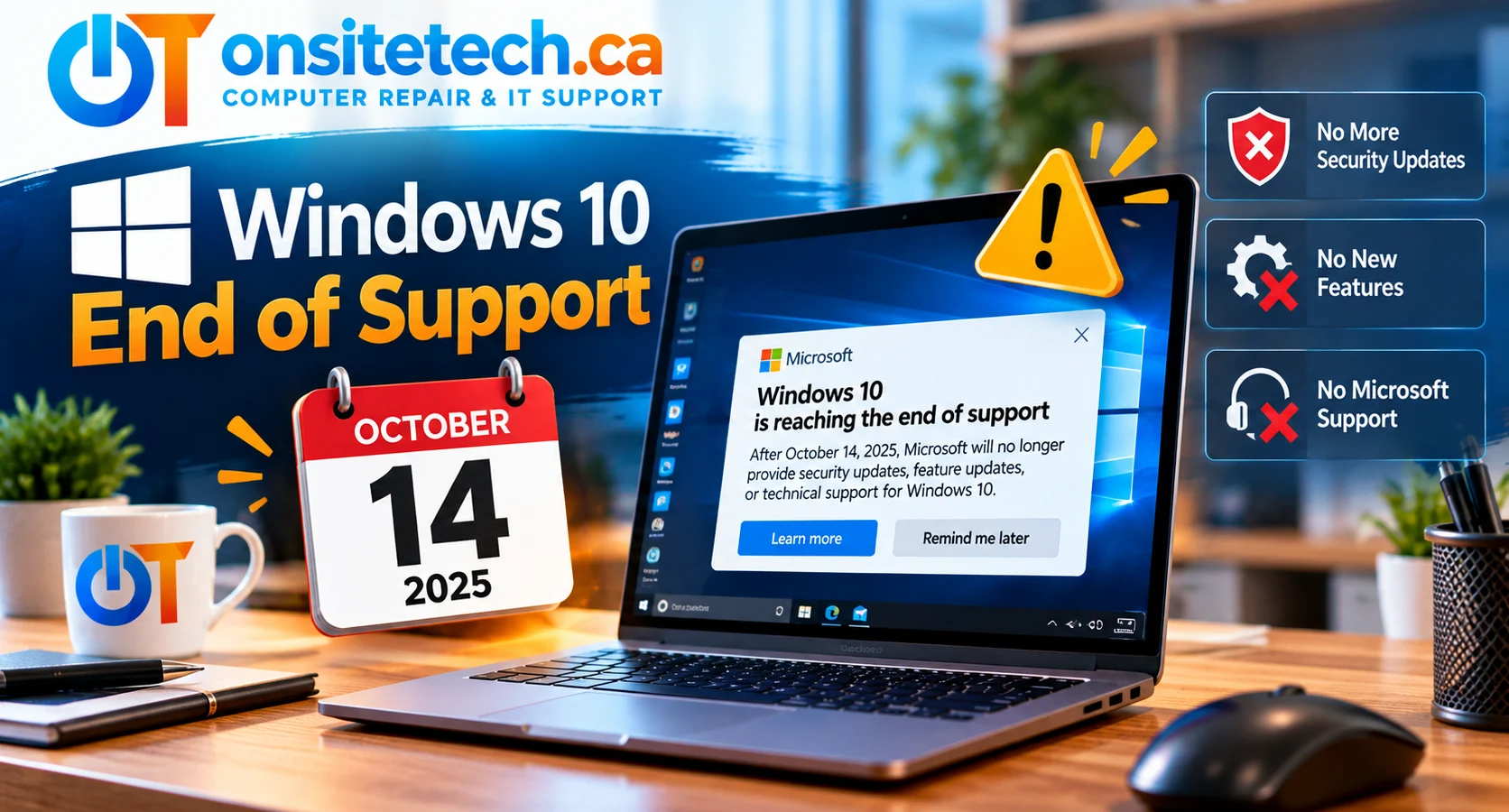
but that doesn’t mean your computer
suddenly stops working.
The more important question is whether
your PC is still receiving security updates.Microsoft ended standard
Windows 10 support
on October 14, 2025.
For eligible personal computers,
the Windows 10 Extended Security
Updates (ESU) program now runs
through October 12, 2027.
This guide explains what happens
after end of support, how ESU works,
whether your PC can upgrade to
Windows 11, and which option
makes sense for your situation.
Has Windows 10 Support Ended?
Quick Answer
Yes. Regular support for Windows 10
Home and Pro ended on October 14, 2025.
Windows 10 PCs still turn on and run
installed software, but they no longer
receive the normal free Windows 10
security fixes and support.
Eligible personal-use Windows 10
version 22H2 devices can enroll
in Microsoft’s Extended Security
Updates (ESU) program to continue
receiving critical and important
security updates through
October 12, 2027.
ESU is a temporary security option,
not a return to full product support.
For many users, upgrading to a
compatible Windows 11 device
is the more sustainable long-term
approach. But some PCs need
hardware assessment, and some users
may prefer ESU while planning
their next move.
Windows 10 End of Support and ESU Dates
October 14, 2025Regular security updates
and standard support ended
for Windows 10 Home and Pro.
October 12, 2027Current end date for
critical and important
ESU security updates
on enrolled, eligible
personal-use devices.
Important Date Clarification
October 13, 2026 was the
original end date for the
consumer ESU year.
Microsoft extended
consumer ESU coverage
through October 12, 2027.
Commercial and enterprise ESU
programs use separate licensing
and schedules. Do not assume
the consumer rules apply
to business-managed devices.
Official source:
Microsoft — Windows End of Support
.
What Should You Do With Your Windows 10 PC?
Choose the situation that best
describes your computer.
These are useful starting points,
not an automatic compatibility test.
My PC supports Windows 11
If the official PC Health Check
app confirms compatibility,
review app requirements, back up
important files and consider
a supported Windows 11 upgrade.
My PC does not support Windows 11
Check which requirement is missing.
Some settings or supported hardware
changes may help, but many CPU
compatibility limitations cannot
be solved by adding RAM or storage.
I want to keep Windows 10 for now
Check whether your personal device
qualifies for the Windows 10
Consumer ESU program.
ESU can provide a temporary
security update path
while you plan a transition.
I don’t know whether my PC is compatible
Use Microsoft’s official
PC Health Check application
rather than guessing based
on the age of your computer.
My computer belongs to a business
Speak with your IT administrator
before enrolling in ESU or
attempting an operating-system upgrade.
Commercial ESU uses different
licensing and management requirements.
What Happens When Windows 10 Support Ends?
The end of support does not
automatically uninstall Windows,
erase your files or prevent
applications from opening.
The main change is that Microsoft
no longer provides normal free
Windows 10 security updates
and technical assistance
for the standard product.
| Feature | After End of Support |
|---|---|
| Windows 10 starts and runs | Yes, the operating system continues working |
| Existing personal files | Not automatically deleted by end of support |
| Regular Windows 10 security fixes | No longer provided through normal support |
| Critical and important ESU fixes | Available to properly enrolled, eligible devices during ESU coverage |
| New Windows 10 features | Not restored through the ESU program |
| Application compatibility | Depends on each software publisher’s support policy |
| Microsoft technical support | Not restored simply by enrolling in consumer ESU |
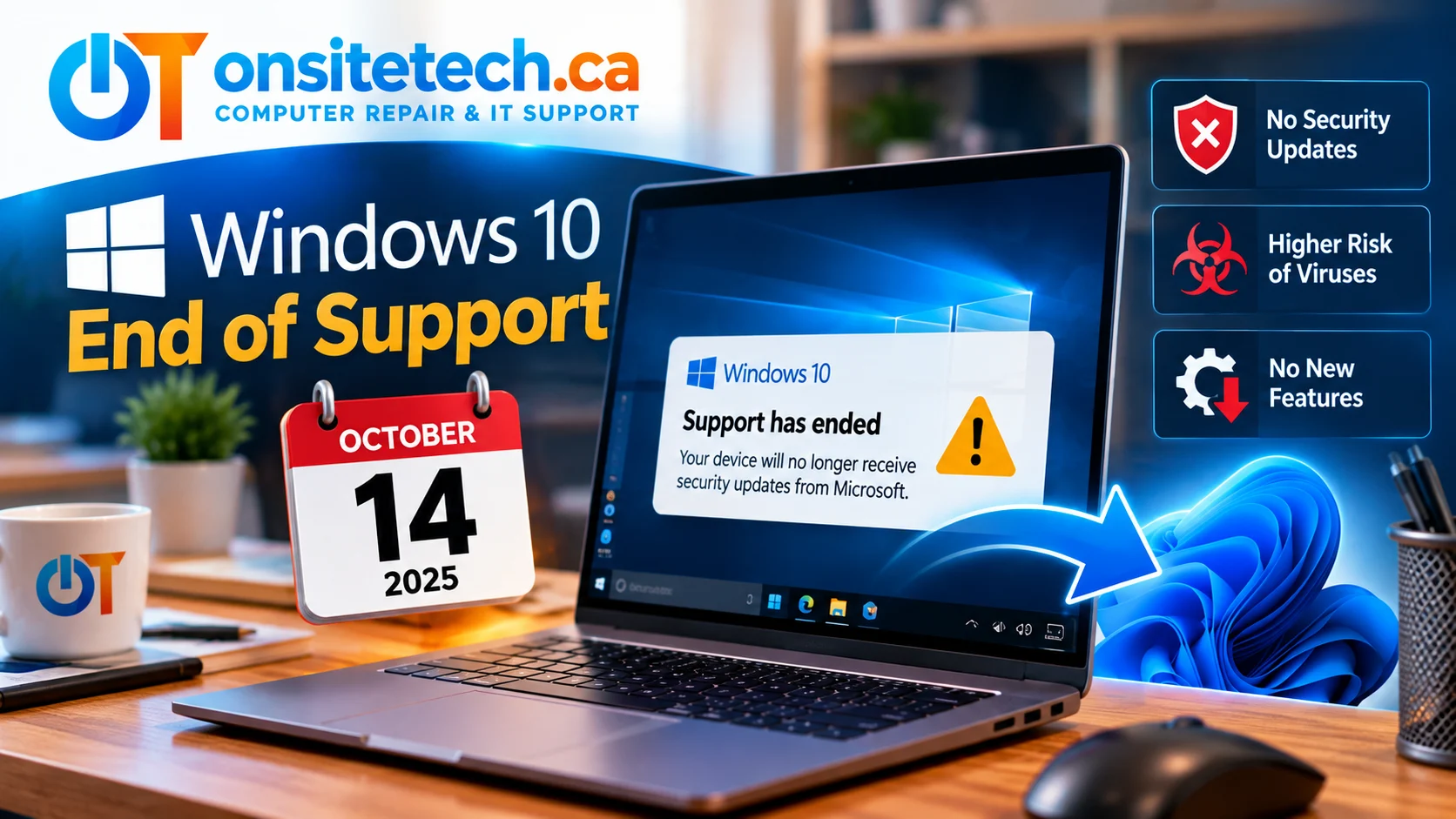
Will My Windows 10 Computer Stop Working?
No. End of support does not
mean Windows 10 automatically
shuts down on a specific date.
However, remaining on an
operating system without
appropriate security maintenance
can become increasingly risky,
particularly for devices used
for email, financial accounts,
online shopping and everyday browsing.
What About the Windows 10 End of Support Warning?
You may see a Windows notification
or settings message explaining
that your operating system
has reached end of support.
The exact notification can vary.
Read the message carefully
and use Microsoft’s official
Windows Update and ESU pages
rather than unfamiliar pop-ups
offering security repairs.
Is Windows 10 Still Safe to Use in 2026?
That depends on the device’s
security status and how it is used.
A Windows 10 PC that is properly
enrolled in ESU has an additional
source of important security fixes.
A device without those updates
faces greater exposure as new
vulnerabilities are discovered.
Even with ESU, Windows 10
is not restored to full
standard support.
Practical Security Checklist
- Check whether the PC is enrolled in ESU.
- Install eligible Windows and application security updates.
- Use supported browser and application versions.
- Maintain reliable backups of important files.
- Be cautious with email attachments and unknown downloads.
- Plan a transition to a supported operating system.
Antivirus software can help
reduce certain risks, but it
does not replace operating-system
security patches.
What Is Windows 10 Extended Security Updates (ESU)?
The Windows 10 Extended Security
Updates program provides
eligible Windows 10 devices
with critical and important
security updates after
the standard end-of-support date.
For personal-use Windows 10
version 22H2 devices,
Microsoft currently lists
October 12, 2027 as the
consumer ESU end date.
What Does Consumer ESU Include?
- Eligible critical and important Windows security updates
- Continued security-update coverage during the program period
- A temporary option while moving to Windows 11 or another supported device
What Does Consumer ESU Not Include?
- New Windows 10 features
- General product improvements unrelated to ESU security updates
- Full Microsoft technical support
- A guarantee that third-party apps will continue supporting Windows 10
Is Windows 10 ESU Free?
Microsoft lists three consumer
enrollment methods in supported
markets, subject to eligibility:
| Enrollment Option | Microsoft-Listed Terms |
|---|---|
| Sync PC settings | Enrollment at no additional cost through the supported settings-sync option |
| Microsoft Rewards | Redeem 1,000 Microsoft Rewards points |
| One-time purchase | US$30 or local-currency equivalent plus applicable tax |
Options and displayed prices
can depend on the market,
Microsoft account and
device eligibility.
Follow the enrollment
choices presented by Microsoft
on your PC.
Official details:
Microsoft Windows End of Support and ESU
.
How to Enroll in Windows 10 ESU
For eligible consumer PCs,
ESU enrollment is available
through Windows Update.
Consumer ESU Enrollment Checklist
- Check that your PC runs Windows 10 version 22H2.
- Install applicable system updates.
- Open Settings.
- Select Update & Security.
- Open Windows Update.
- Look for the ESU enrollment option if your device is eligible.
- Follow the instructions using the required Microsoft account.
- Choose one of the options offered for your device and region.
- Complete enrollment and check the status.
If you are already enrolled
in the consumer ESU program,
Microsoft states that coverage
continues automatically
through October 12, 2027.
You do not need to enroll
again solely because of
the extension.
Important:
Do not buy ESU from an
unfamiliar website or
trust an unsolicited pop-up
claiming that Windows needs
urgent payment.
Use Microsoft’s official
Windows Update experience
and published documentation.
Can Your Windows 10 PC Upgrade to Windows 11?
A Windows 10 computer can
qualify for Windows 11 if
it meets Microsoft’s supported
hardware and compatibility
requirements.
The easiest starting point
is the official
PC Health Check
application.
Check Compatibility
- Open Microsoft’s PC Health Check support page.
- Download and install the official app if needed.
- Open PC Health Check.
- Find the Windows 11 eligibility section.
- Select Check now.
- Review the result and any requirements that are not met.
- Check Windows Update for upgrade availability where appropriate.
Learn how to use Microsoft’s PC Health Check app →
Windows 11 Minimum Hardware Requirements
| Component | Minimum Requirement |
|---|---|
| Processor | Compatible 64-bit CPU or SoC, 1 GHz or faster with at least two cores |
| Memory | 4 GB RAM |
| Storage | 64 GB or larger storage device |
| Firmware | UEFI with Secure Boot capability |
| Security | TPM 2.0 |
| Graphics | DirectX 12 compatible with WDDM 2.0 driver |
| Display | Greater than 9 inches, 720p or higher |
Meeting these numbers alone
does not guarantee eligibility.
Processor support and other
compatibility rules matter.
Use Microsoft’s official
eligibility tool and
Windows 11 specifications
for the complete requirements.
How to Upgrade from Windows 10 to Windows 11
If your computer is supported,
Windows Update is generally
the preferred starting point.
Windows 11 Upgrade Preparation
- Confirm eligibility using PC Health Check.
- Back up important documents, photos and files.
- Check compatibility of essential software and peripherals.
- Make sure sufficient storage is available.
- Connect laptops to a reliable power source.
- Open Settings > Update & Security > Windows Update.
- Check whether the Windows 11 upgrade is offered.
- Follow Microsoft’s supported upgrade instructions.
- After installation, confirm that applications, files and devices work as expected.
A supported in-place upgrade
is designed to retain files
and many applications, but
you should still back up
important data first.
Do not assume every older
printer, specialist application
or peripheral will work
without changes.
Is the Windows 11 Upgrade Free?
For eligible Windows 10 PCs
with qualifying licensing,
Microsoft provides a supported
Windows 11 upgrade without
a separate operating-system
upgrade charge.
Professional installation,
data migration, hardware work
or troubleshooting are
separate services and may
involve labour charges.
Avoid Unsupported Bypass Methods
Do not assume that bypassing
TPM, Secure Boot or CPU checks
provides the same support
status as a compliant
Windows 11 installation.
An unsupported installation
may create update, driver
and reliability issues.
What If Your PC Cannot Run Windows 11?
An unsupported Windows 10 PC
does not automatically require
immediate disposal.
However, it needs a realistic
security and replacement plan.
Option 1: Use Consumer ESU Temporarily
If your personal Windows 10
22H2 device qualifies,
ESU may provide additional
security updates while you
plan a move to a supported
system.
Option 2: Review Hardware Compatibility
Some PCs may have a supported
feature disabled or a
component that can be
upgraded economically.
However, a processor that
is not on Microsoft’s
supported CPU list cannot
necessarily be made eligible
through a RAM or SSD upgrade.
Option 3: Replace the Computer
Replacing an older PC may be
more practical when important
Windows 11 requirements cannot
be met or the hardware has
other age-related limitations.
Option 4: Review Specialized Needs
If you depend on an older
business application,
specialized device or
legacy peripheral,
review compatibility before
making an operating-system change.
Different supported platforms
or replacement software may
be options, but these need
planning rather than guesswork.
Windows 10 ESU vs Windows 11 vs Replacing Your PC
| Option | Main Advantage | Main Limitation |
|---|---|---|
| Windows 10 with Consumer ESU | Temporary critical and important security updates on eligible enrolled devices | Not full support; consumer program ends October 12, 2027 |
| Upgrade to Windows 11 | Move to a supported operating system on compatible hardware | Requires eligibility and application compatibility checks |
| Replace the PC | Obtain hardware designed for current system requirements | Purchase cost and possible data migration |
The right option depends on
your budget, current hardware,
important software, data and
how long you plan to keep
the computer.
What About Windows 10 on Business Computers?
The consumer ESU program is
intended for qualifying
personal-use Windows 10 devices.
Organization-managed PCs
and enterprise deployments
may use commercial ESU
or separate IT arrangements.
If your computer is managed
by an employer or IT team,
do not independently enroll
in consumer ESU, bypass
management settings or
perform an upgrade.
Ask the administrator about
licensing, device management,
business application
compatibility and migration.
Some specialized Windows
editions have different
lifecycle dates.
Always check the exact
Windows edition before
applying general Home
and Pro guidance.
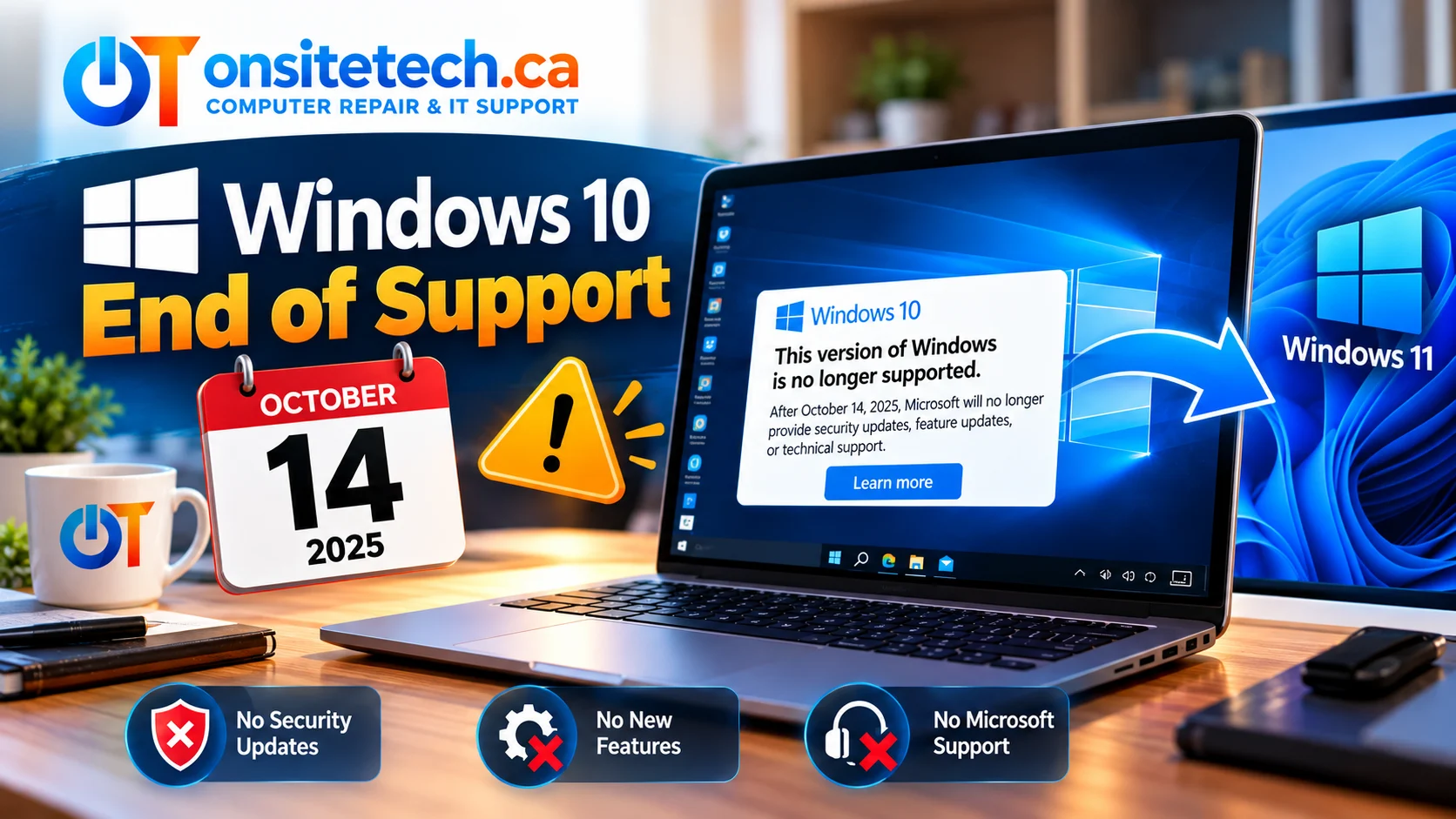
Explore Your Windows Upgrade Options With OnSiteTech
You can learn about upgrade
services, the repair process
and pricing before deciding
whether to request help.
PRIMARY SERVICE
Windows 11 Upgrade
Explore assistance with
upgrade compatibility,
preparation and migration
to Windows 11.
HARDWARE REVIEW
Hardware Upgrades
Learn about possible
RAM and storage changes
when a compatible device
would benefit from them.
SERVICE PROCESS
How On-Site Repair Works
Understand the process
before arranging technical
help with your computer.
PRICING
On-Site Repair Pricing
Review published pricing
and service information
before submitting a request.
Calgary & Surrounding Communities
Windows 11 Upgrade Help in Calgary
If you use Windows 10
in Calgary,
OnSiteTech’s
Windows 11 upgrade service
is a starting point for
understanding device
compatibility and upgrade
preparation.
For example, a PC owner
in Airdrie may need help
checking TPM 2.0 compatibility,
while someone in Cochrane
may be more concerned about
backing up files before
an operating-system upgrade.
The OnSiteTech geographic
plan includes the following
communities:
These communities are included
in the geographic plan.
Service coverage, appointment
availability and possible
travel arrangements need
confirmation for each address.
Frequently Asked Questions About Windows 10 End of Support
When did Windows 10 support end?
Standard support for Windows 10
Home and Pro ended on
October 14, 2025.
Eligible enrolled consumer
devices can still receive
ESU security updates through
October 12, 2027.
Was Windows 10 extended to 2026 or 2027?
The standard support deadline
was not changed. It remains
October 14, 2025.
The consumer ESU end date
was extended from
October 13, 2026 to
October 12, 2027.
Can I still use Windows 10 after support ends?
Yes. Windows 10 continues
to operate, but standard
security updates and
support have ended.
Review ESU eligibility or
a supported upgrade path.
Is Windows 10 safe without ESU?
Using an operating system
without ongoing security
fixes increases risk.
Antivirus software alone
does not replace missing
operating-system patches.
What is Windows 10 ESU?
Extended Security Updates
provide critical and
important security fixes
for eligible enrolled
devices after standard
support ended.
When does Windows 10 Consumer ESU end?
Microsoft currently lists
October 12, 2027 as the
consumer ESU end date.
Is Windows 10 ESU free?
Microsoft offers qualifying
consumer enrollment through
supported settings sync,
Microsoft Rewards points,
or a one-time payment.
Availability and terms
depend on eligibility
and region.
Do I need to enroll again for the 2027 extension?
Microsoft states that
already-enrolled consumer
devices continue automatically
through the new end date.
Does ESU include new Windows 10 features?
No. ESU focuses on eligible
critical and important
security updates. It does
not restore full standard
support or product
feature development.
Can I upgrade Windows 10 to Windows 11 for free?
Qualifying Windows 10 devices
with compatible hardware
can use Microsoft’s supported
upgrade path without a
separate Windows 11
upgrade charge.
Professional service
fees are separate.
How do I know if my PC can run Windows 11?
Use Microsoft’s official
PC Health Check application,
which checks important
eligibility requirements
and reports compatibility
issues.
Does Windows 11 require TPM 2.0?
Yes. TPM 2.0 is among the
published requirements
for supported Windows 11
installations.
What if my processor does not support Windows 11?
Check the processor against
Microsoft’s supported
requirements. Adding RAM
or a faster SSD does not
automatically make an
unsupported CPU eligible.
Will upgrading to Windows 11 erase my files?
A supported in-place upgrade
is intended to preserve
personal files and many
applications. However,
backing up important data
before upgrading remains
strongly recommended.
Can Windows 10 end of support affect my software?
Yes. Individual software
publishers may eventually
stop supporting Windows 10.
Check the requirements
of applications essential
to your work.
Should I replace my Windows 10 computer?
Not automatically.
Compare Windows 11 eligibility,
ESU options, hardware condition,
software requirements and
replacement costs.
Is Windows 11 itself ending support?
Windows 11 has its own
version-specific support
lifecycle. Check Microsoft’s
lifecycle documentation for
your exact Windows 11 version
instead of confusing it with
the Windows 10 deadline.
When should I get help upgrading to Windows 11?
Consider assistance when
compatibility results are
unclear, important software
must be preserved, backups
are incomplete or an
upgrade has failed.
Official Microsoft References
This guide was prepared
by OnSiteTech to help
Windows 10 users compare
security, ESU and
upgrade options.
Program terms and dates can
change. For the most current
requirements, use Microsoft’s
official information.
Microsoft — Windows 10 End of Support and Consumer ESU
Microsoft — Windows 10 Extended Security Updates
Microsoft — PC Health Check
Microsoft — Windows 11 System Requirements
Microsoft — Can I Upgrade to Windows 11?
This article focuses on
typical personal-use PCs.
Business-managed devices
and specialized Windows
editions may have different
licensing and lifecycle terms.
OnSiteTech | Calgary & Area
Need Help Moving from Windows 10 to Windows 11?
Not sure whether your PC
is compatible, concerned
about important files,
or confused by the
Windows 10 support notices?
You do not need to guess
which upgrade option
is right for your device.
Start by checking the
hardware requirements
and your current setup.
- Check Windows 11 compatibility.
- Review important files and backup needs.
- Identify possible application or hardware issues.
- Compare upgrade and replacement options.
- Confirm service arrangements before proceeding.
Upgrade eligibility, service
availability, hardware work
and any service charges
depend on the specific PC
and assessment.
Information checked October 2026.
This guide provides general
educational information.
Back up important data before
major operating-system changes.
Verify current Microsoft ESU
terms and hardware requirements
before taking action.