
OnSiteTech | Laptop Safety Guide
Swollen Laptop Battery: Signs, Risks & What to Do
A swollen laptop battery is more than a cosmetic problem.
It can push against the trackpad, keyboard, screen, or laptop
casing and may pose a fire risk. Learn how to recognize the
warning signs, understand what causes battery swelling, and
take the right steps to protect yourself and your device.
laptop and disconnect its charger if you can do so safely.
Do not charge or restart the device, press or puncture the
battery, or attempt to remove it yourself. Arrange professional
assistance. If the device is smoking, hissing, or becoming
extremely hot, move away and contact emergency services if
there is an immediate fire risk.
Quick Answer: What Should You Do About a Swollen Laptop Battery?
Stop using the laptop and treat the battery as a safety issue.
- Stop working and shut the laptop down if it is safe to do so.
- Disconnect the charger if you can do so without approaching a hot, smoking, or damaged device.
- Do not press, bend, puncture, charge, or attempt to remove the swollen battery.
- Keep people away from the device and seek qualified repair assistance.
- Follow local guidance for safe handling and disposal of the damaged battery.
A swollen battery cannot be restored to its normal condition
through software updates, calibration, or ordinary troubleshooting.
The battery needs professional assessment and, where appropriate,
replacement.
Signs of a Swollen Laptop Battery
Laptop batteries are usually hidden inside the casing, so
swelling may first appear as a change in the laptop’s shape
or how its components fit together. Watch for the following signs.
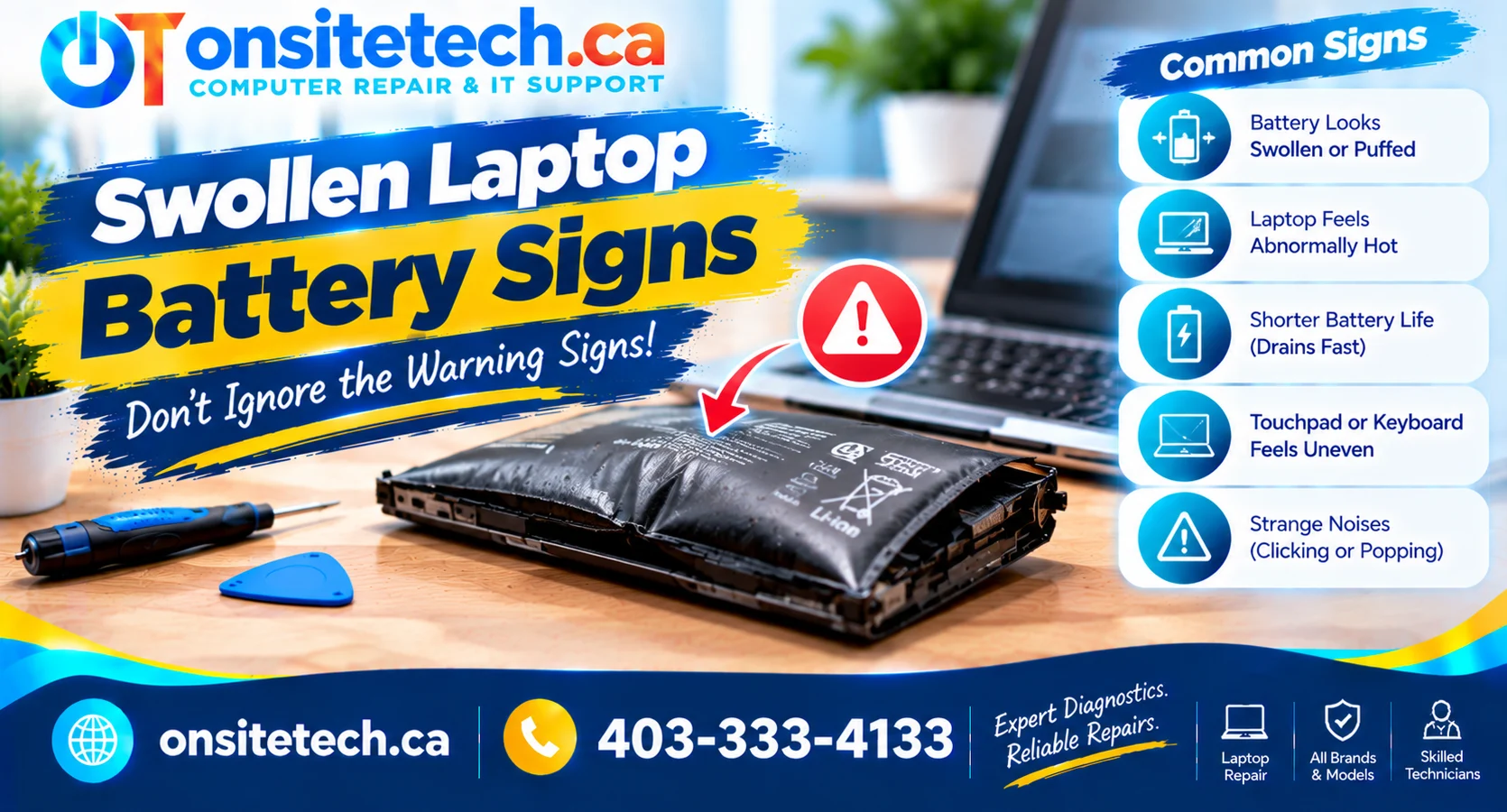
1. A Raised or Difficult-to-Click Trackpad
A trackpad that sits higher than usual, no longer clicks
normally, or feels stiff may indicate pressure from a battery
expanding underneath it. Other internal problems can cause
similar symptoms, so do not press harder to test it.
2. A Bulging Bottom Case
Look for a new bulge, an uneven base, or a laptop that no
longer sits flat on a desk. Do not push the casing back
into place or tighten screws to force it closed.
3. Gaps Around the Laptop Casing
New gaps between the bottom panel and the rest of the chassis
can indicate that something inside is pushing the components
apart. Do not attempt to close the gap by applying pressure.
4. A Raised Keyboard or Distorted Keys
If part of the keyboard appears lifted or the palm rest
changes shape, an expanding internal battery may be one
possible cause. Stop using the laptop rather than testing
the affected keys.
5. A Screen or Hinge That No Longer Aligns Normally
Unusual gaps, changes in screen alignment, or a chassis
that appears distorted may be signs of internal pressure.
Do not force the lid closed or open if it appears obstructed.
6. Unusual Heat, Odour, or Other Warning Signs
Unexpected heat, a chemical odour, hissing, or smoke can
indicate a more urgent battery problem. Do not bring your
face close to the device to investigate an odour or try
to inspect the battery internally.
warning sign appearing. If you notice a new bulge or separation
in the laptop casing, stop using the device and arrange an
appropriate assessment.
What Does a Swollen Laptop Battery Look Like?
A swollen battery may look puffed up, rounded, or distorted
compared with its original flat shape. In a laptop, you may
notice the effects externally before the battery itself is visible.
Common external clues include:
- A bottom panel that bulges outward.
- A trackpad or palm rest that appears raised.
- New gaps between parts of the laptop casing.
- A keyboard or screen that no longer sits normally.
- A laptop that rocks on a flat surface because its base is distorted.
These signs are not proof on their own that the battery is
swollen. However, they warrant caution. Do not open the laptop
to confirm your suspicion if doing so could disturb the battery.
Let a qualified technician inspect it.
What Causes a Laptop Battery to Swell?
Most modern laptops use rechargeable lithium-ion or lithium-polymer
batteries. As these batteries age or become damaged, unwanted
internal chemical reactions can produce gas and cause the cells
to expand.
Battery Age and Wear
Rechargeable batteries gradually deteriorate with use and time.
Internal degradation can contribute to gas formation and swelling.
Excessive Heat
High temperatures can accelerate battery degradation and may
contribute to unsafe internal reactions. Blocked ventilation,
a hot environment, or a malfunctioning component can increase
thermal stress.
Physical Damage
Drops, crushing, bending, or other damage can compromise a
battery’s internal structure. A damaged battery may become
unsafe even if the laptop still turns on.
Manufacturing or Internal Cell Defects
Defects in battery materials or cell construction can also
contribute to swelling. A relatively new battery is not
automatically free from this risk.
Charging-System Problems
A fault involving the battery, charging circuitry, or power
adapter may need investigation. However, a swollen battery
alone does not establish that overcharging or a faulty charger
caused the problem.
Battery swelling can have multiple causes. A technician can
assess the laptop and its power system, but no single cause
should be assumed from appearance alone.
Is a Swollen Laptop Battery Dangerous?
Yes. A swollen lithium battery should be treated as a potentially
hazardous component. The swelling may indicate internal damage
or chemical degradation that can increase the risk of a fire
or other battery failure.
Continuing to use the laptop can also:
- Put pressure on the trackpad, keyboard, display, and chassis.
- Cause further damage to internal components.
- Expose the battery to additional heat or mechanical stress.
- Increase the risk of a hazardous failure if the battery is damaged further.
Do not rely on the laptop’s ability to turn on as proof that
the battery is safe. A device can continue working even when
its battery needs urgent attention.
Can a Swollen Laptop Battery Be Dangerous When Unplugged?
Yes. Disconnecting the charger stops external charging, but
it does not remove the stored energy inside the battery or
repair internal damage.
A swollen battery can remain hazardous when the laptop is
unplugged and powered off. Do not assume it is safe to use,
carry around unnecessarily, open, or store near flammable
materials just because it is no longer connected to power.
Stop using the laptop and seek qualified assistance. If the
device is smoking, extremely hot, or showing signs of an
active battery failure, keep your distance and follow local
emergency guidance.
What to Do If Your Laptop Battery Is Swollen
Step 1: Stop Using the Laptop
Stop working immediately. If you can do so safely, shut the
laptop down without pressing on the swollen area. Do not
restart it to save files or test whether it still works.
Step 2: Disconnect External Power if Safe
Disconnect the charger only if you can do so without
approaching a hot, smoking, hissing, or otherwise hazardous
device. Do not reconnect it later to see whether the battery
still charges.
Step 3: Avoid Pressure and DIY Removal
Do not squeeze, bend, puncture, compress, or attempt to flatten
the battery. Do not force the laptop casing closed or attempt
to remove a swollen battery yourself if you are not qualified
to handle the hazard.
Step 4: Keep People Away From the Device
Do not leave the laptop where someone may accidentally press
on it. Avoid flammable surroundings and do not handle or
transport the device unnecessarily. If it is hot, smoking,
hissing, or leaking, do not attempt to move it; move away
and seek appropriate emergency assistance.
Step 5: Contact a Qualified Repair Professional
Explain that you suspect a swollen battery before arranging
service. Ask how the device should be handled and whether
they can assess and replace the battery safely.
Step 6: Arrange Safe Disposal
A removed swollen battery should not be put in household
garbage or ordinary recycling. Contact an appropriate
battery or hazardous-waste collection service for instructions
on accepting and transporting damaged batteries.
Swollen Laptop Battery Replacement: Repair or Replace?
A swollen battery should not be repaired by trying to reverse
its swelling. The appropriate solution is to have the device
assessed and the defective battery removed and replaced by
someone qualified to handle the risk.
| Situation | Recommended Next Step |
|---|---|
| Visible bulge or a raised trackpad | Stop using the laptop and arrange professional assessment. |
| Battery warning without visible swelling | Check manufacturer diagnostics and arrange service if needed. |
| Swelling in a relatively new laptop | Contact the manufacturer or seller to ask about warranty or recall coverage. |
| Smoking, extreme heat, or active battery failure | Keep away and follow emergency guidance; do not transport the device. |
Does Battery Replacement Always Fix the Problem?
Replacing a confirmed swollen battery addresses the defective
battery, but a technician may also need to check whether the
casing, trackpad, display, charging system, or other components
have been damaged.
Need Laptop Battery Replacement?
OnSiteTech offers a dedicated Laptop Battery Replacement
service. If you suspect swelling, tell the service provider
about the condition before arranging the repair so the
device can be handled appropriately.
Battery compatibility, service availability, parts, and
applicable costs should be confirmed before work proceeds.
How to Dispose of a Swollen Laptop Battery Safely
A swollen battery needs special handling. Damaged lithium
batteries can create fire risks when placed in ordinary waste
containers or transported incorrectly.
- Do not put a swollen battery in household garbage.
- Do not place it in a standard recycling bin.
- Do not puncture, crush, or attempt to flatten it.
- Do not mail or ship it without explicit authorization and instructions.
- Contact a qualified repair provider or local hazardous-waste service before transporting it.
Tell the collection service that the battery is swollen before
visiting. Not every recycling location accepts damaged lithium
batteries, and some require special arrangements.
Can You Prevent a Laptop Battery From Swelling?
Not every battery failure can be prevented. However, good
battery care can help reduce avoidable wear and damage.
- Keep the laptop within the operating-temperature range recommended by its manufacturer.
- Keep ventilation openings clear and avoid exposing the device to excessive heat.
- Use a compatible, reputable charger and inspect cables and adapters for damage.
- Protect the laptop from drops, crushing, and other physical impacts.
- Follow manufacturer guidance for charging, storage, and battery care.
- Pay attention to new bulges, gaps, unusual heat, or changes in the trackpad and casing.
Battery health settings and charge limits may help manage ordinary
battery wear on supported laptops, but they cannot reverse existing
swelling or make a defective battery safe to use.
OnSiteTech Service Areas
If you need computer service, OnSiteTech lists Calgary and
selected surrounding communities among its service areas.
Review the local service information and confirm availability
before arranging an appointment.
Airdrie →
Chestermere →
Cochrane →
Okotoks →
Crossfield →
Strathmore →
High River →
Diamond Valley →
Canmore →
Banff →
Confirm that your specific location is covered before booking.
A swollen or actively overheating battery should not be transported
to a repair shop without appropriate safety instructions.
Frequently Asked Questions
What are the first signs of a swollen laptop battery?
Common signs include a bulging bottom case, a raised or stiff
trackpad, new gaps in the chassis, a distorted keyboard, or
changes in screen alignment. Stop using the laptop if swelling
is suspected.
Can a swollen laptop battery explode if it is not plugged in?
Disconnecting the charger does not eliminate the hazard.
A damaged lithium battery can remain dangerous while unplugged.
Do not use or charge the laptop; seek qualified assistance.
Is it safe to use a laptop with a swollen battery?
No. Stop using the laptop and disconnect external power if
it is safe to do so. Do not restart, charge, or attempt to
remove the battery yourself.
What causes a laptop battery to swell?
Possible causes include internal battery degradation, excessive
heat, physical damage, manufacturing defects, and other unwanted
internal chemical reactions. The exact cause cannot be determined
from swelling alone.
Can a swollen laptop battery return to normal?
No. Swelling is not something that can be safely reversed with
software, calibration, or ordinary charging. The battery needs
professional assessment and appropriate replacement.
Should I remove a swollen laptop battery myself?
Do not attempt DIY removal if you are not qualified to handle
the hazard. Puncturing or bending a swollen battery can cause
a dangerous failure. Contact a qualified repair professional.
Can a swollen laptop battery be recycled?
It may be accepted by a specialized battery or hazardous-waste
collection service, but not every facility accepts damaged
batteries. Contact the facility first and explain that the
battery is swollen.
Does a swollen battery mean my laptop is beyond repair?
Not necessarily. A technician can assess whether replacing
the battery and checking affected components is practical.
The outcome depends on the laptop model, battery availability,
and any additional damage.
Can a new laptop battery swell?
Although battery swelling is associated with degradation over
time, it can also occur because of a defect or damage. If a
relatively new battery swells, stop using it and contact the
manufacturer or seller about warranty and safety options.
Where can I get laptop battery replacement in Calgary?
Review the OnSiteTech Laptop Battery Replacement service page
and confirm service availability before arranging an appointment.
Tell the provider that the battery is swollen so they can advise
you on safe handling.
Further Reading and Safety Resources
OnSiteTech | Laptop Battery Support
Suspect a Swollen Laptop Battery?
A bulging case, raised trackpad, or unusual gap may signal
a battery problem that needs prompt attention. Stop using
the device and arrange appropriate professional guidance.
Service suitability, battery compatibility, availability, and
applicable costs must be confirmed. Do not transport an actively
overheating or smoking battery.
This article provides general educational information and does not
replace manufacturer instructions or a professional assessment.
Always follow applicable local safety and battery-disposal guidance.