
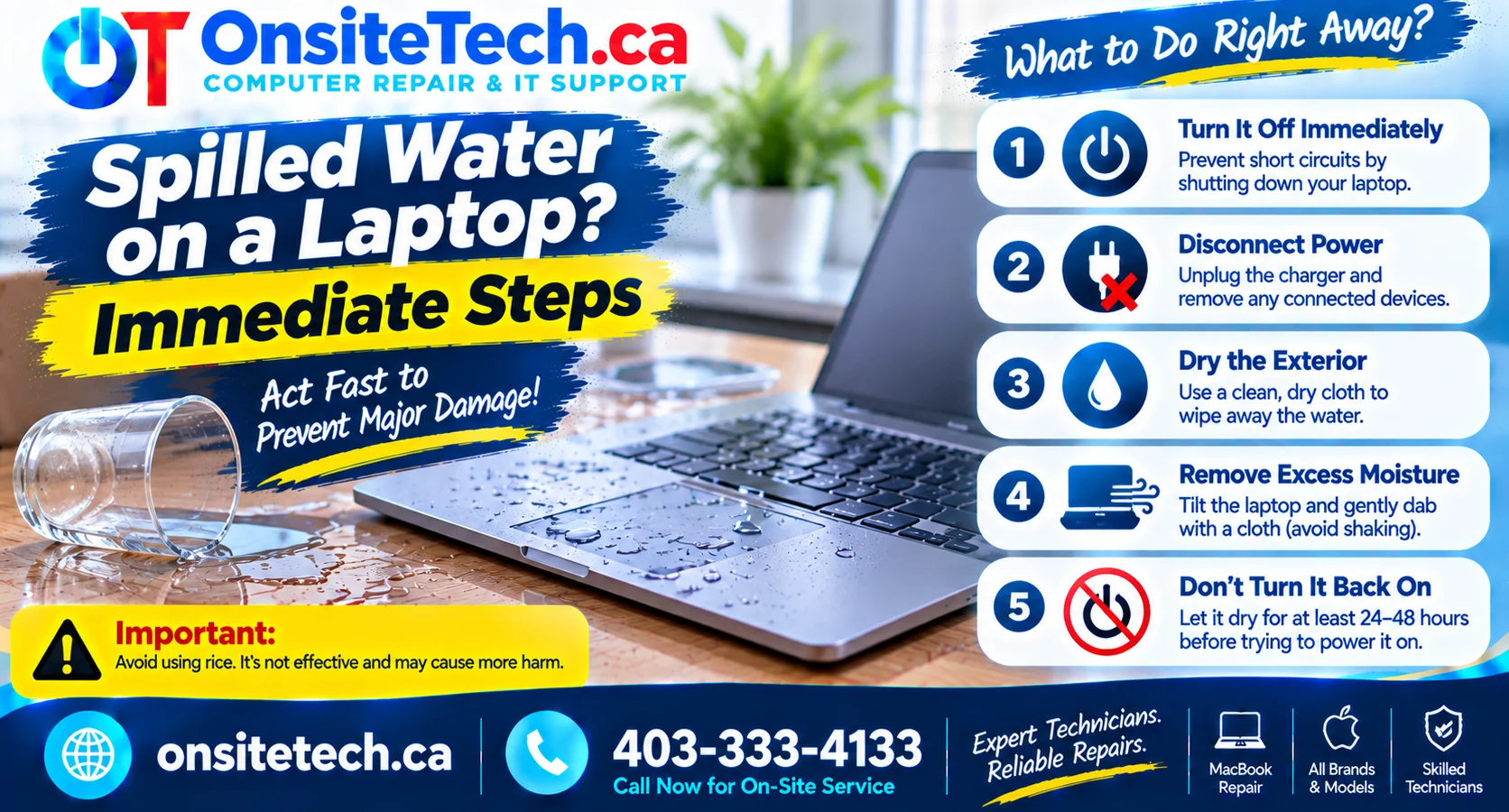
Learn what to do immediately after a liquid spill, how to reduce the risk of electrical damage, and when your laptop needs professional inspection.
If you spilled water on a laptop, turn it off immediately, disconnect the charger, and unplug connected accessories. Do not turn it back on to test whether it works. Blot visible liquid gently, keep the laptop powered off, and arrange a professional inspection as soon as possible. If it is safe and you know how to disconnect the internal battery, do so; otherwise, leave that step to a technician.
Spilled water on a laptop immediate steps can make a major difference in limiting potential damage. Even a small amount of liquid can reach the keyboard, motherboard, battery, charging circuit, or other internal components. The laptop may continue working for a short time, but that does not mean it is safe to use.
Water exposure can cause short circuits while the laptop is powered, and moisture or contaminants may contribute to corrosion over time. Acting quickly and avoiding common mistakes can improve the chances of a successful repair.
Table of Contents
What to Do Immediately After Spilling Water on a Laptop
Follow these steps as soon as possible. Your priority is to remove electrical power safely and prevent additional liquid from spreading inside the device.
1. Turn Off the Laptop Immediately
If the laptop is running, shut it down immediately. If it is unresponsive, hold the power button until it turns off. Do not waste time saving open files if liquid is actively entering the device.
If the laptop is already off, leave it off. Do not press the power button to check whether it still works.
2. Disconnect the Charger and Accessories
Unplug the power adapter from the laptop and disconnect external devices such as USB drives, monitors, headphones, and other accessories.
If the charger, electrical outlet, or surrounding area is wet, do not touch wet electrical connections. Disconnect power at the outlet or circuit breaker only if it is safe to do so. Otherwise, keep away and seek qualified assistance.
3. Disconnect the Battery If It Is Safely Removable
If your laptop has an externally removable battery and you can remove it without tools or risk, disconnect it after unplugging the charger.
Most modern laptops have internal batteries. Do not open the laptop or attempt battery removal unless you have the necessary experience and the device can be handled safely. A technician can disconnect the internal battery during inspection.
4. Remove Visible Water Gently
Use a clean, absorbent, lint-free cloth or paper towel to blot visible liquid from the keyboard, touchpad, screen edges, and exterior surfaces.
Do not press hard on the keyboard, shake the laptop, or push liquid deeper into openings. Avoid inserting tissues, cotton swabs, or other objects into ports.
5. Disconnect External Devices and Remove Easy-to-Access Media
If a USB drive or memory card is connected and can be removed safely, disconnect it. Do not remove internal components or storage devices while the laptop is wet unless you are qualified to do so.
6. Keep the Laptop Powered Off
Do not reconnect the charger or attempt to restart the laptop, even if the outside appears dry. Liquid may remain under the keyboard, connectors, shielding, or motherboard components.
7. Arrange a Professional Inspection
Have the laptop inspected as soon as possible, particularly if liquid entered the keyboard, vents, ports, or charging connector. A technician can assess internal moisture, disconnect power safely, and check for corrosion or electrical damage.
Why You Must Turn Off the Laptop After a Water Spill
A laptop contains electrical circuits that operate using power from its battery or charger. When water reaches an energized circuit, it can create unintended electrical paths between components.
This may cause:
- Short circuits on the motherboard.
- Damage to the charging and power-management circuits.
- Keyboard or touchpad malfunction.
- Display problems or failure to start.
- Damage to connectors and internal components.
Turning off the laptop and disconnecting external power reduces the risk of further electrical damage. However, switching it off does not remove moisture already inside the device, which is why inspection remains important.
What Not to Do After Spilling Water on a Laptop
Some popular drying methods can make the situation worse. Avoid these mistakes:
| What to Avoid | Why It Is Risky |
|---|---|
| Turning the laptop on to test it | Power can cause short circuits if moisture remains inside. |
| Connecting the charger | Applying power may worsen electrical damage. |
| Using a hair dryer | Heat can damage components and force moisture deeper into the device. |
| Putting the laptop in rice | Rice does not reliably remove internal moisture and may introduce dust or debris. |
| Shaking the laptop | Movement can spread liquid to additional internal areas. |
| Using an oven or heater | High temperatures can damage the battery, display, plastics, and electronics. |
| Waiting several days and restarting it | Visible dryness does not confirm that internal components are clean or safe. |
How to Handle and Dry a Wet Laptop
After disconnecting power and blotting visible liquid, place the laptop on a stable, dry surface. Keep it powered off and avoid moving it unnecessarily.
Should You Turn the Laptop Upside Down?
There is no single safe position for every laptop. The best position depends on where the liquid entered and the laptop’s design. Avoid aggressive tilting or shaking because this may spread liquid internally.
If liquid is pooled on the keyboard, gently blot the surface without pressing keys. A technician can determine the safest way to open and inspect the device.
How Long Should You Wait Before Turning It On?
There is no reliable waiting period that makes a liquid-damaged laptop safe to power on. Leaving it unused for 24 or 48 hours does not guarantee that moisture has evaporated from beneath components or that corrosion has been prevented.
Do not use a fixed drying time as permission to restart the device. Professional inspection is the safer option when liquid may have entered the laptop.
Signs of Water Damage in a Laptop
Liquid damage does not always cause immediate failure. Some laptops continue operating initially but develop problems later.
Watch for these symptoms:
- Keyboard problems: Keys stop responding, repeat characters, or behave unpredictably.
- Touchpad failure: The cursor moves erratically or the touchpad stops working.
- Power issues: The laptop does not turn on, shuts down unexpectedly, or fails to charge.
- Display problems: Flickering, lines, unusual colours, or a blank screen.
- Unusual heat: The laptop becomes hotter than normal or develops an unusual smell.
- Audio problems: Speakers produce distorted sound or stop working.
- Intermittent operation: The laptop works inconsistently or restarts without warning.
These symptoms can have other causes, so they do not independently confirm liquid damage. An internal inspection is needed to identify the actual problem.
Does Your Laptop Need Professional Repair?
Professional inspection is recommended whenever a meaningful amount of liquid enters a laptop, especially through the keyboard, vents, ports, or charging area.
Depending on the damage, repair may involve:
- Opening the laptop and inspecting internal components.
- Disconnecting the internal battery safely.
- Cleaning affected areas using appropriate electronics-cleaning methods.
- Inspecting the motherboard and connectors for corrosion.
- Testing the keyboard, touchpad, charging circuit, and display.
- Replacing damaged components when necessary.
Not every water-damaged laptop requires a motherboard replacement. The repair approach depends on the type of liquid, the amount spilled, where it entered, and whether electrical damage has occurred.
Need Laptop Liquid Damage Repair in Calgary?
If your laptop has been exposed to water, avoid turning it back on. OnSiteTech provides computer repair support in Calgary and can help assess liquid-related laptop problems and discuss appropriate repair options.
Explore Computer Repair Services
Does the Type of Liquid Matter?
Yes. Different liquids leave different residues and can create different levels of risk for laptop components.
| Liquid | Potential Concern |
|---|---|
| Plain water | Can cause short circuits and corrosion, especially if it contains minerals or contaminants. |
| Coffee | May leave residue that affects keys, connectors, and internal components. |
| Tea | Can leave deposits, particularly if it contains sugar or milk. |
| Soft drinks | Sugar and other ingredients can leave sticky, conductive, or corrosive residue. |
| Juice | Can leave acidic and sugary deposits that require careful cleaning. |
| Salt water | Can cause significant corrosion and electrical damage. |
Even if the laptop appears to work after a spill, residue may remain inside. Do not assume that a device is safe simply because the liquid has dried.
How to Prevent Future Laptop Liquid Damage
- Keep drinks away from your laptop and work area.
- Use a stable cup or bottle with a secure lid.
- Avoid placing drinks above the keyboard or near ventilation openings.
- Keep the laptop away from kitchen counters and areas where spills are likely.
- Back up important files regularly to an external drive or cloud service.
- Consider a suitable keyboard cover if it is compatible with your laptop manufacturer’s guidance.
Regular backups are particularly important because liquid damage can affect both the laptop and the storage device containing your files.
Frequently Asked Questions
1. What should I do first if I spilled water on my laptop?
Turn it off immediately, disconnect the charger and accessories, and remove an externally removable battery only if it is safe to do so. Blot visible liquid gently and keep the laptop powered off.
2. Can a laptop survive a water spill?
Yes, some laptops can be repaired after liquid exposure. The outcome depends on the amount of liquid, where it entered, how quickly power was disconnected, and whether internal components were damaged.
3. How long should I leave my laptop to dry?
There is no guaranteed drying period. Moisture can remain beneath components even when the outside feels dry. Professional inspection is safer than restarting the laptop after waiting a specific number of hours.
4. Can I use a hair dryer to dry my laptop?
No. A hair dryer can introduce excessive heat and may push moisture deeper into the laptop. Use gentle blotting for visible liquid and seek appropriate inspection.
5. Should I put my wet laptop in rice?
No. Rice is not a reliable way to dry internal laptop components. It cannot properly remove moisture trapped inside the device and may introduce dust or debris.
6. What if my laptop still works after water exposure?
Turn it off and disconnect power anyway. A laptop may continue working even when moisture remains inside, and corrosion or electrical problems may appear later.
7. Can water damage destroy laptop files?
It can, particularly if the storage device is affected or the laptop cannot access it. The data may still be recoverable, depending on the storage device and type of damage. Avoid unnecessary power attempts and seek an assessment if the files are important.
8. Is liquid damage covered by a laptop warranty?
Standard manufacturer warranties commonly exclude accidental liquid damage, although coverage depends on the manufacturer’s terms and any additional protection plan. Check your specific warranty conditions.
Final Thoughts
If you spilled water on a laptop, immediate action can help reduce the risk of further damage. Turn it off, disconnect external power, blot visible liquid gently, and do not attempt to restart it just because the exterior looks dry.
The safest next step is to have the laptop inspected, especially if liquid entered the keyboard, ports, or internal components. Acting early can help identify damage before it becomes more extensive and may improve the available repair options.