
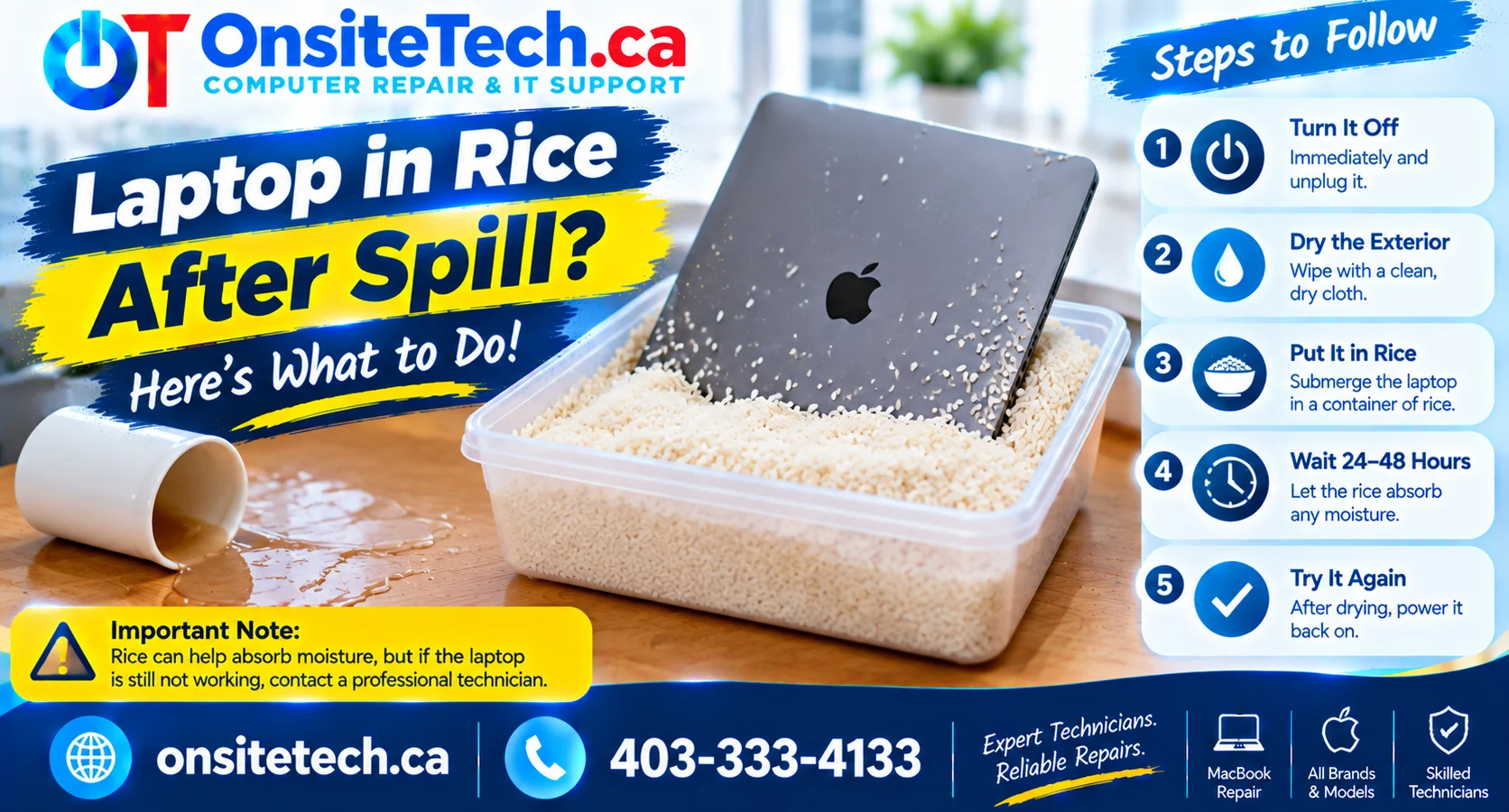
Thinking about putting your wet laptop in rice? Learn why this popular home remedy does not work, what you should do instead, and how to reduce the risk of permanent liquid damage.
Do not put a laptop in rice after a spill. Rice cannot reliably remove moisture trapped inside a laptop, and small particles or dust may enter openings. Instead, turn the laptop off immediately, disconnect the charger and accessories, blot visible liquid gently, and keep the device powered off. Arrange a professional inspection before attempting to turn it on again.
Put laptop in rice after spill is a common search when someone accidentally spills water or another liquid on a computer. The idea comes from the belief that uncooked rice absorbs moisture and can dry electronic devices. However, placing a laptop in rice is not a reliable liquid-damage repair method.
A laptop contains tightly packed components, connectors, a battery, and circuit boards. Liquid can travel beneath the keyboard and reach areas that rice cannot access. Even if the outside becomes dry, moisture or residue may remain inside and cause problems later.
Table of Contents
- Does Putting a Laptop in Rice Work?
- Why Rice Is Not Recommended
- What to Do Instead After a Spill
- What If You Already Put Your Laptop in Rice?
- How Long Does a Wet Laptop Take to Dry?
- Signs Your Laptop Has Liquid Damage
- When to Get Professional Laptop Repair
- How to Prevent Future Liquid Damage
- Frequently Asked Questions
Does Putting a Laptop in Rice After a Spill Work?
No. Putting a laptop in rice is not an effective or dependable way to remove moisture from its internal components.
Rice may absorb some moisture from the surrounding air, but it cannot reliably extract liquid trapped beneath a keyboard, inside connectors, or underneath motherboard components. It also cannot remove minerals, sugar, or other residue left behind by spilled liquids.
Even if a laptop appears dry after sitting in rice, that does not mean it is safe to power on. Internal moisture and contamination may still be present.
Why You Should Not Put a Wet Laptop in Rice
There are several reasons why this popular home remedy is not recommended for laptops.
1. Rice Cannot Reach Internal Components
Modern laptops have compact internal designs. The keyboard, motherboard, battery, storage device, and connectors are enclosed within a relatively small space. Rice cannot reach the areas where liquid may be trapped.
2. Rice Does Not Remove Liquid Residue
Water may leave mineral deposits, while coffee, tea, juice, and soft drinks can leave sticky or corrosive residue. Drying the outside does not clean these deposits from electronic components.
3. Rice Particles Can Enter Openings
Small particles, starch, and dust from rice may enter ventilation openings, ports, or other gaps. This creates additional contamination rather than solving the original problem.
4. It Can Delay Proper Inspection
Waiting for several hours or days while the laptop sits in rice may delay the inspection and cleaning that a liquid-damaged device may need. Corrosion can develop over time, especially when contamination remains inside.
What to Do Instead After a Laptop Spill
If you spilled water on your laptop, follow these steps instead of using rice. The priority is to remove electrical power and avoid spreading the liquid.
Step 1: Turn Off the Laptop Immediately
If the laptop is running, shut it down immediately. If it is unresponsive, hold the power button until it switches off. Do not restart it to check whether it still works.
Step 2: Disconnect the Charger
Unplug the charger and disconnect connected accessories such as USB devices, external monitors, and headphones. If electrical connections or the surrounding area are wet, do not touch them until power can be disconnected safely.
Step 3: Remove an Externally Removable Battery
If the laptop has a removable battery that can be detached safely without tools, disconnect it after unplugging the charger. Do not attempt to open a laptop with an internal battery unless you have the appropriate experience.
Step 4: Blot Visible Liquid
Use a clean, absorbent, lint-free cloth to gently blot liquid from the keyboard, touchpad, and exterior. Avoid pressing keys or pushing liquid into openings.
Step 5: Keep the Laptop Powered Off
Do not reconnect the charger or turn the laptop on, even if the exterior feels dry. Internal moisture may still be present.
Step 6: Arrange a Professional Inspection
A technician can inspect the internal components, disconnect the battery safely, and determine whether cleaning or component replacement is needed.
What If You Already Put Your Laptop in Rice?
If your laptop has already been placed in rice after a spill, do not panic. The important thing is to avoid additional actions that could make the damage worse.
- Remove the laptop from the rice carefully.
- Do not shake it or use compressed air to force particles out of openings.
- Gently remove visible rice particles from the exterior using a soft, dry cloth.
- Keep the laptop switched off and disconnected from its charger.
- Do not use a hair dryer or another heat source.
- Arrange an inspection to check for internal moisture, residue, or contamination.
If the laptop was already powered on after the spill, tell the technician. This information can help explain the circumstances of the damage.
How Long Does a Wet Laptop Take to Dry?
There is no guaranteed drying time for a laptop exposed to liquid. The amount of liquid, its location, the laptop’s design, and the type of spill all affect how long moisture may remain inside.
Waiting 24, 48, or even 72 hours does not guarantee that the laptop is safe to use. Water may remain beneath components, while coffee or sugary drinks can leave residue that ordinary air drying will not remove.
The safer approach is to keep the laptop powered off and have it inspected before reconnecting power.
Signs Your Laptop Has Liquid Damage
Some liquid-damaged laptops stop working immediately, while others develop symptoms gradually.
- Keyboard failure: Some keys stop responding or type unexpected characters.
- Touchpad problems: The cursor moves erratically or the touchpad becomes unresponsive.
- Charging issues: The battery does not charge or the charging indicator behaves unusually.
- Power failure: The laptop will not start or shuts down unexpectedly.
- Display issues: The screen flickers, shows lines, or remains blank.
- Unusual heat or smell: The laptop becomes unusually hot or produces an unfamiliar odour.
- Intermittent faults: The device works inconsistently or develops new problems later.
These symptoms can have causes other than liquid exposure. A proper inspection is necessary to confirm the source of the problem.
When to Get Professional Laptop Repair
Professional inspection is recommended if liquid entered the keyboard, ventilation openings, charging port, or other parts of the laptop.
Depending on the device and the extent of the spill, repair may include:
- Opening the laptop and checking for internal moisture.
- Disconnecting the internal battery safely.
- Cleaning affected electronic components using suitable methods.
- Inspecting connectors and motherboard areas for corrosion.
- Testing the keyboard, touchpad, charging circuit, and display.
- Replacing damaged components when necessary.
Not every liquid spill requires a new motherboard. The correct repair depends on the location of the liquid, the type of spill, and the condition of the affected components.
Need Laptop Liquid Damage Repair in Calgary?
Do not risk further damage by turning on a wet laptop or relying on rice to dry it. OnSiteTech provides computer repair support in Calgary and can help assess liquid-related laptop problems and discuss suitable repair options.
Explore Computer Repair Services
How to Prevent Future Laptop Liquid Damage
- Keep drinks away from your laptop and work area.
- Use bottles or cups with secure lids.
- Avoid placing drinks above the keyboard.
- Keep your laptop away from kitchen counters and spill-prone surfaces.
- Back up important files regularly to an external drive or cloud service.
- Clean your workspace regularly to reduce the risk of accidental spills.
Regular backups are especially important because liquid damage can affect the laptop’s internal storage and make important files temporarily inaccessible.
Frequently Asked Questions
1. Should I put my laptop in rice after spilling water?
No. Rice cannot reliably remove moisture trapped inside a laptop. Turn off the device, disconnect power, blot visible liquid, and arrange a professional inspection.
2. Can rice fix a laptop that got wet?
No. Rice is not a laptop repair method. It cannot clean internal components, remove liquid residue, or reverse electrical damage.
3. What if my laptop still works after a water spill?
Turn it off and disconnect the charger. A laptop can continue working while moisture remains inside, so normal operation does not prove that it is undamaged.
4. Can I use a hair dryer instead of rice?
No. Direct heat can damage laptop components and batteries. It may also push moisture deeper into the device.
5. Is it safe to turn on my laptop after 48 hours in rice?
Not necessarily. A fixed waiting period does not confirm that the inside is dry or free from residue. Have the laptop inspected before powering it on.
6. Does coffee damage a laptop more than water?
Coffee can leave residue, especially when it contains sugar or milk. These deposits may affect connectors and electronic components even after the liquid dries.
7. Can a laptop be repaired after liquid damage?
Many liquid-damaged laptops can be repaired, depending on the extent of the damage. The technician may need to clean affected areas or replace damaged components.
8. Can I recover my files from a water-damaged laptop?
Possibly. Data recovery depends on the condition of the storage device and whether it was affected by the spill. Avoid repeatedly powering on the laptop if the files are important.
Final Thoughts
Putting a laptop in rice after a spill is a popular home remedy, but it is not a reliable way to protect or repair electronic devices. Rice cannot reach internal components, remove liquid residue, or prevent corrosion.
If you spill water on your laptop, turn it off immediately, disconnect power, blot visible liquid gently, and keep it switched off until it has been inspected. Taking the right steps early is safer than relying on a drying trick that may delay proper repair.