
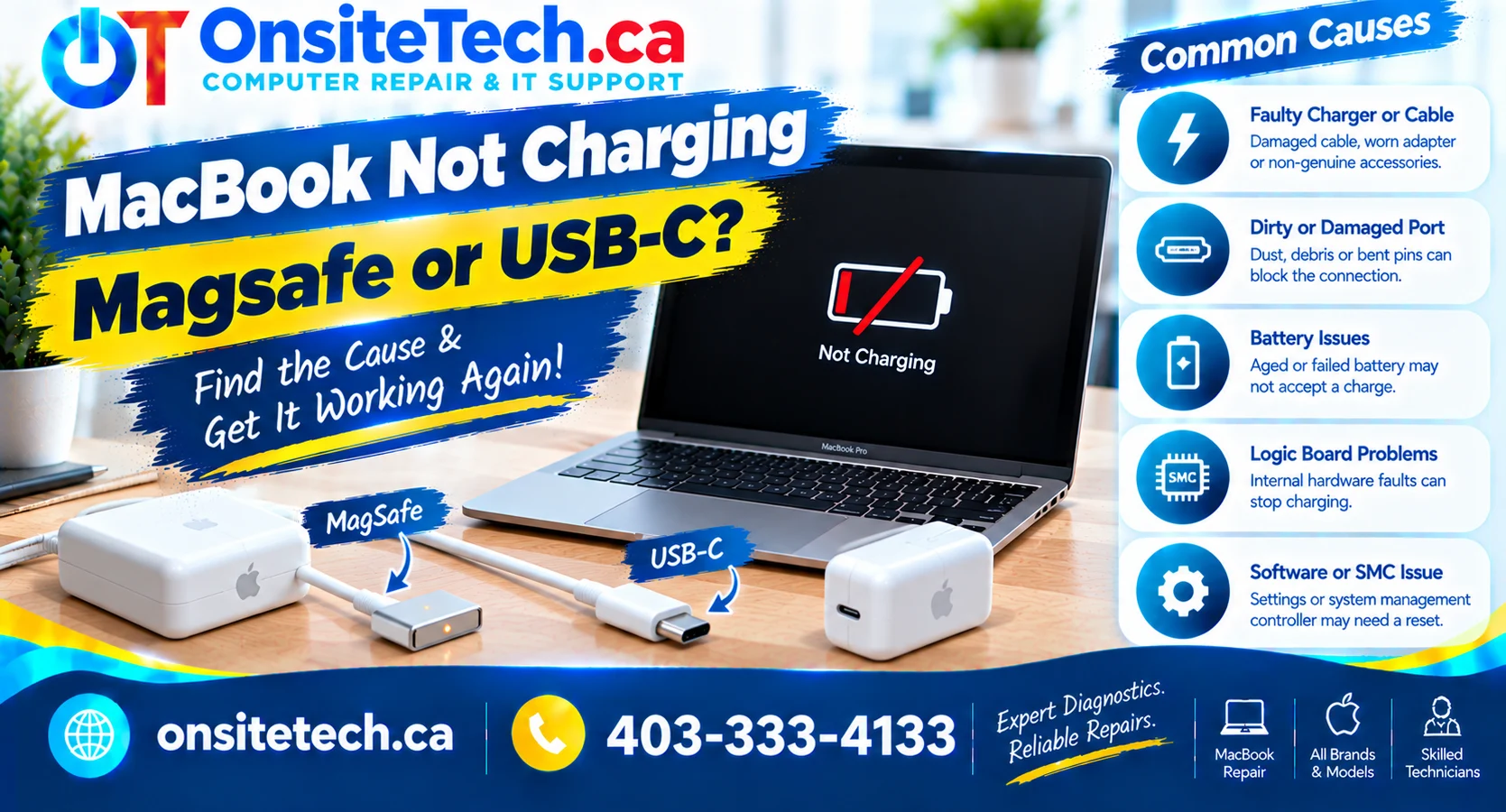
MacBook Not Charging? MagSafe and USB-C Troubleshooting in Calgary
Learn why your MacBook may not charge through MagSafe or USB-C, how to check the charger and cable safely, and when the problem may require professional diagnosis.
A MacBook that will not charge can interrupt work, school, and everyday tasks. You may notice that the battery percentage stays the same, the MagSafe indicator does not light up, the USB-C charger appears unresponsive, or the battery continues draining even while the laptop is plugged in.
The difficulty is that a MacBook not charging does not automatically mean the battery has failed. The problem may involve the power adapter, cable, charging port, software, battery condition, or internal charging circuitry.
This guide explains how to troubleshoot common MagSafe and USB-C charging problems, what the symptoms may indicate, and when to arrange professional help. If you need assistance with a MacBook in Calgary, visit OnSiteTech’s Mac and MacBook repair service.
Common Symptoms When a MacBook Will Not Charge
Start by identifying exactly what happens when you connect the charger. Different symptoms can point toward different parts of the charging system, although none is enough to confirm a faulty component on its own.
| Symptom | Possible Explanation | What to Check |
|---|---|---|
| MagSafe light stays off | Power adapter, cable, connector, port, or charging hardware issue | Power outlet, adapter connections, visible damage, and connector condition |
| MagSafe light flashes amber | A charging-related issue may be present | Disconnect safely, inspect the dry connector and port, and retry if there is no damage |
| USB-C does not charge | Incompatible or insufficient adapter, cable issue, port problem, or hardware fault | Adapter wattage, cable charging capability, power outlet, and compatible ports |
| Battery percentage stays unchanged | Charging may be paused, limited by settings, or affected by a fault | Battery status, charging settings, temperature, and adapter compatibility |
| MacBook charges intermittently | Damaged cable, loose connection, port issue, or unstable power supply | Visible cable damage and whether the issue occurs with another compatible charging setup |
| MacBook works only when plugged in | Battery condition or another power-related issue | Battery status and whether the MacBook can operate on battery power |
| MacBook will not turn on or charge | Power delivery, battery, display, or internal hardware issue | External power setup and startup symptoms; professional diagnosis may be needed |
1. MacBook Not Charging With MagSafe
MagSafe uses a magnetic connector that attaches to the charging port on compatible MacBook models. Depending on the model, the connector may be MagSafe 3, MagSafe 2, or an earlier MagSafe design. These generations are not all interchangeable.
If your MacBook is not charging through MagSafe, consider the following possibilities:
- The wall outlet is not supplying power.
- The power adapter or detachable power cord is faulty.
- The MagSafe cable is damaged or worn.
- The connector or charging port contains debris.
- The connector is not making a proper connection.
- The MacBook has a battery or internal charging fault.
What does the MagSafe indicator light mean?
On compatible MagSafe chargers, the indicator light can provide useful information about the charging state. On MagSafe 3, amber generally indicates charging or charging being on hold, while green indicates that the battery is fully charged. A repeatedly flashing amber light may indicate a charging issue.
Indicator behaviour varies by model and charging situation, so it should be considered alongside the battery status and other symptoms.
MagSafe Light Is Off
Check the power outlet, adapter connections, and cable for visible damage. If the light remains off, the fault may involve the charger, port, or MacBook hardware.
MagSafe Light Flashes Amber
Disconnect the charging setup safely and inspect the connector and port for visible debris or damage. If flashing continues after a safe retry, further evaluation may be necessary.
MagSafe Connects but Battery Does Not Increase
Check the battery status in macOS and confirm that charging is not on hold or limited by a battery setting. Persistent symptoms may require diagnosis.
MagSafe Cable Looks Damaged
Stop using a cable with exposed wires, damaged insulation, unusual heat, or a damaged connector. Replace or have the charging equipment evaluated.
Does the MagSafe generation matter?
Yes. MagSafe 3, MagSafe 2, and original MagSafe adapters use different connectors and compatibility requirements. Before purchasing a replacement, confirm your exact MacBook model and the charging equipment it supports.
For official guidance, read Apple’s instructions for troubleshooting a MagSafe cable or power adapter.
2. MacBook Not Charging With USB-C
USB-C charging is available on many MacBook models, but not every USB-C cable, adapter, or connected accessory is suitable for charging every MacBook. A cable may support data transfer without providing the charging capability you need, and an adapter with insufficient wattage may charge slowly or struggle under heavy use.
If your MacBook is not charging through USB-C, check these areas:
- Power adapter: Confirm that it is compatible with your MacBook and provides suitable power.
- Charging cable: Make sure the cable supports charging and is not visibly damaged.
- USB-C port: Check for visible debris or damage without inserting tools into the port.
- Power outlet: Confirm that the outlet works with another suitable device.
- Connection: Ensure both ends of the cable are connected securely.
- Charging status: Check whether macOS reports a slow charger, charging on hold, or another battery status.
Can a USB-C charger have insufficient wattage?
Yes. The required charging power depends on the MacBook model and the workload. A lower-powered adapter may charge the battery slowly, particularly while the MacBook is running demanding applications. Some macOS versions display a “Slow Charger” message when the charging setup does not provide the expected power.
Use an appropriate adapter and cable for your MacBook. Do not assume that every phone charger, monitor, dock, or generic USB-C accessory will provide the required charging performance.
Can one USB-C port stop charging while another works?
It is possible for a problem to affect an individual port, but a single failed test does not establish that the port itself is faulty. The cable, adapter, connection, or charging system may also be responsible.
If your MacBook has multiple ports that support charging, you can try another compatible port when the device and accessories appear undamaged. If one port consistently fails while another works with the same suitable charging setup, that is useful information for a technician.
For more detailed guidance, see Apple’s official instructions for a USB-C power adapter that is not charging a Mac laptop.
3. Neither MagSafe nor USB-C Charges the MacBook
Some MacBook models support both MagSafe and USB-C charging. If neither method works, the problem may extend beyond one cable or connector. However, the symptoms alone do not prove that the battery or logic board has failed.
Possible explanations include:
- A power adapter or outlet issue affecting the charging setup.
- More than one faulty or incompatible charging accessory.
- A battery that is deeply discharged or no longer operating correctly.
- A software or power-management issue.
- Damage involving a charging port or internal power circuitry.
- Liquid damage or another hardware fault.
How to narrow down the problem
- Confirm that the power outlet works.
- Check the charger and cable for damage.
- If available, test with a known-good, compatible charging setup that meets the MacBook’s requirements.
- Observe whether the MacBook shows any signs of power, such as a charging indicator or startup response.
- Record whether one charging method behaves differently from the other.
If the MacBook remains completely unresponsive, or if both charging methods fail with suitable equipment, professional diagnosis may be the next step.
4. Battery Settings, Charging Limits, and macOS Messages
A MacBook that appears not to charge may sometimes be responding to a normal battery-management feature rather than a hardware failure. Check the battery status in macOS before assuming the charger or battery needs replacement.
| Message or Behaviour | What It May Mean | Recommended Next Step |
|---|---|---|
| Charging On Hold | Battery management may temporarily pause charging, including to manage battery ageing or temperature | Review Battery settings and the available charging options |
| Charged to Limit | A configured charge limit may prevent the battery from reaching 100% | Review the charge limit and available option to charge fully |
| Slow Charger | The charging setup may be supplying less power than the MacBook needs for normal charging performance | Confirm adapter wattage and cable compatibility |
| Battery Is Not Charging | Charging may be paused or a power, battery, temperature, or hardware issue may exist | Review the full battery status and troubleshoot the charging setup |
| Service Recommended | macOS may be reporting that the battery requires attention | Arrange an appropriate battery assessment if the message persists |
Battery messages can vary by macOS version and MacBook model. Check Apple’s current guide to charging a Mac laptop for instructions that match your device.
5. Safe Troubleshooting Steps to Try First
If the MacBook and charging accessories show no signs of physical damage, liquid exposure, battery swelling, or unusual heat, the following basic checks may help identify a simple cause.
1Check the Power Outlet
Confirm that the outlet is working. If safe, test it with a known-good device. Connect the MacBook’s power adapter directly to a suitable wall outlet rather than relying on an untested extension or dock.
2Inspect the Adapter and Cable
Look for fraying, exposed wires, bent connectors, discolouration, or other visible damage. Do not use damaged equipment. Make sure the adapter and cable are suitable for the MacBook model.
3Confirm USB-C Cable Compatibility
If using USB-C, verify that the cable supports charging. Some USB-C cables are designed for data transfer and may not provide the charging performance required by your MacBook.
4Check the Charging Connector and Port
With the charger disconnected, visually inspect the accessible connector and port. Look for obvious debris or damage. Do not insert metal objects, liquids, or sharp tools into a charging port.
5Review the Battery Status
If the MacBook turns on, open the battery menu or Battery settings and read any message displayed. Check for charging limits, charging on hold, or a slow-charger warning before concluding that the hardware is faulty.
6Allow the MacBook to Return to a Normal Temperature
If the MacBook or adapter is warm from normal use, disconnect the charger if needed and allow the equipment to cool in a well-ventilated area. Do not cover the adapter or place it on bedding. If there is excessive heat, an unusual smell, or physical damage, stop using the equipment.
7Restart Only If the MacBook Is Operating Safely
If the MacBook is running and shows no signs of physical damage or a battery hazard, a normal restart may help with some software-related issues. If the computer will not start or may have liquid damage, do not repeatedly attempt to power it on.
6. Common Causes of MacBook Charging Problems
Charging faults can involve external accessories, battery condition, software, or internal hardware. The table below explains why the same symptom can require different diagnostic steps.
| Potential Cause | Clues to Look For | Possible Diagnostic Direction |
|---|---|---|
| Faulty power adapter | No apparent power delivery or charging stops unexpectedly | Test a suitable known-good adapter when safe and compatible |
| Damaged charging cable | Visible wear, intermittent charging, or unreliable connection | Evaluate the cable and test a compatible replacement |
| Insufficient adapter wattage | Slow charging or a slow-charger message | Check the MacBook’s recommended power requirements |
| Debris or damage in a port | Connector does not seat properly or a specific port behaves differently | Inspect the accessible port and investigate further if symptoms persist |
| Battery deterioration | Short battery life, unexpected shutdowns, or service messages | Review battery health and perform appropriate diagnostics |
| Charging settings or software | Charging is on hold or the battery limit has been reached | Review battery settings and relevant software information |
| Internal charging hardware | Multiple compatible charging methods fail or charging is consistently intermittent | Further professional diagnosis may be required |
These clues are not definitive diagnoses. For example, a MacBook that does not charge with two different cables may still have an adapter, battery, or internal hardware problem. The exact cause must be established through appropriate testing.
7. When Should You Arrange Professional MacBook Repair?
Consider professional assessment if the MacBook continues to show charging problems after safe external checks, particularly if you have confirmed that the power outlet, adapter, and cable are appropriate for the device.
Professional diagnosis may be appropriate when:
- The MacBook does not charge through MagSafe or USB-C despite suitable equipment.
- Charging works only intermittently.
- A charging port appears damaged or the connection is unreliable.
- The battery drains unusually quickly or the MacBook shuts down unexpectedly.
- macOS reports a persistent battery service warning.
- The MacBook will not turn on and shows no apparent signs of receiving power.
- The device has suffered a drop, liquid exposure, or another physical incident.
What can an on-site assessment establish?
Depending on the service scope and the MacBook model, an on-site assessment may help check the charging setup, review battery status, observe power symptoms, and narrow down whether the issue appears to involve accessories, settings, the battery, or internal hardware.
Some charging problems can be addressed through suitable troubleshooting or replacement of an external accessory. Other faults, including internal port damage, liquid damage, battery replacement, and logic board problems, may require specialist tools, parts, or workshop service.
OnSiteTech offers on-site Mac and MacBook repair assistance. Contact the service provider to confirm whether your particular charging issue can be assessed at your location and whether additional repair work may be required.
8. What Not to Do When Your MacBook Will Not Charge
Repeatedly testing a faulty charging setup or attempting an improvised repair can make the situation worse. Avoid the following:
- Using a cable or adapter with exposed wires or visible damage.
- Forcing a connector into a port or repeatedly moving it to maintain contact.
- Inserting metal tools or sharp objects into MagSafe or USB-C ports.
- Opening the MacBook to disconnect or replace the battery without appropriate training and equipment.
- Using an unverified adapter that does not meet the MacBook’s power requirements.
- Continuing to charge a device with a swollen battery, liquid damage, unusual heat, or a burning smell.
- Assuming the battery must be replaced before the charger, cable, port, and other possible causes have been assessed.
9. How to Prepare for a MacBook Charging Assessment
Before arranging service, collect a few details that can help the technician understand the issue.
- Identify your MacBook: Note the model and approximate year if known.
- Describe the charging method: Explain whether you use MagSafe, USB-C, or both.
- Record the symptoms: Mention whether the indicator light is off, amber, green, or flashing, if your charger has an indicator.
- Check the battery message: If the MacBook starts, note any message shown in the battery menu or Battery settings.
- Bring the charging equipment: Keep the adapter and cable available so they can be considered during troubleshooting.
- Explain recent events: Mention liquid exposure, physical impact, overheating, or changes that occurred before the charging problem began.
- Protect your data: If the MacBook is operating safely, keep a current backup where possible. Do not repeatedly power on a potentially damaged device just to back it up.
To understand the general service process, visit How On-Site Repair Works. For information about service charges, see the On-Site Repair Pricing page.
MacBook Not Charging in Calgary?
Tell OnSiteTech whether your MacBook is failing to charge through MagSafe, USB-C, or both. An assessment can help narrow down the cause and determine the appropriate next step.
Frequently Asked Questions
Why is my MacBook not charging through MagSafe?
Possible causes include a faulty adapter, damaged cable, power outlet issue, debris in the connector or port, battery problem, or internal charging fault. Check the external charging setup safely before assuming a component has failed.
Why is my MacBook not charging through USB-C?
The cable may not support charging, the adapter may provide insufficient power, or there may be a port, battery, software, or internal hardware issue. Check compatibility and the adapter’s power rating for your MacBook model.
Why does my MacBook charge with USB-C but not MagSafe?
If a suitable USB-C setup charges the MacBook but MagSafe does not, the MagSafe cable, adapter connection, port, or related charging components may need investigation. This difference is useful diagnostic information, but it does not by itself confirm which component has failed.
Why does my MacBook charge with MagSafe but not USB-C?
Possible explanations include a USB-C cable or adapter problem, insufficient charging power, debris or damage in a port, or an internal hardware issue. Testing with a compatible, known-good charging setup can help narrow down the cause.
What does a flashing amber MagSafe light mean?
A repeatedly flashing amber light on a compatible MagSafe 3 connector may indicate a charging issue. Disconnect the charging equipment safely, check for visible debris or damage, and follow Apple’s troubleshooting guidance. If flashing continues, further evaluation may be necessary.
Can a low-wattage USB-C charger cause charging problems?
Yes. An adapter that provides less power than recommended for the MacBook may result in slow charging or may struggle to keep up with power use. Use a compatible charging solution with suitable wattage for the model.
Does a MacBook that will not charge always need a new battery?
No. The charger, cable, port, charging settings, power-management system, or internal hardware may be responsible. The battery should not be replaced until the problem has been appropriately assessed.
Can a MacBook charging problem be assessed on-site in Calgary?
An initial on-site assessment may help investigate the charger, cable, battery status, and charging symptoms, depending on the service scope and device model. Some internal repairs require specialist equipment or workshop service. Confirm availability before arranging a visit.
Should I keep my MacBook plugged in if it is not charging?
If the device or charger shows signs of damage, unusual heat, liquid exposure, or battery swelling, stop using the charging setup. If there are no warning signs, perform only safe external checks and seek help if the problem persists.
Official References and Further Reading
Apple Support: Charge Your Mac Laptop ComputerLearn about compatible charging methods, MagSafe, USB-C, power requirements, and common battery status messages.
Apple Support: MagSafe Cable or Power Adapter Not WorkingOfficial troubleshooting guidance for MagSafe connectors, power adapters, indicator lights, and charging connections.
Apple Support: USB-C Power Adapter Not Charging a Mac LaptopGuidance for checking USB-C adapters, charging cables, power outlets, and other common causes.
Final Thoughts
A MacBook that will not charge through MagSafe or USB-C may have an issue with the adapter, cable, port, battery, charging settings, or internal hardware. The most useful first step is to identify the exact symptom and check the external charging setup safely.
If the MacBook still will not charge after basic checks, avoid guessing which part needs replacement. A proper assessment can help narrow down the cause and determine whether the next step involves an accessory, software troubleshooting, battery service, or specialist hardware repair.
For MacBook charging problems in Calgary, visit OnSiteTech’s Mac repair service page to review the service options and confirm whether an on-site assessment is appropriate.
Diagnostic findings and repair options depend on the MacBook model, charging equipment, symptoms, and the tests required. Confirm service scope and applicable charges before authorizing additional work.