
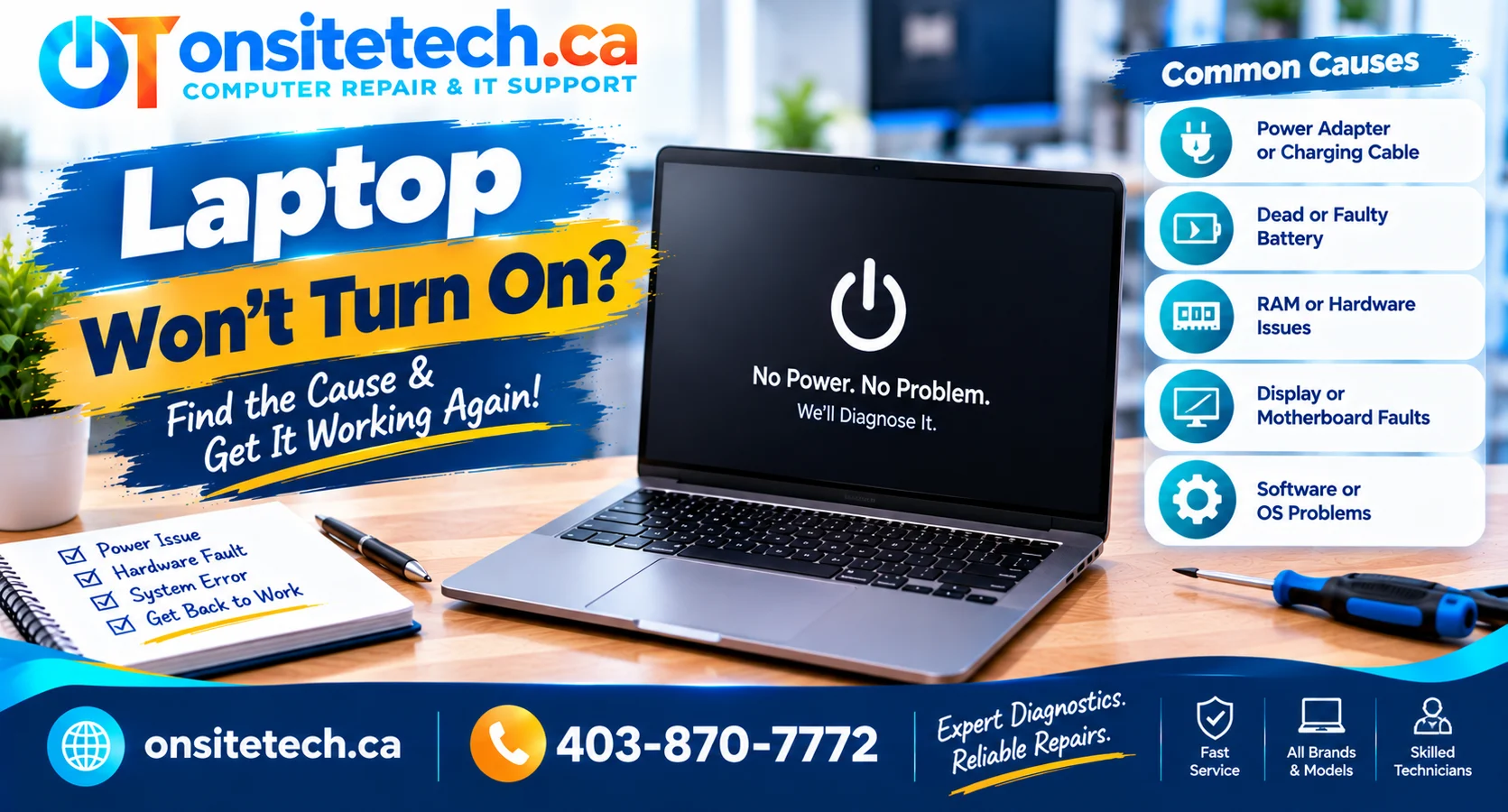
Maybe the charging light is off, the screen stays
black, or your laptop refuses to start even
when it is plugged in.If your laptop won’t turn on,
the problem could involve the power adapter,
battery, charging port, display,
or another internal component.This guide helps you understand the symptoms,
try safe first checks, and decide
when further repair is appropriate.
Why Won’t My Laptop Turn On?
Quick Answer
If your laptop won’t turn on, first check
the wall outlet, compatible charger,
power connections, and charging port.
Disconnect external accessories and
follow the manufacturer’s power-reset
instructions for your specific model.
If the power light comes on but the
screen stays black, check whether the
computer is running without displaying
an image. If it reaches the manufacturer
logo but cannot load Windows,
the problem may be related to startup
rather than electrical power.
The most effective troubleshooting starts
by identifying what actually happens
when you press the power button.
A laptop with no lights or fans needs
different checks from one that powers
on but cannot display the Windows login screen.
Before You Start: Important Safety Warning
If the battery is swollen, the laptop smells
of burning electronics, a charger is visibly
damaged, or the device has suffered liquid
damage, stop trying to power it on.
Disconnect external power when safe.
Do not open or puncture a lithium-ion battery,
test exposed electrical contacts, or
repeatedly connect damaged power equipment.
What Happens When You Press the Power Button?
Choose the closest description.
These suggestions help narrow down
the next step but do not confirm
which component has failed.
No lights, no fans, no response
Start with the outlet, power adapter,
charging cable, battery and charging port.
Power light is on, but the screen is black
The laptop may be receiving power
but having a display or startup issue.
Laptop won’t turn on even when plugged in
Check the adapter compatibility,
charging connection and possible
internal power-delivery problems.
Charging light appears, but it won’t start
A charging indicator does not confirm
that the laptop can complete startup.
Look for other lights or error signals.
Logo appears, but Windows won’t load
This may be a boot or operating-system
problem rather than a total loss of power.
Laptop works sometimes, then won’t start again
An intermittent connection, battery,
power-control or hardware problem
may require further investigation.
No Power, No Display, No POST or No Boot?
One of the most useful things you can do
is identify which type of startup failure
matches your laptop.
| Condition | What You Notice | First Check |
|---|---|---|
| No Power | No response, lights or fan activity | Outlet, adapter, cable and battery |
| No Display | Some power indicators but no image | Brightness and external display |
| No POST | Power responds but startup hardware checks fail | Manufacturer error codes and indicators |
| No Boot | Startup logo appears but the operating system does not load | Boot errors, storage and recovery options |
For example, if a laptop displays its
manufacturer logo, it is not experiencing
exactly the same problem as a device
that receives no electrical power.
Distinguishing these symptoms helps
avoid buying a new battery or screen
before the problem is understood.
9 Safe Steps to Try When Your Laptop Won’t Turn On
Start with simple, external checks.
Follow only the procedures appropriate
for your model, and stop if you notice
battery or electrical damage.
STEP 01
Check the Power Outlet and Connections
Your laptop may not be receiving power
because of a loose connection or
a faulty outlet.
What to do
- Test the wall outlet with another safe device.
- Plug the laptop charger directly into a working outlet.
- Check the connection between the cable and power adapter.
- Make sure the charging plug is securely connected.
- Observe any charging indicator lights.
Not every charger has an indicator light.
Even when one is illuminated, it does
not guarantee that the adapter can
deliver the required power under load.
STEP 02
Inspect the Charger and Charging Port
A damaged cable, incompatible power adapter
or loose charging connection may stop
the laptop from receiving usable power.
What to do
- Look for damaged insulation or bent connectors.
- Check for visible damage around the charging port.
- Inspect for debris without inserting metal objects.
- Use a known-good compatible charger if available.
- For USB-C laptops, confirm that the port supports charging and the adapter meets the device’s power requirements.
A USB-C plug fitting into a laptop
does not mean every USB-C charger
can safely or adequately power it.
STEP 03
Give a Fully Drained Battery Time to Charge
A deeply discharged battery may not
allow the laptop to start immediately.
What to do
- Connect a suitable charger.
- Leave the laptop connected for approximately 20–30 minutes.
- Look for charging or status changes.
- Press the power button normally once.
If there is still no response,
the problem could involve the
battery, charger, port or internal
power circuitry. A dead battery
is not the only explanation.
STEP 04
Disconnect External Devices
Docking stations, USB accessories,
external drives or monitors may
occasionally affect startup or
complicate troubleshooting.
What to do
- Disconnect USB drives and accessories.
- Remove connected docking stations.
- Disconnect external displays.
- Remove memory cards if present.
- Try starting the laptop with only the appropriate charger connected.
If the laptop starts normally,
reconnect accessories one at a time
to identify a possible connection
with the problem.
STEP 05
Perform a Manufacturer-Approved Power Reset
A power reset can sometimes recover
a laptop from a temporary power-control
state that prevents normal startup.
However, HP, Dell, Lenovo and
Apple do not all use identical
reset procedures.
General safe approach
- Disconnect accessories.
- Disconnect external power if instructed by the manufacturer.
- Remove the battery only if it is designed to be user-removable.
- Follow the documented power-button reset procedure for your exact model.
- Reconnect the compatible charger.
- Try starting the device normally.
For certain Windows laptops,
manufacturers recommend holding
the power button for a specified
period, often around 15–30 seconds.
Always confirm the correct
procedure for your particular model.
These are not interchangeable.
Do not perform an RTC reset
or use a recessed reset opening
unless the manufacturer documents
it for your exact device.
MacBook power and recovery procedures
also differ between Intel-based
and Apple silicon models.
STEP 06
Check for a Black Screen or Display Failure
If your laptop’s power light is on,
you hear fan activity, or keyboard
lights respond, the laptop might
be receiving power without
showing an image.
What to do
- Increase the screen brightness.
- Look for startup logos or brief screen flashes.
- Connect a working external display if supported.
- Make sure the external display uses the correct input.
- Check whether an image appears externally.
If an external screen works,
the internal display or its
connection may need inspection.
That result does not, by itself,
prove which display component
is faulty.
If Windows is actually running,
the shortcut
Windows + Ctrl + Shift + B
may help reset the graphics driver.
It cannot fix a laptop that
has no electrical power.
STEP 07
Check Blinking Lights and Beep Codes
Some laptops use charging LEDs,
Caps Lock lights or repeating beep
patterns to report startup problems.
What to do
- Observe which indicators respond.
- Count repeating flashes or beep patterns.
- Record the exact laptop model.
- Compare the pattern with the manufacturer’s official guidance.
A flashing light does not have
one universal meaning across
all laptop brands and models.
STEP 08
Check Whether the Laptop Reaches the Startup Logo
If the device reaches the HP,
Dell, Lenovo or Windows logo,
it is not completely without power.
A failure after this point
could be caused by startup
software, storage, or hardware.
What to do
- Record any displayed error messages.
- Note repeated restart loops.
- Check whether Windows Recovery appears.
- Protect important files before resetting or reinstalling Windows.
- Follow official recovery guidance where appropriate.
A factory reset or clean Windows
installation may remove stored data.
Do not use these as first steps
for a laptop that appears dead.
STEP 09
Stop and Arrange Diagnosis if the Problem Continues
If your laptop still does not respond,
possible causes include the charging
port, power-button circuit, battery
system, motherboard or other
internal components.
Avoid opening a sealed battery,
shorting electrical contacts,
or repeatedly testing incompatible
chargers.
Stop immediately if you notice:
- Swollen or visibly damaged battery
- Smoke, sparks or a burning smell
- Liquid exposure
- Dangerously hot charging connections
- Important data at risk from further testing
Professional diagnosis may help
identify whether the laptop
can be repaired economically
and whether data preservation
needs special attention.
Other Reasons a Laptop Might Not Start
Laptop Won’t Turn On After Overheating
A laptop exposed to excessive heat may
shut down as part of its hardware
protection behaviour. Allow it to
cool in a safe, ventilated location.
If it repeatedly overheats,
becomes unusually hot while charging
or will not restart after cooling,
stop intensive troubleshooting
and investigate the cooling
or hardware problem.
Laptop Won’t Turn On After a Power Surge
An electrical event may affect
the adapter or internal
power-delivery components.
Check only the external
connections and use a
safe compatible charger.
Do not open the power adapter
or attempt to measure live
internal circuits without
appropriate training and equipment.
Laptop Won’t Start After a Windows Update
If the computer reaches the
manufacturer logo but Windows
does not load, investigate
startup recovery and update-related
errors rather than assuming
the power button has failed.
If there are no lights or other
signs of power, start with
power-supply checks instead.
Laptop Only Turns On Sometimes
Intermittent startup problems
can be more difficult to diagnose
than a complete failure.
Record whether the issue happens
on battery power, while plugged in,
after the laptop moves, or
following a period of use.
A power reset that temporarily
restores operation does not
necessarily mean the underlying
problem has been fixed.
Laptop Won’t Turn On but Charging Light Is On
A charging indicator suggests
some power-related activity,
but does not prove that the
laptop can complete its startup.
Check for display activity,
diagnostic indicators and
manufacturer-specific
power-control issues.
Laptop Won’t Turn On After the Battery Died
A fully discharged battery may
need charging time. If a
compatible charger still produces
no useful response, the issue
may involve the battery,
charging connection or
internal hardware.
HP, Dell, Lenovo and MacBook Startup Problems
The same symptom can have different
causes and reset procedures depending
on the laptop model.
HP
HP Laptop Won’t Turn On
Check power connections,
charging indicators and
model-specific keyboard
LED diagnostic patterns.
DELL
Dell Laptop Won’t Turn On
Distinguish no power,
no POST, no video and
no boot before following
Dell’s model-specific guidance.
LENOVO
Lenovo Laptop Won’t Turn On
Check adapter compatibility,
charging response and official
power-reset instructions.
Some recovery controls are
specific to individual models.
APPLE
MacBook Won’t Turn On
Check external power,
charging connections and
display behaviour.
Apple silicon and
Intel-based Macs can require
different recovery steps.
Should You Repair or Replace a Laptop That Won’t Turn On?
The right decision depends on
the actual fault, laptop condition,
replacement cost and whether
important files need to be preserved.
| Possible Finding | Reasonable Next Step |
|---|---|
| Damaged external charger | Evaluate a compatible replacement |
| Charging port problem | Inspect the port and connection |
| Battery fault | Review model-specific replacement options |
| Black screen with power activity | Diagnose display and startup hardware |
| Repeated startup errors | Protect data and investigate boot or storage issues |
| Suspected motherboard fault | Compare diagnosis and repair costs with replacement |
A simple charger replacement is
a very different decision from
an expensive motherboard repair.
It is worth understanding the
fault before purchasing a
replacement laptop.
Calgary & Surrounding Communities
Laptop Repair Service Areas
If your laptop won’t turn on in
Calgary, OnSiteTech’s
computer repair service is a useful
starting point for understanding
your repair options.
People experiencing similar startup,
charging or black-screen problems
in nearby communities can also
check service availability
when submitting a request.
The OnSiteTech geographic plan
includes the following communities:
Calgary
Airdrie
Chestermere
Cochrane
Okotoks
Strathmore
Crossfield
High River
Diamond Valley
Canmore
Banff
For example, someone in Airdrie
with a laptop that suddenly stopped
charging may need the same initial
power-supply checks as someone
in Cochrane experiencing a
completely unresponsive device.
The troubleshooting advice is the same;
the availability and travel arrangements
for on-site service depend
on the location and booking details.
Service coverage, appointment availability
and any applicable travel charges
must be confirmed for the requested address.
Listing a community here does not
guarantee an available appointment.
Explore the Right OnSiteTech Service
If basic checks have not helped,
you can learn about the repair
process and review pricing
before submitting a request.
PRIMARY SERVICE
Computer Repair
Explore repair options for
startup failures, charging
issues and computer faults.
REPAIR PROCESS
How On-Site Repair Works
Understand the service
request process and
what to expect before
arranging assistance.
PRICING
On-Site Repair Pricing
Review published pricing
information before
deciding whether to
request help.
REQUEST ASSISTANCE
Book Computer Repair
Describe your laptop model,
power lights, charging
behaviour and other
startup symptoms.
Frequently Asked Questions
How do you fix a laptop that won’t turn on?
Check the power outlet, compatible
charger, charging port and battery.
Disconnect accessories and follow
the manufacturer’s power-reset
procedure. If the laptop shows
signs of power but no image,
investigate the display and startup.
Why is my laptop not starting after pressing the power button?
Possible causes include missing
power, a drained battery, an
adapter or charging connection
problem, or an internal hardware fault.
Why won’t my laptop turn on but the power light is on?
The laptop may have power but no
display, may be unable to complete
its startup hardware checks,
or may have another internal issue.
Why won’t my laptop turn on even when plugged in?
The charger may be incompatible
or faulty, the charging port may
be damaged, or the battery and
internal power circuitry may
require investigation.
Why won’t my HP laptop turn on?
Check the charger, charging response
and model-specific HP diagnostic
lights. Follow official instructions
for the exact HP laptop model.
Why won’t my Lenovo laptop turn on?
Check the charger and power response,
then consult the correct Lenovo
model documentation before
attempting a power reset.
Why won’t my Dell laptop turn on?
First determine whether the issue is
no power, no POST, no video or no boot.
Use Dell’s model-specific diagnostics
rather than assuming a failed battery.
Will a hard reset delete my files?
A manufacturer’s power-button reset
normally does not erase stored files.
A factory reset or operating-system
reinstallation is a different procedure
and may cause data loss.
Can a laptop run without its battery?
Some models can operate with
a compatible adapter and
without a removable battery.
Others have different requirements.
Do not open a sealed battery
compartment to test this.
Why is my laptop not charging and not turning on?
Check the compatible power adapter,
wall outlet, cable and charging port.
If these appear normal but
the laptop stays unresponsive,
further diagnosis may be needed.
Can a power surge stop a laptop from turning on?
An electrical event can affect
an adapter or internal circuitry.
Use safe external checks,
and do not attempt to repair
live electrical components.
Why does my laptop turn on only sometimes?
Intermittent startup issues may involve
power connections, battery control
or internal hardware. Record when
the problem occurs and whether it
changes when plugged in.
When should I get professional laptop repair?
Consider diagnosis when safe power
checks fail, the charging port
is damaged, startup errors persist,
or the laptop shows signs
of internal hardware problems.
Official References and Safety Guidance
This educational guide was prepared
by OnSiteTech using general laptop
troubleshooting principles and
manufacturer support documentation.
Power reset procedures, diagnostic
lights and recovery options can
vary significantly by model.
Always confirm manufacturer guidance
before attempting a device-specific reset.
Dell — Computer Power Troubleshooting
HP — Official Product Support
Lenovo — Official Laptop Support
Microsoft — Windows Support
Apple — Mac Support
The presence of a charging light,
blank screen or error signal does
not, by itself, confirm that a
particular component needs replacing.
OnSiteTech | Calgary & Area
Laptop Still Won’t Turn On?
Whether your laptop is completely
unresponsive, won’t charge, or
shows a black screen despite
power activity, you don’t
need to guess which component
is faulty before asking for help.
OnSiteTech can start with the
symptoms you’ve observed and
help determine an appropriate
next step.
- Tell us your laptop’s make and model.
- Describe any power or charging lights.
- Mention unusual sounds, heat or damage.
- Explain whether your files need special protection.
- Include your location when submitting the request.
No prior diagnosis is required
to submit a service request.
Service availability, travel
arrangements and repair recommendations
depend on your location
and the actual findings.
This guide provides general
educational troubleshooting information.
Stop using devices showing signs
of unsafe battery or electrical damage.
Protect important data before
invasive repairs or system resets.