
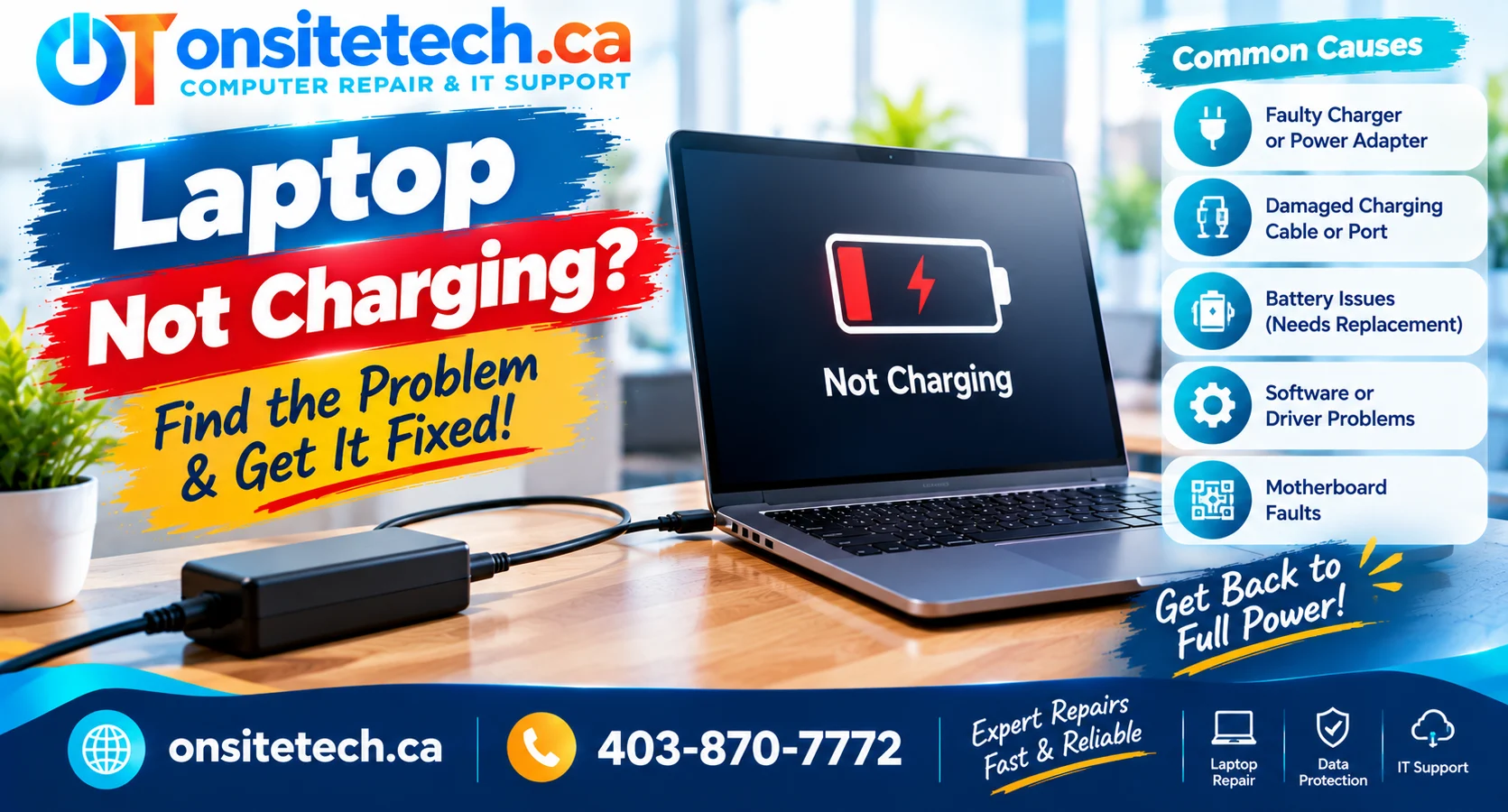
percentage isn’t going up. Maybe there’s
no charging light, Windows says
“Plugged in, not charging,” or the battery
drops even while the charger is connected.A laptop not charging
doesn’t automatically mean the battery
needs replacing. The cause could be the
power adapter, USB-C cable, charging port,
battery health, charging settings or
internal power circuitry.
Start with the symptom checker below,
then follow eight safe troubleshooting
steps before spending money on parts.
Why Is My Laptop Not Charging When Plugged In?
Quick Answer
If your laptop is plugged in but not charging,
check the wall outlet, charger connection,
cable and charging port first. Confirm the
adapter is compatible with your laptop and
provides sufficient power. Restart the
computer if it still runs, then review
battery health and any charge-limit settings.
If the battery remains at 0%, there is
no charging indicator, or the laptop only
runs on external power, further checks
may be needed to distinguish a battery
problem from a charger, port or
internal charging fault.
There are two important differences:
a battery that won’t charge
and a battery that won’t hold
a charge are not necessarily
experiencing the same fault.
Similarly, a laptop intentionally stopping
at 80% may have a battery preservation
setting enabled rather than
a broken charger.
Important: When to Stop Charging Immediately
Stop using the device if the battery
is swollen, the laptop case is separating,
the adapter smells burnt, the charging port
sparks, or the connector becomes dangerously
hot. Disconnect external power when safe
and seek appropriate professional assessment.
Do not puncture batteries, open charger
bricks, rebuild battery cells or insert
metal objects into charging ports.
What’s Happening When You Plug In Your Laptop?
Choose the symptom that best matches
your situation. Each option points
to the most relevant checks.
Plugged in, but battery percentage stays the same
Check the charger wattage and any battery
charge-limit setting. If those are
appropriate, review battery health
and charging diagnostics.
No charging light when I connect the charger
Start with a working outlet, compatible
adapter, cable and charging port.
A missing light alone does not prove
the battery is faulty.
Battery is stuck at 0% and won’t charge
A deeply discharged or degraded battery
is one possibility. Inadequate adapter
power or charging circuitry problems
can produce similar behaviour.
The battery stops charging at 80%
A battery preservation threshold may
be enabled. Check Lenovo Vantage,
other manufacturer utilities or
macOS battery settings as applicable.
Battery drains even when plugged in
The adapter may supply insufficient power
for the laptop’s current workload, or
there may be another power delivery fault.
The charger works with another device, but not this laptop
The adapter may be incompatible or
underpowered for this laptop.
A damaged port or power circuitry
could also be responsible.
Laptop charges when off but not while running
Review adapter power output and system
load. A charger providing limited power
may struggle to charge while the
computer is running.
The laptop won’t charge or turn on
This could be a broader power failure
rather than a battery that simply
isn’t charging. Check external power
and look for lights or startup activity.
Is It the Charger, Battery or Charging Port?
The symptoms below provide useful clues.
They cannot confirm a failed component
without appropriate testing.
| Possible Issue | Typical Clues | What to Check First |
|---|---|---|
| Charger or Cable | No charge, intermittent connection, underpowered adapter | Output rating and a known-good compatible charger |
| Battery | Rapid discharge, low capacity, battery warnings | Battery health report and manufacturer diagnostics |
| Charging Port | Loose connection or visible physical damage | Visual inspection without forcing the connector |
| Charging Settings | Charging stops near a repeatable percentage | Battery conservation or charge-limit configuration |
| Internal Power Circuit | Persistent charging failure with compatible equipment | Professional diagnosis after safer external checks |
A useful rule: don’t buy a battery
only because the charger is connected
and the percentage isn’t increasing.
That symptom has several possible causes.
8 Safe Fixes to Try When Your Laptop Won’t Charge
Follow these checks in order where they
apply to your device. You do not need
to open your laptop to complete
the basic troubleshooting.
Check the Wall Outlet and Power Connections
Begin with the simplest possibility:
the laptop may not be receiving
consistent external power.
What to do
- Test the wall outlet using another safe device.
- Connect the charger directly to a working wall outlet.
- Check that the power cable is firmly attached to the adapter brick, if detachable.
- Reconnect the laptop charging connector carefully.
- Observe whether the charging icon or status light changes.
If the laptop begins charging after
changing outlets, investigate the
original outlet or power connection
before replacing laptop components.
Check the Charger Wattage and Cable
A charger can appear to work
while still providing insufficient
power for a specific laptop.
This is particularly relevant
to higher-performance laptops,
docking stations and USB-C adapters.
What to do
- Find the laptop manufacturer’s required power specifications.
- Read the charger’s labelled output rating.
- Check that the connector and power delivery standard are compatible.
- Inspect the cable for fraying, heat damage or bent connectors.
- If available, try a known-good compatible charger.
Why a Charger Can Work but Not Charge Your Laptop
An adapter may provide enough power for
a smaller device but not for a laptop
requiring a higher output.
It may also power a laptop while the
battery charges very slowly—or not
at all—under a demanding workload.
Inspect the Charging Port and USB-C Power Delivery
USB-C makes charging convenient,
but not every USB-C cable, port
or charger supports the same capabilities.
What to do
- Check the laptop’s documentation to identify its charging-capable port.
- Inspect the connector and port visually for damage.
- Confirm the USB-C cable supports the power required by the laptop.
- Check whether the adapter supports an appropriate USB Power Delivery profile.
- Test another supported charging port only if your model allows it.
If a port feels loose, appears bent
or only connects when the plug is
held at an angle, stop manipulating
it. Continuing may worsen damage.
Do not clean the port with metal tools.
Avoid liquid cleaners and sharp
objects. If debris is visible
but difficult to remove safely,
have the port inspected.
Restart the Laptop and Review Power-Reset Guidance
Temporary power-control or software
states can sometimes interfere
with normal charging behaviour.
What to do
- Save your work.
- Restart the laptop normally.
- Disconnect unnecessary USB accessories and docks.
- Check charging again with the compatible adapter.
- If the problem persists, consult the manufacturer’s model-specific power-reset procedure.
Some laptops use a documented power-button
hold procedure. Others have different
recovery controls or reset instructions.
Do not perform an unidentified reset.
Avoid inserting paperclips into unknown
openings or removing an internal battery
unless the manufacturer specifically
documents a safe user procedure.
Check Battery Conservation and Charging Limits
Many modern laptops include settings
that intentionally prevent the battery
from charging all the way to 100%.
A repeated stop at 60%, 80% or another
configured level may be expected
behaviour rather than a fault.
What to do
- Open your manufacturer’s battery management utility, if installed.
- Look for Conservation Mode, Battery Health or Charge Limit.
- Check whether a charging threshold is enabled.
- Compare the observed percentage with the configured threshold.
- Adjust the setting only if your usage requires it.
Lenovo Vantage supports conservation
features on certain Lenovo models.
Selected HP and Dell devices offer
battery-management features too.
MacBooks may use Optimized Battery
Charging or charging limits,
depending on the model and macOS version.
When Not to Replace the Battery
If the computer is deliberately
stopping charging at a configured
threshold and otherwise works normally,
a battery replacement is unlikely
to change that setting.
Check Battery Health and Capacity
Laptop batteries wear with time.
A degraded battery may provide
much less runtime than it did
when new.
However, reduced capacity does
not prove that every charging
problem is caused by the battery.
What to do
- Check for a battery health warning.
- Run supported manufacturer diagnostics.
- Compare battery behaviour on and off external power.
- If Windows starts, generate a battery report.
- Check the results before considering replacement.
A battery that has lost significant
capacity may need replacement,
but a faulty charger or port
could still be the main cause
of a failure to charge.
Review Windows Battery Drivers and Charging Status
If Windows is running and the
hardware checks have not identified
the issue, review whether
battery-related software is
reporting an error.
What to do
- Restart Windows first.
- Open Device Manager.
- Expand the Batteries category.
- Check for warning symbols or reported device errors.
- Review relevant updates from Windows Update and your manufacturer’s official support tools.
- Follow device-specific guidance if a driver issue is identified.
Some guides recommend uninstalling
the Microsoft AC Adapter or
Microsoft ACPI-Compliant battery
device and restarting Windows.
That procedure may be appropriate
in some software-related cases,
but is not necessary for every
battery problem.
Do not uninstall devices randomly
or install third-party driver
booster software.
Firmware Updates Require Stable Power
Do not start a BIOS or firmware
update when the laptop cannot
maintain the reliable power
required by the manufacturer.
An interrupted update can
create a more serious problem.
Know When to Stop and Request Charging-System Diagnosis
If the laptop still won’t charge
after safe checks with compatible
power equipment and appropriate
battery settings, the fault may
be internal.
Possible causes include a
damaged charging port, battery
connection, charging controller
or motherboard circuitry.
Before requesting repair
- Record the laptop brand and exact model.
- Write down the battery percentage and charging message.
- Note whether any charging light appears.
- Identify the charger wattage.
- Record whether another compatible charger was tested.
- Mention liquid damage, overheating or physical damage.
A clear description of these symptoms
can make the initial repair discussion
more useful, even if you do not know
which component has failed.
How to Check Laptop Battery Health in Windows 11 or 10
If your laptop still starts Windows,
the built-in battery report can
provide information about the
battery’s estimated capacity
and recent usage.
Generate the Battery Report
- Open the Windows Start menu.
- Search for Command Prompt.
- Open it with the permissions required on your system.
- Enter the command below.
- Press Enter and open the generated HTML report at the displayed file path.
powercfg /batteryreport| Report Field | What It Means |
|---|---|
| Design Capacity | The battery’s original rated capacity |
| Full Charge Capacity | Estimated capacity currently available at a full charge |
| Cycle Count | Recorded charging-cycle information, if supported |
| Recent Usage | Recorded battery and power activity |
If Full Charge Capacity is much
lower than Design Capacity,
the battery may be significantly worn.
But this report does not test
the charger’s output or prove
that the charging port is working.
Use the report alongside
the symptoms and manufacturer
diagnostics rather than
treating it as a complete diagnosis.
Why Won’t My Laptop Charge in These Situations?
Laptop Plugged In but Not Charging
When the laptop recognizes external
power but the battery percentage
does not increase, first check
the charging threshold and
adapter power requirements.
If those are correct, investigate
battery health and potential
charging-system faults.
Laptop Not Charging While Turned On
A laptop may require more power
while running demanding applications
than it does when shut down.
If the charger is underpowered,
the system may charge slowly,
fail to charge or lose battery
percentage during heavy use.
Check the manufacturer’s
recommended adapter rating.
Laptop Charging Stops When It Gets Hot
Battery charging can be limited
or temporarily paused when a device
reaches temperatures outside its
recommended operating range.
Allow an unusually warm laptop
to cool in a safe, ventilated place.
Avoid charging under blankets
or on surfaces that block airflow.
If heating is severe, repeated,
or accompanied by a swollen
battery, stop charging and
arrange appropriate inspection.
Battery Stuck at 0% While Plugged In
The battery may be deeply discharged,
worn out or unable to accept a charge.
An inadequate adapter or internal
charging problem is also possible.
Check the power supply and
manufacturer diagnostics before
assuming replacement is required.
Laptop Not Charging and No Light
A missing charging indicator
can indicate that external power
is not reaching the device.
However, charging-light behaviour
varies by laptop model.
Start with the outlet, cable,
charger and port.
Laptop Only Works When Plugged In
This may suggest a battery that
cannot provide usable power.
But the battery connection and
power-management system may
also need investigation.
Back up your files while
the laptop is operating safely,
then review battery diagnostics.
Laptop Charger Works, but the Laptop Won’t Charge
A charger working with another
device does not prove it supplies
the correct voltage, power or
USB-C charging profile for
your laptop.
Also consider the laptop’s
charging connector and port.
Laptop Not Charging or Turning On
If the laptop has no lights,
fans or startup response,
you may be dealing with a
broader no-power issue.
Start with the power source
and adapter rather than
Windows battery settings,
which cannot be checked
until the system starts.
HP, Dell, Lenovo and MacBook Not Charging
Charging systems and reset
procedures vary by manufacturer.
Always identify the exact
device model before following
model-specific instructions.
HP
HP Laptop Not Charging
Check the correct power adapter,
charging indicators, battery
condition and available HP
battery diagnostics.
DELL
Dell Laptop Not Charging
Some Dell laptops report when
an adapter is not recognized
or provides insufficient power.
Check Dell’s official adapter
and battery diagnostics.
LENOVO
Lenovo Laptop Not Charging
Review conservation settings
in Lenovo Vantage on supported
models. Also check charger
compatibility and battery health.
MACBOOK
MacBook Not Charging
Check the compatible power
adapter, USB-C or MagSafe
connection, battery health
and macOS charging settings.
Should You Replace the Battery, Charger or Laptop?
Replacing the wrong component
adds cost without solving the
problem. The practical choice
depends on the confirmed fault,
device condition and repair quote.
| Finding | Reasonable Next Step |
|---|---|
| Charger is damaged or unsuitable | Evaluate a compatible replacement adapter |
| Battery capacity is substantially degraded | Assess a model-compatible battery replacement |
| Charging stops at an enabled limit | Review the charging threshold setting |
| Charging port is loose or damaged | Arrange safe port inspection |
| Charging failure persists with compatible equipment | Investigate internal charging circuitry |
| Multiple costly faults on an ageing laptop | Compare repair cost with replacement value |
How Much Does Laptop Battery Replacement Cost?
Battery prices vary according to
model compatibility, parts
availability, battery construction
and installation labour.
A user-removable battery and a
sealed internal battery may
have very different replacement
requirements.
Review
OnSiteTech’s published repair pricing
for general service charges.
A specific battery, charger or
charging-port repair quote depends
on the device and diagnosed problem.
Is Replacing the Battery Worth It?
Battery replacement may be
worth considering if the laptop
otherwise meets your needs and
the battery is confirmed to
be the main fault.
If the device also has major
hardware problems, compare
the complete repair quote
with the cost of replacement.
Before Buying a Replacement Battery
Check the exact laptop model,
approved battery specifications,
parts compatibility and
warranty coverage.
Avoid rebuilding consumer
lithium-ion battery packs
or purchasing unidentified
battery cells.
Find the Right Next Step With OnSiteTech
If the initial checks have
not solved the problem,
review the repair process,
service information and
pricing before booking.
PRIMARY SERVICE
Computer Repair
Explore diagnosis and repair
options for laptop charging,
battery and power issues.
HOW IT WORKS
On-Site Repair Process
Learn what happens when you
submit a repair request
and how service is arranged.
PRICING
Repair Pricing
Review published service
pricing before deciding
whether to request help.
BOOKING
Request Computer Repair
Describe your charging issue,
laptop model and location
without needing a diagnosis.
Calgary & Surrounding Communities
Laptop Charging Repair Service Areas
For a laptop not charging
in Calgary, OnSiteTech’s
computer repair service
is a starting point for
reviewing power and battery
diagnosis options.
The same charging issue can
have different causes in
different devices. For example,
a laptop in Airdrie that only
runs while plugged in may
need a battery assessment,
while a device in Cochrane
with a loose USB-C connector
may require port inspection.
The OnSiteTech geographic plan
includes the following communities:
These communities are included
in the geographic plan.
Actual appointment availability,
travel arrangements, parts
and repair capabilities must
be confirmed for your address.
Frequently Asked Questions About Laptop Charging
Why is my laptop not charging when plugged in?
Possible causes include an
incompatible power adapter,
damaged charging cable or port,
battery degradation, charge-limit
settings or internal circuitry
problems. Start with safe
external checks.
What are five ways to fix a laptop battery not charging?
Check the power outlet,
inspect the adapter and cable,
confirm charger compatibility,
restart the laptop and
review battery charging limits.
Further diagnosis may be needed
if these checks do not help.
Why is my laptop not charging but the charger works?
The charger may be inadequate
or incompatible with your laptop.
The laptop’s port, battery or
charging circuitry could also
have a problem.
Why does my laptop charge when off but not when on?
A running laptop uses power.
If the adapter cannot provide
enough power for the workload
and charging, battery level
may increase only while the
device is shut down.
Why is my laptop not charging and no light appears?
The wall outlet, adapter,
cable, port or internal power
system may be involved.
Charging indicator behaviour
varies by model.
Why is my laptop battery stuck at 0%?
The battery may be deeply
discharged or degraded,
or usable charging power
may not be reaching it.
Check the adapter and
model-specific diagnostics.
Why does my laptop stop charging at 80%?
A manufacturer charging
threshold may intentionally
limit the battery to protect
long-term battery health.
Review the configured settings.
Can heat stop a laptop from charging?
Yes. Charging may be limited
or paused outside the device’s
recommended temperature range.
Repeated overheating requires
further investigation.
How can I tell if my laptop charger is broken?
Visible cable damage, a
loose connector and charging
failure are possible clues.
Testing with a known-good,
compatible charger may help
narrow the cause.
How do I reset my laptop battery?
Follow the manufacturer’s
exact procedure for your model.
Power resets and factory
resets are different operations.
Do not remove sealed batteries
or use unidentified reset holes.
Should I uninstall the ACPI battery driver?
Not as a routine first step.
Check the outlet, adapter,
charging settings and battery
health first. Follow official
guidance if a Windows
driver fault is suspected.
Can a laptop run with a dead battery?
Some laptops can operate using
a compatible power adapter
despite a failed battery,
but this varies by model and
the nature of the fault.
Can a laptop battery be repaired?
For most consumer laptops,
failed lithium-ion battery
packs are replaced rather
than repaired at cell level.
Do not attempt to rebuild them.
How much does it cost to replace a laptop battery?
Cost depends on the model,
compatible replacement part,
parts availability and
labour requirements.
Request a device-specific quote.
Should I replace my battery or buy a new laptop?
Compare the complete repair
cost with the device’s
condition, age, performance
and other hardware faults.
When should I get professional laptop charging repair?
Consider professional assessment
when compatible chargers do not
resolve the issue, the port is
damaged, battery warnings persist
or internal power problems
are suspected.
Official References and Editorial Guidance
This guide was prepared by
OnSiteTech to help laptop
owners understand charging
symptoms, safe checks and
repair decisions.
Manufacturer guidance takes
priority for your specific
laptop model. Charging
thresholds, power adapters
and diagnostic procedures
can vary significantly.
HP — Laptop Not Charging? How to Fix It
PCMag — Plugged In but Not Charging
Lenovo Canada — Laptop Is Not Charging
Microsoft — Caring for Your Battery in Windows
Apple — Mac Battery and Charging Support
These resources offer general or
manufacturer-specific context.
A charging symptom alone
does not confirm which
component has failed.
OnSiteTech | Calgary & Area
Laptop Still Not Charging After These Checks?
If the battery stays at 0%,
the charger isn’t recognized,
the charging light remains off,
or the laptop only runs when
plugged in, it may be time
to investigate the hardware.
You don’t need to know whether
the problem is the battery,
adapter, port or charging
circuit before contacting
OnSiteTech.
To make your request useful,
include:
- Your laptop’s exact make and model.
- The charging message and current battery percentage.
- Whether the charging light appears.
- Any compatible charger you have already tested.
- Visible damage, unusual heat or battery warnings.
- Your location and any concerns about important data.
No confirmed diagnosis is needed
to submit a repair request.
Service availability, repair
feasibility, parts and pricing
depend on the actual device
and findings.
This article provides general
educational troubleshooting information.
Stop using devices with swollen batteries,
smoke or unsafe electrical damage.
Follow manufacturer documentation
for model-specific hardware procedures.