
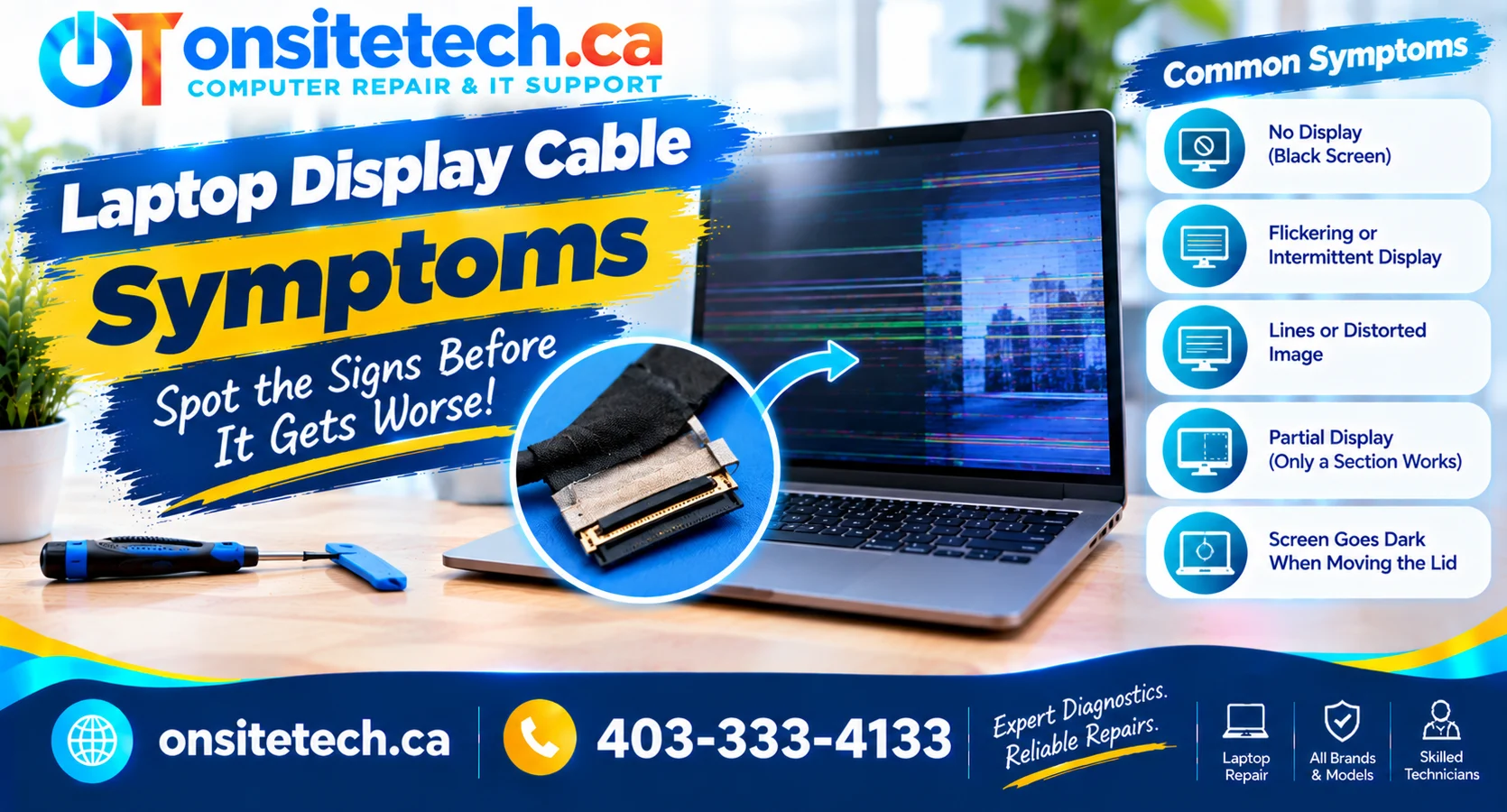
Laptop Screen Troubleshooting
Laptop Display Cable Symptoms: 7 Warning Signs
Is your laptop screen flickering, showing lines, or going black
when you adjust the lid? A damaged or loose internal display
cable is one possible cause. Learn which symptoms to watch for,
how to perform safe external checks, and when to seek professional
laptop screen repair.
Quick Answer: What Are the Symptoms of a Faulty Laptop Display Cable?
flickering, a screen that goes black unexpectedly, coloured
lines, unusual image distortion, or a display that works only
at certain lid angles.
These symptoms do not prove the cable is faulty. A damaged
display panel, graphics hardware, display driver, or hinge-related
damage can cause similar problems.
Start with external checks, such as restarting the laptop when
safe, checking for visible damage, and connecting an external
monitor if available. Do not open the display assembly or pull
on internal cables unless you are qualified to perform the repair.
Which Laptop Display Problem Are You Experiencing?
Choose the symptom that most closely matches your laptop.
The screen flickers when I move the lid normally
A cable or connection problem is possible, especially if the
issue repeatedly changes with lid position. Hinge damage or
another display fault may also be responsible. Do not keep
moving the lid to reproduce the problem.
The screen goes black, but the laptop stays on
Possible causes include a display cable, screen panel,
graphics output, or software problem. An external monitor
can help narrow down the possibilities.
I see coloured lines or distorted images
The display panel, internal connection, or graphics hardware
could be involved. Lines alone are not enough to identify
a faulty cable.
The laptop works with an external monitor
This suggests the problem may be within the built-in display
path, but it does not isolate the cable. The panel, connector,
and other display components still need consideration.
The display problem started after a drop or hinge damage
Physical damage can affect the screen, hinges, internal
connections, or surrounding components. Avoid opening the
laptop and arrange an assessment if the damage is visible
or the display is unstable.
7 Common Laptop Display Cable Symptoms
The following warning signs can help you describe the problem
to a technician. They are not definitive proof of cable failure.
Intermittent Screen Flickering
The screen may flicker on and off, briefly lose its image,
or show an unstable picture. A connection problem is one
possible explanation, particularly if the symptom began
after physical damage near the hinges.
Flickering can also result from display settings, refresh-rate
issues, graphics drivers, or a failing panel.
whether it occurs before Windows loads. Avoid repeatedly
moving the lid to trigger the problem.
The Screen Goes Black Unexpectedly
The laptop may remain powered on while the built-in display
loses its image. In some cases, the image returns later;
in others, the screen stays black until the device is restarted.
A display cable fault is possible, but the screen panel,
graphics hardware, power management, or software may cause
a similar symptom.
Coloured Lines or Image Distortion
Vertical lines, horizontal lines, unusual colours, or a
distorted picture may indicate a problem in the display
system. The cable or connector could be involved, but
panel damage and graphics faults are also possible.
If the lines are visible before Windows starts, that can
help distinguish a hardware-related problem from an issue
that begins only after the operating system loads. It still
does not identify the exact faulty component.
The Display Works Only at Certain Lid Angles
If the screen repeatedly loses its image at a particular
lid position during ordinary use, a cable, connector, or
hinge-related problem may be involved.
Stop adjusting the lid to reproduce the issue. Repeated
movement may worsen existing physical damage.
does not automatically mean the cable is the cause.
The hinge assembly, panel, and nearby connections may
need inspection.
The Screen Turns White, Dim, or Partially Blank
A white screen, uneven image, partial picture, or sections
that appear blank can be associated with the display panel
or its connection. Other internal display components can
produce similar symptoms.
If the laptop still works and an external monitor displays
normally, report that result to the technician. It can
help narrow the diagnosis without proving that the cable
has failed.
The Display Problem Started After Physical Damage
A drop, pressure on the lid, liquid exposure, or damaged
hinges can affect the display assembly and nearby connections.
Symptoms may appear immediately or become noticeable later.
Check for external signs of damage without bending the lid
or pressing on the panel. If the hinge is loose, the case
is separating, or the screen is cracked, stop manipulating
the affected area and seek repair advice.
The Built-In Screen Fails While an External Display Works
If a compatible external monitor works while the laptop’s
built-in screen remains blank or distorted, the problem may
be limited to the internal display path.
Possible causes include the laptop screen, display cable,
connector, or related components. Some graphics faults can
also affect only a particular output.
external monitor works consistently and whether the built-in
display shows the manufacturer logo during startup.
What Else Can Cause Laptop Display Cable Symptoms?
Several faults can produce similar screen behaviour. Correct
diagnosis matters because replacing a cable will not fix a
faulty panel, graphics component, or software issue.
1. Damaged LCD or Display Panel
The screen panel itself may be damaged by pressure, impact,
or component failure. Cracks, ink-like marks, and localised
distortion may point toward panel damage, although an
inspection may still be necessary.
2. Hinge or Display Assembly Damage
Loose or damaged hinges can put stress on surrounding
components and the display assembly. A stiff hinge, loose
lid, separated casing, or visible damage deserves attention.
3. Graphics Hardware or Driver Problems
Graphics hardware and display drivers can cause flickering,
black screens, lines, or image instability. If the issue
begins only when Windows loads, software troubleshooting
may be relevant.
4. Display Connector or Internal Connection Fault
A connector may be damaged or not making a reliable
connection. Because internal connectors can be delicate,
inspection and reconnection should be handled by someone
qualified to work on the specific laptop model.
Display cables vary by laptop model, screen type, resolution,
refresh rate, and connector design. Confirm the actual fault
and part compatibility before purchasing a replacement.
Safe Checks You Can Perform Before Booking a Repair
These external checks can help narrow down the problem without
opening the laptop or disturbing its internal display cable.
Save Your Work If the Screen Is Still Usable
If the laptop remains responsive and the display is usable,
save important work and back up important files when possible.
An intermittent screen can become less reliable.
Restart Only When It Is Safe to Do So
If there are no signs of liquid exposure, electrical damage,
unusual heat, or battery swelling, perform a normal restart
when practical. Note whether the problem appears before or
after the operating system loads.
If the display remains unusable or the laptop has physical
damage, avoid repeated forced restarts and seek assistance.
Test a Compatible External Monitor
If available, connect an external monitor using a compatible
cable and port. Select the correct input on the external display.
- External display works: The built-in display path may be involved.
- Both displays show problems: Graphics hardware, software, or another cause may need investigation.
- No external image appears: This result alone does not confirm a graphics hardware failure.
The result helps narrow down the possibilities, but it cannot
conclusively identify a faulty display cable.
Look for Visible External Damage
Inspect the outside of the laptop for cracks, a loose hinge,
separated casing, or visible damage around the display.
Do not press on the screen, force the lid, or insert tools
into the hinge area.
Record When the Problem Happens
Note whether the issue occurs at startup, only after Windows
loads, during normal use, or following a physical incident.
Record any error messages and whether an external monitor works.
These details can help a technician distinguish between
possible hardware and software causes.
bezel, open the display assembly, pull on the internal cable,
or reconnect display connectors while the laptop is powered.
Internal repairs require model-specific procedures and precautions.
Laptop Display Cable Symptoms: Diagnosis Table
| Symptom | Possible Cause | Recommended Next Step |
|---|---|---|
| Intermittent flickering | Cable, panel, graphics driver, or display settings. | Record when it occurs and test an external display if available. |
| Black screen while laptop remains on | Display connection, panel, graphics output, or software. | Check whether an external monitor works. |
| Coloured lines or distortion | Panel, connection, or graphics hardware. | Note whether the issue appears before Windows loads. |
| Image changes with ordinary lid movement | Possible cable, connector, or hinge-related damage. | Stop repeatedly moving the lid and arrange an assessment. |
| External monitor works normally | Possible built-in screen or internal display-path issue. | Request diagnosis of the panel, cable, and connector. |
| Problem started after a drop | Possible panel, hinge, connector, or internal damage. | Avoid opening the device and seek professional assessment. |
When Should You Seek Professional Laptop Screen Repair?
Arrange a professional assessment if the screen repeatedly
flickers, shows persistent lines, goes black, or behaves
inconsistently after basic external checks.
Professional Diagnosis May Be Needed If:
- The display problem continues with a known-working compatible cable or external monitor test.
- The built-in screen is blank while the laptop otherwise appears to operate.
- The laptop has damaged hinges, a cracked panel, or separated casing.
- The problem began after a drop, liquid exposure, or other physical incident.
- The display fault requires internal cable or connector inspection.
Need Help With a Laptop Display Problem?
OnSiteTech provides laptop screen and computer repair services.
A technician can assess the reported symptoms and determine
whether the likely fault involves the display panel, cable,
connector, hinge assembly, or another component.
When requesting service, include your laptop’s brand and
model, a description of the screen behaviour, and whether
an external monitor works.
Frequently Asked Questions
What are the most common laptop display cable symptoms?
Possible symptoms include intermittent flickering, a black
screen, coloured lines, image distortion, or a display that
works inconsistently. These symptoms can also be caused by
the screen panel, graphics hardware, or software.
Can a loose laptop display cable cause flickering?
Yes, a cable or connector problem can cause intermittent
display behaviour. However, flickering can also result from
the panel, graphics driver, refresh-rate settings, or other
hardware issues.
Why does my laptop screen go black when I move the lid?
A display cable, connector, or hinge-related problem may be
involved. Stop repeatedly moving the lid to reproduce the
fault and have the display assembly assessed.
Can I check a laptop display cable without opening the laptop?
You generally cannot directly inspect an internal display
cable without opening the device. External monitor testing
and symptom observations may help narrow down the possible
causes, but they cannot confirm cable failure.
Does an external monitor working mean my display cable is faulty?
No. It suggests that the built-in display path may be involved,
but the screen panel, internal cable, connector, or other
components could be responsible.
Can a laptop display cable be replaced?
Many laptop display cables can be replaced, but the procedure
and part compatibility depend on the exact model. A diagnosis
should confirm the faulty component before replacement.
Is it safe to reconnect the display cable myself?
Internal display connections are delicate and require
model-specific repair procedures. If you are not qualified
to perform the work, use a professional repair service.
Should I replace the screen or the cable?
Neither part should be replaced based on symptoms alone.
Proper diagnosis can help distinguish between a faulty
panel, cable, connector, graphics component, or software issue.
Official Laptop Support Resources
Use the support documentation for your laptop’s exact model.
Repair procedures and available diagnostics vary by manufacturer.
OnSiteTech | Calgary, Alberta
Still Experiencing Laptop Screen Problems?
Flickering, lines, and intermittent black screens can have
several causes. A proper assessment can help determine whether
the issue involves the screen, display cable, connector,
graphics hardware, or software.
OnSiteTech provides computer support in Calgary and approved
surrounding service areas. Include your laptop model and
the symptoms you have observed when requesting assistance.
Service suitability, parts compatibility, availability, and
applicable costs should be confirmed before work proceeds.
This guide provides general educational information. It does
not confirm a specific hardware fault. Follow the manufacturer’s
guidance for your laptop model.