
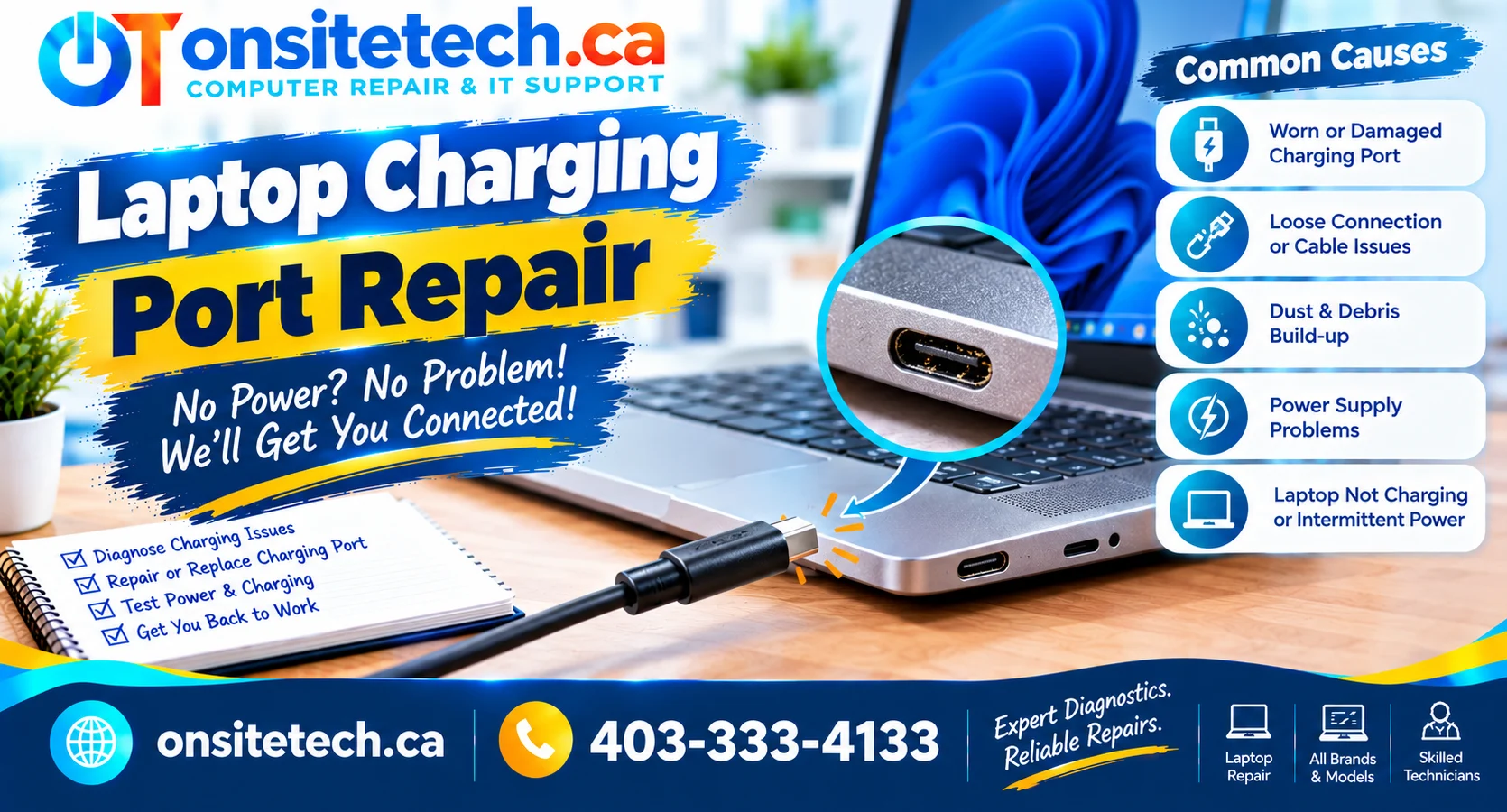
OnSiteTech | Laptop Charging Port Repair
Laptop Charging Port Repair:
Signs, Costs & Replacement Options
You plug in your laptop charger,
but nothing happens.
Maybe the charging connector
feels loose, the battery only
charges when the cable is held
at a certain angle, or the
connection cuts in and out.
If your laptop’s charging port
is damaged, you may need
laptop charging port repair.
But a loose or unreliable charging
connection does not always mean
the port itself has failed.
A worn charger plug, damaged cable,
USB-C power compatibility issue,
or internal power problem can
produce similar symptoms.
This guide explains how to
recognize potential charging-port
damage, what safe checks to try,
how repair and replacement differ,
and what can affect the cost.
It also explains when to stop
troubleshooting and request
professional laptop repair
in Calgary.
Can a Laptop Charging Port Be Repaired?
Quick Answer
Yes. Many damaged laptop charging
ports can be repaired or replaced,
depending on the laptop’s design,
the type of damage, and the
availability of compatible parts.
Some laptops use a charging jack
connected by a separate cable.
Others have a charging connector
soldered to the motherboard.
USB-C charging ports can involve
additional power-delivery circuitry.
Before replacing the port,
a technician should rule out
problems with the power adapter,
charger cable, battery and
other charging components.
Do not keep forcing a loose
charger into position.
If the connection becomes hot,
sparks, smells burnt or shows
visible damage, disconnect
power when safe and stop using it.
The right repair depends on
the actual fault, not just
the symptom of intermittent
or failed charging.
Important: When to Stop Using
a Damaged Charging Port
Stop using the charger and
disconnect it when safe if
you notice any of the following:
- Sparks or a burning smell
around the charging connector - Unusual heat at the port or plug
- Melted plastic or exposed metal
- Visible liquid damage
- A swollen laptop battery
- A connector that is broken
inside the port
Do not insert metal tools into
the charging port, bridge
electrical contacts, or continue
charging by holding a damaged
connector at an angle.
What Happens When You Plug
In Your Laptop Charger?
Select the symptom that best
matches your situation.
These clues can help
prioritize troubleshooting
but do not confirm a
charging-port failure.
My laptop only charges
when I hold the plug at an angle
An intermittent physical
connection may involve a worn
charger plug, damaged charging
jack, loose port assembly
or an internal connection.
Stop applying pressure to the
connector. Repeated movement
could worsen existing damage.
The charger feels loose
or falls out easily
A connector that no longer
fits securely may indicate
mechanical wear or damage
to the plug or port.
Check for visible external
damage without forcing
the connection.
My USB-C laptop is not charging
The USB-C cable or charger may
not support the power required
by the laptop, or the port
may be damaged.
Not every USB-C port on every
device supports charging.
The charging light turns
on and off repeatedly
This may involve an unstable
charging connection, faulty
adapter, battery or internal
power-delivery issue.
The charger plug becomes hot
or smells burnt
Stop using the affected
charger and port immediately.
Disconnect external power
when safe.
Do not attempt further
charging tests until
the device and charger
have been assessed.
The laptop works on battery
but will not charge
Possible causes include
the charger, charging port,
battery-management system
or internal power circuitry.
Start with safe external
checks rather than assuming
the port needs replacement.
7 Signs Your Laptop Charging Port
May Be Damaged
A damaged charging port
can interfere with power
delivery to your laptop.
However, several symptoms
can also be caused by
a faulty charging cable
or adapter.
1. The Charger Only Works
at a Particular Angle
If charging starts only
when you lift, twist
or hold the connector,
there may be a mechanical
connection problem.
The cause could be the
charging port, the plug
or the connection inside
the laptop.
Do not wedge objects beside
the charger or tape the connector
into a strained position.
This can create additional
damage or an unsafe connection.
2. The Charging Connector
Feels Loose
A plug that moves excessively
or no longer fits as it once did
may indicate wear or damage.
Some connectors naturally
have a small amount of movement,
so looseness alone does
not prove a failed port.
3. Charging Starts and Stops
Unexpectedly
The charging indicator
may repeatedly appear
and disappear.
This may result from
an intermittent connector,
damaged cable, incompatible
adapter or internal
charging issue.
4. You Can See Physical
Damage Inside the Port
A bent centre pin,
broken internal support,
damaged USB-C tongue
or visibly deformed connector
may indicate a physical fault.
Inspect only what is visible
from outside the device.
Do not insert tools
into the port.
5. The Charging Port
or Plug Gets Unusually Hot
Excessive heat may indicate
a poor connection or
another electrical problem.
Stop using the connection
when safe and arrange
an inspection.
6. Charging Failed After
an Impact or Drop
If the laptop was dropped
while connected to power,
the connector or its
internal mounting may
have been damaged.
A charging failure following
an impact deserves careful
inspection rather than
repeated reconnection.
7. The Port Appears Damaged
After a Charger Was Pulled
A cable pulled sharply
from the laptop can
stress the charging jack
or surrounding components.
The amount of damage
depends on the connector
and internal construction.
Is the Problem the Charging Port,
Charger or Battery?
Before paying for a
charging-port replacement,
it is important to identify
which part of the charging
system may be responsible.
| Symptom | Possible Cause | Best Initial Check |
|---|---|---|
| Charging works only when the plug is moved |
Damaged plug, loose port or internal connection |
Stop forcing the plug; inspect externally and arrange diagnosis |
| No charging with one particular adapter |
Faulty, incompatible or underpowered charger |
Check specifications and test a known-good compatible adapter |
| Laptop runs on AC power but battery does not charge |
Battery, charging control or software-related issue |
Check battery status, manufacturer diagnostics and charging settings |
| USB-C plug fits but laptop does not charge |
Unsupported port, inadequate power delivery or damaged hardware |
Confirm supported USB-C charging capability and adapter requirements |
| Connector becomes unusually hot |
Potential unsafe electrical connection |
Stop using the connection and seek inspection |
| Charging failed after physical impact |
Port, plug or internal mechanical damage |
Avoid further stress and request diagnosis |
Helpful distinction
A battery that will not charge
does not automatically mean
the charging port is damaged.
The charging system includes
multiple components that
may need separate testing.
For broader battery and charger
troubleshooting, see OnSiteTech’s
existing guide about why
a laptop is not charging.
6 Safe Checks Before Booking
Laptop Charging Port Repair
These checks can help identify
simple external problems.
They do not require opening
the laptop or touching
internal electrical components.
STEP 01
Check the Power Outlet
and Charger Connections
Start by verifying that
the charger can receive
power normally.
What to do
- Test the wall outlet
using another safe device. - Check that the charger is
fully connected at each end. - Inspect the external cable
for cracks, cuts or kinks. - Avoid damaged extension cords
or overloaded adapters. - Observe whether the laptop’s
charging indicator changes.
If a charger or cable
is visibly damaged,
do not continue using it.
STEP 02
Confirm the Charger
Is Compatible With the Laptop
A charger may physically fit
the port without providing
the correct electrical
specifications.
What to do
- Identify the laptop’s
exact make and model. - Check the manufacturer’s
recommended adapter. - Verify connector compatibility
and required power output. - For USB-C, confirm required
USB Power Delivery support. - Use an appropriate approved
replacement charger if needed.
Important:
Do not use a charger solely
because its plug fits.
A mismatched adapter can
cause charging failure
or equipment damage.
STEP 03
Inspect the Charging Port
Without Inserting Tools
Visible damage may help
explain why a charger
no longer connects properly.
What to do
- Shut down the laptop
and disconnect power. - Look at the port
in good lighting. - Check for visible damage,
debris or deformation. - Compare the connector
with the manufacturer’s
reference images if available. - Stop if the connector
looks broken or burnt.
Do not scrape the port,
spray liquids into it,
or insert sharp or
metal objects.
If debris is firmly lodged
inside, professional cleaning
may be safer than attempting
to remove it yourself.
STEP 04
Try a Known-Good
Compatible Charger
When available, a known-good
compatible adapter can help
identify whether the original
charger is contributing
to the problem.
What to do
- Verify that the alternate
adapter is suitable
for your laptop. - Inspect its cable and
plug for damage. - Connect it normally
without applying force. - Observe the charging
indicator and battery status. - Stop immediately if you
notice heat, sparks
or unusual behaviour.
A successful test with
another adapter makes
the original adapter
a likely area to investigate,
but does not establish
the health of every
charging component.
STEP 05
Check Battery and
Charging Status
If your laptop starts,
its battery status may
provide another clue.
What to do
- Start Windows if possible.
- Review the battery
and charging indicator. - Check whether the laptop
reports that an adapter
is connected. - Look for manufacturer
battery-health or
adapter diagnostics. - Record any warnings about
unsupported or unrecognized
power adapters.
Some laptops intentionally
limit charging under certain
battery-health settings.
Others may stop charging
because of a fault.
A status message can help,
but it is not sufficient
by itself to diagnose
a charging jack.
STEP 06
Stop Testing if the
Connection Is Physically Unstable
If a charger only works
when pushed sideways,
raised or held in place,
repeated testing may
increase mechanical damage.
What to do
- Disconnect the charger
when safe. - Do not bend the connector
to maintain charging. - Do not use tape, wedges
or improvised supports. - Record when the problem
started and any recent
impact or cable damage. - Arrange a professional
assessment if the port
appears unstable.
A repair decision should
follow an assessment of the
port, charger and relevant
internal power connections.
Laptop Charging Port Repair
vs Replacement: What’s the Difference?
Laptop charging connectors
are not all built the same way.
The type of connector and
the internal construction
affect which repair
options may be appropriate.
Option 1: Replacing a Separate
Charging Jack Assembly
Some laptop models use a
charging jack attached
to a short internal cable
or a separate module.
When the assembly is damaged,
a compatible replacement
may be possible without
replacing the motherboard.
The repair still requires
safe disassembly and
model-specific parts.
Option 2: Repairing a Port
Mounted on the Motherboard
Other laptops use a
charging connector soldered
directly to the motherboard.
A damaged connector may require
specialized soldering,
board-level tools and
inspection of surrounding
electrical connections.
This is not an appropriate
DIY task for someone
without electronics
repair training.
Option 3: Replacing a
USB-C Charging Connector
Some USB-C charging ports
are mounted directly
to the motherboard,
while others are part
of replaceable modules.
USB-C charging can also
involve power-delivery
controllers and related
charging circuitry.
Replacing the physical
connector will not resolve
every USB-C charging fault.
Option 4: Repairing Another
Part of the Charging System
Sometimes the charging port
works correctly, but the
battery, charger or power
circuit is responsible.
In those cases, replacing
the port could add cost
without fixing the fault.
| Possible Finding | Likely Repair Direction |
|---|---|
| Damaged charger plug or cable |
Evaluate a compatible charger replacement |
| Failed separate charging jack assembly |
Consider replacing the correct jack or module |
| Damaged soldered charging connector |
Assess specialized board-level repair |
| USB-C charging-control fault | Investigate power-delivery circuitry, not just the port |
| Battery or charging management fault |
Diagnose the relevant power components |
USB-C Charging Port Not Working
on Your Laptop?
USB-C charging problems
require particular care
because USB-C is a
connector format, not
a guarantee that every
device and port supports
the same power functions.
Not Every USB-C Port
Supports Laptop Charging
Some laptops have USB-C
ports intended primarily
for data or video.
Others support charging
through USB Power Delivery.
Check the exact laptop
documentation before
assuming a USB-C port
can accept power.
A USB-C Charger May
Not Provide Enough Power
An adapter may charge
a phone successfully
but be unsuitable
for a laptop with
higher power requirements.
Cable specifications
can also matter for
higher-power charging.
Can You Use Another
USB-C Port Instead?
Only if the laptop
manufacturer identifies
that port as suitable
for charging.
Do not assume that
a second USB-C port
has the same capabilities
as the first.
When USB-C Port Repair
Needs a Technician
Visible connector damage,
intermittent charging,
a broken internal tongue,
or persistent failure with
a confirmed compatible
adapter may require
professional inspection.
Port replacement and
power-delivery circuit
repair can require
different procedures.
Dell, HP, Lenovo and Acer
Charging Port Repair
The same charging symptom
can have different causes
and repair options
depending on the model.
DELL
Dell Laptop Charging Port Repair
Check the exact adapter
requirements and any
BIOS or system messages
about adapter recognition.
The internal jack design
varies by model.
HP
HP Laptop Charging Port Repair
Confirm the compatible
charger and model-specific
power connector.
Use official HP diagnostics
where available.
LENOVO
Lenovo Charging Port Repair
Lenovo laptops may use
different charging connectors,
including USB-C or
proprietary designs.
Check the exact model.
ACER
Acer Charging Port Repair
Some Acer models use
traditional DC input,
while others support
USB-C charging.
Part design and repair
requirements vary.
Avoid ordering a charging
jack based only on the
laptop brand.
Part compatibility
depends on the exact
model and revision.
How Much Does Laptop
Charging Port Repair Cost?
The total cost of laptop
charging port repair
depends on the diagnosed
fault, laptop model,
labour required and
any replacement parts.
A separate charging-jack
module may involve
different work from
a soldered motherboard
connector or a damaged
USB-C power-delivery circuit.
That is why a universal
flat repair price can
be misleading.
What Affects the Repair Cost?
- Laptop model:
Some devices are more
complex to disassemble. - Port design:
Separate modules and
soldered ports involve
different procedures. - Damage extent:
A broken connector may
also affect its mounting
or nearby circuitry. - Parts availability:
Compatible components
may vary in price. - Labour:
The time required depends
on diagnosis and repair. - Service location:
Travel arrangements may
affect the total outside
Calgary.
OnSiteTech’s Published
Repair Pricing
OnSiteTech uses published
labour and visit policies
rather than claiming that
every charging-port fault
has the same repair price.
| Pricing Item | OnSiteTech Policy |
|---|---|
| On-site labour | $99 CAD/hour |
| Remote support | $65 CAD/hour when the issue is appropriate for remote work |
| Billing increments | First hour billed in full; additional time billed in 30-minute increments |
| Calgary travel following a successful repair |
$0 additional travel charge |
| No successful repair during a Calgary visit |
No repair labour charge; $10 visit/travel charge |
| Parts and equipment | Charged separately when required, subject to customer approval |
| Travel outside Calgary | Published travel policy applies based on distance and location |
Pricing clarification:
The hourly labour rate
is not a fixed price
for replacing a charging port.
Some repairs require
specialized tools,
replacement components,
or work that may not
be completed during
an initial on-site visit.
Review the complete
pricing terms before
booking.
Is It Worth Fixing
a Laptop Charging Port?
In many cases,
a charging-related repair
may be more economical
than replacing an otherwise
useful laptop.
However, the best decision
depends on the actual
repair estimate and
the condition of
the whole device.
Repair May Make Sense When:
- The laptop otherwise
performs well. - The charging fault
is isolated. - A compatible replacement
part is available. - The expected repair cost
is reasonable compared
with replacement. - Your software and workflow
still meet your needs.
Replacement May Be Worth
Considering When:
- The laptop has several
expensive faults. - Required components are
unavailable or uneconomical. - The device no longer
meets your performance needs. - The repair estimate approaches
the cost of a suitable
replacement device.
Important files and
software requirements
should also be considered
before deciding to
replace a computer.
Can You Charge the Laptop
Another Way?
Some laptops support
another manufacturer-approved
charging input or docking
solution. Many do not.
Use an alternative
only if the exact model
supports it and the
manufacturer documents
the required configuration.
Do not improvise a charging
connection or connect
power through an
unsupported port.
Can You Fix a Loose Laptop
Charging Port Yourself?
External checks are
reasonable for many users.
Replacing an internal
charging jack is a
different level of work.
Opening a laptop can expose
delicate connectors,
battery assemblies and
components that can
be damaged by incorrect
tools or handling.
A soldered connector
may require specialized
equipment and electronics
repair expertise.
Do not attempt to:
- Push a metal object
into the charging port - Bend damaged contacts
back into place - Force the connector
while the charger is energized - Use glue to secure
a loose charging plug - Open the charger
or power supply - Solder a motherboard
connector without
appropriate training
If the charging port
is visibly damaged
or physically unstable,
professional diagnosis
is the safer next step.
Calgary & Surrounding Communities
Laptop Charging Port
Troubleshooting in Calgary
If your laptop only charges
when the cable is moved,
the charging plug is loose,
or the charging connector
appears damaged,
OnSiteTech offers on-site
computer troubleshooting
in Calgary.
A customer does not need
to know whether the fault
is in the charger, port,
battery or motherboard
before submitting
a repair request.
Requests from surrounding
communities can also
be reviewed for
service availability.
Calgary
Airdrie
Chestermere
Cochrane
Okotoks
Strathmore
Crossfield
High River
Diamond Valley
Canmore
Banff
Appointment availability,
suitability for on-site work
and applicable travel charges
depend on the customer’s
location and the type of repair.
Listing a community does not
guarantee an appointment.
Explore the Right
OnSiteTech Service
PRIMARY SERVICE
Laptop Repair
Explore help for laptop
charging problems,
hardware faults and
other repair needs.
SERVICE PRICING
Repair Pricing
Review published hourly
labour rates, parts
policies and travel terms.
SERVICE PROCESS
How On-Site Repair Works
Learn how to describe
a computer problem
and what to expect
from a service request.
BOOKING
Request a Laptop Assessment
Explain the symptoms
and request an available
appointment without
diagnosing the fault yourself.
Frequently Asked Questions
About Laptop Charging Port Repair
How much does it cost
to fix a charger port
on a laptop?
The total depends on the
laptop model, type of
port damage, labour and
replacement parts.
OnSiteTech publishes
on-site labour at
$99 CAD per hour, with
parts billed separately
when required and approved.
This is not a fixed
charging-port replacement quote.
Can a laptop charging
port be repaired?
Yes. Many damaged laptop
charging ports can be
repaired or replaced.
The method depends
on whether the connector
is part of a removable
assembly or attached
directly to the motherboard.
How do I know if my
laptop charging port
is broken?
Possible clues include a
loose connector, visible
port damage, charging that
cuts in and out, or failure
after a physical impact.
These symptoms can also
involve the charger
or other components,
so diagnosis is important.
Why does my laptop
only charge at an angle?
There may be an intermittent
connection involving
the plug, port or
internal charging assembly.
Do not keep bending or
holding the cable under
pressure to maintain charging.
Is it expensive to fix
a laptop charging port?
The cost varies.
A replaceable jack assembly
may require different
parts and labour from
a motherboard-mounted
USB-C connector.
A proper assessment
helps determine whether
repair is economical.
Can I use a laptop with
a broken charging port?
A laptop may still run
on remaining battery power,
but you should not continue
using an unsafe or damaged
charging connection.
Back up important files
if the device can be
used safely.
How can I charge my laptop
if the charging port
is broken?
Only use an alternative
charging input if the
manufacturer explicitly
supports it for your model.
Do not try improvised
charging methods or
unsupported USB-C ports.
Can a USB-C charging
port be repaired?
Sometimes.
The physical port may
be repairable or replaceable,
but charging failure can
also involve USB Power
Delivery compatibility
or internal circuitry.
The correct repair
depends on diagnosis.
Is it worth replacing
a laptop charging port?
It may be worthwhile
when the laptop is otherwise
in good condition and the
repair estimate is reasonable.
Compare the total cost
with a suitable replacement
laptop before deciding.
Can a damaged charging
port damage a laptop?
A damaged or unstable
electrical connection
may contribute to
additional damage or
unsafe heating.
Stop using the connection
if you notice sparks,
burning smells, melting
or unusual heat.
Can Best Buy repair
laptop charging ports?
Repair availability and
the specific work offered
depend on the provider
and service location.
Ask whether the repair
is performed directly,
whether board-level work
is supported and how
parts and labour are billed.
How long does laptop
charging port repair take?
Repair time depends
on the fault,
device construction,
parts availability
and whether specialized
work is required.
An initial assessment
does not guarantee
completion during
the same visit.
Can OnSiteTech help with
laptop charging port
problems in Calgary?
OnSiteTech offers on-site
laptop troubleshooting
in Calgary.
Describe the laptop model,
charging symptoms and
visible damage when
submitting a request.
The appropriate repair
depends on the findings
and service suitability.
Official Resources
and Technical Guidance
Charging-system designs,
power-adapter requirements
and diagnostic procedures
vary across laptop models.
For model-specific
information, consult
the manufacturer’s
official support resources.
Dell — Official Laptop Support
HP — Official Product Support
Lenovo — Official Support
Acer — Official Support
Microsoft — Windows Support
A loose charger,
intermittent connection
or charging failure
does not by itself
confirm that the
charging port needs
replacement.
OnSiteTech | Calgary & Area
Laptop Charging Port
Loose or Not Working?
You do not need to guess
whether your laptop needs
a new charger, charging port,
battery or another repair
before requesting help.
Tell OnSiteTech what happens
when you connect the charger,
and the next appropriate
step can be assessed.
- Share the laptop’s
make and model. - Describe whether the
charger feels loose
or only works at an angle. - Mention USB-C or
traditional charging
connector type. - Explain when the
problem began. - Report any visible damage,
unusual heat or
electrical symptoms. - Include your location
when requesting
an appointment.
No prior technical diagnosis
is required to submit a request.
Some charging-port repairs may
require parts, specialized
work or additional arrangements.
Service availability and
travel charges depend on
your location and
published policies.
This guide provides general
educational information
about laptop charging-port
problems and repair options.
Stop using equipment with
unsafe electrical or battery
symptoms. Protect important
data before invasive repairs.