
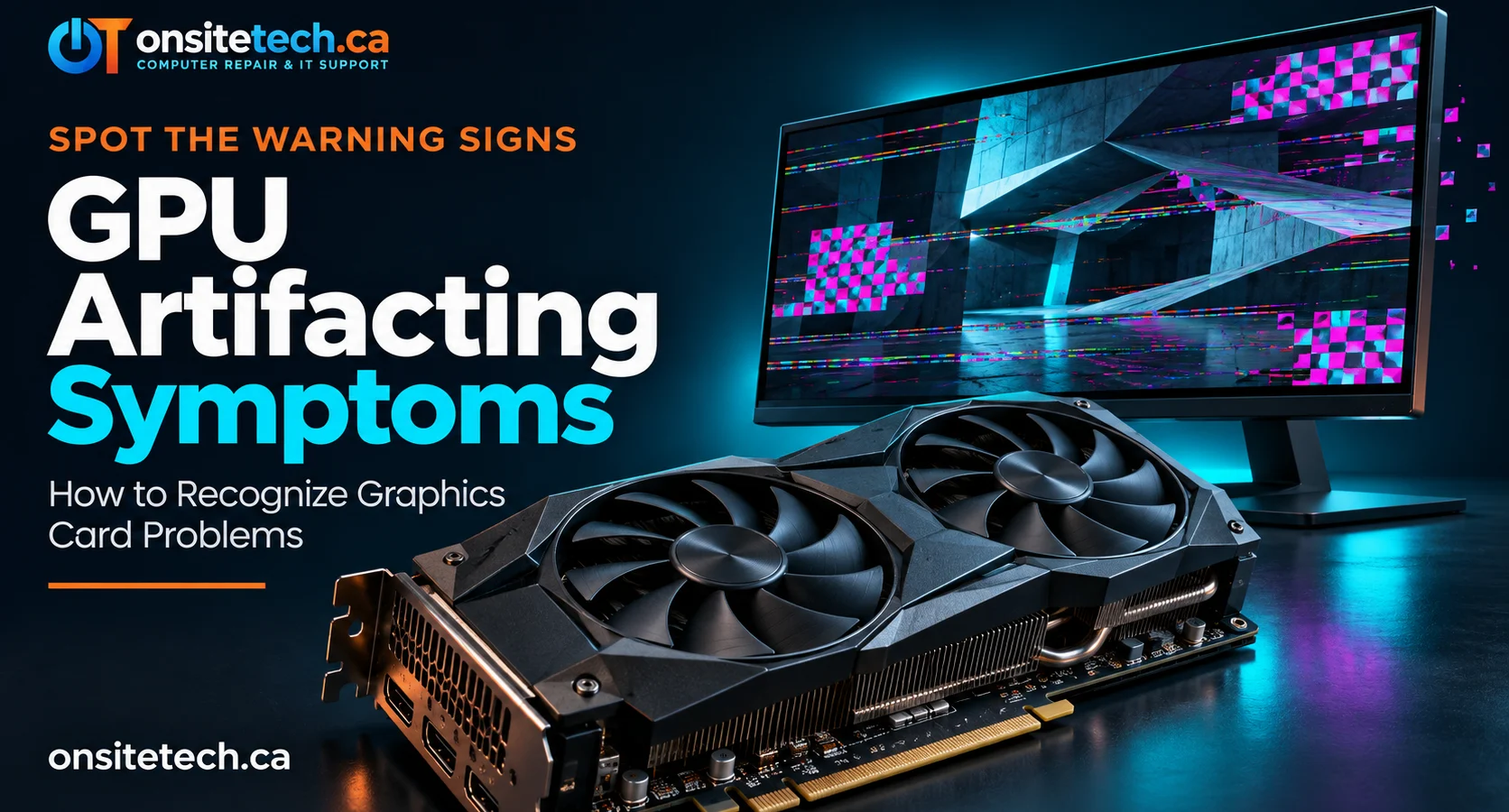
Seeing strange lines, flashing pixels, distorted textures, or unusual colours on your monitor? These may be GPU artifacting symptoms. Learn what causes visual artifacts, how to troubleshoot them, and when your graphics card may need professional diagnosis.
GPU artifacting symptoms are unusual visual defects caused by problems in the graphics rendering process. Common examples include coloured squares, flickering textures, random lines, distorted images, and unusual patterns. They can be related to GPU overheating, unstable overclocking, graphics driver problems, VRAM faults, or a failing graphics card. However, a faulty cable, monitor, or display connection can sometimes produce similar symptoms.
GPU artifacting symptoms can appear suddenly while gaming, watching videos, editing graphics, or even using Windows on the desktop. Some artifacts disappear after restarting the computer, while others become more frequent as the graphics card heats up or handles demanding workloads.
Recognizing the difference between a software-related display issue and a potential hardware failure is important. Replacing a graphics card without proper testing can be an unnecessary expense, so it is worth checking the most common causes first.
Table of Contents
Common GPU Artifacting Symptoms
GPU artifacting does not always look the same. The appearance depends on whether the issue comes from the graphics card, video memory, driver software, display cable, or monitor.
Small coloured squares, checkerboard patterns, or random blocks appear across the screen, particularly during gaming or other GPU-intensive tasks.
Surfaces in games may flash, change colours, disappear, or display incorrect patterns while the scene is moving.
Horizontal or vertical lines may appear across the display. These can be associated with GPU problems, but cable and monitor faults must also be considered.
Objects, characters, shadows, and backgrounds may appear stretched, corrupted, or incorrectly rendered.
Tiny bright or coloured dots may appear in different areas of the screen, sometimes changing position when the image updates.
Severe graphics instability may cause a game to freeze, the display to go black, or the graphics driver to recover or stop responding.
One important distinction: not every visual defect is GPU artifacting. A damaged HDMI or DisplayPort cable, a faulty monitor, or an incorrect display setting can create symptoms that look similar.
What Do GPU Artifacts Look Like?
GPU artifacts can appear in several recognizable forms. Understanding the visual pattern can help narrow down the possible cause.
| Visual problem | Possible explanation |
|---|---|
| Coloured squares or checkerboard patterns | Possible GPU memory instability or graphics hardware problems. |
| Flashing or disappearing textures | Possible rendering, driver, or GPU instability. |
| Random horizontal or vertical lines | Possible GPU, cable, connector, or monitor issue. |
| Distorted 3D objects | Possible graphics processing or software rendering problem. |
| Black screen during gaming | Possible graphics driver crash, power issue, overheating, or hardware fault. |
The pattern alone cannot confirm which component has failed. A proper diagnosis requires testing the display connection, software environment, temperatures, and graphics hardware.
What Causes GPU Artifacting?
1. Overheating Graphics Card
High GPU temperatures can contribute to instability, especially during demanding games or rendering workloads. Dust buildup, restricted airflow, a malfunctioning fan, or poor cooling performance can make the problem worse.
2. Faulty or Unstable VRAM
Video RAM (VRAM) stores graphical data used by the GPU. Memory instability or hardware faults can produce unusual patterns, corrupted textures, coloured blocks, and other visual defects.
3. Unstable GPU Overclocking
Increasing GPU core or memory frequencies beyond stable operating limits can cause rendering errors. Even an overclock that appears stable in one game may fail under a different workload.
4. Outdated or Corrupted Graphics Drivers
Driver problems can cause display glitches, game crashes, rendering errors, or compatibility issues. A recent driver update can also introduce problems on certain hardware configurations.
5. Power Supply Problems
An inadequate, aging, or malfunctioning power supply can contribute to system instability under heavy GPU load. Power-related problems may also cause unexpected shutdowns, black screens, or restarts.
6. Damaged Graphics Card or Connections
A damaged GPU, poorly seated graphics card, loose PCIe power connector, or damaged display output can cause instability. Physical damage and component wear may require professional inspection.
7. Monitor or Display Cable Problems
A defective HDMI or DisplayPort cable, loose connector, or failing monitor can create flickering, lines, colour problems, and intermittent signal loss. These issues can be mistaken for GPU artifacting.
How to Diagnose GPU Artifacting
Before replacing any hardware, follow a controlled troubleshooting process. Change one variable at a time so you can identify what actually affects the problem.
Step 1: Check the Display Cable and Connections
Turn off the computer and check that the display cable is securely connected. If possible, test with another known-good HDMI or DisplayPort cable and a different port on the graphics card.
Step 2: Test Another Monitor
Connect your computer to another monitor or television. If the artifacts disappear, the original display or its connection may be responsible. If they remain, continue investigating the computer.
Step 3: Monitor GPU Temperatures
Use a reputable hardware-monitoring utility to check GPU temperatures during normal use and gaming. Compare the readings with the graphics card manufacturer’s specifications. Look for unusual temperature increases, fan problems, or thermal throttling.
Step 4: Restore Default GPU Settings
If you have overclocked the GPU or VRAM, restore the manufacturer’s default settings. Remove custom tuning profiles temporarily and test whether the visual defects return.
Step 5: Check Graphics Drivers
Install an appropriate stable driver from the official NVIDIA, AMD, or Intel website. If the problem began immediately after a driver update, consider testing a previous stable version. Avoid downloading drivers from unknown websites.
Step 6: Test Different Applications
Check whether the problem appears in multiple games, video applications, and the Windows desktop. Artifacts limited to one application may indicate a game-specific bug, software conflict, or driver compatibility issue.
Step 7: Check Whether Artifacts Appear Before Windows Loads
Observe the display during the manufacturer’s startup logo or BIOS/UEFI screen. If artifacts appear before Windows loads, this increases suspicion of a hardware or display-path problem, although it does not prove that the GPU itself is defective.
How to Fix GPU Artifacting
The correct fix depends on the underlying cause. These troubleshooting actions can resolve some cases without replacing the graphics card.
1. Remove Overclocking and Undervolting Profiles
Return the GPU core and memory settings to their defaults. If the artifacts disappear, the previous tuning configuration may have been unstable.
2. Improve Case Airflow
Remove dust from filters and vents, check that fans are operating correctly, and make sure the computer has enough space for airflow. Avoid opening or dismantling the graphics card unless you have the appropriate experience.
3. Update or Reinstall the Graphics Driver
Use the GPU manufacturer’s official driver package. If a normal update does not help, a clean driver installation may be appropriate. Follow the manufacturer’s recommended installation procedure.
4. Check the Power Connections
With the PC powered off and disconnected from electricity, inspect the graphics card’s power connectors for loose connections or visible damage. Never force a connector into place or use damaged cables.
5. Test with Another Cable or Display
Replace a suspect display cable with a known-good cable and test another monitor. This helps rule out problems outside the graphics card.
6. Investigate Possible Hardware Failure
If artifacts continue across different applications, cables, and displays after software troubleshooting, the GPU or its VRAM may require professional testing. Repair or replacement should be based on diagnostic results rather than visual symptoms alone.
When Is GPU Artifacting a Sign of a Failing Graphics Card?
GPU artifacting becomes more concerning when it occurs consistently and cannot be explained by a cable, monitor, software, or configuration problem.
Warning signs include:
- Artifacts appearing in multiple games and applications.
- Visual corruption appearing before Windows starts.
- Repeated graphics driver crashes or system freezes.
- Artifacts that continue after restoring default GPU settings.
- Problems that persist with a different display and known-good cable.
- Visible physical damage or signs of overheating.
These symptoms increase the likelihood of a hardware problem, but they do not automatically mean the graphics card must be replaced. A technician may need to inspect the GPU, VRAM, power delivery, motherboard connection, and cooling system.
When to Get Professional GPU Repair
If GPU artifacting symptoms continue after basic troubleshooting, professional diagnosis can help identify whether the problem comes from the graphics card, power supply, motherboard, display connection, or software environment.
A proper diagnostic process may include:
- Inspecting the graphics card and its physical connections.
- Checking GPU temperatures and cooling performance.
- Testing driver stability and system behaviour.
- Investigating power delivery and system stability.
- Evaluating whether the graphics card or another component is responsible.
Need Help Diagnosing GPU Artifacting?
Persistent graphics glitches can make a gaming PC unreliable and difficult to use. OnSiteTech can help investigate computer and hardware problems in Calgary and determine the appropriate next step.
Explore Computer Repair Services
Frequently Asked Questions
What are the most common GPU artifacting symptoms?
Common GPU artifacting symptoms include coloured squares, random pixels, flickering textures, distorted graphics, unusual lines, and visual corruption during gaming or normal computer use.
Can GPU artifacting be caused by overheating?
Yes. Excessive GPU temperatures can contribute to instability and visual problems. Dust buildup, poor airflow, and cooling-system issues may increase the risk.
Does GPU artifacting mean my graphics card is dying?
Not necessarily. Artifacting can result from driver issues, unstable overclocking, overheating, cable faults, or monitor problems. Persistent artifacts after basic troubleshooting may indicate a graphics card hardware fault.
Can a faulty HDMI or DisplayPort cable cause artifacts?
Yes. A damaged or unreliable cable can cause flickering, signal interruptions, lines, and other display abnormalities. Testing another known-good cable is a useful first step.
Can updating GPU drivers fix artifacting?
It can help if the problem is caused by a driver bug, corrupted installation, or compatibility issue. However, driver updates cannot repair physically damaged GPU hardware or defective VRAM.
Can GPU artifacting damage my computer?
Visual artifacts alone do not necessarily damage other components. However, if the underlying cause involves overheating, electrical problems, or failing hardware, continued heavy use may increase the risk of further problems. Stop testing if you notice severe overheating or unusual electrical symptoms.
Should I replace my GPU if I see coloured squares?
No. Coloured squares can indicate memory instability or GPU problems, but they are not conclusive proof of a failed graphics card. Test the cable, monitor, driver, temperatures, and default GPU settings before considering replacement.
Official Technical Resources
For additional troubleshooting information, consult the official documentation from your hardware and operating-system manufacturers:
- NVIDIA Support – Graphics card drivers and troubleshooting.
- AMD Support – Radeon graphics drivers and product support.
- Intel Support – Intel graphics and hardware troubleshooting.
- Microsoft Windows Support – Windows display and driver troubleshooting.
Final Thoughts
GPU artifacting symptoms should not be ignored, especially when they appear repeatedly during gaming or everyday computer use. Coloured blocks, flickering textures, random lines, and distorted images can indicate graphics instability, but they do not always mean the graphics card has failed.
Start by checking the cable, monitor, GPU temperatures, driver installation, and overclocking settings. If the problem persists across different displays and applications, arrange a proper hardware diagnosis before spending money on a replacement graphics card.
Accurate troubleshooting is the best way to identify the real cause and avoid replacing components unnecessarily.