
OnSiteTech | Online Safety & Malware Guide
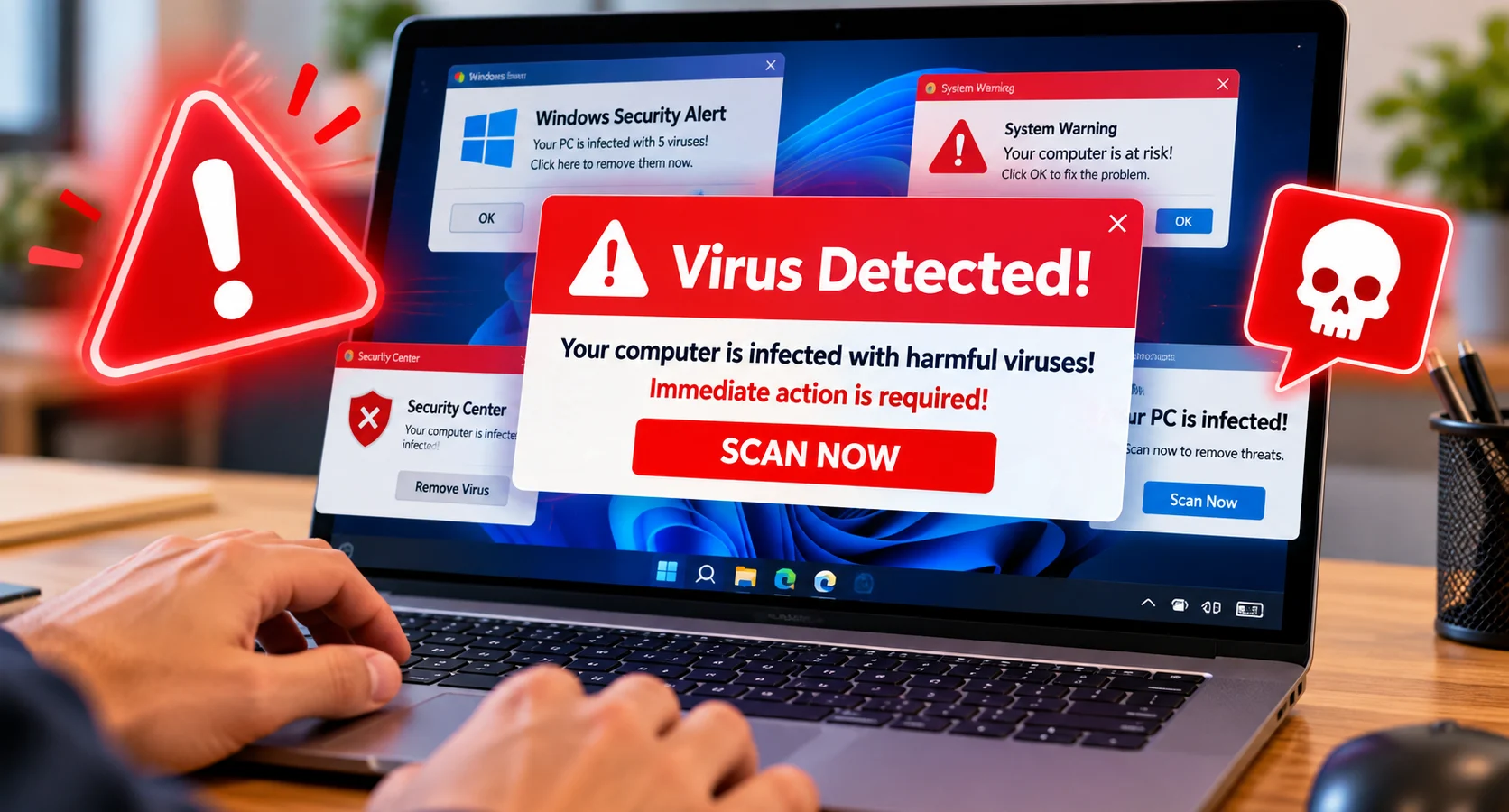
A bright red warning fills your
browser. It says your computer
is infected, your personal files
are at risk, or you must call
Microsoft immediately.
A fake virus warning
can look convincing, especially
when it uses familiar security
logos, a countdown timer or
an alarming sound.
But a scary pop-up is not proof
that your computer has been hacked.
It could be a deceptive website,
an unwanted browser notification
or a sign of unwanted software.
This guide explains what to do
immediately, how to stop scam
pop-ups in Chrome, Edge and Firefox,
how to check for malware, and
what to do if you clicked,
paid or allowed remote access.
Is That Virus Warning on Your Computer Real?
Quick Answer
If a website suddenly displays
a virus warning and asks you
to call a phone number, install
a cleaner or give someone
remote access, treat it as
a possible tech-support scam.
Do not click the warning,
call its number or download
the suggested software.
Close the suspicious browser
page safely, review website
notification permissions and
run a scan through the
security software already
installed on your computer.
If you provided passwords,
payment details or remote
access, take additional
account and device
security steps promptly.
A genuine alert should be
verified directly through
your security application’s
own interface, not through
a phone number or button
inside an unfamiliar website.
First 60 Seconds: What to Do With a Fake Virus Pop-Up
- Do not interact with the message.
Avoid its buttons, download links,
telephone numbers and payment requests. - Do not call the displayed support number.
Scammers may impersonate Microsoft,
an antivirus provider or another
trusted company. - Try closing the browser tab or window.
Use the browser’s normal controls
rather than buttons inside
the suspicious page. - If the browser is trapped,
press Ctrl + Shift + Esc on Windows,
open Task Manager and end the
affected browser process.
Unsaved browser work may be lost. - Reopen the browser carefully.
Avoid restoring the suspicious
page or previous session
until the problem is understood. - Run a trusted security check.
Open Windows Security from
the Start menu rather than
following the pop-up.
If you have already given
someone remote access,
go directly to
the remote-access response steps
.
What Kind of Fake Virus Warning Are You Seeing?
Open the description that best
matches your experience.
Different symptoms require
different next steps.
A full-screen warning says to call Microsoft
This may be a deceptive
tech-support page using
Microsoft branding.
Do not call the number.
Close the browser safely
and avoid restoring the page.
Virus notifications appear near the bottom-right of Windows
Some alerts that resemble
Windows security notifications
are actually push notifications
from websites previously allowed
in your browser.
Pop-ups keep appearing even when no website is open
Website notifications can
appear when the main browser
window is closed, depending
on background browser settings.
Unwanted software is another
possibility. Check notification
permissions and scan the device.
Google keeps redirecting me to unfamiliar websites
Check the search engine,
homepage, installed extensions,
browser shortcuts and any
unexpected software.
Redirects may indicate
unwanted browser changes.
I accidentally clicked Allow notifications
The website may now have
permission to send misleading
alerts. Remove that site’s
notification permission
from your browser settings.
I downloaded a file from the warning
Do not open or run the file.
If it has already run,
disconnect from the network
if compromise is suspected
and review your security
and installed applications.
I called the number and gave someone remote access
Treat this as a possible
computer and account
compromise. End the session,
disconnect the device from
the network and secure
important accounts using
a separate trusted device.
I entered my credit card or banking information
Contact your bank or card
provider using its official
number or app. Explain what
happened and follow its
fraud-prevention instructions.
How to Tell a Fake Virus Warning From a Real Security Alert
A webpage can display
almost any text or graphic,
including logos that resemble
Windows Security or
well-known antivirus brands.
That does not mean the
website has scanned
your computer.
| Warning Behaviour | What It May Indicate |
|---|---|
| Website demands a phone call | Common tech-support scam warning sign |
| Countdown or urgent payment demand | Pressure tactic; do not pay through the page |
| Pop-up claims multiple viruses without a real scan | Likely deceptive warning |
| Notification shows an unfamiliar website address | Potentially unwanted website push notification |
| Windows Security shows a threat in Protection history | Review directly within the trusted Windows Security app |
| Security software flags a downloaded file | Check the actual security application’s detection details |
Can a Website Really Detect Viruses on Your PC?
Ordinary websites cannot perform
the same comprehensive local
device scan as properly
authorized antivirus software.
A page claiming it has found
“five dangerous viruses”
is not reliable evidence
of an infection.
What About a Fake Microsoft Security Alert?
Scammers often copy logos,
colours and phrases associated
with trusted technology brands.
A webpage asking you to call
a number for urgent Microsoft
virus removal should not be
treated as an official
Windows Security diagnosis.
Instead, open Windows Security
directly from the Windows
Start menu and check its
own status and Protection history.
A Fake Alert Doesn’t Guarantee the PC Is Clean
The warning itself may be
fraudulent, but the computer
could independently have
unwanted software.
Review the symptoms and
run an appropriate security
scan rather than assuming
either infection or safety.
How to Remove Fake Virus Pop-Ups That Keep Appearing
Persistent fake alerts often
come from a website that
was given notification
permission or from
unwanted browser changes.
Start with website permissions.
You may not need to
reinstall Windows or
purchase antivirus software.
Stop Fake Virus Notifications in Chrome
Check Site Permissions
- Open Google Chrome.
- Select the three-dot menu.
- Open Settings.
- Select Privacy and security.
- Open Site settings.
- Select Notifications.
- Review websites allowed to send notifications.
- Block or remove permissions for suspicious sites.
- Review the default notification setting if needed.
You can also review Chrome’s
Pop-ups and redirects settings
under Site settings.
If the problem continues,
check installed extensions
and browser search settings.
Stop Fake Virus Notifications in Microsoft Edge
Review Website Notification Permissions
- Open Microsoft Edge.
- Choose the three-dot menu.
- Open Settings.
- Find Site permissions or the relevant permissions section.
- Open Notifications.
- Review websites allowed to send notifications.
- Block or remove unfamiliar and suspicious sites.
- Review pop-up permissions if the problem continues.
Edge settings labels can
change between releases.
If the menu is difficult
to find, enter the
following address directly
into the Edge address bar:
edge://settings/content/notificationsThis opens a local
browser settings page,
not an external download.
Never follow a link
inside the scam pop-up
to change these settings.
Stop Website Scam Notifications in Firefox
Review Notification Permissions
- Open Firefox.
- Select the application menu.
- Open Settings.
- Select Privacy & Security.
- Find the Permissions section.
- Locate Notifications and select Settings.
- Review the listed websites.
- Remove or block suspicious notification permissions.
- Save changes.
Firefox also offers controls
for new notification requests.
Review these if deceptive
sites repeatedly ask
for permission.
Why Turning Off Notifications Can Work
A malicious website may be
using the browser’s legitimate
notification feature to
display misleading messages.
Removing the website’s
permission prevents that
site from continuing
to send notifications
through the browser.
This does not automatically
prove the device is free
of malware, so review
other unusual symptoms too.
Browser Redirects and Pop-Ups Won’t Go Away? Check These Settings
If your browser keeps
opening unfamiliar pages,
changing its homepage
or sending searches to
another website, the issue
may be broader than
one notification permission.
1. Review Browser Extensions
Open the browser’s extension
management page and look
for extensions you do not
remember installing.
Read each extension’s name,
publisher and permissions
before deciding what to remove.
2. Check Your Homepage and Search Engine
Review whether the default
search provider and startup
pages match your preferences.
Unexpected changes can be
a clue that a browser setting
was modified by unwanted software.
3. Review Recently Installed Apps
On Windows, open
Settings > Apps > Installed apps.
Look for software installed
around the time the redirects
began. Research unfamiliar
applications before uninstalling
them; don’t remove essential
system components blindly.
4. Consider a Browser Reset
If the problem continues,
review the browser’s official
reset settings feature.
A reset may disable extensions,
restore default settings
or change site permissions.
Check which items are affected
before proceeding.
5. Scan for Unwanted Software
Redirects that repeatedly
return despite browser
settings changes deserve
an additional security check.
Avoid Unknown “One-Click Fix” Tools
Do not download a random
PC cleaner or browser
repair utility from
a pop-up advertising
the same problem.
Use official browser tools,
trusted security software
and verified vendor sources.
How to Check Your Windows PC for Malware Safely
For Windows computers,
Microsoft Defender Antivirus
is integrated with
Windows Security.
It provides a way to
review protection status,
update security intelligence
and scan for threats
without following a
suspicious website.
Run a Windows Security Scan
- Open the Windows Start menu.
- Search for Windows Security.
- Open the Windows Security application.
- Select Virus & threat protection.
- Review the protection status and any existing warnings.
- Check for security intelligence updates if available.
- Open Scan options.
- Choose an appropriate scan, such as a Full scan.
- Review any results through Windows Security.
If another reputable
antivirus product is
installed and active,
follow that product’s
official scan instructions.
Should You Run Microsoft Defender Offline?
Microsoft Defender Offline
may be an option when
certain threats are suspected
or cannot be removed during
a normal Windows session.
It requires a restart
and should be used
through Microsoft’s
documented interface.
Save work and ensure
important recovery information
is available before
advanced security operations.
Microsoft — Protect Your PC From Unwanted Software
What If the Antivirus Scan Finds Nothing?
A clean scan is useful,
but it does not explain
every browser problem.
A website notification
can be annoying and
fraudulent without being
a traditional malware
infection detectable
by antivirus scanning.
Review the website
permissions and
browser settings too.
What If You Clicked a Fake Virus Warning?
The next step depends
on what happened after
you clicked.
| What Happened? | Next Step |
|---|---|
| Clicked a button but nothing downloaded | Close the page, review permissions and scan if concerned |
| Allowed browser notifications | Remove the suspicious website’s notification permission |
| Downloaded a suspicious file but did not open it | Do not run it; assess the file using trusted security software |
| Installed a program | Stop using the program, review installed apps and perform a security assessment |
| Entered a password | Secure the affected account using a trusted device and enable MFA |
| Entered payment information | Contact the financial provider promptly through its official channel |
| Allowed remote access | End the session, isolate the PC and assess the possible compromise |
Should You Change Your Passwords?
If you entered a password
into a suspicious page
or shared it with a scammer,
change it through the
real service website
using a trusted device.
Change reused passwords
on other accounts,
review account sessions
and enable multi-factor
authentication where available.
If your email account
was affected, check
for unexpected forwarding
rules or account
recovery changes.
What If You Gave a Fake Technician Remote Access?
Giving an unknown person
remote control is more
serious than merely
viewing a malicious webpage.
A scammer may have viewed
personal information,
installed software or
changed security settings.
The full impact may not
be immediately visible.
Take These Steps Promptly
- End the remote-control session if it is still active.
- Disconnect the affected computer from Wi-Fi or Ethernet.
- Stop using that computer for banking, shopping and sensitive logins until assessed.
- From a separate trusted device, change exposed account passwords.
- Enable or review multi-factor authentication.
- Check important accounts for unauthorized activity.
- Contact your bank if financial information may have been exposed.
- Arrange an appropriate security assessment before trusting the PC again.
Is Uninstalling the Remote Access App Enough?
Not necessarily.
Removing a remote-access
application does not prove
that no other changes
were made during the session.
An assessment may need
to review installed software,
startup items, security settings
and account activity.
Depending on the circumstances,
rebuilding the computer from
trusted installation media
may be safer than relying
on a limited scan.
Protect important personal
data carefully if a
reinstallation is necessary,
and avoid transferring
suspected malicious programs
into a new installation.
What If You Paid a Fake Tech-Support Company?
If you sent payment or
shared banking information,
contact your bank or card
provider promptly using
an official phone number
or app you already trust.
Explain that you may
have paid a technology
support scammer and follow
the institution’s advice
about disputes, monitoring
and account protection.
Preserve relevant receipts,
messages, transaction details
and contact information
where it is safe to do so.
Reporting the Scam in Canada
You can review reporting
guidance from the
Canadian Anti-Fraud Centre.
If personal information
has been misused, you may
also need to follow
appropriate identity
protection procedures.
For additional advice
on tech-support scams,
see the
FTC’s tech-support scam guidance
.
How to Prevent Fake Virus Warnings and Browser Scams
No one step prevents
every scam, but a few
habits can reduce
unwanted alerts and
risky interactions.
BROWSER SAFETY
Review Notification Requests
Only allow notifications
from websites you genuinely
recognize and want
to hear from.
SOFTWARE SAFETY
Use Official Downloads
Download browser updates,
security tools and
applications from verified
publishers, not warning pop-ups.
ACCOUNT SECURITY
Enable Multi-Factor Authentication
Protect important accounts
with strong, unique passwords
and MFA where supported.
DEVICE SECURITY
Keep Software Updated
Install supported Windows,
browser and application
security updates.
Maintain backups
of important files.
Should You Block Every Website Notification?
That is a personal preference.
Some legitimate sites use
notifications helpfully,
but you can disable new
notification requests
if you do not need them.
At a minimum, remove permissions
for unfamiliar or unwanted sites.
When Should You Get Professional Help With Fake Virus Pop-Ups?
Not every scary pop-up
requires computer repair.
If the issue disappears
after removing a website’s
notification permission
and no other symptoms remain,
the problem may have been
browser-specific.
Additional assistance
may be appropriate when:
- Pop-ups or redirects return after browser settings are corrected.
- Unknown programs repeatedly reinstall themselves.
- Security scans report threats that cannot be resolved.
- You installed software suggested by the scam page.
- You granted an unfamiliar person remote access.
- Passwords or personal information may have been exposed.
- Important files, accounts or device settings behave unexpectedly.
A service assessment
should distinguish
browser-level nuisance
notifications from
potentially unwanted
software and more
serious compromise.
Explore
OnSiteTech Virus & Malware Removal
for service information.
Helpful OnSiteTech Services and Resources
PRIMARY SERVICE
Virus & Malware Removal
Explore computer security
assistance for suspected
malware, unwanted software
and persistent browser issues.
TROUBLESHOOTING
Computer Repair
Review computer support
options when system
errors or hardware
issues occur alongside
the browser problem.
HOW IT WORKS
On-Site Repair Process
Learn how service requests
and appointment arrangements
are handled.
PRICING
Repair Pricing
Review published service
pricing before requesting
technical assistance.
Calgary & Surrounding Communities
Fake Virus Pop-Up and Malware Help in Calgary
If your computer displays
persistent fake security
alerts in Calgary,
start with safe browser
permission checks and
trusted security scans.
When the symptoms suggest
more than a website
notification, OnSiteTech’s
virus and malware removal service
provides a starting point
for reviewing assistance
options.
Computer users in nearby
communities can face
the same issues — from
a misleading browser alert
in Airdrie to repeated
redirects on a laptop
in Cochrane.
The OnSiteTech geographic
plan includes:
These communities are part
of the geographic plan.
Actual coverage, appointment
availability, service scope
and travel arrangements
must be confirmed for
your address.
Frequently Asked Questions About Fake Virus Warnings
Why am I getting fake virus warnings on my computer?
They may come from
deceptive websites,
browser notifications
or unwanted software.
The warning’s appearance
alone does not confirm
an actual infection.
How do I remove a fake virus warning?
Avoid interacting with
the warning, close the
suspicious page, review
browser notification
permissions and run
a trusted security scan
if necessary.
Is a fake Microsoft virus alert real?
A webpage using Microsoft’s
name or logo is not
automatically a real
Windows Security alert.
Verify warnings directly
through Windows Security.
Can a website tell me my computer has five viruses?
A typical webpage cannot
perform a full local
antivirus scan. Claims
that several viruses
were found may be
scare tactics.
Why do virus pop-ups appear at the bottom-right of Windows?
They may be browser push
notifications from websites
that were previously
granted permission.
Check Chrome, Edge
or Firefox permissions.
Why do virus alerts appear even when my browser is closed?
Some browsers can deliver
notifications through
background processes.
Other unwanted software
is also possible.
Review permissions
and security status.
How do I stop fake virus notifications in Chrome?
Open Chrome Settings,
then Privacy and security,
Site settings and
Notifications. Block or
remove suspicious websites.
How do I remove fake virus alerts in Microsoft Edge?
Open Edge notification
permissions, review
allowed sites and block
or remove suspicious entries.
Why does my browser keep redirecting to strange websites?
Possible causes include
unwanted extensions,
modified search settings
or unwanted installed
software. Review browser
settings and run
appropriate security checks.
Does a fake virus pop-up mean my computer is hacked?
No. A deceptive page
or website notification
does not by itself prove
a compromise. Additional
evidence is needed.
What if I clicked a fake virus warning?
The appropriate response
depends on whether you
only clicked, downloaded
a file, entered credentials
or allowed remote access.
Take the steps relevant
to what actually occurred.
What if I downloaded a fake antivirus program?
Avoid running it if
not already opened.
If installed, stop
using it and assess
the device with trusted
security tools or
qualified assistance.
What if I called the number on a virus warning?
If you only called,
stop communicating
with the suspicious
support contact.
If you shared information
or remote access,
take additional account
and device protection steps.
What if a scammer accessed my computer remotely?
End the remote session,
disconnect the PC from
the network, protect
important accounts from
a trusted device and
arrange an appropriate
security assessment.
What if I paid a fake computer support company?
Contact your bank or
card provider promptly
through an official
channel. Explain the
transaction and follow
its fraud-response advice.
Will Microsoft Defender remove browser scam notifications?
Antivirus scanning can
help detect malicious
software, but website
notifications are a
separate browser-permission
feature. Review those
permissions directly.
Should I reset my browser to remove pop-ups?
A browser reset may
be useful after checking
notification permissions,
extensions and search
settings. Review what
will change before
resetting.
Do I need to reinstall Windows to stop fake virus warnings?
Usually not for a
simple website notification.
A broader compromise
may require deeper
assessment and possibly
reinstallation from
trusted media.
Can fake virus warnings steal my information?
The warning itself may
try to trick you into
sharing passwords,
payment information
or remote access.
Follow-up actions can
create significant
security risks.
When should I request malware removal assistance?
Consider assistance
if unwanted software
persists, a scammer
had remote access,
security warnings are
unresolved or sensitive
information may have
been exposed.
Official Security Resources and Editorial Guidance
This guide was prepared
by OnSiteTech using
browser-vendor, Microsoft
and consumer-protection
information.
A fake warning is not
a diagnosis. Browser
notifications, unwanted
applications and actual
malware infections can
require different responses.
Google — Remove Unwanted Ads, Pop-Ups & Malware
Mozilla — Web Push Notifications in Firefox
Microsoft — Protect Your PC From Unwanted Software
FTC — How to Spot and Report Tech-Support Scams
Canadian Anti-Fraud Centre
Browser menu labels may
change as software updates
are released. Use the
vendor’s official help
pages if your screen
looks different.
OnSiteTech | Calgary & Area
Fake Virus Pop-Ups Won’t Go Away? Find the Right Next Step.
If the warnings keep
returning, your browser
redirects unexpectedly,
or someone may have
installed suspicious
software on your PC,
you may need more than
a notification setting change.
Explore OnSiteTech’s virus
and malware removal service
to understand available
assessment and assistance
options.
- Describe the exact warning and where it appears.
- Mention whether you clicked or downloaded anything.
- Explain any unusual browser redirects.
- Disclose whether remote access was granted.
- Note any passwords or payment details that may have been shared.
Service availability,
security assessment,
removal feasibility,
data protection and
pricing depend on the
specific circumstances.
No guarantee of complete
removal, recovery or
absence of compromise
is implied.
Educational security guidance.
Do not send passwords or
banking information through
unverified support contacts.
For suspected account
or financial compromise,
use a trusted device
and official providers.