
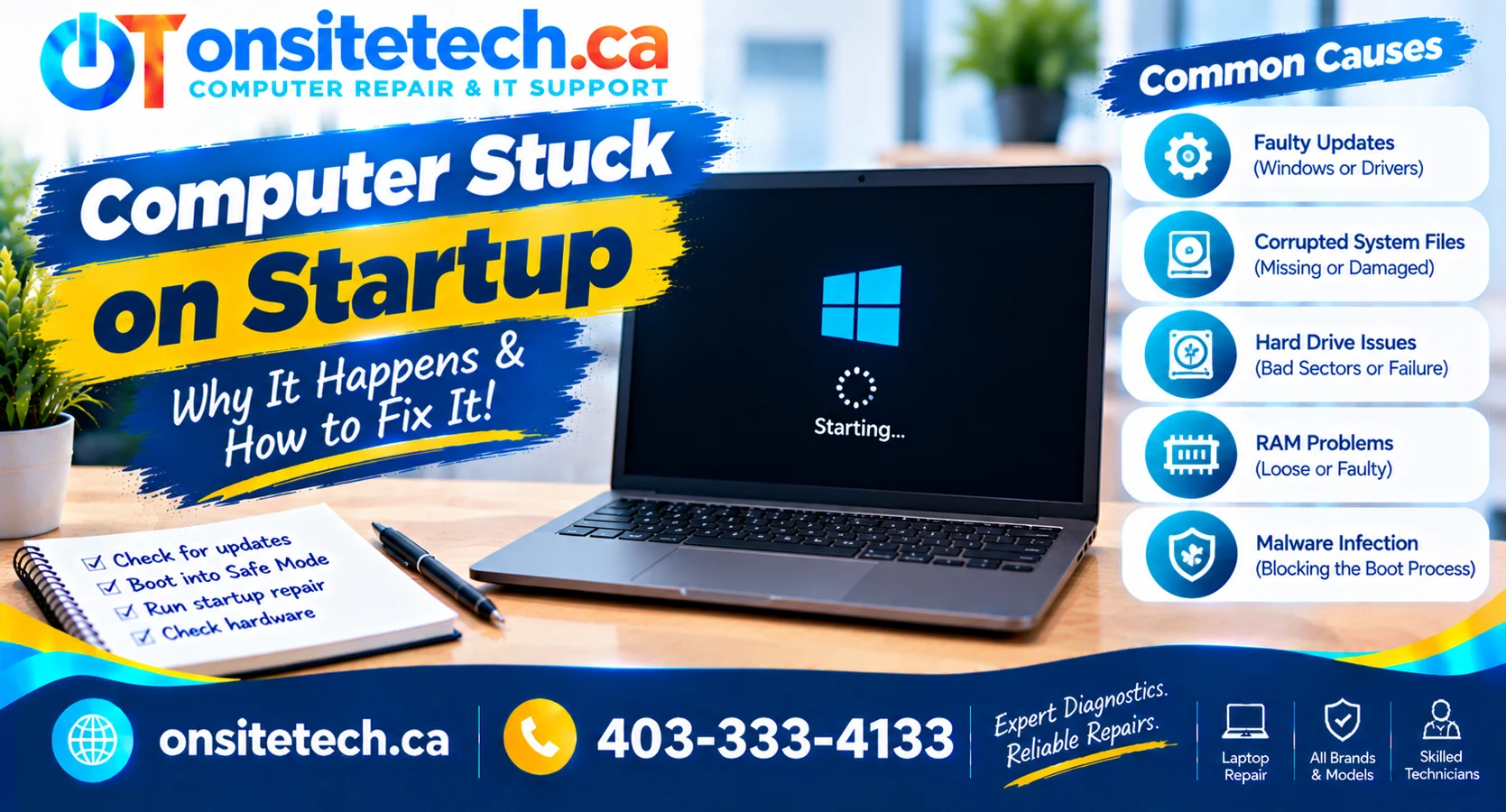
OnSiteTech | Windows Startup Troubleshooting
Computer Stuck on Startup? Find Out What’s Stopping Windows
You press the power button. The manufacturer’s logo appears, or Windows begins to load — but your computer never reaches the desktop.
A computer stuck on startup does not automatically mean the machine is beyond repair. A stalled update, damaged Windows startup files, connected devices or failing hardware may be responsible.
In this guide, we explain the common causes of a computer stuck on startup, how to tell where the boot process stops, what you can check safely, and when professional assessment may be appropriate.
Prepared by OnSiteTech | Calgary, Alberta
Why Is My Computer Stuck on Startup?
Quick AnswerCommon causes include incomplete Windows updates, damaged startup files, driver conflicts, USB devices interfering with boot, SSD or hard drive problems, unstable memory, and problematic startup software.
The safest first step is to identify where it freezes. A PC stuck at a Dell or HP logo may require different checks from one stuck on the Windows spinning dots or at the sign-in screen.
Do not immediately reinstall Windows or format the drive — especially if you have important files without a backup.
Before Troubleshooting: Six Safety Checks
- Look for update activity. If Windows asks you not to turn off the computer or shows update progress, avoid interrupting it.
- Record the screen. Note whether it stops at the manufacturer’s logo, spinning dots, sign-in screen, or an error message.
- Check unusual symptoms. Clicking noises, a burning smell, unusual heat or physical damage warrant caution.
- Protect your files. Do not select reset, format or reinstall options without understanding what may be affected.
- Avoid repeated forced shutdowns. Unexpected interruption during updates or disk activity can cause further problems.
- Note recent changes. Updates, new USB devices, software installations and recent crashes can help narrow the cause.
Where Does Your Computer Get Stuck?
Open the description that best matches what you see. These clues help guide troubleshooting; they are not diagnoses.
It freezes on the manufacturer’s logo
A firmware, connected device, boot-device detection or hardware issue is possible. Disconnect unnecessary USB storage and peripherals, then note any diagnostic messages.
It stays on the Windows logo or spinning dots
Windows may be struggling with a driver, update or startup file. If an update is actively progressing, avoid interrupting it. Otherwise, Windows recovery tools may help.
The computer restarts before sign-in
Record any stop code. Driver, operating-system and hardware problems can cause restart loops.
It freezes after I enter my password
Startup applications, services or user-profile issues may be involved. Safe Mode can sometimes help distinguish startup software problems.
It started after a Windows update
The update or a related driver change may be involved, but timing alone does not establish the cause.
It says “No boot device” or makes clicking noises
A storage detection problem or drive fault may exist. If important files are at risk or there are unusual mechanical noises, avoid repeated attempts and prioritize professional assessment.
7 Common Causes of a Computer Stuck on Startup
Cause 01
Incomplete Windows Update
An interrupted or unsuccessful update may prevent Windows from loading normally.
Cause 02
Corrupted Startup Files
Missing or damaged system files or boot configuration can stop the operating system from starting.
Cause 03
SSD or Hard Drive Trouble
If the system cannot reliably read essential files, startup may stall, slow down or fail entirely.
Cause 04
Driver Conflicts
A damaged or incompatible device driver can interfere with the transition into a working Windows session.
Cause 05
External USB Devices
External storage and certain peripherals may affect boot selection or the early startup process.
Cause 06
RAM or Hardware Instability
Unstable memory, power problems and other hardware faults can contribute to freezes or restart loops.
Cause 07
Problematic Startup Software
Applications or services loaded during sign-in may cause a computer to become unresponsive after Windows begins loading.
Startup Symptoms, Possible Causes and Safe Next Steps
| What You See | Possible Explanation | Safe Next Step |
|---|---|---|
| Frozen on Dell, HP or another logo | Peripheral, boot-device detection, firmware or hardware issue | Disconnect unnecessary peripherals and record any error |
| Windows logo appears but loading stops | System file, driver or update problem | Consider official Windows recovery tools |
| Spinning dots continue indefinitely | Stalled startup activity, software or storage issue | Check for active updates before taking action |
| Repeated restart loop | Driver, Windows or hardware instability | Record stop codes and review recovery options |
| Freezes after entering password | Startup software, services or account-related issue | Consider Safe Mode |
| No boot device found | Storage detection or boot configuration issue | Avoid repeated attempts if drive failure is suspected |
| Unusual clicking during startup | Possible mechanical drive fault | Stop unnecessary attempts and prioritize data protection |
How to Troubleshoot a Computer Stuck on Startup Safely
Step 01
Check Whether Windows Is Actually Frozen
A long startup is not always a failed startup. Windows updates and some recovery processes can take longer than usual.
Check the following:
- Read any message on the screen.
- Look for a Windows update percentage or progress message.
- Observe whether the screen changes.
- Record any error or stop code.
- Allow active updates or repairs to complete rather than interrupting them unnecessarily.
Step 02
Disconnect Unnecessary External Devices
USB drives and other peripherals can sometimes interfere with startup.
Try this:
- Shut down normally if possible.
- Disconnect external drives, USB sticks and unnecessary accessories.
- Leave essential power and display connections in place.
- Restart the computer normally.
- See whether the startup process progresses further.
If startup works, reconnect devices individually after Windows loads to help identify the possible cause.
Step 03
Try a Controlled Restart
A normal restart may clear a temporary software issue. However, repeated forced shutdowns can interrupt updates or storage operations.
Safer approach:
- Use the normal restart option if available.
- Do not interrupt an active update.
- If the computer is completely frozen, consult its manufacturer’s shutdown instructions.
- Restart once and observe where it stops.
- If the problem returns, move to diagnosis rather than repeating shutdown cycles.
Step 04
Access Windows Recovery Environment
Windows Recovery Environment, or WinRE, includes recovery tools for systems that cannot start normally.
Some computers enter WinRE automatically after startup failures. If recovery is already available, select Troubleshoot to review its options.
Access methods differ across devices. Follow Microsoft or manufacturer instructions rather than deliberately forcing repeated boot failures, especially if storage damage is suspected.
How to Use Windows Startup Repair
Startup Repair is a built-in Microsoft tool that can diagnose and attempt to resolve certain issues preventing Windows from starting.
From Windows Recovery Environment:
- Select Troubleshoot.
- Open Advanced options.
- Select Startup Repair.
- Follow the on-screen instructions.
- Allow the process to complete.
- Review any reported result or error.
Some recovery operations may require a BitLocker recovery key. Make sure you have the relevant recovery information before proceeding.
What if Startup Repair fails?A failed repair does not mean the computer must immediately be replaced or Windows reinstalled. Other recovery options or hardware assessment may be necessary.
Can Safe Mode Help a Computer That Freezes on Startup?
Safe Mode starts Windows with a limited set of essential drivers and services. It can help distinguish some software-related startup problems from other issues.
Access Safe Mode from WinRE:
- Open Troubleshoot.
- Select Advanced options.
- Choose Startup Settings.
- Select Restart.
- Choose the appropriate Safe Mode option.
What if Safe Mode works?
If Windows loads in Safe Mode but not during normal startup, a driver, service or application loaded during normal operation may be involved. This does not prove that every hardware component is healthy.
What if Safe Mode also fails?
Further diagnosis may be needed. Possible explanations include deeper Windows corruption, storage problems or hardware instability.
Computer Stuck on Startup After a Windows Update?
A failed update or associated driver change may contribute to startup freezing. However, a problem appearing after an update does not prove that the update caused it.
Check 01
Is an Update Still Running?
If Windows shows active update progress, avoid interrupting it unnecessarily.
Check 02
Can Windows Recovery Open?
WinRE may provide Startup Repair, system restoration and options for removing certain recent updates.
Check 03
Can Safe Mode Load?
Safe Mode may help identify certain driver and software conflicts.
Check 04
Are Your Files Protected?
Understand the effects of reset, restore or reinstallation choices before making major changes.
Could Hardware Be Responsible for Startup Freezes?
SSD or Hard Drive Problems
A storage device that cannot reliably read essential files may cause boot errors, severe delays or startup freezes. Unusual mechanical clicking sounds from a hard drive may also indicate trouble.
RAM Problems
Memory instability can contribute to freezes, unexpected restarts and certain system errors. Proper diagnostic testing is required to confirm whether RAM is responsible.
Motherboard or Power Problems
Power instability, motherboard problems and other internal faults can interrupt startup. The symptom alone is not sufficient to determine which part, if any, should be replaced.
Do not open or electrically test internal components without appropriate training.Incorrect handling can increase damage or create safety risks. Device-specific hardware tests may be best handled professionally.
Will You Lose Your Files if the Computer Won’t Boot?
Not necessarily. A PC that cannot load Windows may still have accessible personal files. The outcome depends on the storage condition, encryption, backups and other factors.
Protect your data first.If important files are not backed up, avoid formatting the drive, reinstalling Windows or choosing recovery options that may remove data until you understand the risk.
If you suspect drive failure, describe the symptoms and data priorities before authorizing further work. Explore OnSiteTech data recovery information.
When Should You Ask for Professional Computer Repair?
Consider qualified assistance when the same freeze returns repeatedly, WinRE is inaccessible, Startup Repair fails, a drive reports errors, the device displays repeated stop codes or important unbacked-up files may be at risk.
Tell the technician where startup stops, the exact error message, any recent updates and whether preserving data is your top priority. A sound diagnosis should precede decisions about reinstalling Windows or buying replacement parts.
Helpful OnSiteTech Services and Resources
Primary Service
Computer Repair
Options for startup errors, unexplained freezes and suspected hardware issues.
Laptop Support
Laptop Repair
Support information for laptops with repeated boot failures.
Data Protection
Data Recovery
Review assessment options when important files may be at risk.
Service Details
Repair Pricing
Check published terms and pricing before requesting service.
Computer Stuck on Startup? On-Site Help in Calgary
If your computer keeps freezing at the Windows loading screen or manufacturer’s logo, OnSiteTech provides a starting point for requesting in-home or on-site computer support in Calgary, Alberta.
Other communities in the geographic service plan include the following; actual availability, travel terms and repair scope must be confirmed for your address.
Frequently Asked Questions About Startup Freezes
Why is my computer stuck on startup?
A stalled update, damaged startup files, a conflicting driver, connected device or storage and other hardware problems may be involved. The stage where the computer stops helps narrow the possibilities.
Why is my PC stuck on the manufacturer logo?
Connected peripherals, firmware startup, boot-device detection or hardware trouble may be involved. Start by disconnecting unnecessary devices and recording diagnostic messages.
How do I fix Windows 11 stuck on the loading screen?
Check for active updates, remove unnecessary external devices and consider Microsoft’s built-in recovery options if the issue persists. The correct fix depends on the underlying cause.
Why are the Windows spinning dots not stopping?
The operating system may be delayed or blocked by an update, driver, service or storage activity. The animation alone does not confirm which cause applies.
Can Windows updates cause startup problems?
Yes, a failed update or related driver change can be involved, but timing alone does not prove the update caused the freeze.
Can a bad SSD stop Windows from booting?
Yes. Inaccessible or unreliable storage may interrupt booting. Startup freezing by itself does not confirm an SSD failure.
What should I do if Startup Repair doesn’t work?
Record the result, consider other supported recovery options and protect any irreplaceable data. Further diagnosis may be necessary, particularly if the drive may be failing.
Does Safe Mode prove hardware is okay?
No. Safe Mode can help isolate some drivers and startup software, but it cannot establish that all hardware is healthy.
Will repairing Windows startup delete my files?
Startup Repair is designed to repair boot problems, not intentionally erase personal files. Nonetheless, existing faults and some recovery operations carry data risks, so backups are important.
Should I reinstall Windows immediately?
Usually not. First identify the symptom and consider less disruptive options. Reinstallation choices can affect applications, settings and files.
Could USB accessories prevent startup?
Some external drives or accessories can interfere with boot selection or startup. Disconnecting unnecessary peripherals is a reasonable initial check.
What if I cannot get into Windows Recovery?
Access methods vary by PC and Windows installation. Follow Microsoft and manufacturer instructions rather than repeatedly forcing shutdowns, especially if drive damage is suspected.
Is a computer stuck on startup permanently broken?
No. Some issues are software-related; others need hardware assessment. The symptom alone does not determine repairability.
When should I stop restarting the computer?
Avoid repeated attempts if there are storage errors, unusual mechanical noises, overheating or important unbacked-up data at risk.
Can OnSiteTech help with startup problems in Calgary?
OnSiteTech provides information and booking options for on-site computer repair in Calgary and confirmed surrounding communities. Service scope depends on the device, issue and location.
Official Troubleshooting Resources
This guide uses Microsoft recovery documentation and general safe troubleshooting principles. A startup symptom is not, by itself, a definitive diagnosis.
- Microsoft — Startup Repair
- Microsoft — Windows Recovery Environment
- Microsoft — Windows Startup Settings
Instructions and menus can differ by manufacturer, Windows version, and recovery configuration.
OnSiteTech | Calgary & Area
Computer Still Stuck on Startup? Find the Right Next Step.
Describe exactly where the computer freezes and what you have tried. OnSiteTech can help you explore the appropriate computer repair service and submit a request for assessment.
- Desktop or laptop model
- Manufacturer logo, Windows loading screen or sign-in freeze
- Any visible error messages
- Recent update, software or device changes
- Whether important files need protection
Assessment, service availability, repair feasibility, data recovery and pricing depend on the specific circumstances. No guarantee of repair during one visit is implied.
Educational content. Seek professional assessment if the PC has signs of physical damage or contains irreplaceable unbacked-up files.