

Whether your PC takes forever to start,
freezes while working, or suddenly
becomes sluggish, this guide explains
seven common causes and how to
investigate them safely.Find out what you can check yourself,
how to recognize a possible hardware
problem, and when professional diagnosis
may be the next step.
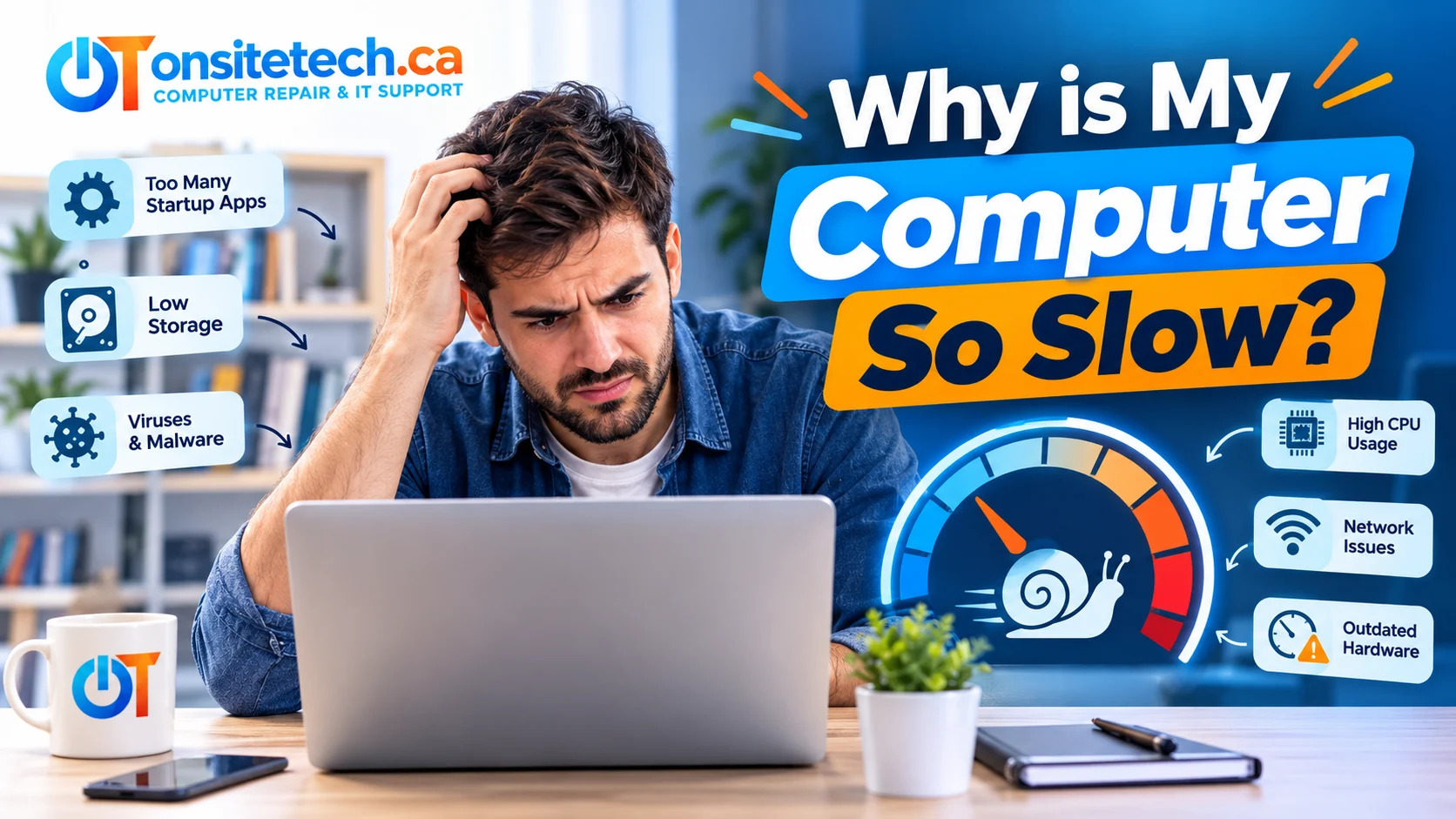
Why Is My Computer So Slow?
A computer can become slow because
too many programs are running,
RAM is insufficient, the system
drive is nearly full, an HDD or SSD
is struggling, malware is active,
the computer is overheating,
or software updates are causing conflicts.
Start by restarting the PC and checking
CPU, Memory, and Disk usage in
Windows Task Manager. Identify the
likely bottleneck before replacing
hardware or paying for repairs.
Slow performance does not automatically
mean your computer is too old.
Some problems can be resolved by
reducing unnecessary background activity
or reviewing software settings.
Other issues, especially recurring
freezing or file-access errors,
may require careful hardware diagnosis.
Slow Computer Symptom Checker
Select the symptom closest to your problem.
Each suggestion is a useful starting point,
not a confirmed diagnosis.
My computer is slow at startup
Review Startup apps in Task Manager.
Unnecessary programs launching automatically
can increase startup time.
My computer suddenly became slow
Review recent updates, software
installations, errors, and resource usage.
My PC is slow despite free storage
Free storage space does not rule out
high CPU usage, insufficient RAM,
or an unhealthy drive.
My PC keeps freezing
Look for recurring errors and
possible storage problems.
Prioritize important files if
drive failure is suspected.
My laptop gets hot and slows down
Check ventilation and cooling.
Performance may decrease when
internal temperatures become excessive.
My internet is fast, but my PC is slow
Open local applications such as
Settings or File Explorer.
If they are slow too, investigate
the computer itself.
How to Check What’s Slowing Down Your PC
Before purchasing new hardware,
use Windows Task Manager to understand
what your computer is doing.
Step-by-Step Diagnosis
- Press Ctrl + Shift + Esc.
- Open the Processes tab.
- Review CPU, Memory, and Disk columns.
- Sort by usage to find demanding applications.
- Check whether high usage continues during simple tasks.
- Open Performance for additional details.
What Do CPU, RAM, and Disk Readings Mean?
| Resource | Possible Meaning | Next Step |
|---|---|---|
| CPU | Processor-heavy application or background task | Identify the process and check whether activity is expected |
| Memory | Applications may be using most available RAM | Close unnecessary programs and compare responsiveness |
| Disk | Storage activity, paging, updates, or possible drive trouble | Identify active processes and check for recurring errors |
Technical Tip
A resource briefly reaching 100% does
not automatically mean hardware failure.
Antivirus scans, updates, and demanding
software can create temporary spikes.
Do not end unfamiliar Windows system
processes without identifying them first.
7 Common Causes of a Slow Computer
These are seven common software and
hardware issues that may affect
computer performance.
1. Too Many Startup and Background Programs
Messaging software, game launchers,
cloud storage tools, and other applications
may open automatically with Windows.
When several programs compete for
processor time and memory,
your computer can take longer
to start and feel less responsive.
What to Try
- Open Task Manager.
- Select Startup apps.
- Review applications you recognize.
- Disable unnecessary automatic startup entries.
- Restart and compare performance.
Avoid disabling security software
or essential hardware utilities.
2. Your System Drive Is Nearly Full
Windows needs available storage for
temporary files, updates, application
data, and normal system operations.
When your main drive is extremely full,
some tasks may slow down and
updates may fail.
What to Try
- Open Settings > System > Storage.
- Review available space on the system drive.
- Check temporary files before deleting anything.
- Use Storage Sense where appropriate.
- Uninstall applications you no longer need.
- Back up important files before major cleanup.
Do not remove unfamiliar Windows
folders or system files.
3. A Slow or Unhealthy HDD or SSD
Traditional mechanical hard drives
are slower than solid-state drives
for many startup and application
loading tasks.
An older PC with a mechanical
boot drive may benefit from a
compatible SSD upgrade.
However, slow performance can also
occur when a drive becomes unhealthy.
Repeated freezes, file errors,
and unexpected disconnections
deserve attention.
What to Check
- Review Disk activity in Task Manager.
- Check whether your main drive is an HDD or SSD.
- Note recurring errors when accessing files.
- Review appropriate drive-health warnings.
- Seek careful diagnosis for persistent problems.
Protect Your Data:
If a mechanical drive makes unusual
clicking sounds or files suddenly
become inaccessible, avoid
repeated stress tests and
aggressive disk-repair tools.
4. Your Computer Does Not Have Enough RAM
RAM stores information used by
active programs and applications.
Numerous browser tabs, video meetings,
large documents, and demanding software
can consume significant memory.
When RAM becomes insufficient,
Windows may rely on slower
disk-based virtual memory.
How to Check
- Open Task Manager.
- Select Performance > Memory.
- Use your regular applications.
- Review memory use during slowdowns.
- Close unnecessary programs.
- Observe whether performance improves.
If memory limitations are confirmed,
a compatible RAM upgrade may help.
Extra RAM does not solve every problem.
5. Malware or Unwanted Software
Malicious or unwanted programs
can consume system resources
and interfere with normal operation.
Possible symptoms include unexpected
pop-ups, browser redirects,
unfamiliar applications,
and unexplained resource usage.
What to Try
- Open Windows Security.
- Select Virus & threat protection.
- Check that protection is updated.
- Run an appropriate security scan.
- Review detected threats and trusted instructions.
Avoid unknown computer optimizers
and software promising guaranteed
speed improvements.
6. Overheating and Poor Cooling
Computers may automatically reduce
processing performance when internal
temperatures become too high.
This is known as thermal throttling.
It may explain why a laptop runs
normally at first but becomes
slow after extended use.
What to Check
- Make sure ventilation openings are clear.
- Use laptops on a firm, flat surface.
- Listen for unusual fan behaviour.
- Notice whether slowdown coincides with heat.
- Stop demanding tasks if the device becomes very hot.
Persistent overheating may require
a cooling-system inspection.
7. Software Updates, Drivers, and Conflicts
Recently installed applications,
system updates, or incompatible
drivers can sometimes contribute
to slow performance.
Windows can also temporarily use
significant resources while
performing legitimate maintenance.
What to Try
- Restart the computer normally.
- Review Windows Update.
- Allow legitimate updates to finish.
- Check recently installed applications.
- Use official manufacturer driver sources.
Do not reinstall Windows without
protecting important files and
understanding the likely problem.
How to Fix a Slow Computer on Windows 11 or Windows 10
Windows 11 and Windows 10 include
built-in tools to investigate
common performance problems.
Safe Troubleshooting Checklist
- Save your work and restart the computer.
- Review CPU, Memory, and Disk usage.
- Disable unnecessary startup applications.
- Check available system-drive space.
- Review pending Windows updates.
- Run a trusted malware scan.
- Check ventilation and cooling.
- Compare performance after each change.
Standard Windows 10 support ended
on October 14, 2025.
Users should review supported
operating-system and security
update options.
The age of an operating system
does not, by itself, prove why
a computer is running slowly.
Why Is My Computer Slow in Specific Situations?
Why Is My Computer So Slow All of a Sudden?
Start by reviewing recent software
installations, system updates,
background processes, and errors.
If the slowdown is accompanied by
repeated freezing or storage issues,
investigate possible hardware faults.
Why Is My Computer Slow With Plenty of Storage?
Free disk space does not guarantee
adequate RAM, CPU capacity,
or drive performance.
Check Task Manager while the
slowdown occurs to identify
which resources are under load.
Why Is My Computer So Slow but My Internet Is Fast?
Internet speed and local computer
performance are separate.
Try opening File Explorer or
a locally stored document.
If those are also slow,
check the computer’s resources.
If only websites or online games
are affected, consider browser,
Wi-Fi, server, or latency issues.
Why Is My Laptop So Slow?
Laptop slowdowns may result from
heat, battery-saving settings,
background software, limited memory,
or storage performance.
Compare performance while plugged
in and on battery power.
Also review ventilation and cooling.
Why Is My PC Slow and Unresponsive?
If the computer still responds,
save your work and restart normally.
Recurring freezes, shutdowns,
or file-access problems deserve
additional investigation.
When Should You Stop Troubleshooting?
Some problems require extra care
because they can involve valuable
files or failing hardware.
Stop intensive troubleshooting if:
- The drive makes unusual mechanical noises.
- Important files suddenly become inaccessible.
- The computer repeatedly overheats or shuts down.
- A storage device repeatedly disconnects.
- Further testing could risk unbacked-up data.
If hardware failure is suspected,
avoid unnecessary stress testing
and aggressive repair utilities.
Preserving important data comes first.
Should You Repair, Upgrade, or Replace a Slow Computer?
The right choice depends on the
actual fault, your computer’s
condition, and the cost of
an appropriate repair.
| Finding | Potential Next Step |
|---|---|
| Unnecessary startup programs | Review startup and background settings |
| Insufficient RAM | Consider a compatible RAM upgrade |
| Older mechanical boot drive | Evaluate an SSD upgrade |
| Persistent overheating | Cooling-system diagnosis |
| Repeated drive errors | Protect data and investigate storage |
| Multiple expensive faults | Compare repair costs with replacement |
Replacing an older mechanical
boot drive with a compatible SSD
can improve startup and application
loading times.
Additional RAM may improve performance
when memory pressure is the real problem.
Both decisions should follow diagnosis,
not guesswork.
Explore the Right OnSiteTech Service
Choose the next step based on
what you need to know.
You do not need to book a repair
just to learn about the process.
REPAIR PROCESS
How On-Site Repair Works
Understand what happens when you
request help and how a repair
visit is approached.
TRANSPARENT PRICING
Computer Repair Pricing
Review the published pricing
information before deciding
whether to request service.
PRIMARY SERVICE
Computer Repair
Explore the service for
persistent slowdowns,
freezing, and computer faults.
SERVICE REQUEST
Book On-Site Repair
Ready to request help?
Describe the symptoms without
needing to diagnose the fault.
Frequently Asked Questions About Slow Computers
How can I fix my slow computer?
Restart, check Task Manager,
reduce unnecessary startup programs,
review storage, install legitimate
updates, and run a trusted security scan.
Why is my PC slow and unresponsive?
Possible causes include resource-heavy
applications, low memory, software
conflicts, overheating, or hardware faults.
Why is Windows 11 so slow?
Check startup apps, background processes,
memory pressure, drive activity,
updates, and cooling conditions.
Why is my Windows 10 PC running slowly?
Review CPU, memory, storage,
startup programs, and software issues.
Also review supported OS options.
Why is my computer slow with nothing open?
Background tasks such as Windows updates,
security scans, and system services
can consume resources even when
no windows are visible.
Why is my Mac running slowly?
Use Activity Monitor to review CPU
and memory, check storage space,
restart, and review macOS updates.
Why is Roblox lagging on my computer?
Gaming lag can result from demanding
graphics settings, limited hardware,
overheating, background apps,
or network latency.
Will more RAM make my computer faster?
It may improve responsiveness
if insufficient RAM is the
confirmed performance bottleneck.
Will replacing an HDD with an SSD help?
A compatible SSD can substantially
improve startup and loading times
on a computer using an older
mechanical boot drive.
When should I seek professional computer repair?
Consider diagnosis if severe
slowdowns, recurring freezes,
hardware errors, or overheating
persist after basic checks.
Official References and Editorial Guidance
This guide was prepared by OnSiteTech
using general computer troubleshooting
principles and built-in Windows tools.
For Windows performance settings and
operating-system information,
consult Microsoft’s documentation.
A slow computer symptom alone does not
confirm that a specific component
needs repair or replacement.
OnSiteTech | Diagnose Before You Replace
Still Dealing With a Slow or Freezing Computer?
You don’t need to guess whether
your computer needs RAM,
a faster SSD, software cleanup,
or hardware repair.
Describe the symptoms you’re
experiencing and start with
a diagnosis-led approach.
- Explain when the slowdown occurs.
- Describe freezing, errors, or crashes.
- Review the recommended work before proceeding.
No diagnosis is required to
submit a repair request.
Recommendations depend on
the actual findings.
What Should You Tell Us?
“My computer starts slowly.”
“Programs keep freezing.”
“My PC suddenly became slow.”
“Applications take too long to open.”
These details help describe
the problem before diagnosis.
Educational information only.
Back up important data before
invasive troubleshooting or repairs.
This guide does not replace
hands-on diagnosis.