
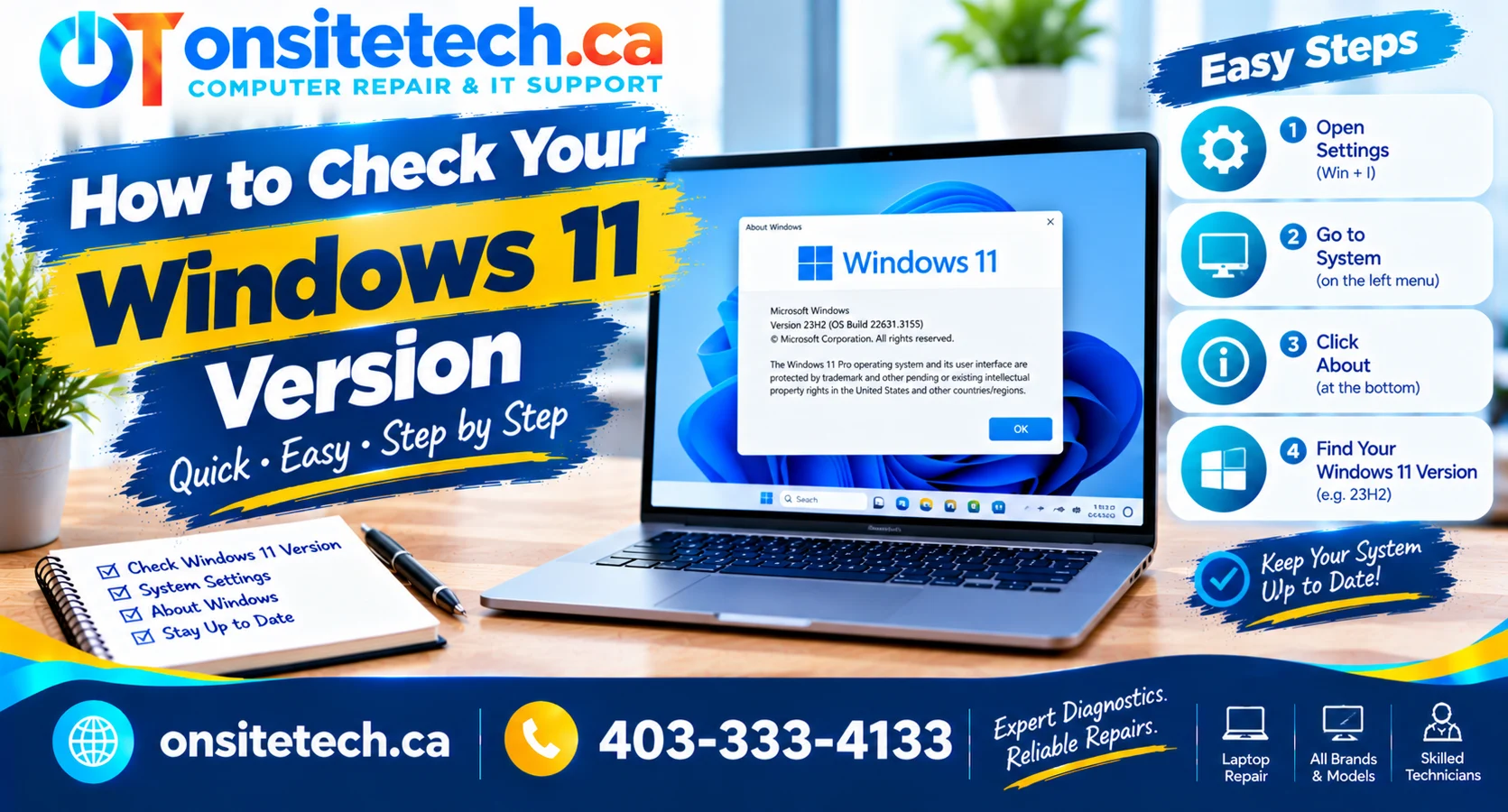
Windows 11 Help Guide
How to Check Your Windows 11 Version
Need to identify the Windows version installed on your PC?
Whether you are troubleshooting a problem, checking software
compatibility, or preparing for an update, these three methods
will help you find your Windows edition, version, and OS build.
Quick Answer: How to Check Windows 11 Version
System → About and find the
Windows specifications section.
To check quickly, press Windows + R, type
winver, and press Enter. The About Windows
window displays your version and OS build information.
Both methods use built-in Windows tools. You do not need
to download a separate application or change system settings
to check this information.
Which Windows Version Check Do You Need?
Choose the situation that best matches your goal.
I need my Windows edition, version, and build
Open Settings → System → About. This is the best starting
point when you need an overview of your Windows installation.
I just need to check my version quickly
Press Windows + R, enter winver, and press Enter.
The About Windows window will open.
I need additional system information
Open Command Prompt and run systeminfo.
It displays operating system information along with other
system details.
I want to know whether Windows is up to date
Open Settings → Windows Update and select Check for updates.
Checking your version alone does not confirm that all updates
are installed.
Method 1: How to Check Windows 11 Version in Settings
Settings is the most straightforward method for most users
because it displays the edition, version, and OS build in
one place.
Open Settings
Press Windows + I on your keyboard. Alternatively,
right-click the Start button and select Settings.
Select System
Choose System from the navigation menu.
Open About
Scroll down the System page and select About.
Review Windows Specifications
Find the Windows specifications section and check the
information displayed:
- Edition: Identifies the installed edition, such as Windows 11 Home or Pro.
- Version: Identifies the installed feature release, such as 24H2 or 25H2.
- Installed on: Shows the installation date recorded by Windows.
- OS build: Identifies the specific operating system build.
provide the edition, version, and OS build when requested.
These details help establish which Windows environment
you are using.
Method 2: Check Windows 11 Version Using winver
The winver command opens the About Windows
window directly. It is useful when you want a quick check
without navigating through several Settings screens.
Open the Run Dialog
Press Windows + R.
Enter winver
Type the following command into the Run box:
winver
Press Enter
Read the version and OS build information in the
About Windows window.
version check. If you also need your Windows edition and
other device specifications, use Settings → System → About.
The winver command only displays information. It does not
install updates or change your Windows configuration.
Method 3: Check Windows 11 Version Using Command Prompt
Command Prompt is useful when you need additional system
information for troubleshooting or a technical support request.
Open Command Prompt
Open Start, search for Command Prompt, and launch
the application normally.
Run the systeminfo Command
Enter the following command and press Enter:
systeminfo
Review the Results
Look for fields such as OS Name, OS Version, and System Type.
The output contains other system details, so it may be more
information than you need for a basic version check.
sharing it publicly. Depending on the output, it may include
device and network details you do not want to disclose.
Windows 11 Edition vs. Version vs. OS Build
These terms describe different parts of your Windows
installation. Understanding the difference can help when
checking software requirements or following troubleshooting
instructions.
| Term | What It Means | Example |
|---|---|---|
| Edition | The Windows edition installed on your PC. | Windows 11 Home or Pro |
| Version | The installed Windows feature release. | 24H2 or 25H2 |
| OS Build | A more specific identifier for the installed operating system build. | The numeric build shown in Windows specifications |
| System Type | Information about operating system architecture and processor type. | x64-based PC |
Does Windows 11 Home Mean You Have the Latest Version?
No. Home identifies the edition, not the feature release.
Two computers running Windows 11 Home can have different
versions and OS builds.
How Do I Check Whether Windows Is 64-bit?
Open Settings → System → About and look for
System type under Device specifications.
How to Check Whether Windows 11 Is Up to Date
Finding your current version is different from checking
whether Windows Update has additional updates available.
Open Settings
Press Windows + I.
Select Windows Update
Choose Windows Update from the Settings navigation menu.
Check for Updates
Select Check for updates and review the status
and instructions displayed by Windows.
times because of rollout schedules and compatibility safeguards.
A different version number does not automatically mean your PC
has a problem.
For additional guidance, read the
Microsoft Windows Update FAQ.
Troubleshooting: What If You Cannot Find Your Windows Version?
If one method does not work as expected, try the simpler
built-in alternative before attempting advanced troubleshooting.
| Problem | Possible Explanation | Safe Next Step |
|---|---|---|
| Cannot find the About page | The Settings layout may be unfamiliar. | Search for About in Settings or use winver. |
| winver does not open | The command may have been entered incorrectly. | Check the spelling and try Settings → System → About. |
| Only Home or Pro is visible | You may be looking at the Edition field. | Look under Windows specifications for Version. |
| Command Prompt output is confusing | systeminfo displays many system fields. | Use Settings for a simpler overview. |
| Windows Update displays an error | An update or compatibility issue may be present. | Record the error code and consult official guidance. |
Need Help With a Persistent Windows Problem?
If Windows repeatedly fails to update or displays persistent
errors, the version number may be only one part of the
investigation. The error message and update history may
also be relevant.
OnSiteTech offers computer repair and on-site technical
support. If you need help investigating a Windows problem,
review the service information before booking.
Frequently Asked Questions
How do I check Windows 11 version quickly?
Press Windows + R, type winver, and press Enter.
The About Windows window displays version information.
How do I check if I have Windows 11 Home or Pro?
Open Settings → System → About and find Edition under
Windows specifications.
Can I check my Windows version without opening Settings?
Yes. Use the winver command through the Run dialog.
Command Prompt can also display operating system information.
Does the winver command change my computer?
No. It displays Windows information and does not install
updates or change your settings.
Why is my Windows version different from another PC?
Computers can have different feature releases and OS builds
because of update history, rollout timing, and compatibility
safeguards.
How do I check whether Windows 11 is 64-bit?
Open Settings → System → About and look for System type
under Device specifications.
Do I need an app to check my Windows version?
No. Settings, winver, and Command Prompt are built-in Windows tools.
Does checking my version tell me whether my PC supports an upgrade?
Not by itself. Your Windows version is only one detail.
Upgrade compatibility can also depend on hardware requirements
and the PC’s configuration.
Official Microsoft Resources
Use these official resources for further Windows information
and update guidance.
OnSiteTech | Calgary & Area
Looking for On-Site Computer Support?
If a Windows issue requires more than checking your version,
OnSiteTech provides on-site computer support for customers
in Calgary and approved surrounding service areas.
Describe the problem when requesting service so the appropriate
next steps can be discussed.
OnSiteTech | Calgary, Alberta
Need Help With Your Windows PC?
Checking your Windows version is a useful first step.
If you are dealing with a persistent issue, professional
troubleshooting may help identify the cause and the available
options.
Review the service details or submit a booking request
describing the problem you are experiencing.
Service suitability, availability, and applicable costs should
be confirmed before work proceeds.
This guide provides general educational information. Windows menus
and update availability may vary by device and installation.