
OnSiteTech | Windows Security & Recovery Guide
Locked Out by BitLocker? Here’s Where to Find Your Recovery Key
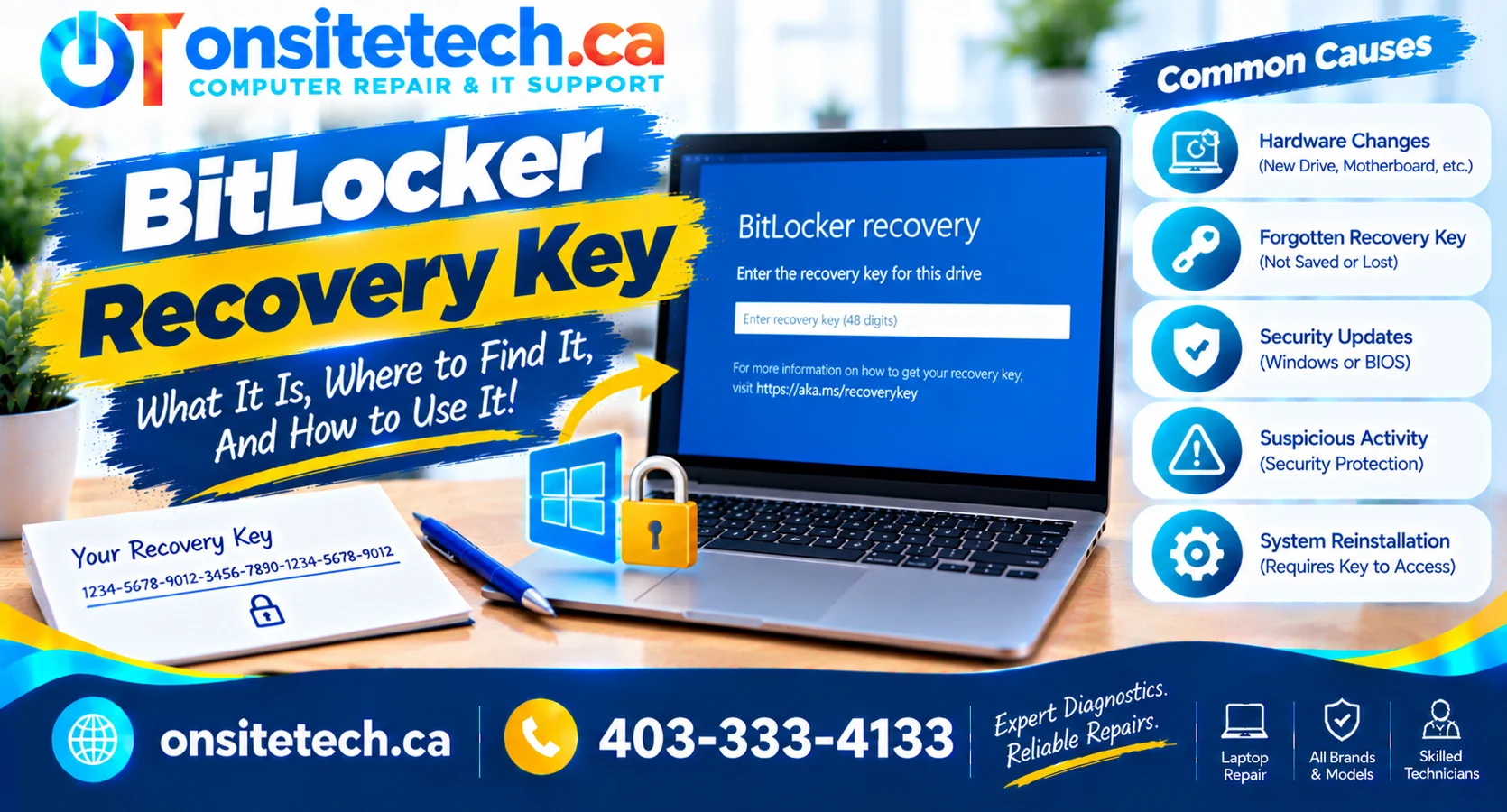
You turn on your computer and suddenly see a blue BitLocker recovery screen asking for a 48-digit key.
Windows will not continue until you provide the correct recovery key, and you may be worried about losing important documents, photos or business files.
The good news is that your BitLocker recovery key may already be saved in your Microsoft account, your work or school account, a printed document or another backup location.
This guide explains how to find your BitLocker recovery key in Windows 11 and Windows 10, how to match it with your Recovery Key ID, and what to do if the key is missing.
We’ll also explain what a technician can realistically help with, and why protecting your files matters before resetting Windows.
Where Can You Find Your BitLocker Recovery Key?
Quick AnswerIf your Windows computer is asking for a BitLocker recovery key, use another phone, tablet or computer to open Microsoft’s official recovery key page:
Sign in with the Microsoft account associated with the locked computer. Look for the recovery key that matches the Recovery Key ID displayed on your BitLocker screen.
Use the corresponding 48-digit recovery key to unlock the encrypted drive.
If no key appears, check other Microsoft accounts, your work or school account, saved files, USB drives and printed backups.
The recovery key may have been backed up automatically when encryption was enabled. However, not every device stores the key in a personal Microsoft account.
Important: Do Not Reset Your PC YetIf your computer contains important files, do not immediately format the drive, reinstall Windows or select a reset option that removes data.
BitLocker protects encrypted information. Losing the recovery key can make those files inaccessible.
How to Find Your BitLocker Recovery Key in Your Microsoft Account
For many personal Windows computers, the Microsoft account associated with the device is the first place to check.
Step 01
Use Another Device
If your computer is locked at the BitLocker recovery screen, use a different trusted device with an internet connection.
You can use a smartphone, tablet or another computer.
Step 02
Open Microsoft’s Official Recovery Key Page
Open your browser and visit:
Official Microsoft Recovery Key Linkhttps://aka.ms/myrecoverykey
Make sure you are using the official Microsoft service. Avoid websites claiming to generate, unlock or sell BitLocker recovery keys.
Step 03
Sign In With the Correct Microsoft Account
Sign in using the Microsoft account associated with your encrypted computer.
This might be the account you used when setting up Windows or enabling device encryption.
If you have several Microsoft accounts, the correct key may be associated with a different one.
Step 04
Find the Matching Recovery Key ID
Your Microsoft account may show more than one recovery key, particularly if you own multiple Windows computers or encryption has been configured more than once.
Find the Recovery Key ID displayed on the locked computer and compare it with the IDs shown in your account.
Microsoft recommends noting the first eight digits of the Key ID to identify the corresponding recovery key.
Step 05
Enter the 48-Digit Recovery Key
Once you identify the matching entry, use its 48-digit recovery key on the locked computer.
Enter the key carefully and follow the Windows prompts.
If the key is correct and the drive can be unlocked, Windows may continue starting.
Windows 11 Account HintStarting with Windows 11 version 24H2, the BitLocker recovery screen can show a hint identifying the Microsoft account associated with the recovery key.
If your screen displays this hint, use it to help determine which account to check.
Can’t Find Your Key? Choose Your Situation
Different BitLocker recovery situations require different next steps. Open the description that matches your problem.
I have a personal Microsoft account
Go to Microsoft’s recovery key page and sign in.
Compare the Recovery Key ID from your computer with the saved entries.
If the key is missing, try any other Microsoft accounts associated with the device.
My recovery key is not showing in my account
Check whether the computer was originally configured with a different Microsoft account.
The key might also have been saved by another person who set up the computer, or by an organization that manages it.
Review printed backups, USB storage and saved key files.
This is a work or school computer
Your organization may manage BitLocker recovery keys through its device-management systems.
Check with your IT administrator before making changes to an organization-managed computer.
Microsoft also provides a work or school recovery key portal, depending on your organization’s configuration and permissions.
I only have the Recovery Key ID
The Recovery Key ID identifies which stored recovery key belongs to the encrypted drive.
It is not the actual 48-digit recovery key and cannot be used by itself to unlock the drive.
I don’t have a Microsoft account
BitLocker recovery keys are not always stored in personal Microsoft accounts.
Check whether the key was saved to a USB drive, printed, saved as a file or managed by an organization.
I lost the recovery key completely
Do not assume that a third-party utility can recreate the missing key.
Microsoft Support cannot retrieve or regenerate a lost BitLocker recovery key.
Before considering a reset, review every possible backup location and determine whether the encrypted data is backed up elsewhere.
My computer suddenly asks for BitLocker after an update
Changes to hardware, firmware or the security environment can cause BitLocker to request recovery.
The timing of an update may be useful for diagnosis, but does not prove that the update caused the prompt.
Find and securely preserve the correct recovery key before attempting changes to system security settings.
What Is a BitLocker Recovery Key?
BitLocker is Microsoft’s drive-encryption technology designed to help protect information stored on Windows devices.
Encryption makes stored information unreadable without the appropriate authorization.
Normally, a properly configured computer unlocks its encrypted system drive automatically during startup.
But when Windows cannot confirm the expected security conditions, it may request a recovery key.
Key FactA BitLocker recovery key is a unique 48-digit numerical recovery password used to regain access to a BitLocker-encrypted drive when normal unlocking is unavailable.
The key is not your Microsoft account password, Windows PIN or computer login password.
Can BitLocker Be Enabled Automatically?
Yes. Windows Device Encryption can enable BitLocker-based protection automatically on supported computers when they are set up using eligible Microsoft, work or school accounts.
This can surprise users who never remember manually turning on BitLocker.
Device Encryption is available on a broader range of Windows devices than the full BitLocker management experience, including eligible Windows Home devices.
BitLocker Recovery Key ID vs Recovery Key: What’s the Difference?
One of the most common sources of confusion is the difference between the Recovery Key ID displayed on the screen and the actual recovery key.
| Item | What It Does | Can It Unlock the Drive? |
|---|---|---|
| Recovery Key ID | Identifies which saved recovery key matches the encrypted drive | No |
| 48-Digit Recovery Key | Provides the recovery password needed to unlock the drive | Yes, when it matches the drive |
| Microsoft Account Password | Signs you in to your Microsoft account | Not directly |
| Windows PIN | Used for normal Windows sign-in | Not as the BitLocker recovery password |
How to Match a Recovery Key ID
If several keys appear in your Microsoft account, compare the Key IDs rather than selecting a random entry.
Recovery Key ID begins: 12345678This is a fictitious example. Your device displays its own Recovery Key ID.
Microsoft recommends using the first eight digits of the recovery Key ID to identify the relevant entry.
Can You Generate a BitLocker Key From the Key ID?No. Knowing the Recovery Key ID does not allow you to calculate or recreate the actual 48-digit recovery key.
Websites claiming they can generate a valid BitLocker recovery password from a Key ID should not be trusted.
Other Places to Find Your BitLocker Recovery Key
If the key is not in your personal Microsoft account, check other legitimate backup locations before considering more disruptive steps.
Location 01
Another Microsoft Account
The computer may have been configured using another personal account or by someone who helped set up Windows.
Check accounts that were legitimately associated with the device.
Location 02
Work or School Account
Organization-managed devices may have recovery keys stored through company or school management systems.
An authorized IT administrator may need to provide the key.
Location 03
USB Flash Drive
A recovery key might have been saved to a USB flash drive during encryption setup.
If it was saved as a text file, you can inspect that file using another trusted computer.
Location 04
Printed Recovery Key
The key may have been printed and stored with important computer documents.
Look for paperwork created when BitLocker was enabled.
Location 05
Saved Text File
A recovery key might have been saved as a text document on another drive or in a secure backup location.
Search your own records without uploading the key to an unfamiliar website.
Location 06
Previous Device Administrator
If someone else configured the computer, ask whether they retained an authorized backup of the recovery key.
For a second-hand device, this may involve contacting the previous owner.
How to Find a BitLocker Recovery Key for a Work or School Computer
Business and school computers often use centrally managed encryption policies.
The recovery key may be stored in the organization’s Microsoft Entra environment or another authorized management system.
Microsoft’s Work or School Recovery Steps
- From another device, open https://aka.ms/aadrecoverykey.
- Sign in with your work or school account.
- Open the available device list.
- Select the affected device.
- Look for the option to view BitLocker recovery keys, if your organization permits it.
- Compare the displayed Key ID with the matching saved recovery key.
If the key is not visible or your permissions do not allow access, contact your organization’s IT help desk.
Do Not Reset a Managed Device Without AuthorizationWork and school devices may contain protected organizational information or have security policies that require administrator involvement.
BitLocker Recovery Key Not Found in Your Microsoft Account?
Signing into Microsoft successfully does not guarantee that the correct recovery key will appear.
Several common situations can explain why the key is missing.
| Situation | What It May Mean | What to Check |
|---|---|---|
| No recovery keys are listed | The key may not have been backed up to that account | Other accounts and backup locations |
| Recovery keys belong to another PC | The account stores multiple device keys | Match the Recovery Key ID |
| The computer was set up by someone else | Another account may hold the key | Contact the person who configured the device |
| Company or school laptop | Encryption may be organization-managed | Authorized IT support or work account |
| You only know the Recovery Key ID | You have the identifier, not the recovery password | Find a saved matching 48-digit key |
| All possible backup locations checked | The key may genuinely be unavailable | Protect existing data and assess remaining options |
What If You Used a Different Microsoft Account?
Consider the accounts previously used to sign in to Windows, configure the device or enable encryption.
If a family member or another authorized person set up the device, the key may be associated with their account rather than yours.
What If the Key ID Does Not Match?
Do not assume that every recovery key listed in your Microsoft account will unlock the computer.
Compare the recovery Key ID carefully. A saved key for a different drive or encryption configuration may not work.
Keep the Key PrivateA recovery key is sensitive security information. Avoid posting the full 48-digit key publicly, sending it through unverified support chats or entering it on third-party key recovery websites.
Why Is Windows Suddenly Asking for a BitLocker Recovery Key?
BitLocker recovery can be triggered when Windows cannot confirm the security conditions it expects when unlocking an encrypted drive.
Possible contributing events include:
- Changes to device firmware or security-related settings.
- Hardware changes that affect the trusted startup environment.
- Changes involving the Trusted Platform Module (TPM).
- Boot configuration or startup environment changes.
- Some updates or servicing operations that affect measured startup components.
- Security checks detecting an unexpected startup condition.
Not every Windows update triggers BitLocker recovery, and the appearance of the recovery screen does not automatically mean the computer has been attacked or damaged.
BitLocker Recovery After a Windows Update
If the request appeared immediately after an update, record what changed and find the correct recovery key first.
Avoid experimenting with TPM clearing, firmware resets or other security settings without understanding their consequences.
Can BitLocker Appear on a New Laptop?
Yes. Device Encryption can be enabled automatically on eligible Windows computers during setup with an appropriate account.
This means users may encounter a recovery request even if they do not remember manually activating BitLocker.
What Happens If You Cannot Find Your BitLocker Recovery Key?
If your drive is encrypted and you cannot find its recovery key, the options become more limited.
BitLocker encryption is specifically designed to prevent unauthorized access to protected information.
Microsoft Cannot Recreate a Lost Recovery KeyMicrosoft Support does not have the ability to retrieve, provide or regenerate a lost BitLocker recovery key.
A computer technician also cannot promise to decrypt properly protected BitLocker data without the required unlocking information.
Can You Reset the PC Without the Key?
A reset or clean installation may be possible in some circumstances, but it can remove existing files, applications and settings.
If the encrypted data has not been backed up, a destructive reset may result in permanent data loss.
Do not confuse making the computer usable again with recovering the files that were previously stored on its encrypted drive.
What Should You Do Before Resetting?
Final Recovery Checklist
- Confirm the Recovery Key ID displayed on the computer.
- Check every relevant personal Microsoft account.
- Check whether the computer was previously managed by work or school.
- Look for printed recovery information.
- Review USB drives and other saved key files.
- Check whether another authorized person originally configured encryption.
- Determine whether your important files already exist in backups or cloud storage.
- Understand the consequences before authorizing any reset or reinstallation.
If all legitimate recovery methods fail, you may need to decide whether restoring the computer to a usable state is worth losing the encrypted data.
Can You Recover Data Without a BitLocker Recovery Key?
This is one of the most important questions for anyone locked out of a computer.
For a properly encrypted and locked BitLocker drive, the encrypted contents cannot normally be recovered in readable form without the appropriate recovery key or another valid unlocking method.
Ordinary file recovery software does not defeat BitLocker encryption.
What Can a Computer Technician Actually Do?
A qualified technician may be able to help identify the recovery prompt, review legitimate key backup locations, investigate the conditions that caused recovery to appear, and explain the available options.
However, troubleshooting assistance is different from guaranteeing access to encrypted data.
Preserve Data Before Taking ActionIf the encrypted drive contains irreplaceable files, avoid formatting, reinstalling Windows or performing unnecessary write operations before the situation is assessed.
OnSiteTech’s data recovery service information explains how to begin an assessment when important data may be inaccessible.
Recovery feasibility depends on the circumstances, and there is no guarantee that encrypted information can be recovered without a valid key.
How to Back Up Your BitLocker Recovery Key After Unlocking Windows
If you successfully regain access to your computer, verify that your recovery key is stored somewhere safe and accessible.
Maintaining a separate backup can reduce the risk of losing access during a future security or hardware change.
Back Up the Key on Supported Windows Editions
- Sign in to Windows with an account authorized to manage BitLocker.
- Open Start and search for Manage BitLocker.
- Find the encrypted drive.
- Select Back up your recovery key, if available.
- Choose an appropriate backup destination.
- Complete the backup and confirm it can be retrieved.
Available settings depend on the Windows edition and whether the device is managed by an organization.
Where Should You Save the Recovery Key?
Option 01
Microsoft Account
Back up the key to the appropriate account and confirm that it appears in your recovery keys library.
Option 02
Secure USB Drive
Keep a backup on removable storage in a secure location separate from the computer.
Option 03
Secure Saved File
Store the file in an appropriate protected location that remains accessible if the PC cannot start.
Option 04
Printed Copy
Keep a printed key in a secure place, away from the device it protects.
Do Not Store the Only Copy on the Encrypted PCIf your computer becomes locked again, a key saved only on that encrypted drive may not be accessible when you need it.
Keep recovery information secure because possession of the correct recovery key can enable access to protected data.
How to Avoid BitLocker Recovery Key Scams
Searching for a lost recovery key can lead users to unfamiliar websites offering instant unlocking services or key generators.
Be cautious with any service that claims it can produce a valid BitLocker recovery password using only your Recovery Key ID.
Official Accounts
Use Microsoft Links
Use Microsoft’s official account and support services instead of unfamiliar third-party login pages.
Private Information
Protect Your Recovery Key
Do not publish your full 48-digit key in forums, screenshots or public comments.
Avoid Scams
Be Wary of Key Generators
A Recovery Key ID cannot be converted into the corresponding 48-digit key using a legitimate public generator.
Data Safety
Understand Reset Risks
Do not authorize destructive operations before deciding what should happen to your existing files.
When Should You Get Professional Help With BitLocker Recovery?
Not every BitLocker recovery screen requires computer repair. Many users can find the correct key directly through their Microsoft account.
Additional technical help may be appropriate when:
- The correct Microsoft account is unclear.
- Multiple recovery keys are listed and the IDs are confusing.
- The device repeatedly requests recovery after being unlocked.
- Windows does not start normally even after accepting the correct recovery key.
- You suspect a separate hardware or boot configuration problem.
- Important data must be protected before considering a reset.
- The device belongs to an organization and requires IT coordination.
A technician should explain the limits of the available recovery process rather than promise a guaranteed unlock.
Explore OnSiteTech computer repair or learn how on-site support requests work.
Helpful OnSiteTech Services and Resources
Primary Service
Computer Repair
Explore assistance for Windows startup errors, security prompts and computer troubleshooting.
Laptop Support
Laptop Repair
Review support options for laptops experiencing startup and recovery problems.
Data Protection
Data Recovery
Understand available assessments when files are inaccessible and preserving data is a priority.
Service Information
Repair Pricing
Review published service pricing and conditions before submitting a request.
Calgary & Surrounding Communities
BitLocker Recovery and Computer Support in Calgary
If your Windows computer is locked at the BitLocker recovery screen, start by checking the official Microsoft recovery key locations described above.
When the issue involves unclear account ownership, repeated recovery prompts, Windows startup errors or other technical concerns, OnSiteTech provides information about on-site computer assistance in Calgary, Alberta.
Our geographic service plan includes Calgary and surrounding communities such as:
These communities are included in the geographic plan. Actual coverage, appointment availability, travel arrangements and service scope must be confirmed for your location.
Frequently Asked Questions About BitLocker Recovery Keys
How do I find out my BitLocker recovery key?
Open https://aka.ms/myrecoverykey on another trusted device and sign in with the Microsoft account associated with your computer. Match the Recovery Key ID to locate the correct 48-digit key. Other backup locations may include work accounts, printed copies and USB drives.
Why am I getting a BitLocker recovery key message?
BitLocker may request recovery when the expected startup security conditions change. This can involve firmware, hardware, TPM or boot configuration changes.
Where is my 48-digit BitLocker recovery key?
It may be stored in your Microsoft account, your organization’s device-management system, a saved file, a USB drive or a printed backup.
Can I get my BitLocker recovery key for free?
If your key was backed up to your Microsoft account or another accessible location, you can retrieve it without purchasing a recovery key. Avoid websites selling supposed replacement keys.
How do I find the BitLocker recovery key in Windows 11?
Use Microsoft’s official recovery key page, check the associated Microsoft account and compare the Recovery Key ID. Windows 11 version 24H2 and later may display an account hint on the recovery screen.
How do I find my BitLocker recovery key in Windows 10?
Check the Microsoft account used with your computer, organization-managed recovery information, printed backups and saved key files. The same 48-digit recovery key concept applies.
Can I find a BitLocker recovery key using only the Key ID?
The Key ID can help identify the correct key in a saved list. It cannot be used by itself to generate or calculate the 48-digit recovery password.
What if the recovery key is not in my Microsoft account?
Check other accounts, work or school management, printed backups, USB drives and saved recovery key files. The key may have been backed up somewhere other than your current account.
How can I get a BitLocker recovery key without a Microsoft account?
Look for a printed key, USB backup, saved file or work or school recovery record. The available options depend on how encryption was originally configured.
What happens if I don’t have my BitLocker recovery key?
If no valid unlocking method or backup key is available, you may not be able to access the encrypted files. A destructive reset can make the computer usable again but may remove existing data.
Can I unlock BitLocker without the recovery key?
Some drives may still be accessible through another legitimate, already-authorized unlocking method. However, when BitLocker recovery requires the 48-digit key and no valid alternative is available, there is no supported way to simply bypass that protection.
Can Microsoft retrieve my lost recovery key?
No. Microsoft states that its support team cannot retrieve, provide or recreate a lost BitLocker recovery key.
What happens if I skip the BitLocker recovery key?
Skipping or cancelling the prompt does not normally unlock the encrypted drive. Other recovery or reset options may appear, but some can remove data.
Can I reset my PC without a BitLocker key?
A destructive reset or clean installation may be possible, depending on the device and recovery environment. However, this can remove the encrypted files. Back up or locate important data before choosing such an option.
Can I disable BitLocker?
BitLocker can be managed or turned off by an authorized user on a device they can access, subject to Windows edition and organizational policies. Disabling encryption is not a way to unlock an already locked drive without valid authorization.
Can a technician recover BitLocker data without the key?
A technician may help locate legitimate backup keys or assess a separate Windows or hardware issue. Properly encrypted, locked data cannot normally be decrypted without valid unlocking information, and no successful recovery should be promised.
Does a Lenovo laptop use a different BitLocker recovery key?
Lenovo computers running Windows use Microsoft’s BitLocker encryption technology. Recovery information is generally found through the same Microsoft or organization-managed backup methods.
What should I do if my BitLocker recovery key does not work?
Confirm that you selected the key matching the Recovery Key ID and entered all digits correctly. If the key still fails, avoid destructive changes and investigate the specific error.
Can I format a BitLocker-encrypted drive without the key?
A drive may be erased and reformatted, but this does not recover its encrypted contents. Formatting can destroy access to the existing files.
How do I prevent another BitLocker recovery problem?
Verify that your recovery key is backed up securely, keep important files backed up separately and take care before making firmware, hardware or security configuration changes.
Official BitLocker Resources and Editorial Guidance
This guide was prepared by OnSiteTech using Microsoft documentation and general computer security principles.
BitLocker recovery procedures depend on how encryption was configured, who manages the device and where the recovery key was saved.
- Microsoft — Find Your BitLocker Recovery Key
- Microsoft — Back Up Your BitLocker Recovery Key
- Microsoft — Device Encryption in Windows
- Dell Canada — Locate a BitLocker Recovery Key
Microsoft interfaces, account options and security procedures may change over time. Consult current official instructions for your Windows version and organization.
OnSiteTech | Calgary & Area
Still Locked Out of Your Computer? Understand Your Options Before Resetting.
If you cannot find your recovery key, Windows repeatedly requests it, or you are concerned about important files, begin by identifying what happened and what recovery information is available.
Explore OnSiteTech’s computer repair service to understand possible assessment and troubleshooting options.
- Describe the exact BitLocker message shown on screen.
- Explain whether the device is personal or organization-managed.
- Mention the Windows version and computer model.
- Tell us which legitimate recovery locations you have already checked.
- Explain whether important files are backed up elsewhere.
For your security, do not send your full 48-digit recovery key through an unverified support contact or public message.
Service availability, assessment, repair feasibility, data protection and pricing depend on the circumstances. OnSiteTech does not guarantee unlocking encrypted drives without valid recovery information or recovering inaccessible encrypted files.
Educational security guidance. BitLocker recovery keys are sensitive information. Use official Microsoft services and authorized support channels. Avoid destructive reset or formatting operations when important encrypted files have not been backed up.