
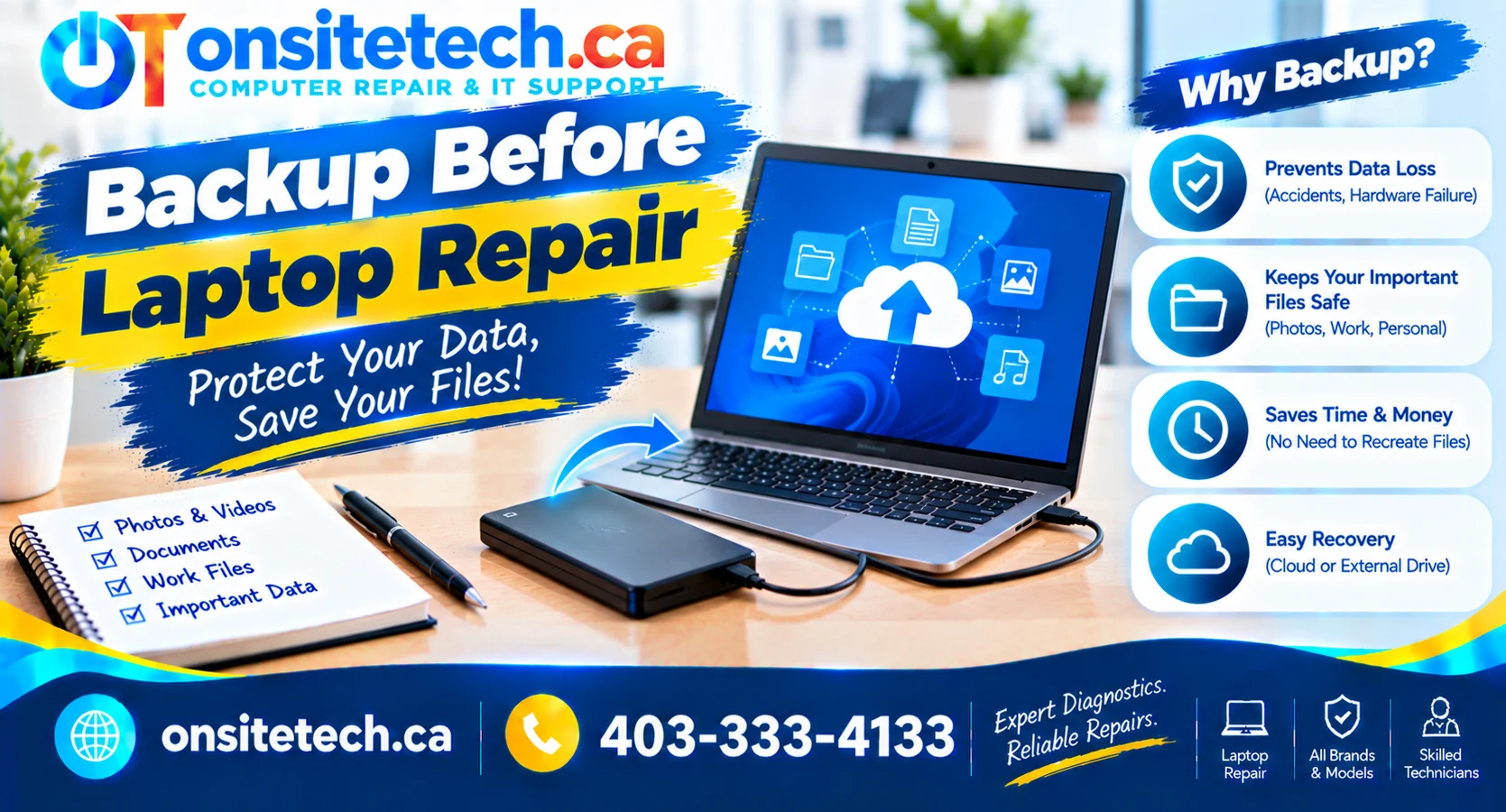
How to Back Up Your Laptop Before Repair: A Complete Guide
Before taking your laptop in for repair, protect your documents, photos, business files, and other important data. A reliable backup can reduce the impact of unexpected data loss during troubleshooting or hardware replacement.
Quick answer: Copy your important files to an external drive or trusted cloud storage, verify that the backup opens correctly, and make sure you can access essential accounts before handing over your laptop.
Why Should You Back Up Before Laptop Repair?
Many routine repairs do not require deleting your files. However, the steps needed to diagnose or repair a laptop vary depending on the fault. An operating system reinstall, drive replacement, storage failure, or recovery procedure may result in data being erased or becoming inaccessible.
Backing up before laptop repair helps you:
- Protect personal documents, photos, videos, and downloaded files.
- Preserve business records, work documents, and project files.
- Reduce the risk of losing files if a storage drive needs replacement.
- Restore important data more easily after an operating system reinstall.
- Continue working if your repaired laptop needs additional setup.
If your laptop is already showing storage errors, freezing frequently, or making unusual clicking sounds, avoid unnecessary restarts and repeated attempts to copy large amounts of data. If the data is valuable and the drive may be failing, professional data-recovery advice may be safer than continued use.
What Should You Back Up Before Repair?
Start with files that would be difficult or impossible to replace. The folders you need depend on how you use your computer.
- Documents, spreadsheets, PDFs, and personal projects.
- Desktop files and items stored in Downloads.
- Photos, videos, music, and other personal media.
- Work files, invoices, accounting documents, and client records.
- Files stored in custom folders outside your normal user profile.
- Browser bookmarks and important application data, where needed.
- Email archives or locally stored messages, if your email setup uses them.
- Saved game files, creative projects, and other application-specific data.
- License information or installation details for software you may need to reinstall.
Choose the Best Backup Method
The right method depends on how much data you have, your internet connection, available storage, and whether the laptop is working reliably.
| Backup method | Best for | Things to consider |
|---|---|---|
| External USB hard drive or SSD | Large folders, photos, videos, and local files | Choose enough capacity and safely eject the drive after copying. |
| Cloud storage | Documents and files you want to access from another device | Requires internet access, sufficient storage, and a successful upload. |
| Built-in backup tools | Regular backups and broader recovery planning | Configure the tool correctly and confirm that it includes the files you need. |
| Professional data recovery | Potentially failing drives or important data on an inaccessible laptop | Recovery may be expensive and success is not guaranteed. |
For many users, an external drive is a practical choice for a one-time backup before service. Cloud storage can provide another copy, but do not assume a file is protected merely because the cloud application is installed.
How to Back Up Your Files on a Windows Laptop
Method 1: Copy important files to an external drive
- Connect an external USB hard drive or SSD with enough free space.
- Open File Explorer and locate your user folders, including Documents, Desktop, Downloads, Pictures, and Videos.
- Copy the folders or files you need to protect.
- Paste them into a clearly named folder on the external drive, such as Laptop Backup – October 2026.
- Wait for the transfer to finish. Do not unplug the drive while files are being copied.
- Open several files directly from the external drive to confirm that the copies work.
- Use Windows’ safe-eject option before disconnecting the drive.
Method 2: Check OneDrive or another cloud service
- Open the cloud storage application or its official website.
- Confirm that the correct account is signed in.
- Check whether the folders you need are included in synchronization.
- Wait for pending uploads to complete.
- From another device, sign in and open a few important files to verify that they are available.
Method 3: Use Windows backup features
Windows includes backup and recovery options, but available features depend on your Windows version and configuration. Review Microsoft’s current guidance on backing up and restoring files in Windows.
For a repair appointment, make sure your selected backup method actually includes the personal files you need. A recovery image or system recovery option is not necessarily the same as a verified copy of your documents and photos.
How to Back Up a MacBook Before Repair
If you are taking a MacBook in for service, Apple’s Time Machine feature can back up files to a compatible external storage device. Follow Apple’s current instructions for backing up your Mac with Time Machine.
- Connect a compatible external storage device.
- Open the Time Machine settings and select the backup destination.
- Start or wait for a backup to complete.
- Check the backup status and confirm that the latest backup completed successfully.
- Where possible, verify that important files are included and accessible.
If your MacBook will not start or its internal storage may be failing, do not assume that you can complete a normal backup. Explain the data-preservation concern to the repair provider before authorizing work that could erase or replace storage.
How to Verify Your Backup Before Handing Over the Laptop
A copy operation finishing without an error is helpful, but it does not prove that every important file was backed up correctly. Take a few minutes to check your copy.
- Open several documents, photos, and other important files from the backup destination.
- Compare the folders on the laptop with the folders you copied.
- Check the cloud service for pending uploads or synchronization errors.
- Confirm that important files stored outside standard folders are included.
- Make sure you know where the backup is stored and how to access it.
- Keep the backup drive disconnected from the laptop during service, unless it is needed for a specific backup or recovery process.
Protect Your Privacy Before Laptop Repair
Your laptop may contain personal information, saved accounts, private photos, and work documents. Backing up your files is only one part of preparing for service.
- Ask about the repair process: Find out whether the work is expected to affect the storage drive or operating system.
- Discuss data preservation: Tell the technician if certain files are especially important or if you do not have a verified backup.
- Check encryption: If BitLocker, device encryption, or another encryption feature is enabled, confirm that you have the recovery information you need. Do not share recovery keys unless genuinely necessary and through an appropriate, trusted process.
- Protect accounts: Avoid writing passwords on a note attached to the laptop. Ask whether access to your account is actually required for the planned repair.
- Sign out where practical: Consider signing out of sensitive services if doing so will not interfere with the agreed repair process.
- Follow workplace policies: If the laptop contains employer or client data, follow your organization’s rules before copying or transferring files.
Some diagnostics may require the computer to be unlocked, but that does not mean every repair requires unrestricted access to all your accounts. Ask what access is needed and why.
What If Your Laptop Will Not Turn On or Start Windows?
If the laptop will not boot, you may still be able to recover your files, but the safest option depends on the fault.
- If the problem is the screen: The laptop may still be running. A technician can assess whether an external display or another diagnostic method is appropriate.
- If Windows fails to start: Avoid choosing Reset, reinstalling Windows, formatting a drive, or running unfamiliar recovery tools until you understand the risk to your files.
- If the drive may be failing: Repeated power-on attempts or intensive scans may worsen some failures. Stop if you hear unusual mechanical noises or the drive repeatedly disconnects.
- If files are irreplaceable: Tell the repair provider that data recovery and preservation are the priority before approving hardware replacement or operating system work.
A technician may be able to remove or access the storage drive, but recovery is not always possible. Modern laptops may also use soldered storage, encryption, or other hardware and software protections that affect the available options.
Need Help Preparing Your Laptop for Repair in Calgary?
If your laptop is unstable, will not boot, or contains important files you cannot afford to lose, discuss your backup options before proceeding with repair. OnSiteTech provides computer repair information and service options for customers in Calgary, Alberta.
Computer Repair Services
How On-Site Repair Works
Request a Repair
How to Prepare for Your Repair Appointment
Once your backup is verified, prepare a short description of the problem and any troubleshooting you have already tried. Include error messages, recent drops or liquid exposure, unusual noises, and whether the laptop can still start.
If you need help understanding the likely service process, review how on-site computer repair works. If your laptop also needs a physical repair or upgrade, see the available hardware upgrade services.
Frequently Asked Questions
Should I back up my laptop before every repair?
It is a good precaution whenever the laptop contains important data. It is especially important before storage replacement, operating system reinstallations, resets, or repairs where the data may be affected.
Can a laptop repair erase my files?
Yes, depending on the repair. Replacing a storage drive, reinstalling an operating system, resetting the computer, or addressing a failed drive can result in data loss. Ask the repair provider about the planned work before authorizing it.
What is the fastest way to back up a laptop?
For a working laptop with a manageable amount of data, copying important folders to an external drive may be straightforward. The total time depends on the amount of data, drive speed, and laptop condition.
Is cloud storage enough before laptop repair?
It can be sufficient for files that have fully uploaded and can be accessed from another device. Verify synchronization and consider a separate external backup for important or irreplaceable files.
Do I need to back up installed programs?
Installed programs usually need to be reinstalled rather than copied like ordinary documents. Save important project files, license details, and any application-specific data you may need, while following the software provider’s licensing rules.
Should I give the technician my Windows password?
Do not provide account credentials automatically. Ask whether access is necessary for the specific repair and what alternatives are available. Use an appropriate, trusted method if access is genuinely required.
What if I forgot my BitLocker recovery key?
Check your Microsoft account or the location where your organization or you may have saved the recovery key. Without the required recovery key, encrypted data may be inaccessible. Do not reset or format the drive before assessing the data implications.
Can I back up a laptop with a broken screen?
Possibly. If the laptop still operates, a technician may be able to use an external display or another suitable method. The correct approach depends on the damage, encryption, and whether the computer can start.
What should I do if the laptop makes clicking noises?
If the noises may be coming from a mechanical hard drive, stop unnecessary use and seek professional advice, particularly if the data is important. Do not repeatedly restart the laptop or run intensive scans in an attempt to force a backup.
Can a repair shop guarantee that my data will be safe?
No repair process should be assumed to guarantee data preservation. A verified backup is the best practical precaution. Ask the provider about data handling and whether the proposed repair could affect the drive.
Should I remove my external backup drive before repair?
Yes, in most cases you should safely eject and disconnect your backup drive before handing over the laptop. Keep it somewhere secure so it is not accidentally included in the repair process.
How often should I back up my laptop?
Choose a schedule based on how often your files change and how much data you can afford to lose. Regular automatic backups plus an occasional check that files can be restored are more reliable than waiting until a repair is needed.
Final Checklist: Before You Hand Over Your Laptop
- Important personal and work files are backed up.
- The backup has been checked by opening files from the destination.
- Cloud uploads have completed, if you used cloud storage.
- Encryption recovery information is available where needed.
- You have explained any data-preservation requirements to the technician.
- You understand whether the planned repair could erase or replace storage.
- Your backup drive is disconnected and stored safely.
Taking these steps before laptop repair can help protect your files and make the repair process less stressful. If the laptop is already failing and your data is irreplaceable, prioritize a careful assessment of the storage before attempting risky troubleshooting.
This guide provides general data-protection information. The correct backup or recovery procedure depends on the laptop, operating system, storage condition, encryption settings, and repair required.